

Well, if you are new to application development then this will guide you to build small apps and much more. I would love to have some feedback after you guys have read this.
Let's talk about Windows 8 and 8.1 Architecture
To start with application development one must be very clear about how and where the application will be run and how Windows 8 will render it. So let's start with a quick round-up on that.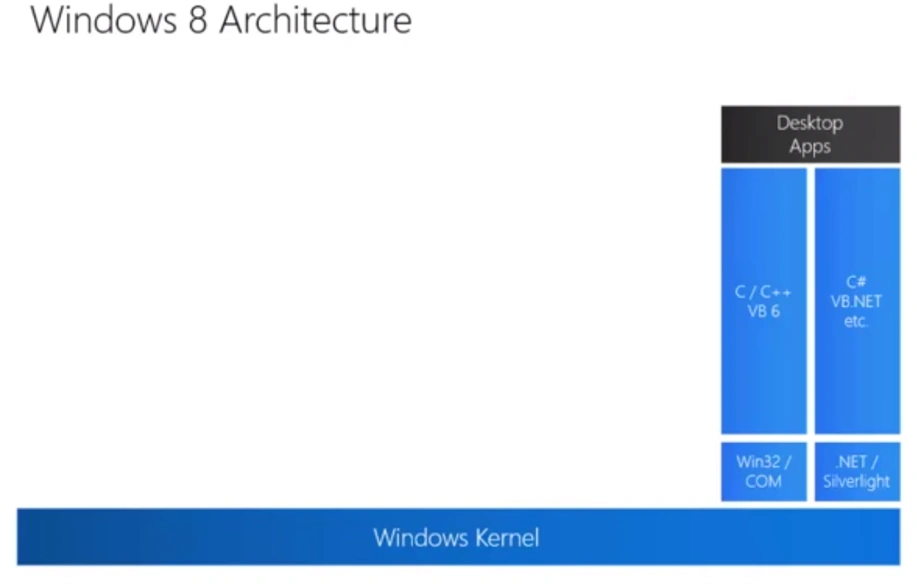
Previously, we had the Windows Kernel and all the apps that were built were called "Desktop Apps" and this was usually done with C/C++ against the Win32/COM APIs until the rise of C# and VB.Net when they began running the apps inside Silverlight via the browser.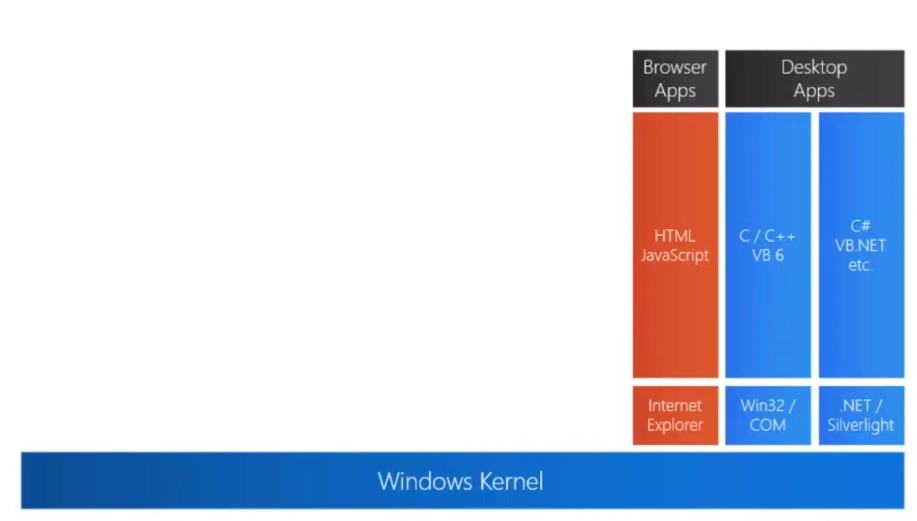
Another popular way to build apps were called "Browser Apps" and these were written with HTML5 and JavaScript . Bing maps and Office 365 are very nice examples of Browser Apps.
The Shortcoming
- The apps were usually built for Intel compatible devices since that is all that Windows supported.
- There were no implementation of technologies like "touch".
The Need for a new Run Time (RT)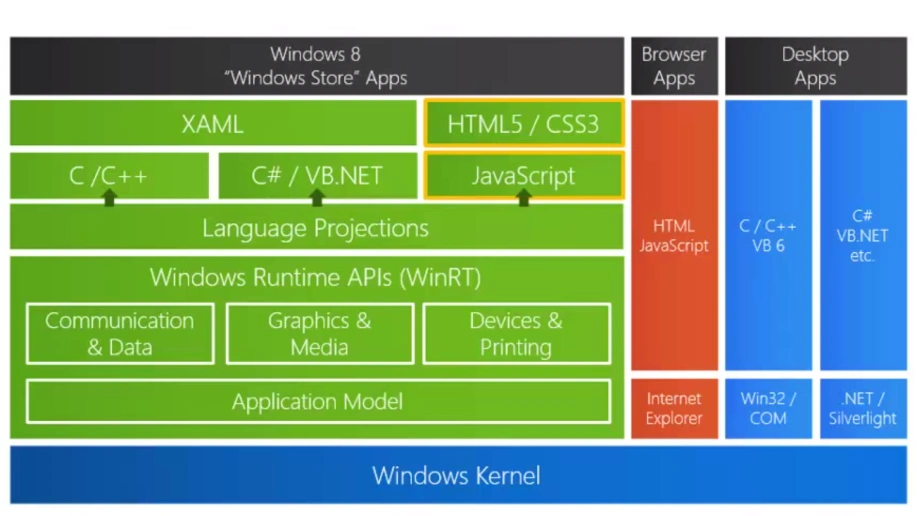
With the Advent of Windows 8 Microsoft wanted to not only target Intel compatible devices but also an entire lot of other consumer devices that were usually powered by ARM processors and also to leverage capabilities like touch. This paved the path to the creation of a new RT and a new class of apps. That RT is known today as "Windows Store Apps".
Windows Store Apps runs on Windows Run Time APIs AKA WinRT. WinRT gives you the basics of what one can expect from an RT that is communicating with the network, graphics and media and most importantly the "Application Model" that will help the developer maintain the life cycle of an application.
Now, to help developers write their apps against the WinRT, Microsoft created a "Language Projection" level that will help the developer to generate language-compatible syntax for direct interaction with the WinRT.
What that Implies
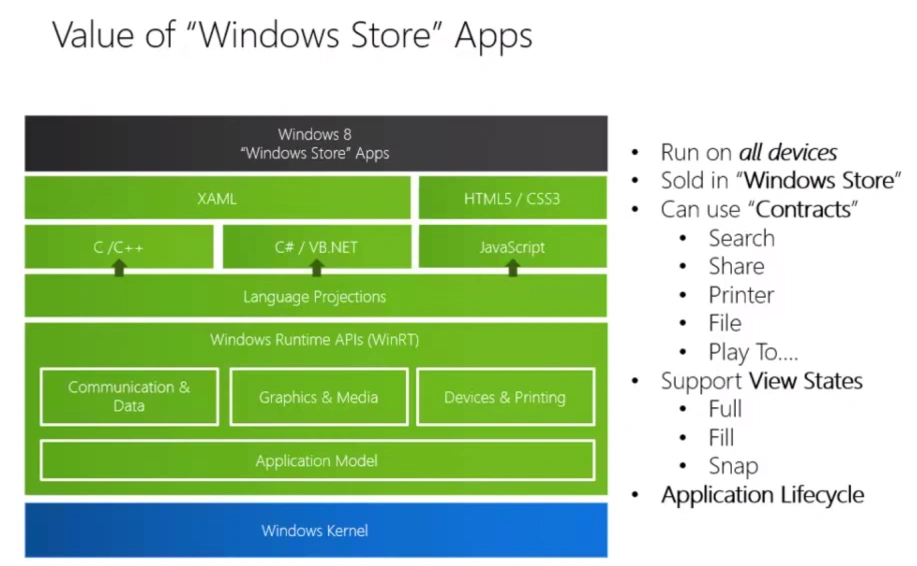
- Now, one can access the WinRT with C# , VB.Net and also with C / C++ and use XAML as markup.
- HTML5 and CSS3 can also be used to interact with the winRT and JavaScript becomes the code-behind for those kinds of apps.
Note: The HTML5 apps in Windows Store are significantly different from what existed before.
Value of "Windows Store" Apps
The following is the value of "Windows Store" apps:
- These apps run on both ARM tablets and Intel Laptops.
- These apps can be sold right from the store and hence the name.
- They can use "Contracts" like share, search, access the file system, can play to DNLA network devices and much more.
- They support view states such as in the following:
1. Full
2. Fill
3. Snap
- The Application Lifecycle helps to determine the behaviour of the application depending on the nature of the user.
Accessing Windows RT API using JavaScript
The Windows Namespace lets you have direct access to the WinRT and the various low-level APIs.
Example
- Windows.ApplicationModel.
- Windows.Devices.
- Windows.Graphics.
But again, to code against these low-level APIs will take much effort and to make things easier, Microsoft built a wrapper on top of the "Windows" Namespace and which is called "WinJS".
WinJS, sounds easy
The WinJS:
- A WinJS object provides access to the Windows namespace.
- Comes with many controls, the very same that the XAML devs have in Windows.XAML viz list boxes, ratings and much more.
- Gives access to application containers and application Lifetime Events through WinJS.Application.
- Simplifies View States.
- Helps us to create classes and namespaces, also dealing with Async and promises.
- Offers predefined themes (Light and Dark).
Where and How the applications run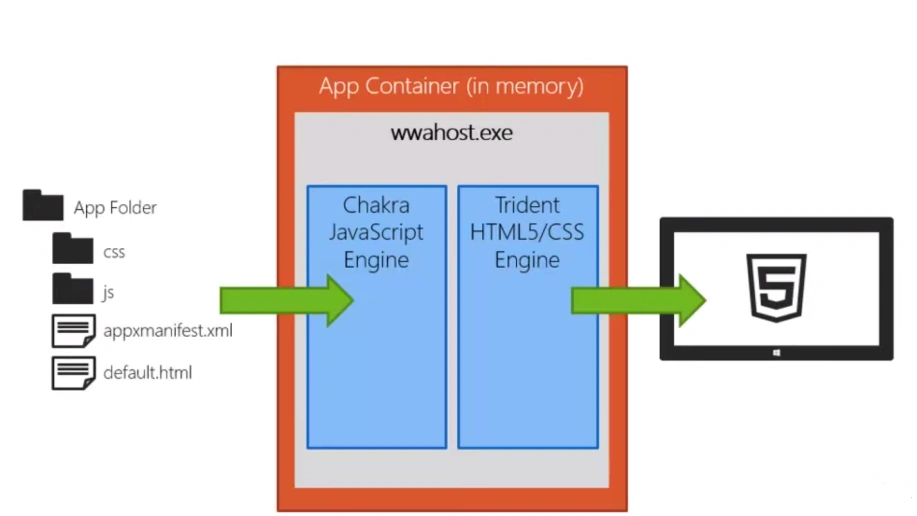
After the user has downloaded your application off the store, in a system folder the application source will exist that means all the HTML5, CSS3 and JavaScript files will be there. When the user launches it using the live tile, an application Container is created that is responsible for the lifetime of your application in the memory. Since JavaScript does not compile down to an executable, Windows includes "wwahost.exe" and this is the very same process that holds the "Chakra JavaScript Engine" and the "Trident HTML5 and CSS3 Engine" . It's important to understand that these are the same engines that are used by IE10 but here we don't have IE running at all, instead it's a process here. Finally, the HTML5 and CSS3 with the JavaScript are pulled in, processed by the engines and are rendered to the device.
Now that you have an idea of the Architecture and application Lifecycle, let me quickly jump into application containers and explain how the application behaves.
Application Container
The Application Container in memory is like a Sandbox in which the application runs. The application container gives managed access to the system resources and access to other files, apps and devices using "contracts". Handles a process's lifetime viz Activation,Suspension and Termination.
How application Container deals with the code
The application container has some security implications whereas the code inside the application container executes and hence the application container has 3 major contexts in which the code runs.
- Local Context.
- Web Context.
- Cross Context.
Local context
- Has access to WinRT API.
- Can retrieve cross-domain media.
- Can make XMLHttpRequests.
- CANNOT run remote scripts.
- Example : Standalone Apps.
Web Context
- Can load remote cross-domain scripts.
- CANNOT access the local system using RT APIs.
- Example: Apps like Bing maps.
Cross Context
- Use an iframe in the local context in HTML5 page.
- Load the iframe in the web context with the content that you want to send.
- Use the iframe.postMessage to messages back and forth.
How to bind and instantiate the resource with the context
Local Context
- The very first page of the application must be in the local context.
- Local resources loaded with ms-appx:// URIs.
Web Context
- Remote resources loaded with http or https schemes.
- local resources loaded with ms-appx-web:// schemes.
Now that you know enough about how and what to do, let's simply jump into VS 2013 and begin. The following screenshot will help you to understand what to select in the project.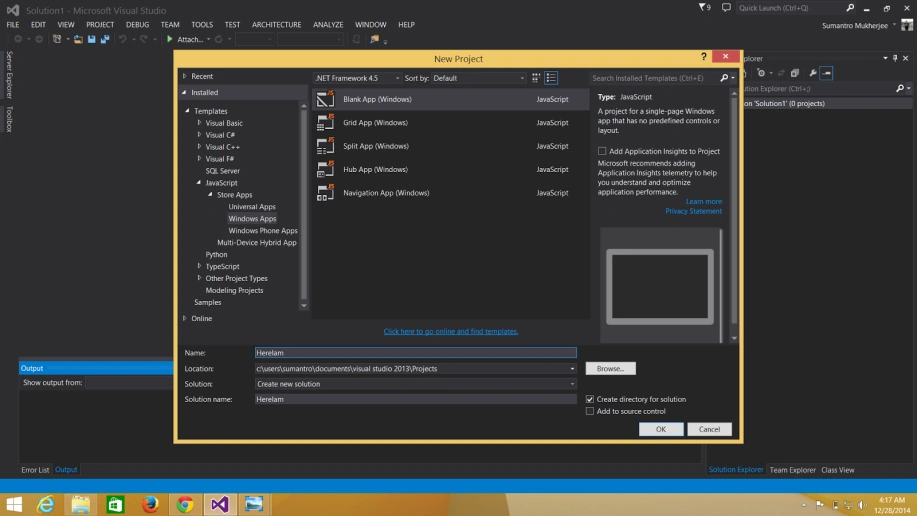
So after you have selected the Blank application, you will need to provide your HTML5 code and JavaScript. Those not that good with code or that want to have an experience of how things look in the design time can hit "open in blend" by right-clicking on the default.html file in the Solution Explorer.
The following is a view of how its gonna be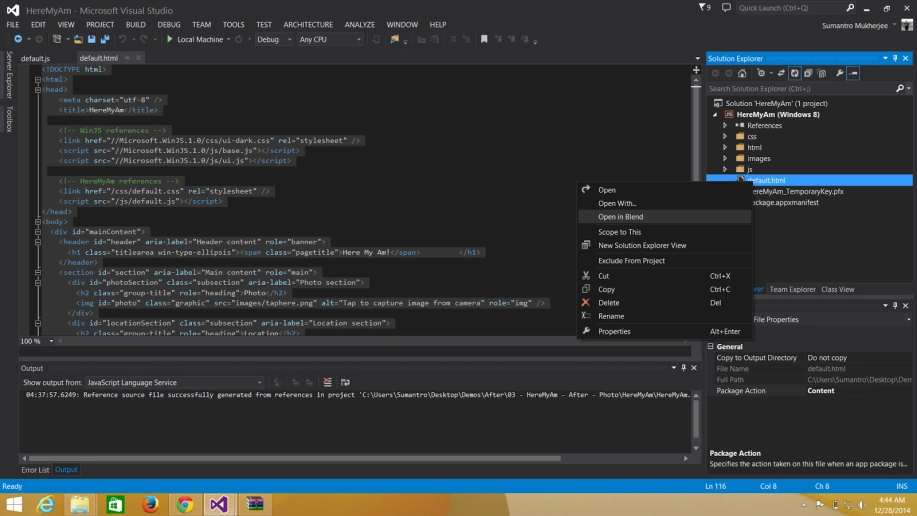
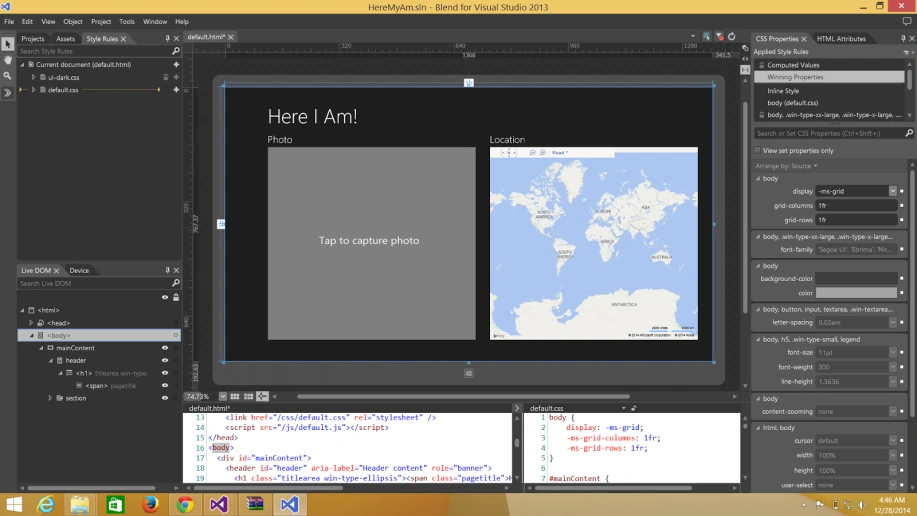
I have written an application and you can see the look and feel of the application in Blend and can alter and edit anything on the design front.
The developer must keep in mind all the views of the application should be looking at least decent if not perfect.
So the following are the screenshots of how my application looks as in in the Filled, Snap and Portrait views.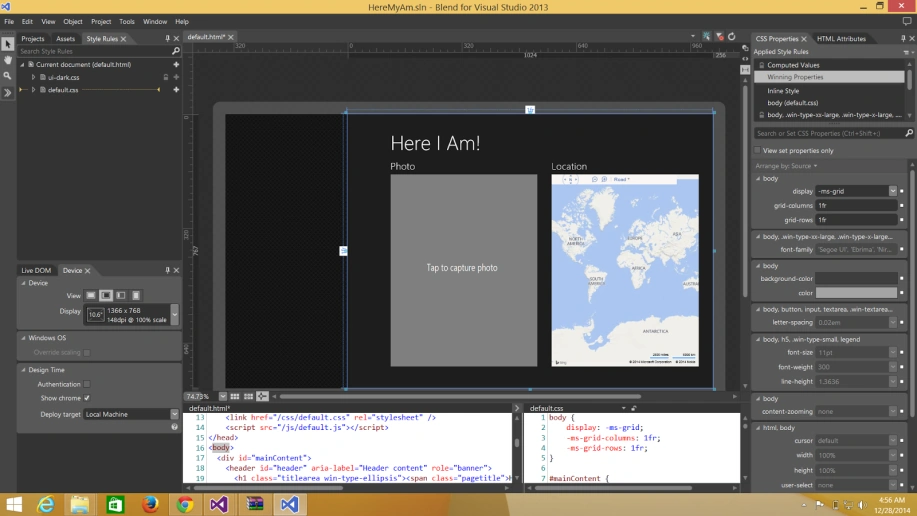
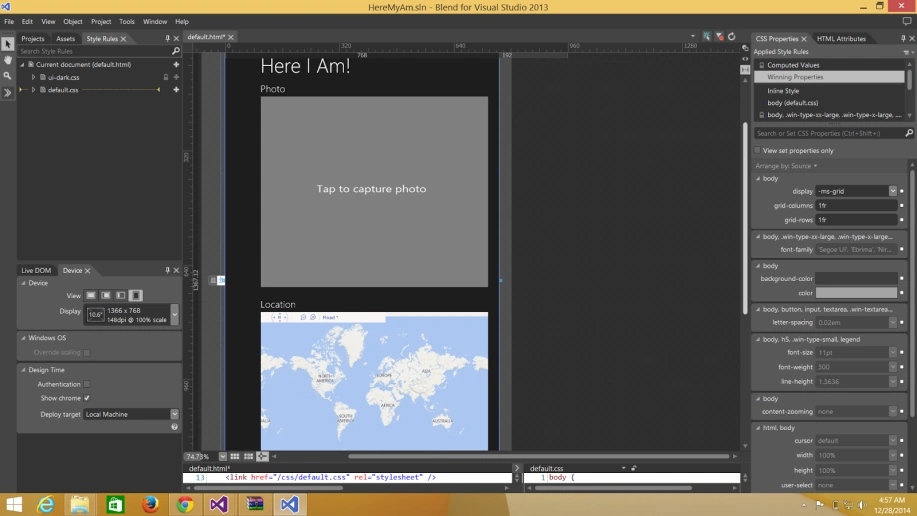
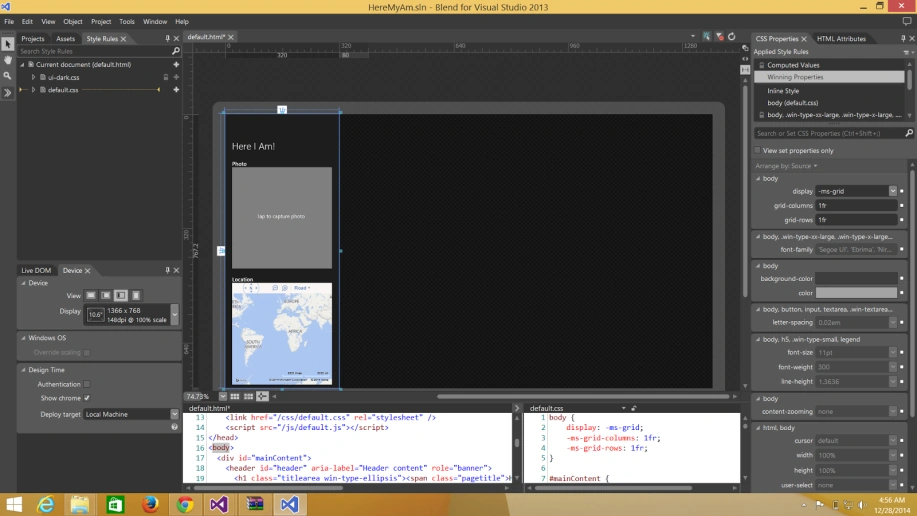
So now that you have an idea of how the applications work you should try making one for yourself and just for reference you can get the application I demoed here on my Demo Application.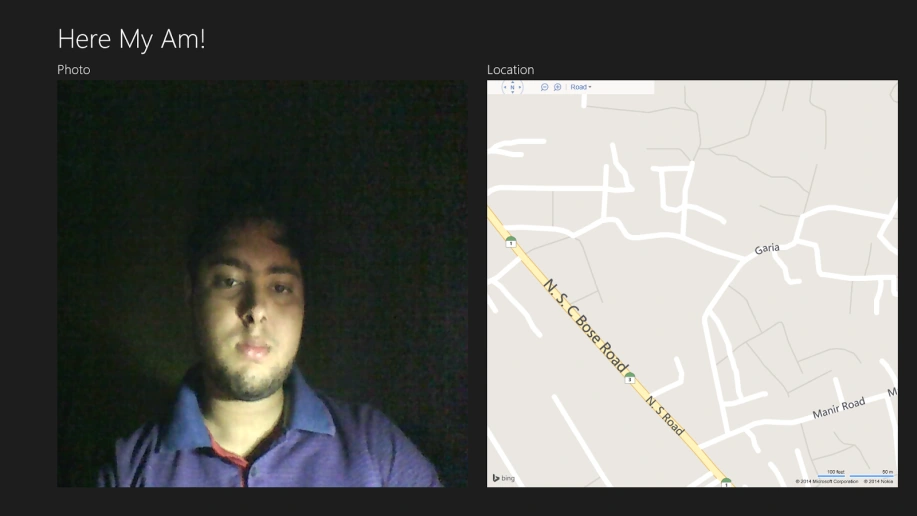
Here is me testing it.
Asfend YarPosted Feb 29, 2016, 1:53 PM
good
Manoj KallaPosted Dec 8, 2015, 3:03 AM
Good one
Sumantro MukherjeePosted May 7, 2015, 1:19 PM
Thanks a ton Nitesh Luharuka !!
Nitesh KejriwalPosted May 7, 2015, 11:05 AM
Nice start. Welcome to this community Sumantro Mukherjee. Way to go ahead.
Gopi ChandPosted May 7, 2015, 10:31 AM
Very nice article for kick start....congrats..
Abhishek JaiswalPosted May 7, 2015, 2:48 AM
Very informative, thanks for sharing! :)
Sibeesh VenuPosted May 7, 2015, 2:22 AM
Good one :)
Santhakumar MunuswamyPosted May 6, 2015, 9:42 PM
Welcome
Santhakumar MunuswamyPosted May 6, 2015, 9:42 PM
Good Start