

This article will take you through the ASP.NET MVC 4 description and design templates in details, such as what templates are available in ASP.NET MVC 4 and how effectively you can use them depending on your use. This article also includes the functions of templates and the basics of how they work.
In spite of all this content this article also includes the functionality of the Razor View Engine and MVC application structure.
ASP.NET MVC 4 Dialog
This dialog box occurs when you create a new ASP.NET MVC 4 application. For these details please visit my article:
Creating a Sample App in ASP.Net MVC
MVC specifies options for how the project should be created.
Application Templates
There are several templates available in ASP.NET MVC 4 development work. These templates are as follows:
- The internet application template
- The intranet application template
- The basic template
- The empty template
- The mobile application template
- The web API template
- The internet application template
This contains the beginning of an MVC web application, enough that you can run the application immediately after creating it and see a few pages. The template also includes some basic account management functions that run against the ASP.NET membership system depending on your development work.
- The intranet application template
The intranet application template was added as part of the AS.NET MVC 3 tools update. It is similar to the internet application template. But the account management functions run against Windows accounts rather than the ASP.NET membership system.
- The basic template
The template is pretty minimal. It still contains: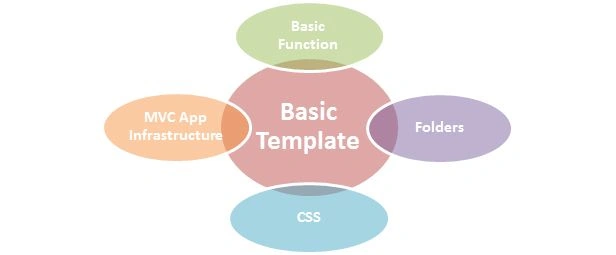
Running an application created using the empty template gives you an error message.
The basic template is intended for experienced MVC developers who want to set up and configure how you want them to be.
- The Empty Template
In the most general cases the basic Template is called an Empty Template, but developers have some issues regarding this matter. They complained that it wasn't quite empty enough. So with MVC 4, the previous empty template was renamed Basic and the new Empty Template is about as empty as you can get.
- The Mobile Application Template
The mobile application template is re configured with jQuery mobile to jump start creating a mobile only website. It includes these most important base structures or we can say the functionalities: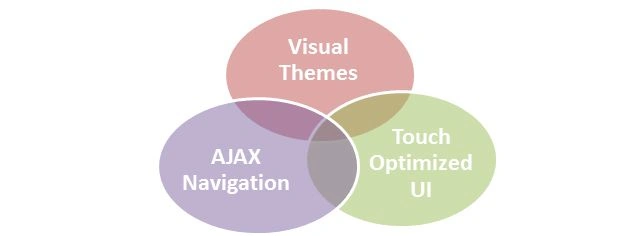
- The Web API Template
The ASP.NET web API is nothing but a framework for creating HTTP services. The web API template is similar to the internet application template. Web API functionality is also available in the other MVC project template and even in non-MVC project types.
Razor View Engine (RVE)
The Razor View Engine is one of the most popular and useful features that was in MVC 3. Further it is improved with more advanced functionality in MVC 4.
The razor engine has been the first major update to rendering HTML since ASP.NET 1 shipped almost a decade ago. It was something new that developers were looking for, none at that time was familiar with that fact that this "Razor Engine, which is neither a new language nor a puppet or a framework" will be a trump card of MVC in developing network based applications.
The default view engine used in MVC 1 and MVC 2 for rendering functionality was commonly called Web Forms View Engine, because it applies the same ASPX/ASCX/MASTER files and syntax generally used in web courses.
It was planned to support editing controls in a graphical editor or any editor that can be utilized for delivering functionality.
Structure View | RVE
The structural position of a Razor engine is something like: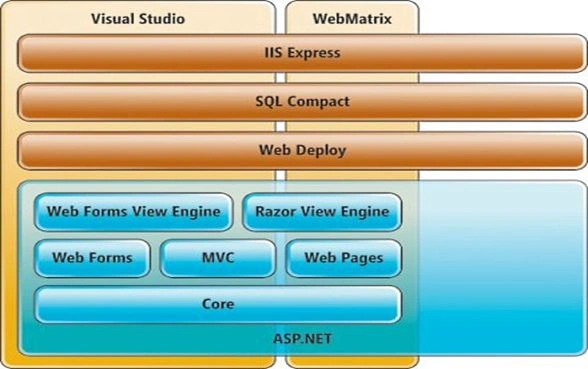
(For a more elaborate survey of the Razor View Engine, please proceed through this article link: Razor View Engine in MVC)
MVC Application Structure
When you create a new MVC application with Visual Studio, it automatically adds several files and directories to the project. These directories are: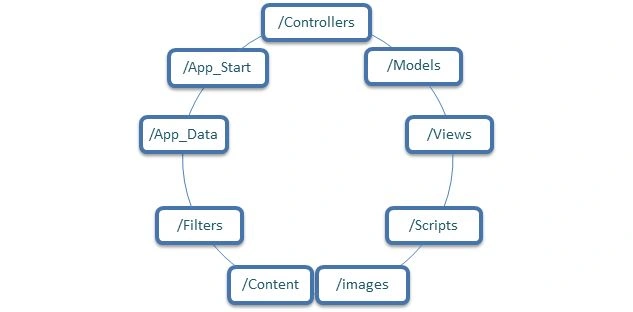
- /Controllers
The directory where you placed your controller classes that handle the URL requests. When we expand the controller directory, it shows two sub-controller directories:
- HomeController
- AccountController
- /Models
The directory where you placed your classes that represent and manipulate data and business objects. It contains three sub-directories:
- Account
- Home
- Shared
- /View
The directory where you placed your UI template files that are responsible for rendering output, such as HTML.
- /Scripts
The directory where you placed your JavaScript library files and scripts.
- /Images
The directory where you placed your images being used in the site.
- /Content
The directory where you placed your CSS and other site content, other than scripts and images used.
- /Filters
The directory where you placed your filter code. Filter is the advanced feature of MVC. It comes into light along with MVC 4.
- /App_Data
The directory where you placed your data files, on which you need to do Read/Write operations.
- /App_Start
The directory where you placed your configuration code for features like:
- Routing
- Bundling
- Web API
Join the conversation! Your thoughts help the community grow.