

Introduction
This article explains how to upload multiple files in the Web API. Here we use a HTML5 attribute multiple="multiple" for uploading more than one file.
Procedure for creating the application:
Step 1
First we create a Web API application as in the following:
- Start Visual Studio 2013.
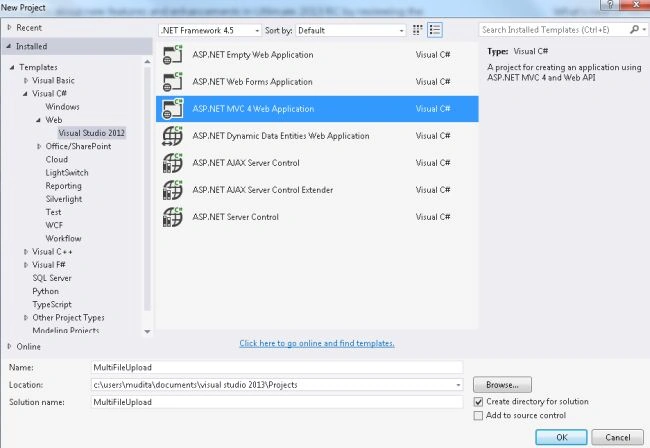
- From the start window select "New Project".
- From the new project window select "Installed" -> "Visual C#" -> "Web" -> "Visual Studio 2012".
- Select "ASP.NET MVC 4 Web Application" and click the "OK" button.
- From the "MVC4 project" window select "Web API".
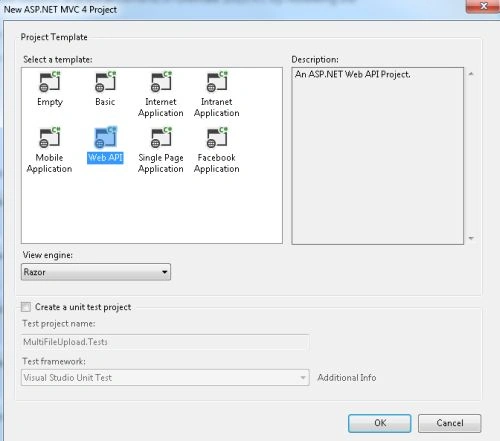
- Click on the "OK" button.
Step 2
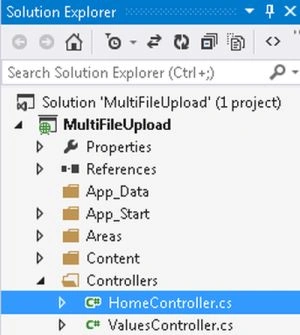
Now in the "HomeController" add the following code. This file exists:
- In the "Solution Explorer".
- Expand the "Controller" folder.
- Select the "HomeController".
Add the following code:
- using System;
- using System.Collections.Generic;
- using System.Linq;
- using System.Web;
- using System.Web.Mvc;
- namespace MultiFileUpload.Controllers
- {
- public class HomeController : Controller
- {
- public ActionResult Index()
- {
- return View();
- }
- [HttpPost]
- public ActionResult Index(HttpPostedFileBase[] images)
- {
- try
- {
- foreach (HttpPostedFileBase image in images)
- {
- string imagename = System.IO.Path.GetFileName(image.FileName);
- image.SaveAs(Server.MapPath("~/Images/" + imagename));
- string filepathtosave = "Images" + imagename;
- }
- ViewBag.Message = "Selected Files are Upload successfully.";
- }
- catch
- {
- ViewBag.Message = "Error: Error occure for uploading a file.";
- }
- return View();
- }
- }
- }
Step 3
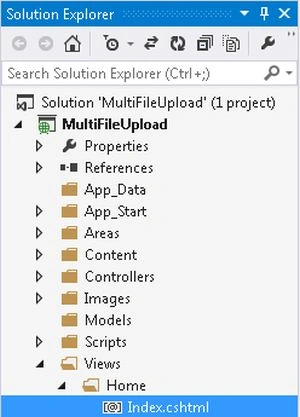
In the View provide the following code:
-
In the "Solution Explorer".
-
Expand the "Views folder".
-
Select "Home" -> "Index.cshtml".
Add the following code:
- @{
- ViewBag.Title = "Index";
- }
- @using (Html.BeginForm("Index", "Home", FormMethod.Post, new { enctype = "multipart/form-data" }))
- {
- <h3>Upload Multiple files </h3>
- <input type="file" name="images" value="" multiple="multiple" />
- <input type="submit" value="UploadImage" title="Upload" />
- <div style="color:Red;font-size:14px">@ViewBag.Message</div>
- }
Here we use the multiple="multiple" attribute that allows for uploading multiple files.
Step 4
Execute the application:
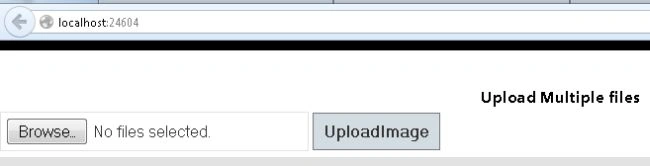
Browse and select multiple files. Here we select 3 image files.
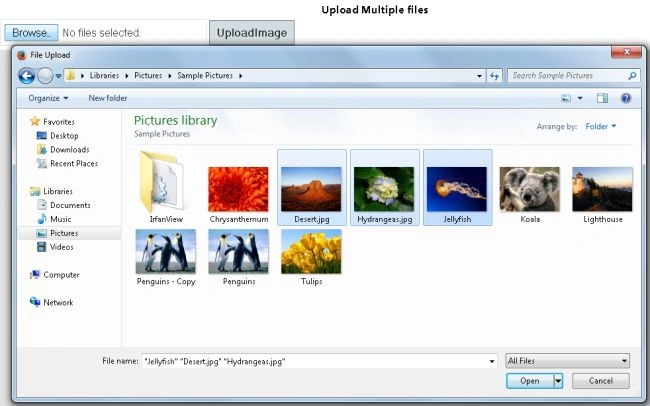
Click on the "Upload" button.

Daniel NenciuPosted Dec 4, 2019, 7:11 AM
This post is wrong. Is uploading files directly from controller. As @ravinder well said. Please update with correct code or at least change post title.
ravinder sharmaPosted Jun 4, 2016, 11:10 AM
@ Mudita Rathore, I came to see on this page for multiple upload using web API as the title of this post suggested, because I want to know how this thing will done.but either your title wrong or you are giving users a wrong info. because your using you know Homecontroller which is not inherited from API controller.So how can you are doing. Please Edit the Title or modified the post as its title suggesting.