

Introduction
Hello friends. Today we will build an application that uses the Speach API (SAPI) that says a welcome greet message on every Windows startup using C#. In other words it lets you set a message as per your choice and your Windows Narrator will speak whenever you start your Windows.
Background
In this application we are just using a VBScript trick. We will create a file having the extension .vbs that contains the following code:
Dim speaks, speech
speaks="<your message>"
Set speech=CreateObject("sapi.spvoice")
speech.Speak speaks
And by saving it to the Startup folder it is run whenever Windows is started and speaks the text that you typed.
Procedures
Step 1: First of all create a new Windows Forms application in Visual Studio and name it as you choose (I named it WelcomeGreet). Now a new Windows Form will be generated.
Add a TextBox control and a Button Control to your project.
(Name them as you want or leave it as it is).
Your form will look like this:

Step 2: Now go to "Solution Explorer" and Navigate to the "References".
Right-click on "References". There you will get two options, click on "Add References". A window will pop up; navigate to the ".Net" tab and search for the "System.Io.Log" library and add it to your project.

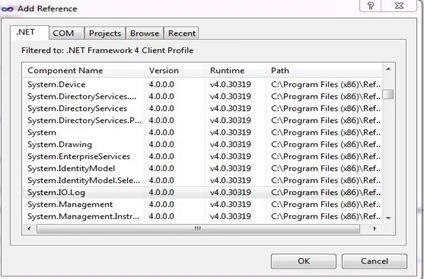
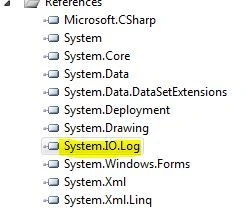
Step 3: Now double-click on the Button Control you added to your Windows Form. The IDE will generate a Click event for you. First of all add the using directive in your project called "using System.Io" because we will do some file read and write operations.
Step 4: Now go to the Button Event (startButton) and type the following code:
/*Getting Path of "Startup" which is a special folder available in every Windows Environment
like : C:\Users\Neo\AppData\Roaming\Microsoft\Windows\Start Menu\Programs\Startup (in my PC)
In Startup drive it is Creating a File name "Welcome.vbs"*/
string pathName = System.Environment.GetFolderPath(System.Environment.SpecialFolder.Startup) + "\\Welcome.vbs";
//If No any Message is set in TextBox
if (myMessage.Text == "")
{
MessageBox.Show("Please Enter Your Message First", "Warning", MessageBoxButtons.OK, MessageBoxIcon.Warning);
}
//If any Message is Set
else
{
try
{
//Storing our Welcome Message from //TextBox into a string variable 'meassage'
string message = myMessage.Text;
//Setting up a reference to StreamWriter //class name 'sw' which is used to write the IO files
//and in its Constructor we are passing //the path where the file is to be saved
StreamWriter sw = new StreamWriter(pathName);
//Writting into the Stream
sw.WriteLine("Dim speaks, speech");
sw.Write("speaks=\"");
sw.WriteLine(message + "\"");
sw.WriteLine("Set speech=CreateObject(\"sapi.spvoice\")");
sw.WriteLine("speech.Speak speaks");
//Closing the Stream
sw.Close();
MessageBox.Show("You have Successfully Updated Your Welcome Greet Message\nEnjoy on Every Startup", "Success", MessageBoxButtons.OK, MessageBoxIcon.Information);
}
//Handling the Exception
catch (Exception ex)
{
MessageBox.Show("Please Enter The Field Correctly","Error",MessageBoxButtons.OKCancel,MessageBoxIcon.Error);
myMessage.Text="";
}
}
Step 5: Now go to the Button Event (stopButton) and type the following code:
string pathName=System.Environment.GetFolderPath(System.Environment.SpecialFolder.Startup) + "\\Welcome.vbs";
try
{
StreamWriter sw = new StreamWriter(pathName);
//Flush out the Stream which we //created that is we are now deleting what we had //written in the stream
sw.Flush();
sw.Close();
MessageBox.Show("Message Greet Sussessfully Removed!!","Succesfull",MessageBoxButtons.OK,MessageBoxIcon.Information);
//Closing the Application
this.Close();
}
catch(Exception ex)
{
MessageBox.Show("You haven't yet set Your Welcome Greet!!","Error", MessageBoxButtons.OK, MessageBoxIcon.Error);
}
Step 6: That's all, now after setting up the message, whenever you start your Windows you will be welcomed by your PC with a welcome message. You can download the source code that is in the article.
Join the conversation! Your thoughts help the community grow.