
Scope
The purpose of this article is to show how to change the database associated with an existing Azure Mobile Service.
Introduction
Azure Mobile Services creates an Azure SQL Database for each Azure Mobile Service, this way the database will be connected with it, as we can see in the following image: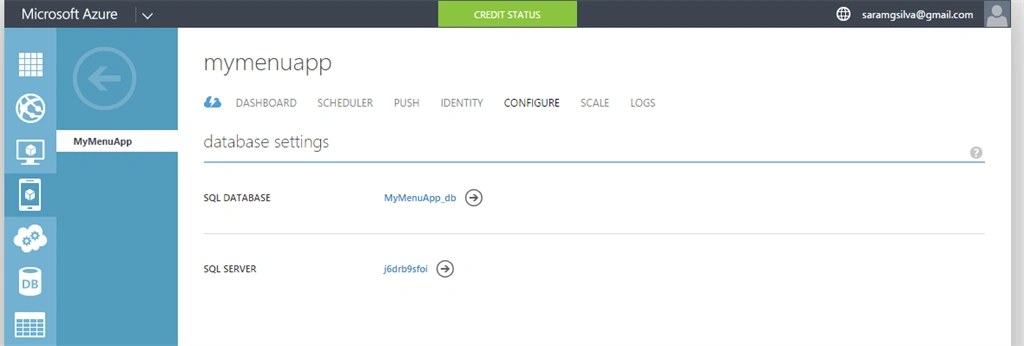
This article shows how to replace a database with other database instances.
Description
To change the database from an Azure Mobile Service, we need to go the Configure separator from the Azure Mobile Service and at the bottom of the page we will see the following menu:
Clicking "Change Database" we will have the following screen.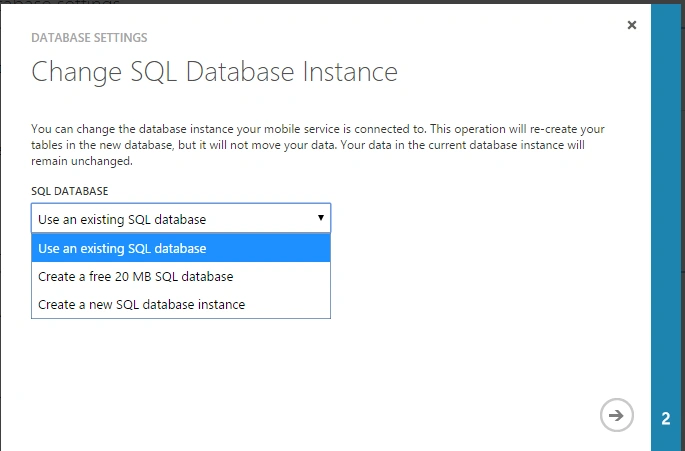
That allow you to create a new database, create a free database (if available) and choose an existing database. We must then wait for a while and a new database instance will be related with the Azure Mobile Service as in the following: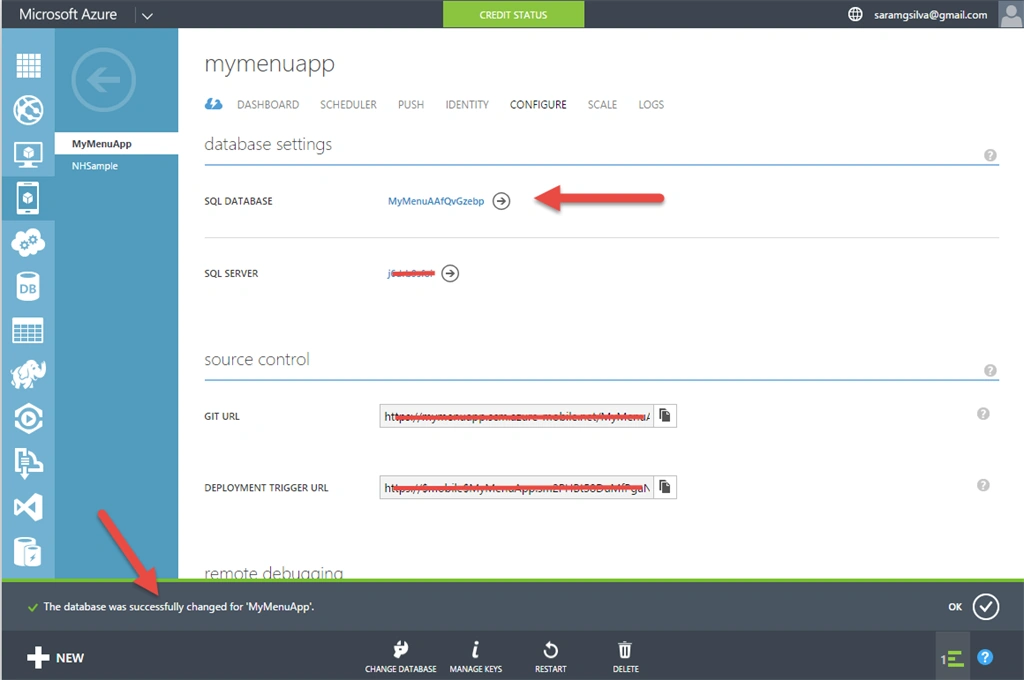
If we apply a refresh, the page will load the data and the connection string used to connect to the database will be updated, as we can see in the following image: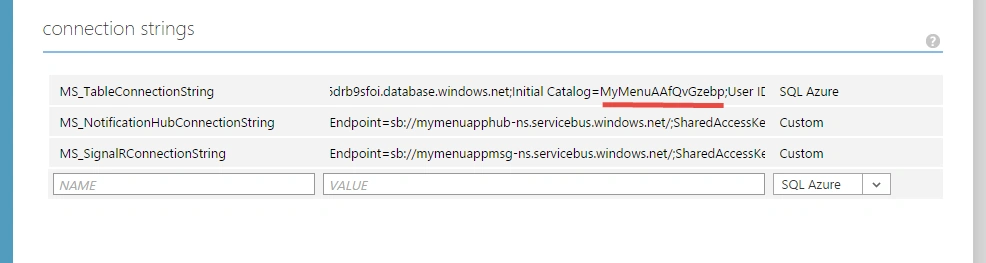

Azure Mobile Services: How to Change the Database
Join the conversation! Your thoughts help the community grow.
Sign in to leave a comment
It is the same account you read, post and publish with — and you will come straight back to this page.
Gowtham RajamanickamPosted Apr 9, 2016, 4:29 AM
cool
Karthik Muthu KaruppanPosted Mar 20, 2015, 11:13 AM
cool
Tom MohanPosted Mar 19, 2015, 12:30 PM
Good
Santhakumar MunuswamyPosted Mar 18, 2015, 2:23 PM
Good Work Madam
Vithal WadjePosted Mar 18, 2015, 2:11 PM
another outstanding contribution ,keep it up
ROHAN PANDEYPosted Mar 18, 2015, 12:54 PM
Super nice