

In this article we will explore the term "Features" in SharePoint.
What is a Feature?
The term Feature represents a functional component that can be activated in SharePoint. A Feature provides the following:
- New Functionality
- Site Customizations
For example, the Document ID Feature provides new Document Management functionalities to SharePoint. We can also create our own features and deploy to the customer site. A sample Features screen is shown below: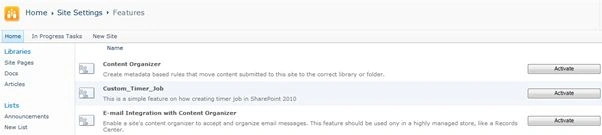
Scope of a Feature
The scope of the feature is one of the following:
- Web
- Site Collection
- Web Application
- Farm
Feature Events
A feature supports the following events:
- Installing
- Uninstalling
- Activating
- Deactivating
Feature Elements
A feature contains deployable elements like:
- Menu Commands
- Toolbar Buttons
- Web Parts
- Workflows
- Event Handlers
- Page Definitions
- List Definitions
- Templates
Activating Site Collection Features
A Site Collection Feature can be activated from the Site Actions > Site Collection Features link as shown below: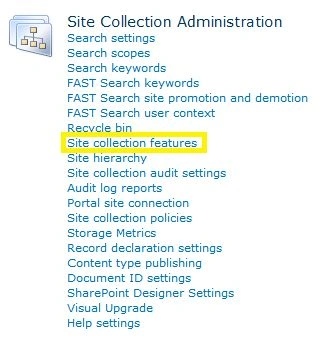
Activating Site Features
A Site Feature can be activated from the Site Actions > Manage Site Features link as shown below: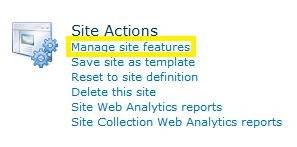
Creating Features through Visual Studio
We can create Features using Visual Studio. Whenever a new SharePoint project is created a Features folder is automatically added.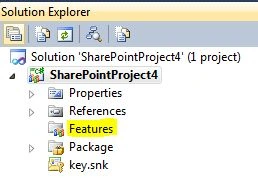
Once a Web Part or Workflow has been added a new Feature entry is added in the preceding folder.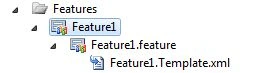
In the Web Parts and Workflows chapters we can see more usage of Features.
Note: You need to install the SharePoint Project Templates for Visual Studio 2010.
Feature Stapling
The term Feature Stapling is an attachment of a Feature to all new instances of a particular Site Definition. This functionality is achieved without modifying the site definition. Feature Stapling is also called Feature Site Template Association.
References
http://tinyurl.com/sp2010-feature
Summary
In this article we have explored the "Features" feature in SharePoint. Features provide a convenient way in deployment, version, and dependency management.
Jean PaulPosted Oct 2, 2012, 8:32 AM
Hello Jagadeesh, Please find my reply below: 1) The site collection limitations like list item size, lookup limit etc. can be configured in Central Administration > Web Application > Resource Throttling so the 2000 files limit can be discarded. 2).. 3) For uploading documents using c#, please find link below: http://jeanpaulva.com/2012/06/04/sharepoint-2010-create-document-library/ 4) Checkin/Checkout ca be configured in the library settings for automatic 5) Archiving code can be done using streamed reading of documents, zipping using a component, creating the zip back to library in another location of site. 7) Archived links can be stored in your db as absolute / relative urls. 8) Maximum file size can be configured through Central Administration / PowerShell. By default it is 50 MB, you can reduce it to 8 MB
jagadeesh gajjalaPosted Oct 2, 2012, 12:14 AM
1. SiteCollection limitations and how to store more than 2000 files by switching between site collection upon reaching threshold. 2. Archival process triggering by workflow. 3. Fallback mechanism in case of archival failure.
jagadeesh gajjalaPosted Oct 2, 2012, 12:14 AM
Please help on below tasks 1. Documents should be uploaded to Sharepoint Server through WebServices. 2. The Root Folder/Site Collection should be SCORS. 3. Please check for the existence of the folder and create the folder if not present also through WebServices. (The file path will be sent from ASP.Net. File path will normally be in the form SupplierCode/Category/FileName. Please add two controls for SupplierCode and Category so that we can enter and upload the documents relating to them for POC. 4. We need to show the uploaded files in a grid and download them on click of that link. 5. There will also be a SiteCollection/Folder for archival. Our archiving process involves keeping a copy of the file at that instance and not removing that entire file itself. We need to link the archived document with the current version of the original document( We may discuss about the how to link the archived document with the original document). 6. We need to configure Sharepoint to archive the files and show a link in the page so that when we click on archived link, it should download the file. We will keep the archived files in a separate grid. 7. We may have a link in database to store filepath. 8. We should check out and check in a file and maintain the version. This check out and check in should happen in the background when we save the same document again. 9. Please try uploading files of different sizes. Maximum file size is 8MB. Sample sizes-100KB,500KB,2MB, 4MB,8MB