

When you add a promoted result that was called Best Bets in SharePoint 2010 then you show this result above the ranked results. For example, for the query "suggestion", you can add a link to a suggested site above all ranked results.
This is an easier way to save users from the frustration of paging through search results. This article explains step-by-step how to create promoted results.
Step 1: Navigate to Manage Query Rules under the Search Tab.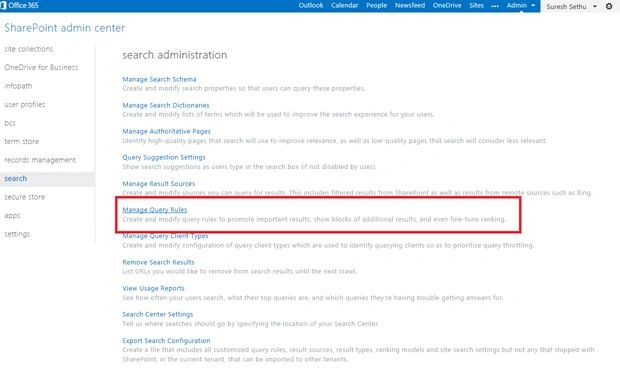
Step 2: Select Local SharePoint Results as shown below.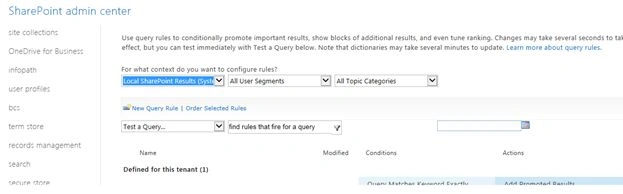
Step 3: Click on New Query rule and provide the following information.
- Rule Name
- Query Matches Keyword: It should be the word for which you are promoting the search results.
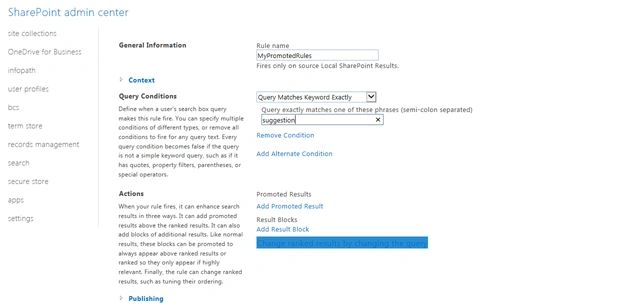
Step 4: After entering Query rules, click on Add Promoted results.
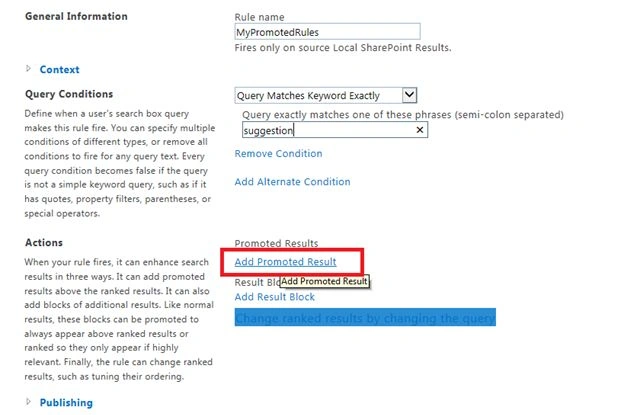
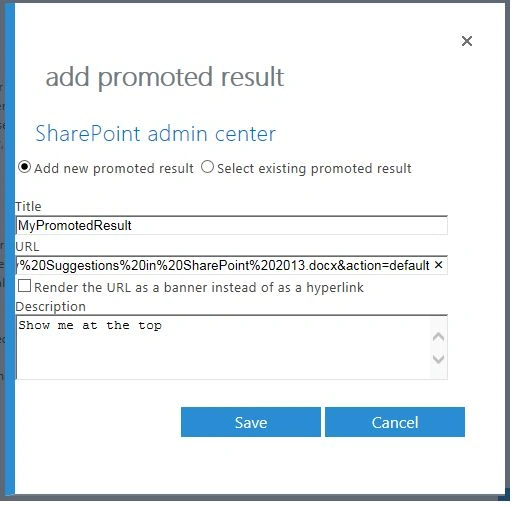
Step 5: Enter the following information in the Add promoted result page.
Step 5: Enter the following information in the Add promoted result page.
- Title: Title of the promoted result.
- URL: URL of the promoted result.
- Description
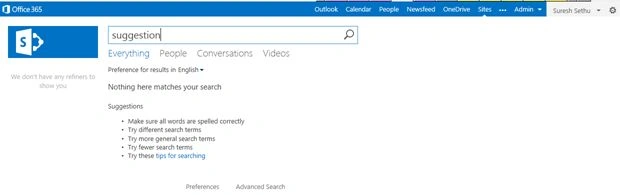
Step 6: Go to the Search Centre and type the word "suggestion".
Step 7: Here you go!!
The suggestion appears right at the top with the ticked mark symbol. Irrespective of the search results, promoted results appear quickly.
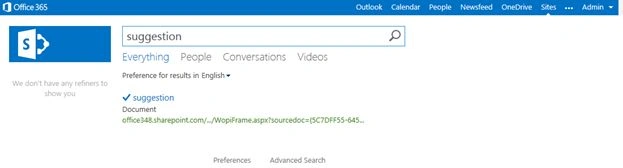
Step 7: Here you go!!
The suggestion appears right at the top with the ticked mark symbol. Irrespective of the search results, promoted results appear quickly.
Join the conversation! Your thoughts help the community grow.