

Introduction
This article explains how to send bulk email using ASP.Net 4.5.
Using
- ASP .NET web page
- Grid View
- HTML Email Templates
- Gmail SMTP Mail Server
Create a new project using "File" -> "New" -> "Project..." then select web "ASP .Net Web Forms Application". Name it " Bulk Email".
Now in the Design page “Default.aspx” design the web page as in the following screen:
In the Design Source (Default.aspx) write the code as:
Default.aspx.cs
- <%@ Page Title="Home Page" Language="C#" MasterPageFile="~/Site.Master" AutoEventWireup="true"
- CodeBehind="Default.aspx.cs" Inherits="BulkEmail._Default" %>
- <asp:Content runat="server" ID="FeaturedContent" ContentPlaceHolderID="FeaturedContent">
- <section class="featured">
- <div class="content-wrapper">
- <hgroup class="title">
- <h2>Send Bulk email using asp.net</h2>
- </hgroup>
- <p>
- To learn more about ASP.NET
- </p>
- </div>
- </section>
- </asp:Content>
- <asp:Content runat="server" ID="BodyContent" ContentPlaceHolderID="MainContent">
- <h3>We suggest the following:</h3>
- <asp:Panel ID="Panel1" runat="server" Width="100%" ScrollBars="Horizontal">
- <p>
- <asp:Button ID="btnBind" runat="server" Text="View" OnClick="btnBind_Click" /> <asp:Label
- ID="Label1" runat="server" Font-Bold="true" ForeColor="Green" Text="Total Customers:">
- </asp:Label><asp:Label ID="lbltotalcount" runat="server" ForeColor="Red" Font
- Size="Larger"></asp:Label> </p>
- <asp:Button ID="btnSend" runat="server" Text="Send" OnClick="btnSend_Click" />
- <asp:GridView ID="grvCustomers" runat="server"></asp:GridView>
- </asp:Panel>
- </asp:Content>
Web.config
- <connectionStrings>
- <add name="ConnectionString"connectionString="Server=localhost;userid=root;password=;Database=
- orthwind"providerName="MySql.Data.MySqlClient"/>
- </connectionStrings>
- using System;
- using System.Collections.Generic;
- using System.Linq;
- using System.Web;
- using System.Web.UI;
- using System.Web.UI.WebControls;
- //Using namespaces
- using MySql.Data.MySqlClient;
- using System.Configuration;
- using System.Text;
- using System.Net;
- using System.Net.Mail;
- using System.Data;
- namespace BulkEmail
- {
- public partial class _Default : Page
- {
- #region MySqlConnection Connection
- MySqlConnection conn = new
- MySqlConnection(ConfigurationManager.ConnectionStrings["ConnectionString"].ConnectionString);
- protected void Page_Load(object sender, EventArgs e)
- {
- Try
- {
- if (!Page.IsPostBack)
- {
- }
- }
- catch (Exception ex)
- {
- ShowMessage(ex.Message);
- }
- }
- #endregion
- #region show message
- /// <summary>
- /// This function is used for show message.
- /// </summary>
- /// <param name="msg"></param>
- void ShowMessage(string msg)
- {
- ClientScript.RegisterStartupScript(Page.GetType(), "validation", "<script
- language='javascript'>alert('" + msg + "');</script>");
- }
- #endregion
- #region Bind Data
- /// <summary>
- /// This display the data fetched from the table using MySQLCommand,DataSet and
- MySqlDataAdapter
- /// </summary>
- /// <param name="sender"></param>
- /// <param name="e"></param>
- protected void btnBind_Click(object sender, EventArgs e)
- {
- Try
- {
- conn.Open();
- MySqlCommand cmd = new MySqlCommand("Select
- CustomerID,ContactName,Address,Phone,Email from customers", conn);
- MySqlDataAdapter adp = new MySqlDataAdapter(cmd);
- DataSet ds = new DataSet();
- adp.Fill(ds);
- grvCustomers.DataSource = ds;
- grvCustomers.DataBind();
- lbltotalcount.Text = grvCustomers.Rows.Count.ToString();
- }
- catch (MySqlException ex)
- {
- ShowMessage(ex.Message);
- }
- Finally
- {
- conn.Close();
- }
- btnBind.Visible = false;
- }
- #endregion
- #region Bulk email,GridView,gmail
- /// <summary>
- /// this code used to Send Bulk email
- /// </summary>
- /// <param name="sender"></param>
- /// <param name="e"></param>
- protected void btnSend_Click(object sender, EventArgs e)
- {
- Try
- {
- lbltotalcount.Text = string.Empty;
- foreach (GridViewRow grow in grvCustomers.Rows)
- {
- string strCustomerID = grow.Cells[0].Text.Trim();
- string strContactName = grow.Cells[1].Text.Trim();
- string strAddress = grow.Cells[2].Text.Trim();
- string strPhone = grow.Cells[3].Text.Trim();
- string strEmail = grow.Cells[4].Text.Trim();
- string filename = Server.MapPath("~/Event.html");
- string mailbody = System.IO.File.ReadAllText(filename);
- mailbody = mailbody.Replace("##NAME##", strContactName);
- string to = strEmail;
- string from = "[email protected]";
- MailMessage message = new MailMessage(from, to);
- message.Subject = "Auto Response Email";
- message.Body = mailbody;
- message.BodyEncoding = Encoding.UTF8;
- message.IsBodyHtml = true;
- SmtpClient client = new SmtpClient("smtp.gmail.com", 587);
- System.Net.NetworkCredential basicCredential = new
- System.Net.NetworkCredential("[email protected]", "Password");
- client.EnableSsl = true;
- client.UseDefaultCredentials = true;
- client.Credentials = basicCredential;
- try
- {
- client.Send(message);
- ShowMessage("Email Sending successfully...!" + strContactName + " ");
- }
- catch (Exception ex)
- {
- ShowMessage(ex.Message);
- }
- }
- }
- catch (MySqlException ex)
- {
- ShowMessage(ex.Message);
- }
- Finally
- {
- conn.Close();
- }
- }
- #endregion
- }
- }
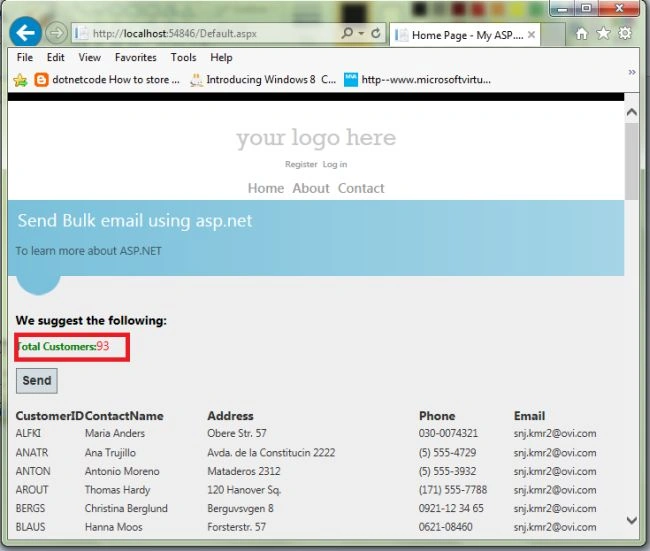
Now, see the following screen for the Default.aspx: send email waiting.
Now, show in the Message box “Email sending successfully”.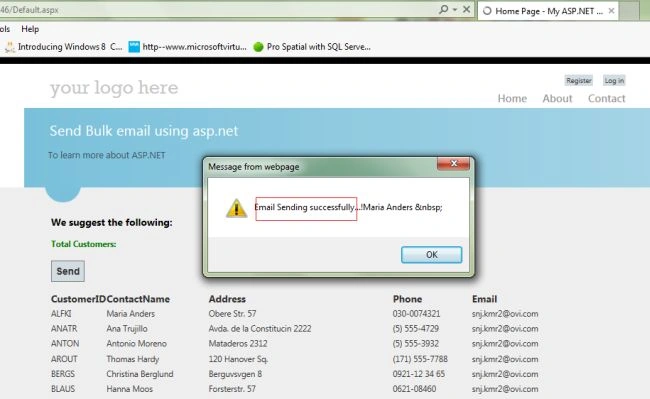
Now "Email Account Open" - > "View Email".
Now, see the following screen: 93 mails receive in the inbox and the Total Customers Email ID: 93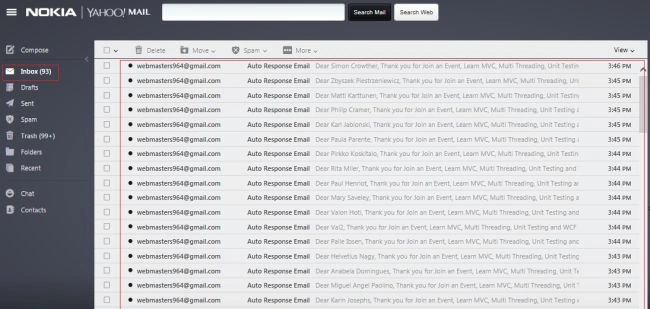
93 messages were received in the inbox. Bulk Sending an E-Mail Using ASP.NET 4.5 with HTML Email Templates and Gmail SMTP Mail Server. I hope this article is useful. If you have any other questions then please provide your comments below.
Purnendu MohantyPosted May 21, 2022, 3:55 AM
Develop project to send normal SMTP mail in multi-threading so that I can inject multiple mail in bulk email blast. Normally it takes 4-5 seconds to send one mail. Multithreading will help to reduce this time if I start 4 threads and in 4 second 4 threads will inject 4 SMTP mail so final speed will become 1 mail per second"
Purnendu MohantyPosted May 21, 2022, 3:54 AM
Hello Sanjay, If you could help us in doing this. We can also hire if things work as per our expectation.
Jordan TrajkovPosted Dec 15, 2021, 5:07 PM
How much emails we can send in a blast? I mean what if we want to send 10000 emails today? Can this app handle that?
indradeo kumarPosted Dec 3, 2019, 2:17 AM
I have not PHP my admin , how to do same in my sql
Sameer ParabPosted Nov 16, 2018, 4:50 AM
Do you have any different approach instead of using Foreach loop ?
Mohammad TuahaPosted Dec 3, 2016, 2:02 PM
Error == The SMTP server requires a secure connection or the client was not authenticated. The server response was: 5.5.1 Authentication Required. Learn more at
Woodrow PryorPosted Aug 5, 2015, 5:22 PM
Help?
Woodrow PryorPosted Aug 5, 2015, 5:22 PM
Line 9: <%: Scripts.Render("~/bundles/modernizr") %>Line 10: </asp:PlaceHolder> Line 11: <webopt:BundleReference runat="server" Path="~/Content/css" /> Line 12: <link href="~/favicon.ico" rel="shortcut icon" type="image/x-icon" /> Line 13: <meta name="viewport" content="width=device-width" />
vishal jainPosted May 28, 2015, 3:58 AM
how many mail are send in one time by this application ??
kurt brewsterPosted Nov 27, 2014, 11:08 AM
Thank you Sanjay Kumar for your feedback. I tried both links but none of the methods described in these posts seem to be adaptable to the approach used in the above tutorial. Probably the reason why I find this kind of hard to achieve is because I am quite new to asp.net and I am in a learning phase. In particular, you said that this is easy task to achieve by only keeping the users email id's in Database. So the questions are: • I am keeping the USER ID in database in the same table where I also keep the users’ emails. Would this work? • Looking at the very nice tutorial at http://www.c-sharpcorner.com/UploadFile/47548d/how-to-send-bulk-email-using-Asp-Net/ , how can we enhance this code so that we can add in the email template an unsubscribe code returning a query string containing the user id (or email ID if you prefer) and that allows the subscribers to opt out from the newsletter? Thank you so much in advance for reading and if you can answer with some additional code.
Sanjay KumarPosted Nov 17, 2014, 3:07 AM
Hi... kurt Brewster only maintaining the users email id's in Database "unsubscribe"...try this link http://stackoverflow.com/questions/19854502/unsubscribe-option-in-email-using-c-sharp or http://www.dotnetspark.com/kb/337-subscribe-and-unsubscribe-asp-net.aspx
kurt brewsterPosted Nov 14, 2014, 12:52 PM
Dear Sanjay Kumar, very good article. One question: how can we make sure that the email contains an "unsubscribe" link which redirects the user to the page where he/she can manage his/her subscription. Thanks
Tej VakhariaPosted Oct 15, 2014, 3:27 AM
pls help me asap
Tej VakhariaPosted Oct 15, 2014, 3:27 AM
ohh.............your code is not working error Object reference not set to an instance of an object.
Dilip ChoudharyPosted Jul 6, 2014, 4:55 AM
how to add members
Sanjay KumarPosted Mar 14, 2014, 4:32 AM
93 Email send this web app,93 mail sending 7 minutes...unlimited send email but depent net speed
prateek guptaPosted Mar 14, 2014, 2:14 AM
please reply im waiting
prateek guptaPosted Mar 14, 2014, 2:11 AM
how many emails can i send using this web app? plz reply