

Introduction
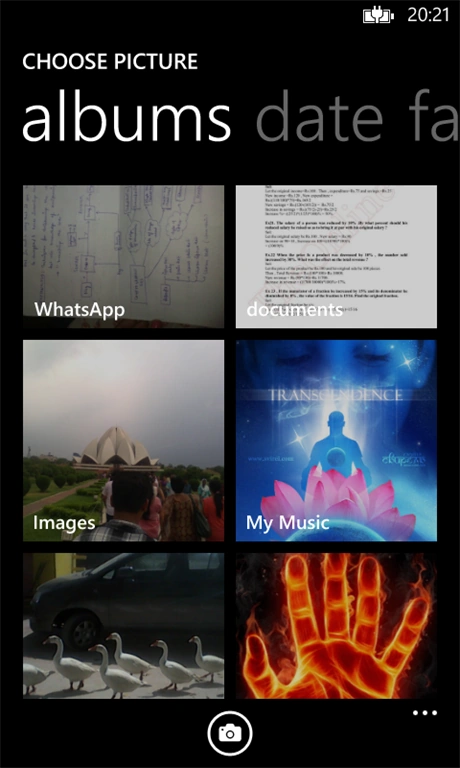
This article explains the Photo Chooser Task of Windows Phone 8. This task enables the user to select an image from the Windows Phone photo library. It can be used to open an image for our app specific use.
Photo Chooser Task
This is a kind of launcher provided by Windows Phone to launch the mobile photo library from an app so that the user can select the desired image. If the user wants to use a new image then this can also be done with this task. This task requires three properties to be set properly for its proper use.
Before using this task we need to include the following namespace:
using Microsoft.Phone.Tasks;To use this task we need to use the following procedure:
- Create a new instance of the Photo Chooser task as in the following:
Microsoft.Phone.Tasks.PhotoChooserTask pct = newPhotoChooserTask();
- Next set the following properties for this task.
pct.Completed += pct_Completed;
pct.PixelHeight = 250;
pct.PixelWidth = 250;
pct.ShowCamera = true;
- Finally, show this task by calling the Show method as in the following:
pct.Show();
The properties that we can set for this task are as follows:
- Pixel height
Sets the maximum height and the height component of the aspect ratio for cropping a region set by the user during the photo selection process.
- Pixel Width
Sets the maximum width and the width component of the aspect ratio for cropping a region set by the user during the photo selection process.
- Show Camera
Sets whether the user is presented with a button for launching the camera during the photo selection process. If it is set to true then the user can take a new picture when choosing the photo.
Apart from the properties above this task also requires us to register a "Completed" event handler. This event is raised when the photo selection task is completed.
This task also contains the following task events args:
- Chosen Photo
Stream containing the data of the selected photo.
- Error
The Exception associated with the task's event args.
- Task Result
Result of the task. It can be anything from Ok, Cancel or None.
- Original File Name
Gets the name of the selected photo.
Demo
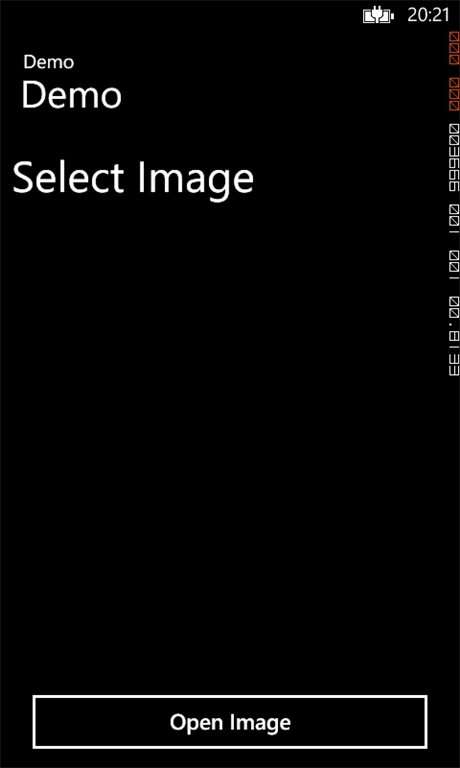
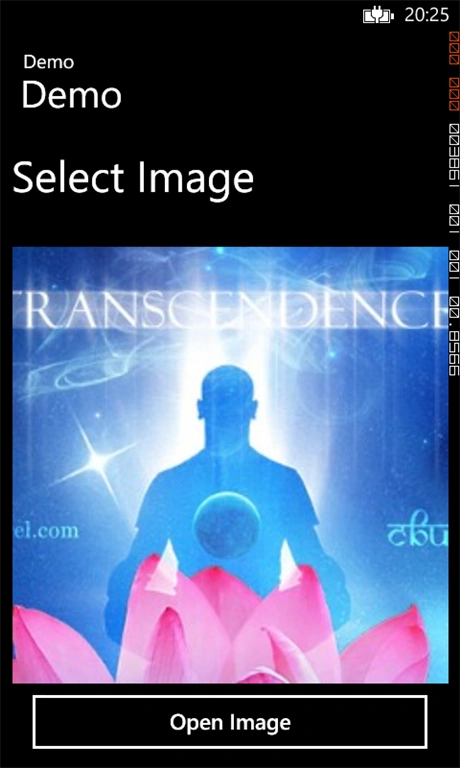
The following code demonstrates how to use the Photo Chooser task to display an image in our app page.
XAML
<phone:PhoneApplicationPage
x:Class="Demo.MainPage"
xmlns="http://schemas.microsoft.com/winfx/2006/xaml/presentation"
xmlns:x="http://schemas.microsoft.com/winfx/2006/xaml"
xmlns:phone="clr-namespace:Microsoft.Phone.Controls;assembly=Microsoft.Phone"
xmlns:shell="clr-namespace:Microsoft.Phone.Shell;assembly=Microsoft.Phone"
xmlns:d="http://schemas.microsoft.com/expression/blend/2008"
xmlns:mc="http://schemas.openxmlformats.org/markup-compatibility/2006"
mc:Ignorable="d"
FontFamily="{StaticResource PhoneFontFamilyNormal}"
FontSize="{StaticResource PhoneFontSizeNormal}"
Foreground="{StaticResource PhoneForegroundBrush}"
SupportedOrientations="Portrait" Orientation="Portrait"
shell:SystemTray.IsVisible="True">
<!--LayoutRoot is the root grid where all page content is placed-->
<Grid x:Name="LayoutRoot" Background="Transparent">
<Grid.RowDefinitions>
<RowDefinition Height="Auto"/>
<RowDefinition Height="*"/>
</Grid.RowDefinitions>
<!--TitlePanel contains the name of the application and page title-->
<StackPanel x:Name="TitlePanel" Grid.Row="0" Margin="12,17,0,28">
<TextBlock Text="Demo" Style="{StaticResource PhoneTextNormalStyle}" Margin="12,0"/>
<TextBlock Text="Demo" Margin="9,-7,0,0" FontSize="40" />
</StackPanel>
<!--ContentPanel - place additional content here-->
<Grid x:Name="ContentPanel" Grid.Row="1" Margin="12,0,12,0">
<StackPanel Orientation="Vertical">
<TextBlock Text="Select Image" FontSize="45" Height="106"></TextBlock>
<Image Name="ImgPrev" Height="455"></Image>
<Button x:Name="btnOpen" Click="btnOpen_Click" Content="Open Image" HorizontalAlignment="Left" Width="436" Height="80" VerticalAlignment="Bottom" Margin="10,0,0,0"/>
</StackPanel>
</Grid>
</Grid>
</phone:PhoneApplicationPage>
C# Code Behind
using Microsoft.Phone.Controls;
using System;
using System.Collections.Generic;
using System.Linq;
using System.Net;
using System.Windows;
using System.Windows.Controls;
using System.Diagnostics;
using Microsoft.Phone.Tasks;
using System.Windows.Media;
using System.Windows.Media.Imaging;
namespace Demo
{
public partial class MainPage : PhoneApplicationPage
{
// Constructor
public MainPage()
{
InitializeComponent();
}
void pct_Completed(object sender, PhotoResult e)
{
BitmapImage bi = new BitmapImage();
if (e.Error == null && e.TaskResult==TaskResult.OK)
{
bi.SetSource(e.ChosenPhoto);
ImgPrev.Source = bi;
}
else
{
MessageBox.Show("Failed to open an Image.");
}
}
private void btnOpen_Click(object sender, RoutedEventArgs e)
{
/* Step 1 */
Microsoft.Phone.Tasks.PhotoChooserTask pct = new PhotoChooserTask();
/* Step 2 */
pct.Completed += pct_Completed;
pct.PixelHeight = 250;
pct.PixelWidth = 250;
pct.ShowCamera = true;
/* Step 3 */
pct.Show();
}
}
}
The Show method is used to launch the task.
Output


Gowtham RajamanickamPosted Apr 18, 2015, 4:09 AM
good one
Gowtham RajamanickamPosted Apr 18, 2015, 4:07 AM
nice artilce
Gowtham RajamanickamPosted Apr 18, 2015, 4:07 AM
good