

Introduction
In this article you'll learn to create a Google Chrome Extension in Visual Studio 2013. We can build the extension in Visual Studio and use the extension in the Chrome's developers mode.
In that context you'll learn to create the Chrome Extension in Visual Studio, to work with the JavaScript intellisense in Chrome here. So, let's proceed with the following.
- Creating Chrome Extension
- Working with Chrome Extension
- Intellisense in JavaScript
Prerequisites
In the following screenshot you can see that the extension is not available in Visual Studio. So we need to download the extension for Visual Studio.
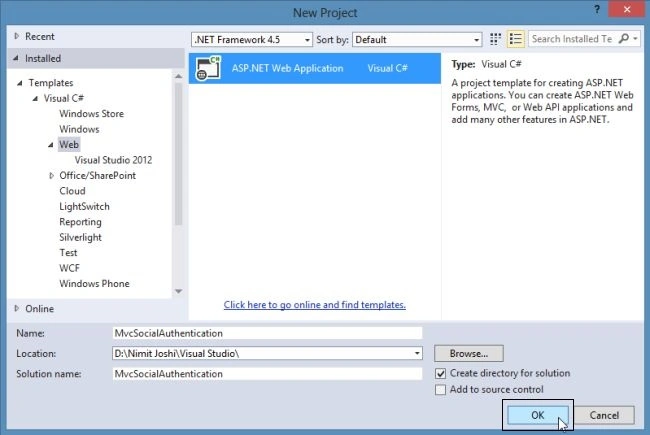
After download, install the Extension Installer and restart Visual Studio.
Create Chrome Extension
In this section we'll create the Chrome Extension in Visual Studio 2013 using the following procedure.
Step 1: Open Visual Studio 2013.
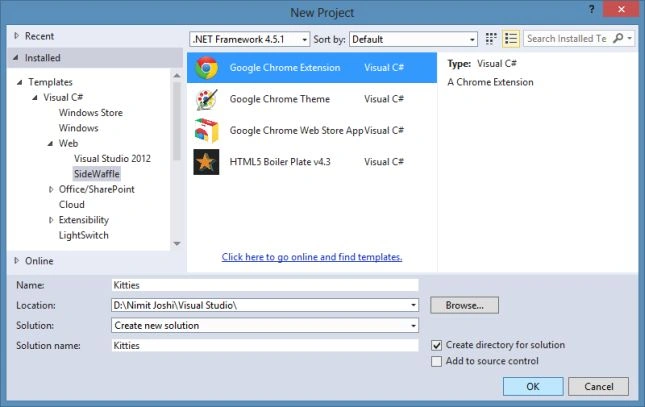
Step 2: Click on "New Project" and select the SideWaffle on the left pane to choose the Google Chrome Extension and enter the name for the extension, like Kitties.
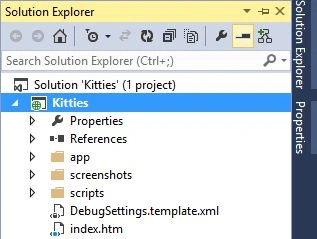
Step 3: You can check what files and folders are automatically created in the project as shown below:
Working with Chrome Extension
Step 1: Open the Google Chrome and in the Address bar enter the following URL:
Chrome://Extensions/
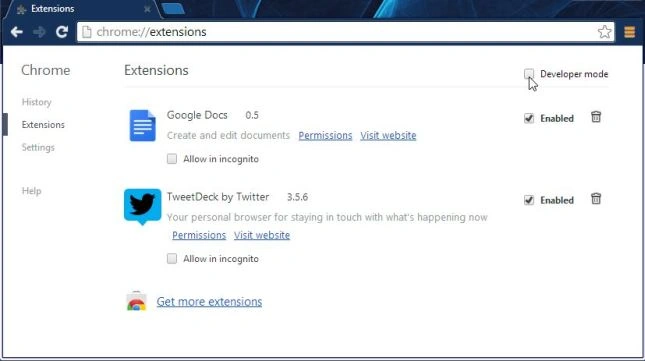
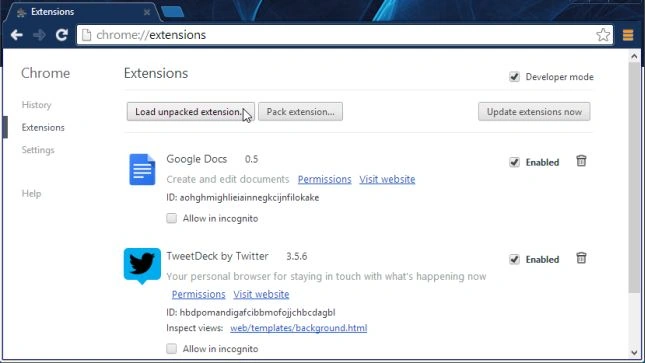
Step 2: Now you can see that the Developer mode is unchecked, check this checkbox as in the following:
Step 3: Now click on the "Load unpacked extension" button.
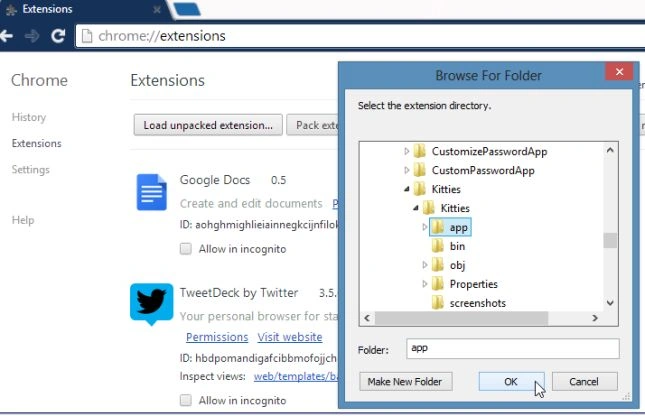
Step 4: Go to the project location in the computer and select the app.
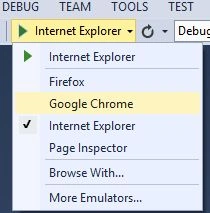
Step 5: Close Chrome and debug the project in the Chrome browser.
Step 6: Now you can see the extension link in your Chrome.
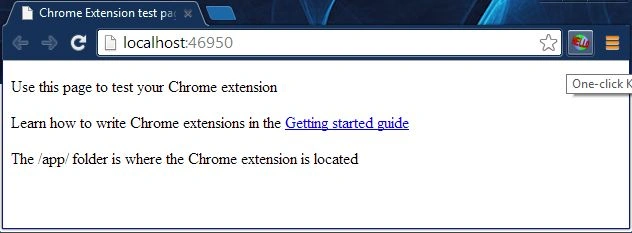
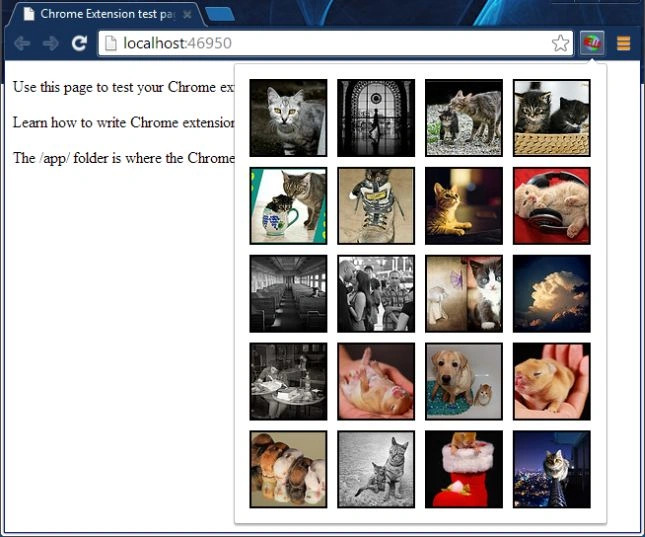
Step 7: Click on that icon and you can see that various images will open.
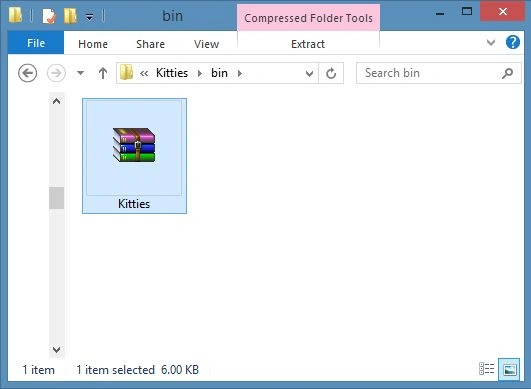
Step 8: Open the project location in the computer and you can see that in the bin folder the app rar file is generated.
Intellisense in JavaScript
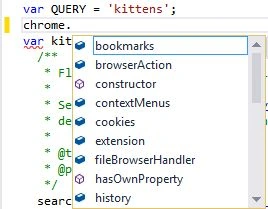
You can see the intellisense in the app/popup.js file:
Summary
This article describe how to create a Google Chrome Extension in a website using Visual Studio 2013 to enable the extension in Chrome. Thanks for reading.
Mehul PrajapatiPosted Jan 13, 2018, 5:45 AM
Congrats Nitin for your nice work and rank.. I need your help to resolve my google chrome extension query. I want to create new tab with specific url and manipulate values of these tab body DOM input element. Here I got success to create tab, but not able to access these tab body content. what should i have to do further to get value of new created tab body access?
Travis HameraPosted Nov 14, 2015, 2:33 PM
When trying to debug as shown above, I am getting the error: "The page cannot be run in debug mode because debugging is not enabled in the Web.config file...". I also cannot select a browser to debug in. I then noticed the template had created the following file in the project: "DebugSettings.template.xml". I compared this file to my CSPROJ file and saw that they differed on the <ProjectExtensions> node. So on a whim I deleted the values of that node from CSPROJ and replaced with the template file values. When I reloaded my project, I could now see the option for which browser to debug but still get the same error. Any thoughts as to what I am missing?
yuvraj khosePosted Dec 1, 2014, 3:18 AM
where to write back end code in asp.net
Sam HobbsPosted Feb 1, 2014, 6:36 PM
Thank you for this. I am very interested in learning development of Chrome Extensions. Are the SideWaffle templates available in the Visual Studio online gallery? I prefer to install from there.