

Introduction
Today, in this article let's play around with one of the interesting and most useful concepts in Azure.
Question: What is select data from cloud database using Azure?
In simple terms "It enables selection of data from a cloud database and maintaining it with the help of Azure".
Step 1: Create a cloud database named "Company"
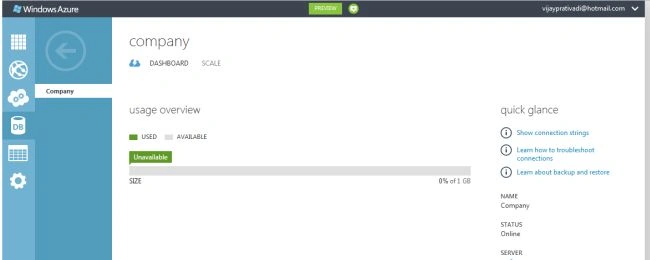
Step 2: With the help of manage URL navigate to a specific server page
Manage URL: etc6zpqnyc.database.windows.net
Step 3: Company database showing up in the database server page
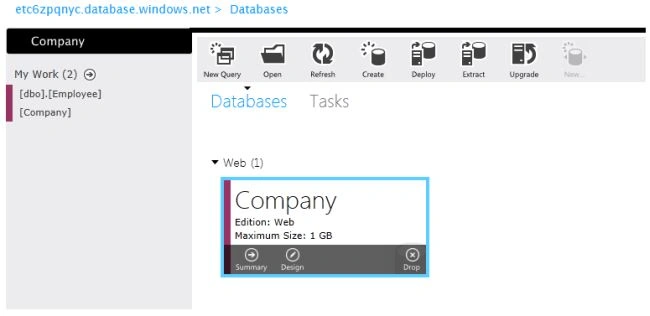
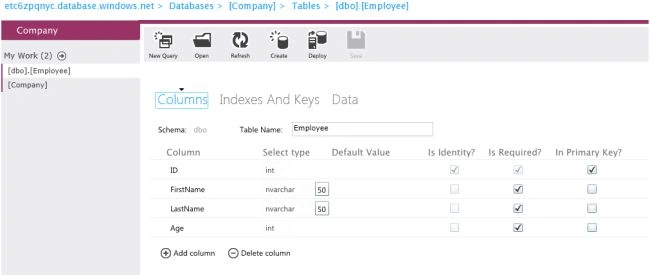
Step 4: Create an employee table. The design mode of the employee table looks like this:
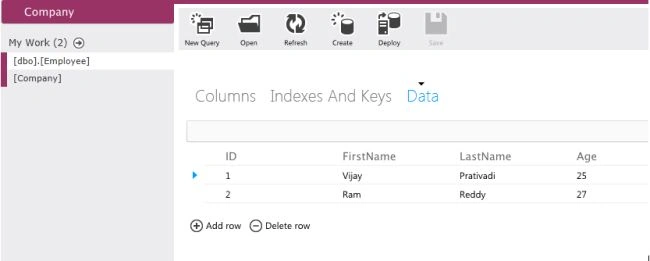
Step 5: Insert some data into the table:
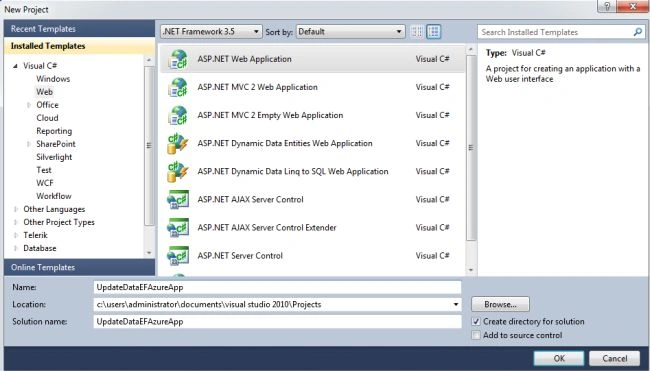
Step 6: Open Visual Studio 2010 and create an "ASP.NET Web Forms Application", as in:
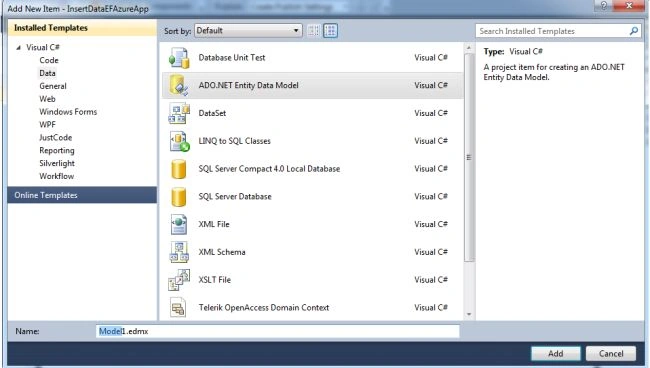
Step 7: Add an EDMF item to the project
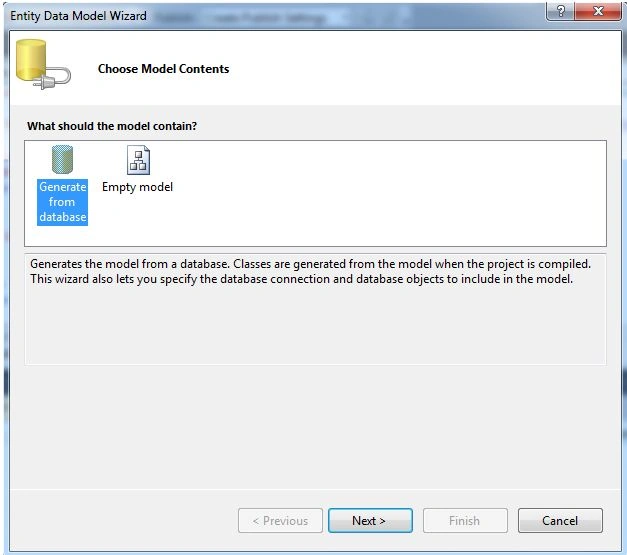
Step 8: Choose generate from database and click the "Next" button
Step 9: Add new connection
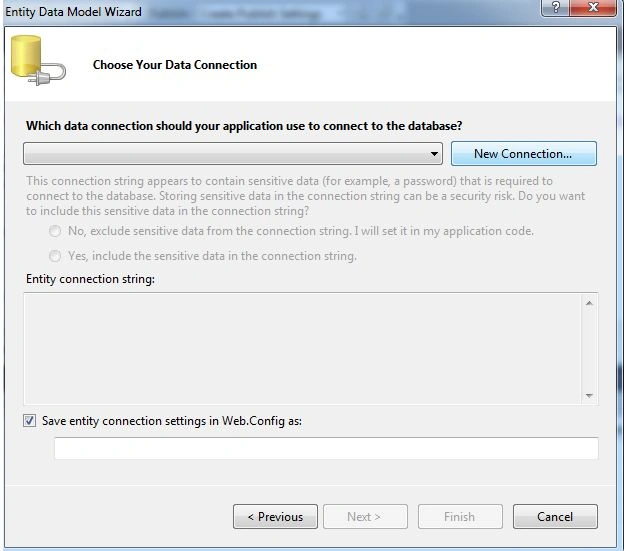
Step 10: Give the necessary server details for the connection and click on ok
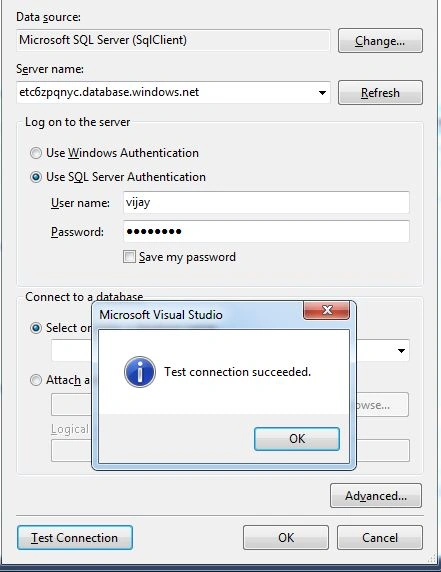
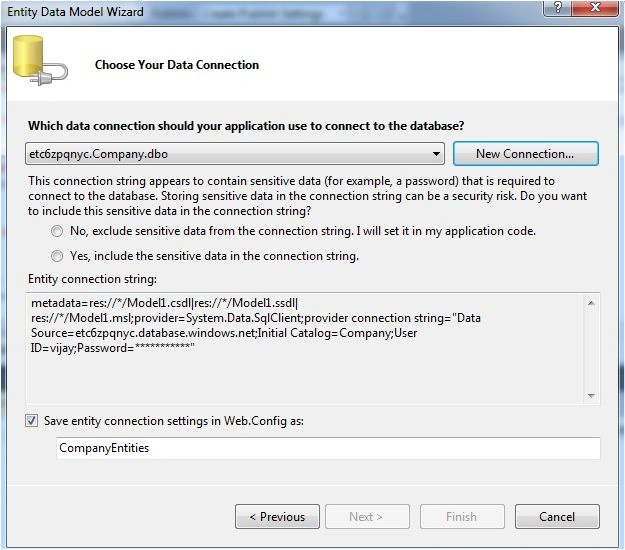
Step 11: The connection is established; click the "Next" button:
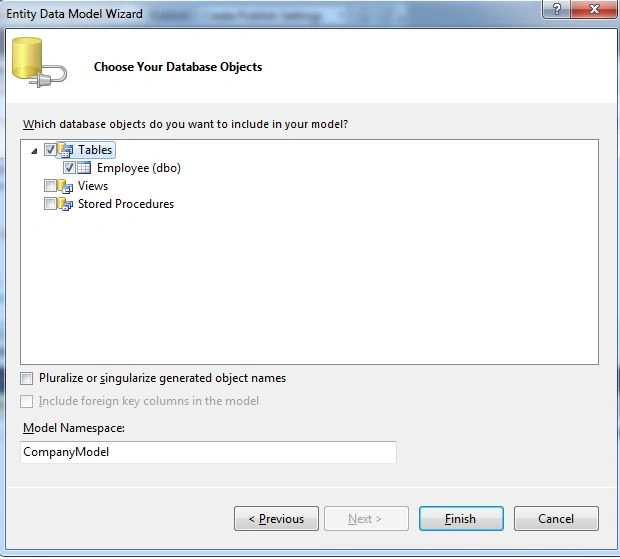
Step 12: Choose the required table and click the "Finish" button:
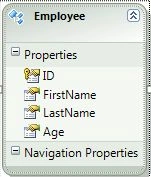
Step 13: An EDMF is created and the design of the data looks like this:
Step 14: The complete code of default.aspx looks like this:
<%@ Page Language="C#" AutoEventWireup="true" CodeBehind="Default.aspx.cs" Inherits="SelectDataEFAzureApp._Default" %>
<!DOCTYPE html PUBLIC "-//W3C//DTD XHTML 1.0 Transitional//EN" "http://www.w3.org/TR/xhtml1/DTD/xhtml1-transitional.dtd">
<html xmlns="http://www.w3.org/1999/xhtml">
<head id="Head1" runat="server">
<title></title>
</head>
<body>
<form id="form1" runat="server">
<center>
<div>
<table>
<tr>
<td colspan="2">
<asp:Label ID="Label1" runat="server" Text="Select Data from Cloud Database with Azure"
Font-Bold="true" Font-Size="Large" Font-Names="Verdana" ForeColor="Maroon"></asp:Label>
</td>
<br />
<br />
</tr>
<tr>
<td colspan="2" align="center">
<asp:Button ID="Button2" runat="server" Text="Select Data from Cloud Database with Azure"
Font-Names="Verdana" Width="391px" BackColor="Orange" Font-Bold="True" OnClick="Button2_Click" /><br />
<br />
</td>
</tr>
<tr>
<td colspan="2" align="center">
<asp:GridView ID="GridView1" runat="server" BackColor="LightGoldenrodYellow" BorderColor="Tan"
BorderWidth="1px" CellPadding="2" EnableModelValidation="True" ForeColor="Black"
GridLines="None" AutoGenerateColumns="False">
<AlternatingRowStyle BackColor="PaleGoldenrod"></AlternatingRowStyle>
<FooterStyle BackColor="Tan"></FooterStyle>
<HeaderStyle BackColor="Tan" Font-Bold="True"></HeaderStyle>
<PagerStyle HorizontalAlign="Center" BackColor="PaleGoldenrod" ForeColor="DarkSlateBlue">
</PagerStyle>
<SelectedRowStyle BackColor="DarkSlateBlue" ForeColor="GhostWhite"></SelectedRowStyle>
<Columns>
<asp:BoundField DataField="ID" HeaderText="Id" ReadOnly="true" SortExpression="Id" />
<asp:BoundField DataField="FirstName" HeaderText="First Name" ReadOnly="true" />
<asp:BoundField DataField="LastName" HeaderText="Last Name" ReadOnly="true" />
<asp:BoundField DataField="Age" HeaderText="Age" ReadOnly="true" />
</Columns>
</asp:GridView>
</td>
</tr>
</table>
</div>
</center>
</form>
</body>
</html>
Step 15: The complete code of default.aspx.cs looks like this:
using System;
using System.Collections.Generic;
using System.Linq;
using System.Web;
using System.Web.UI;
using System.Web.UI.WebControls;
namespace SelectDataEFAzureApp
{
public partial class _Default : System.Web.UI.Page
{ protected void Page_Load(object sender, EventArgs e)
{
}
protected void Button2_Click(object sender, EventArgs e)
{
CompanyEntities objCompany = new CompanyEntities();
GridView1.DataSource = objCompany.Employees.ToList();
GridView1.DataBind();
}
}
}
Step 16: The output of the application looks like this:

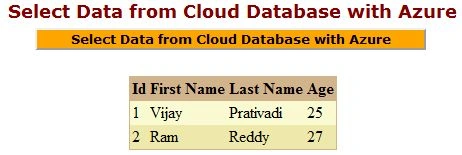
Step 17: The select data output of the application looks like this:
Gowtham RajamanickamPosted Apr 20, 2015, 3:23 PM
good one...
Gowtham RajamanickamPosted Apr 20, 2015, 3:22 PM
good one...