

Introduction
Today, in this article let's play around with one of the interesting and most useful concepts in C#.
Question: What is Update Data with Stored Proc using XSD (Typed Dataset)?
In simple terms "It provides the flexibility to update data with a Stored Procedure using a dataset".
Step 1: Create a new WebForm project: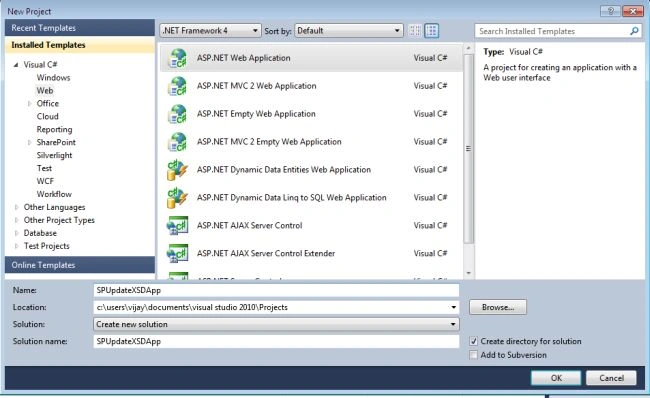
Step 2: The employee dataset looks like this: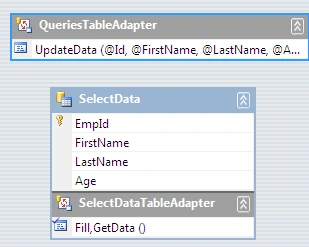
Step 3: The complete code of WebForm1.aspx looks like this:
<%@ Page Language="C#" AutoEventWireup="true" CodeBehind="WebForm1.aspx.cs" Inherits="SPUpdateXSDApp.WebForm1" %>
<!DOCTYPE html PUBLIC "-//W3C//DTD XHTML 1.0 Transitional//EN" "http://www.w3.org/TR/xhtml1/DTD/xhtml1-transitional.dtd">
<html xmlns="http://www.w3.org/1999/xhtml">
<head id="Head1" runat="server">
<title></title>
</head>
<body>
<form id="form1" runat="server">
<div>
<center>
<table>
<tr>
<td>
<asp:Label ID="Label1" runat="server" Text="Update with Stored Proc using XSD" Font-Bold="true"></asp:Label>
</td>
</tr>
<tr>
<td align="center" colspan="2">
<asp:GridView ID="GridView1" runat="server" BackColor="#CCCCCC" BorderColor="#999999"
BorderStyle="Solid" BorderWidth="3px" CellPadding="4" CellSpacing="2" ForeColor="Black"
OnLoad="Page_Load">
<FooterStyle BackColor="#CCCCCC" />
<HeaderStyle BackColor="Black" Font-Bold="True" ForeColor="White" />
<PagerStyle BackColor="#CCCCCC" ForeColor="Black" HorizontalAlign="Left" />
<RowStyle BackColor="White" />
<SelectedRowStyle BackColor="#000099" Font-Bold="True" ForeColor="White" />
<SortedAscendingCellStyle BackColor="#F1F1F1" />
<SortedAscendingHeaderStyle BackColor="#808080" />
<SortedDescendingCellStyle BackColor="#CAC9C9" />
<SortedDescendingHeaderStyle BackColor="#383838" />
</asp:GridView>
</td>
</tr>
</table>
<br />
<br />
<table>
<tr>
<td>
<asp:Label ID="Label6" runat="server" Text="Please Enter Id: " ForeColor="Brown"
Font-Bold="true" Font-Italic="true"></asp:Label>
</td>
<td>
<asp:TextBox ID="TextBox4" runat="server"></asp:TextBox>
</td>
</tr>
<tr>
<td>
<asp:Label ID="Label2" runat="server" Text="Please Enter FirstName: " ForeColor="Brown"
Font-Bold="true" Font-Italic="true"></asp:Label>
</td>
<td>
<asp:TextBox ID="TextBox1" runat="server"></asp:TextBox>
</td>
</tr>
<tr>
<td>
<asp:Label ID="Label3" runat="server" Text="Please Enter LastName: " ForeColor="Brown"
Font-Bold="true" Font-Italic="true"></asp:Label>
</td>
<td>
<asp:TextBox ID="TextBox2" runat="server"></asp:TextBox>
</td>
</tr>
<tr>
<td>
<asp:Label ID="Label4" runat="server" Text="Please Enter Age: " ForeColor="Brown"
Font-Bold="true" Font-Italic="true"></asp:Label>
</td>
<td>
<asp:TextBox ID="TextBox3" runat="server"></asp:TextBox>
</td>
</tr>
<tr>
<td colspan="2" align="center">
<asp:Button ID="Button1" runat="server" Text="Update Data" OnClick="Button1_Click"
BackColor="Orange" Font-Bold="true" /><br />
<br />
</td>
</tr>
</table>
<br />
<br />
<table>
<tr>
<td colspan="3">
<asp:Label ID="Label5" runat="server" Font-Bold="true"></asp:Label>
</td>
</tr>
</table>
</center>
</div>
</form>
</body>
</html>
Step 4: The complete code of WebForm1.aspx.cs looks like this:
using System;
using System.Collections.Generic;
using System.Linq;
using System.Web;
using System.Web.UI;
using System.Web.UI.WebControls;
using SPUpdateXSDApp.EmployeeDSTableAdapters;namespace SPUpdateXSDApp
{
public partial class WebForm1 : System.Web.UI.Page
{
protected void Page_Load(object sender, EventArgs e){TextBox4.Focus();
}
protected void Button1_Click(object sender, EventArgs e)
{
if (string.IsNullOrEmpty(TextBox4.Text) || string.IsNullOrEmpty(TextBox1.Text) || string.IsNullOrEmpty(TextBox2.Text) || string.IsNullOrEmpty(TextBox3.Text))
{
Label5.Text = "Please Enter Some Values";Label5.ForeColor = System.Drawing.Color.Red;
}
else
{
objQueryAdapter.UpdateData(int.Parse(TextBox4.Text), TextBox1.Text, TextBox2.Text, int.Parse(TextBox3.Text));
EmployeeDS.SelectDataDataTable objEmployeeTable = objAdapter.GetData();
var query = from r in objEmployeeTable select new
{
FirstName = r.FirstName, LastName = r.LastName, Age = r.Age
}
;
GridView1.DataSource = query;GridView1.DataBind();
Label5.Text = "Records Updated Successfully";
Label5.ForeColor = System.Drawing.Color.Green;
TextBox4.Text = string.Empty;
TextBox1.Text = string.Empty;
TextBox2.Text = string.Empty;
TextBox3.Text = string.Empty;
}
}
#region Instance MembersQueriesTableAdapter objQueryAdapter = new QueriesTableAdapter();
EmployeeDSTableAdapters.SelectDataTableAdapter objAdapter = new EmployeeDSTableAdapters.SelectDataTableAdapter();
#endregion
}
}
Step 5: The output of the application looks like this: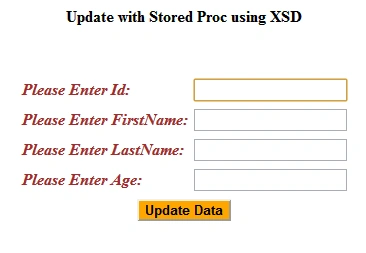
Step 6: The data updated output of the application looks like this:
I hope this article is useful for you.
Join the conversation! Your thoughts help the community grow.