

Introduction
Wow! The most desired library is now supported for Windows Phone 8.1. Many developers have been waiting for this library, and finally it was released by Microsoft in the last "Preview Program". The Optical Character Recognition (OCR) library is helpful to read text from images and it returns the text and layout information.
OCR library features
- Ability to recognize patterns (for example: email, phone and URIs) from image text
- Launching the patterns (for example: making phone calls, sending mail, visiting a website)
OCR Limitations
- Image dimension should be >= 40*40 pixels and <= 2600*2600 pixels.
- Image text lines must have been written in the same orientations and the same directions. Fortunately OCR is able to correct rotation up to ±40 degrees.
An inaccurate reading may be caused by the following:
- Blurry images
- Handwritten or cursive text
- Artistic font styles
- Small text size (less than 15 pixels for Western languages, or less than 20 pixels for East Asian languages)
- Complex backgrounds
- Shadows or glare over text
- Perspective distortion
- Oversized or dropped capital letters at the beginnings of words
- Subscript, superscript, or strike-through text and please read more from here
The following describes how to build the sample:
- Be sure you've downloaded and installed the Windows Phone SDK. For more information, see Get the SDK.
- I assume you're going to test your app on the Windows Phone emulator. If you want to test your app on a phone, you need to use an additional procedure. For more info, see Register your Windows Phone device for development.
- This article assumes you're using Microsoft Visual Studio Express 2013 for Windows.
Download and install the OCR Library
This library is not included in the Windows Software Development Kit (SDK) and it is distributed as a NuGet package, so to install this library right-click on your project then click on "Manage NuGet Packages" then seelct "Online" then search for "Microsoft.Windows.Ocr.". Then click on the "Install" button. See the following image for your reference.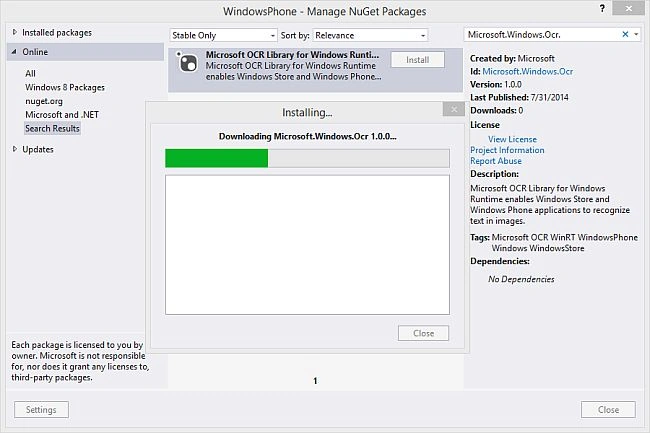
"Any CPU" problem
This library does not work on an "AnyCPU" target platform. To change the build configuration of your project from AnyCPU to x86, x64, or ARM right-click on the solution then click on Configuration Properties -> Configuration Manager and change the active solution platform to x86 (If you are using an emulator) or ARM (if you are using a Windows Phone device).
After you install the OCR library into your project, the "OcrResources" folder will be added to your project that has the "MsOcrRes.orp" file.
When you install the package, the file <solution_name>\packages\Microsoft.Windows.Ocr.1.0.0\OcrResources \MsOcrRes.orp is copied and injected into your project in the location <solution_name>\<project_name>\OcrResources\MsOcrRes.orp. This file is consumed by the OcrEngine object for text recognition in a specific language.
OCR supported languages
There are 21 supported languages. Based on recognition accuracy and performance, supported languages are divided into the following three groups:
- Excellent: Czech, Danish, Dutch, English, Finnish, French, German, Hungarian, Italian, Norwegian, Polish, Portuguese, Spanish and Swedish.
- Very good: Chinese Simplified, Greek, Japanese, Russian and Turkish.
- Good: Chinese Traditional and Korean.
Note: By default English language resources are included in the target project. If you want to use a custom group of languages in your app, use the OCR Resources Generator tool to generate a new OCR resources file and replace the resources that were injected into your project when you installed the package.
To generate OCR resource files:
- Launch the OCR Resources Generator tool located at <solution_name>\packages\Microsoft.Windows.Ocr.1.0.0\OcrResourcesGenerator\OcrResourcesGenerator.exe. You will then find the following dialog box:
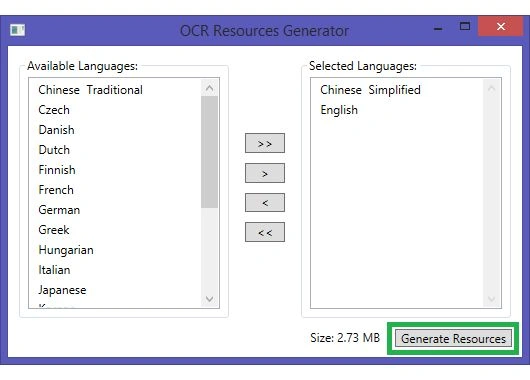
- Use the buttons in the center of the tool to create a list of the required languages.
- Click the Generate Resources button. Pick a location to save the new resources file.
- Replace the existing file <solution_name>\<project_name>\OcrResources\MsOcrRes.orp with the new file that you just generated.
How to extract text from an image
Step 1
In the page constructor, create and initialize a global instance of the OcrEngine. Also declare two unsigned integer variables to store the width and height of the image.
Step 2
Load the image, convert it to WriteableBitmap to get image pixels height and width.
Step 3
Check the image dimensions, it should be > 40*40 pixels and < 2600*2600 pixels.
Step 4
Call the RecognizeAsync method of the OcrEngine class. This method returns an OcrResult object that contains the recognized text and its size and position. The result is split into lines and the lines are split into words.
Step 5
After the preceding procedure your code is like this for extracting the text from an image.
C# language
- using System;
- using System.Collections.Generic;
- using System.IO;
- using System.Linq;
- using System.Runtime.InteropServices.WindowsRuntime;
- using System.Threading.Tasks;
- using Windows.Foundation;
- using Windows.Foundation.Collections;
- using Windows.Storage;
- using Windows.Storage.FileProperties;
- using Windows.UI;
- using Windows.UI.Xaml;
- using Windows.UI.Xaml.Controls;
- using Windows.UI.Xaml.Controls.Primitives;
- using Windows.UI.Xaml.Data;
- using Windows.UI.Xaml.Input;
- using Windows.UI.Xaml.Media;
- using Windows.UI.Xaml.Media.Imaging;
- using Windows.UI.Xaml.Navigation;
- using WindowsPreview.Media.Ocr;
-
- namespace OCRImgReadText
- {
- public sealed partial class MainPage : Page
- {
- // Bitmap holder of currently loaded image.
- private WriteableBitmap bitmap;
- // OCR engine instance used to extract text from images.
- private OcrEngine ocrEngine;
- public MainPage()
- {
- this.InitializeComponent();
- ocrEngine = new OcrEngine(OcrLanguage.English);
- TextOverlay.Children.Clear();
- }
- protected override async void OnNavigatedTo(NavigationEventArgs e)
- { //Get local image
- var file = await Windows.ApplicationModel.Package.Current.InstalledLocation.GetFileAsync("TestImages\\SQuotes.jpg");
- await LoadImage(file);
- }
- private async Task LoadImage(StorageFile file)
- {
- ImageProperties imgProp = await file.Properties.GetImagePropertiesAsync();
- using (var imgStream = await file.OpenAsync(FileAccessMode.Read))
- {
- bitmap = new WriteableBitmap((int)imgProp.Width, (int)imgProp.Height);
- bitmap.SetSource(imgStream);
- PreviewImage.Source = bitmap;
- }
- }
- private async void ExtractText_Click(object sender, RoutedEventArgs e)
- {
- //// Prevent another OCR request, since only image can be processed at the time at same OCR engine instance.
- //ExtractTextButton.IsEnabled = false;
- // Check whether is loaded image supported for processing.
- // Supported image dimensions are between 40 and 2600 pixels.
- if (bitmap.PixelHeight < 40 ||
- bitmap.PixelHeight > 2600 ||
- bitmap.PixelWidth < 40 ||
- bitmap.PixelWidth > 2600)
- {
- ImageText.Text = "Image size is not supported." +
- Environment.NewLine +
- "Loaded image size is " + bitmap.PixelWidth + "x" + bitmap.PixelHeight + "." +
- Environment.NewLine +
- "Supported image dimensions are between 40 and 2600 pixels.";
- //ImageText.Style = (Style)Application.Current.Resources["RedTextStyle"];
- return;
- }
- // This main API call to extract text from image.
- var ocrResult = await ocrEngine.RecognizeAsync((uint)bitmap.PixelHeight, (uint)bitmap.PixelWidth, bitmap.PixelBuffer.ToArray());
- // OCR result does not contain any lines, no text was recognized.
- if (ocrResult.Lines != null)
- {
- // Used for text overlay.
- // Prepare scale transform for words since image is not displayed in original format.
- var scaleTrasform = new ScaleTransform
- {
- CenterX = 0,
- CenterY = 0,
- ScaleX = PreviewImage.ActualWidth / bitmap.PixelWidth,
- ScaleY = PreviewImage.ActualHeight / bitmap.PixelHeight,
- };
- if (ocrResult.TextAngle != null)
- {
- PreviewImage.RenderTransform = new RotateTransform
- {
- Angle = (double)ocrResult.TextAngle,
- CenterX = PreviewImage.ActualWidth / 2,
- CenterY = PreviewImage.ActualHeight / 2
- };
- }
- string extractedText = "";
- // Iterate over recognized lines of text.
- foreach (var line in ocrResult.Lines)
- {
- // Iterate over words in line.
- foreach (var word in line.Words)
- {
- var originalRect = new Rect(word.Left, word.Top, word.Width, word.Height);
- var overlayRect = scaleTrasform.TransformBounds(originalRect);
- var wordTextBlock = new TextBlock()
- {
- Height = overlayRect.Height,
- Width = overlayRect.Width,
- FontSize = overlayRect.Height * 0.8,
- Text = word.Text,
- };
- // Define position, background, etc.
- var border = new Border()
- {
- Margin = new Thickness(overlayRect.Left, overlayRect.Top, 0, 0),
- Height = overlayRect.Height,
- Width = overlayRect.Width,
- Background = new SolidColorBrush(Colors.Orange),
- Opacity = 0.5,
- HorizontalAlignment = HorizontalAlignment.Left,
- VerticalAlignment = VerticalAlignment.Top,
- Child = wordTextBlock,
- };
- OverlayTextButton.IsEnabled = true;
- // Put the filled textblock in the results grid.
- TextOverlay.Children.Add(border);
- extractedText += word.Text + " ";
- }
- extractedText += Environment.NewLine;
- }
- ImageText.Text = extractedText;
- }
- else
- {
- ImageText.Text = "No text.";
- }
- }
- private void OverlayText_Click(object sender, RoutedEventArgs e)
- {
- if (TextOverlay.Visibility == Visibility.Visible)
- {
- TextOverlay.Visibility = Visibility.Collapsed;
- }
- else
- {
- TextOverlay.Visibility = Visibility.Visible;
- }
- }
- }
- }
Step 6
And your UI might be like the following.
XAML code
- <Grid>
- <Grid.RowDefinitions>
- <RowDefinition Height="Auto"/>
- <RowDefinition Height="Auto"/>
- <RowDefinition Height="*"/>
- </Grid.RowDefinitions>
- <StackPanel Grid.Row="1" x:Name="ControlPanel" Orientation="Vertical">
- <StackPanel Orientation="Horizontal" Margin="10,0,10,0" >
- <Button x:Name="ExtractTextButton" Content="Extract Image Text" FontSize="15" MinWidth="90" Click="ExtractText_Click" Margin="0,0,5,0"/>
- <Button x:Name="OverlayTextButton" IsEnabled="False" Content="Overlay Image Text" FontSize="15" MinWidth="90" Click="OverlayText_Click" Margin="0,0,5,0"/>
- </StackPanel>
- <StackPanel Grid.Row="1" Orientation="Horizontal"/>
- </StackPanel>
- <ScrollViewer Grid.Row="2" VerticalScrollMode="Auto" VerticalScrollBarVisibility="Auto" Margin="0, 10, 0, 0">
- <!-- This StackPanel changes its Orientation depending on the available width of the window. -->
- <StackPanel x:Name="Output" Margin="10,0,10,0" Orientation="Vertical" Visibility="Visible">
- <StackPanel x:Name="Content" Orientation="Vertical" Visibility="Visible">
- <Grid x:Name="Image">
- <Image x:Name="PreviewImage" Margin="0,0,10,10" Source="" Stretch="Uniform" Width="300" HorizontalAlignment="Left" VerticalAlignment="Top"/>
- <Grid x:Name="TextOverlay" Visibility="Collapsed" Margin="0,0,10,10" HorizontalAlignment="Left" VerticalAlignment="Top"/>
- </Grid>
- <!-- This StackPanel contains all of the image properties output. -->
- <Grid x:Name="Result" HorizontalAlignment="Left" VerticalAlignment="Top">
- <Grid.RowDefinitions>
- <RowDefinition Height="Auto"/>
- <RowDefinition Height="Auto"/>
- </Grid.RowDefinitions>
- <TextBlock Grid.Row="0" FontSize="25" Text="Extracted image text:" />
- <TextBlock Name="ImageText" Grid.Row="1" Foreground="#FF1CD399" FontSize="25" Text="Text not yet extracted."/>
- </Grid>
- </StackPanel>
- </StackPanel>
- </ScrollViewer>
- </Grid>
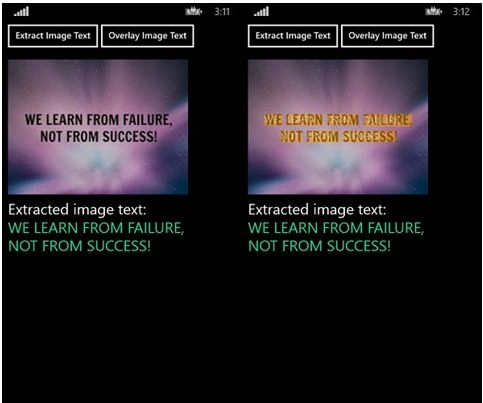

Note: When you download and run this code then you will get an error since you must install the OCR library from "Manage NuGet Packages".

Summary
Devendra KumarPosted Nov 26, 2014, 2:10 AM
Hi SubramanyamRaju B , good to see you in c-sharpcorner & Great start for OCR in WP