

ISE- Integrated scripting environment
- A Command pane for running interactive commands.
- A Script pane for writing, editing, and running scripts. You can run the entire script or selected lines from the script.
- A scrollable Output pane that displays a transcript of commands from the Command and Script panes and their results.
- Up to eight independent Windows PowerShell execution environments in the same window, each with its own Command, Script, and Output panes. This tabbed environment allows you to work on several tasks at the same time.
- Multiline editing in the Command pane lets you paste multiple lines of code, run them, and then recall them as a unit.
Here are the steps,
Step 1: Create SharePoint List using PowerShell.
- cls
- Add - PSSnapin Microsoft.SharePoint.PowerShell
- $listName = "Continents"
- $SiteURL = "http://sites1/Demo/"
- $spWeb = Get - SPWeb - Identity $SiteURL
- $spTemplate = $spWeb.ListTemplates["Custom List"]
- $spListCollection = $spWeb.Lists
- $spListCollection.Add($listName, $listName, $spTemplate)
- $path = $spWeb.url.trim()
- $spList = $spWeb.GetList("$path/Lists/$listName")
- # adding the field type(Number) to the list
- $spFieldType = [Microsoft.SharePoint.SPFieldType]::Number
- $spList.Fields.Add("Area", $spFieldType, $false)
- # adding the field type(Number) to the list
- $spFieldType = [Microsoft.SharePoint.SPFieldType]::Number
- $spList.Fields.Add("Population", $spFieldType, $false)
- $spList.Update()
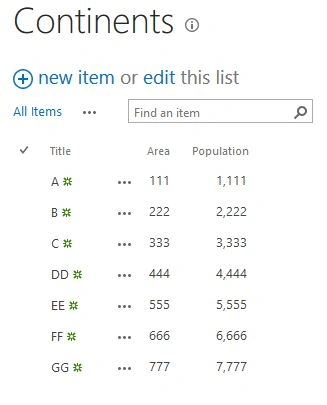
Step 2:
PowerShell command to fetch data using CMAL Query which include Equal condition for matching records.
- Firstly, create Web Object,
- $sourceWebURL = "http:// sites1/Demo/"
- $spSourceWeb = Get-SPWeb $sourceWebURL
- Find list from web to process in next operation.
- $sourceListName = "Continents"
- $spSourceList = $spSourceWeb.Lists[$sourceListName]
- Create SPQuery object and set query string to it.
- $query = new - object Microsoft.SharePoint.SPQuery
- $caml = "<Where><Contains><FieldRef Name='Title'/><Value Type='Text'>" + $filename + "</Value></Contains></Where>"
- $query.Query = $caml
- Finally pass that SPQuery object to GetItems() to fetch matching records.
- $spSourceItems = $spSourceList.GetItems($query)
Final Code,
- cls
- Add - PSSnapin Microsoft.SharePoint.PowerShell
- $sourceWebURL = "http://sites1/Demo/"
- $sourceListName = "Continents"
- $RecordID = "2";
- $spSourceWeb = Get - SPWeb $sourceWebURL
- $spSourceList = $spSourceWeb.Lists[$sourceListName]
- $caml = "<Where><Eq><FieldRef Name='ID' /><Value Type='Number'>" + $RecordID + "</Value></Eq></Where>"
- $query = new - object Microsoft.SharePoint.SPQuery
- $query.Query = $caml
- $spSourceItems = $spSourceList.GetItems($query)
- # $spSourceItems = $spSourceList.GetItemById("1")# $spSourceItems = $spSourceList.Items | where
- {
- $_['ID'] - ne 0
- }
- Write - Host("{0} | {1} | {2} | {3}" - f 'ID', 'Title', 'Area', 'Population')
- Write - Host ""
- $spSourceItems | ForEach - Object
- {
- $data1 = $_['ID']
- $data2 = $_['Title']
- Write - Host("{0} | {1} | {2} | {3}" - f $_['ID'], $_['Title'], $_['Area'], $_['Population'])
- }
- Write - Host ""
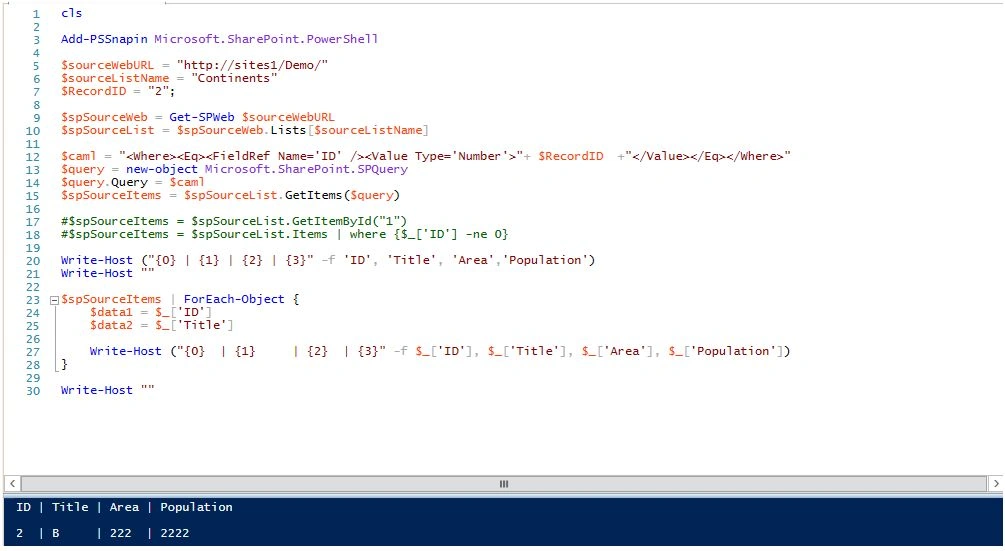
Step 3:
PowerShell command to fetch data using CMAL Query that contains condition for matching records.
- cls
- Add - PSSnapin Microsoft.SharePoint.PowerShell
- $sourceWebURL = "http://sites1/Demo/"
- $sourceListName = "Continents"
- $filename = "DD";
- $spSourceWeb = Get - SPWeb $sourceWebURL
- $spSourceList = $spSourceWeb.Lists[$sourceListName]
- $caml = "<Where><Contains><FieldRef Name='Title'/><Value Type='Text'>" + $filename + "</Value></Contains></Where>"
- $query = new - object Microsoft.SharePoint.SPQuery
- $query.Query = $caml
- $spSourceItems = $spSourceList.GetItems($query)
- # $spSourceItems = $spSourceList.GetItemById("1")# $spSourceItems = $spSourceList.Items | where
- {
- $_['ID'] - ne 0
- }
- Write - Host("{0} | {1} | {2} | {3}" - f 'ID', 'Title', 'Area', 'Population')
- Write - Host ""
- $spSourceItems | ForEach - Object
- {
- $data1 = $_['ID']
- $data2 = $_['Title']
- Write - Host("{0} | {1} | {2} | {3}" - f $_['ID'], $_['Title'], $_['Area'], $_['Population'])
- }
- Write - Host ""
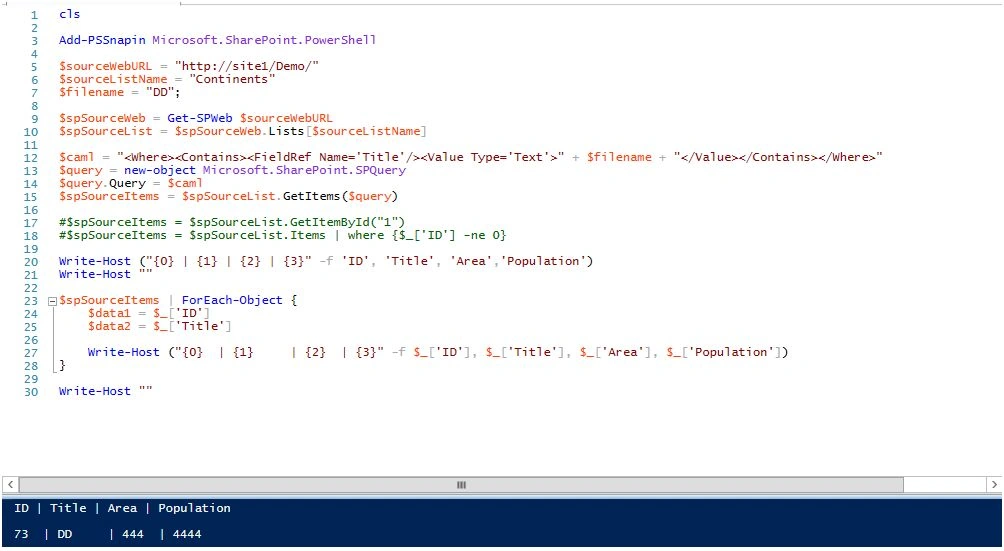
Humayun Kabir MamunPosted Dec 1, 2015, 3:27 AM
Nice...
Santhakumar MunuswamyPosted Nov 29, 2015, 11:47 PM
Good one
Raja TPosted Nov 29, 2015, 10:49 PM
Nice one, thanks for sharing
Ankur MistryPosted Nov 29, 2015, 4:00 AM
Nice share
Mukesh KumarPosted Nov 29, 2015, 3:19 AM
Good One
Sagar PardeshiPosted Nov 29, 2015, 2:38 AM
Gud article !!!
Prasham SabadraPosted Nov 29, 2015, 12:26 AM
Thanks for sharing!!!
Banketeshvar NarayanPosted Nov 28, 2015, 1:54 PM
Nice Share