
Starting With CAML Builder
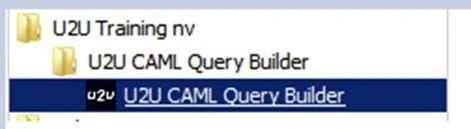
Go to Start, All Programs, U2U Training nv, then U2U CAML Query Builder.
The following screen will appear.
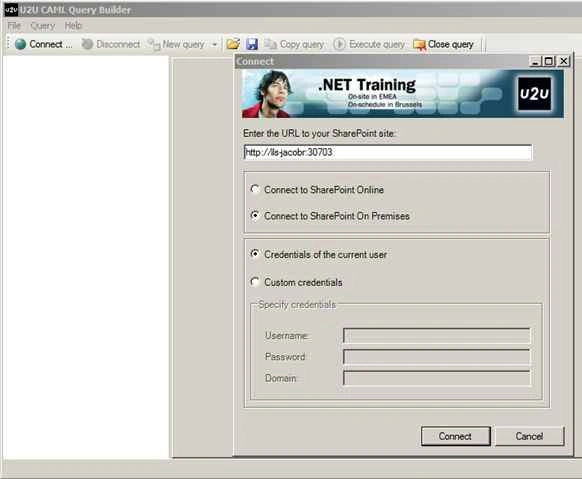
Enter your online SharePoint site URL.
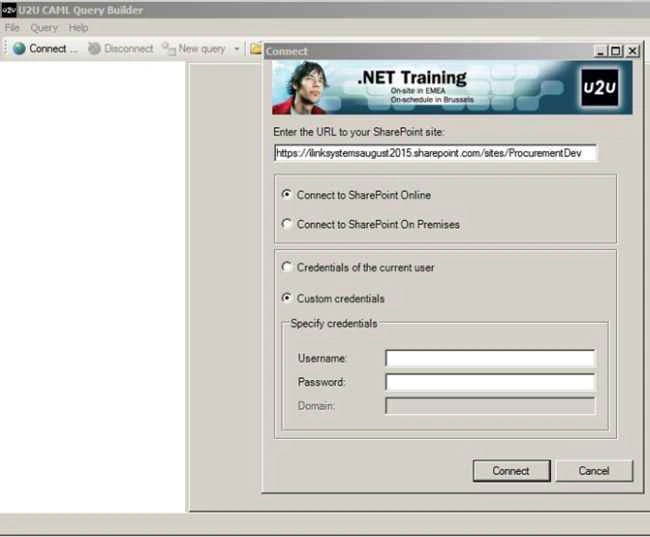
Select “Connect to SharePoint Online” and also select “Custom Credentials”. Enter the username and password for SharePoint Online site.
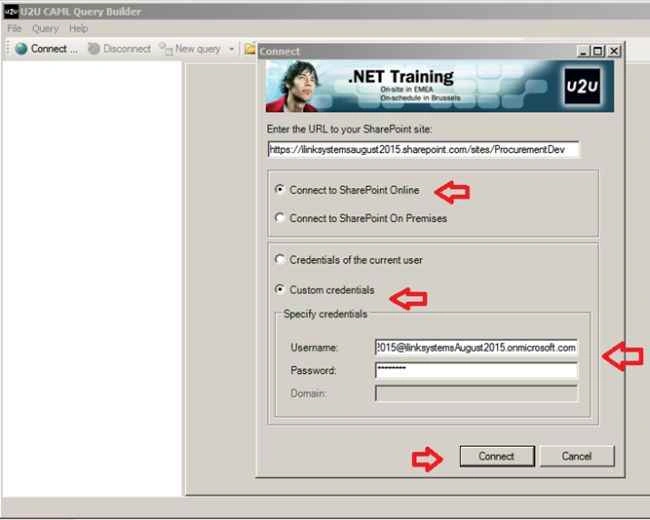
Click Connect button. The following screen will appear.
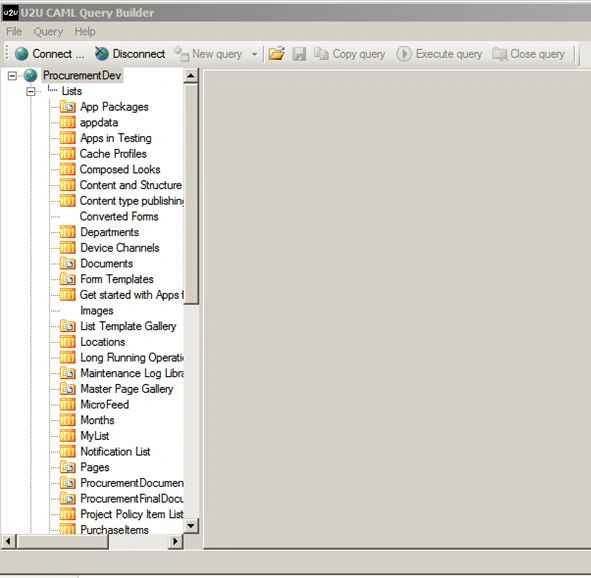
Select your list name. Here I have selected “MyList”.
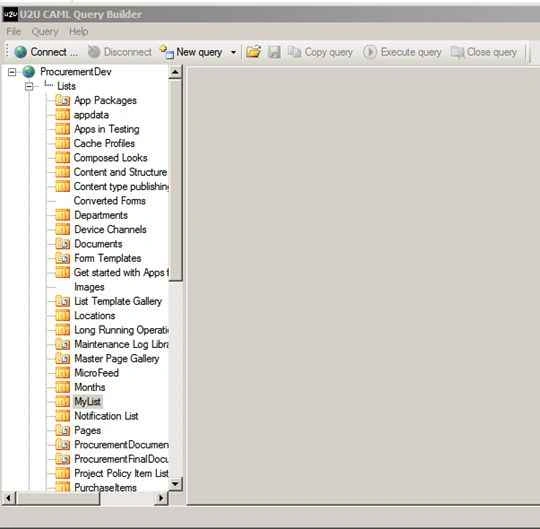
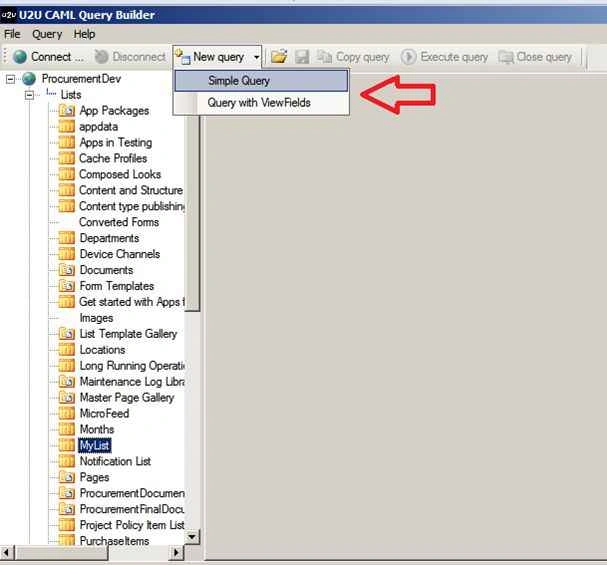
Click New query, then Simple Query.
The following screen will appear.
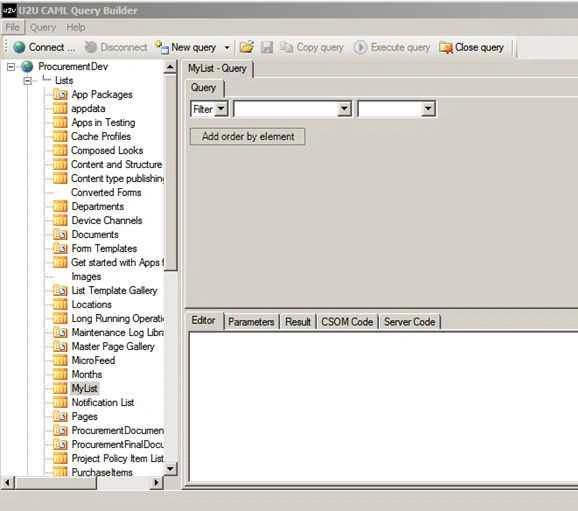
Select your column name in second drop down list. Here I have query based on location column name.
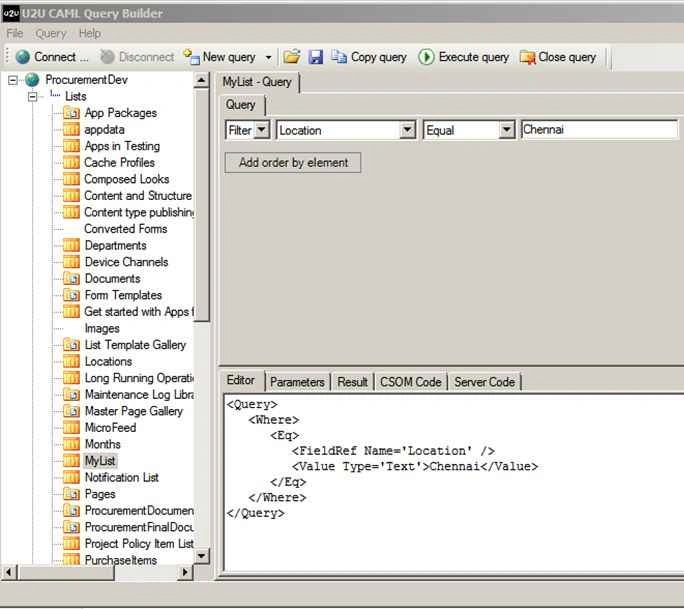
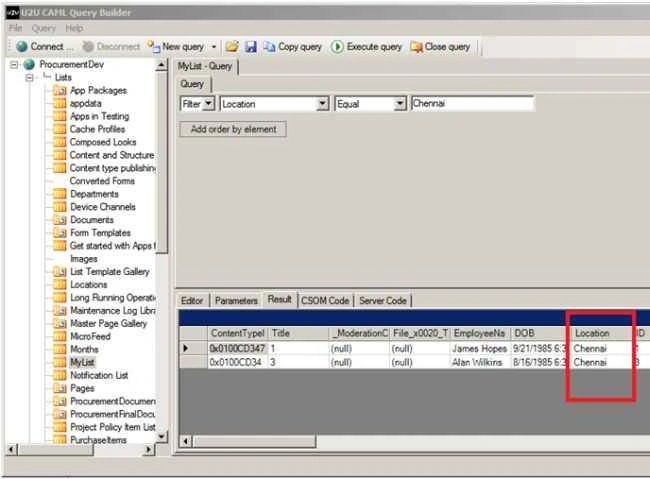
Click Execute query. The results will show as in the following.
Query with View Fields,
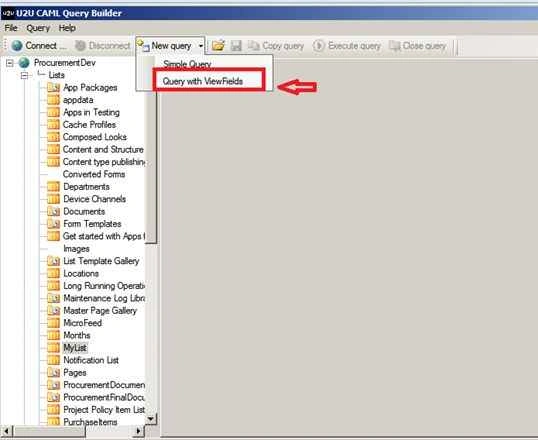
Click New query, then Query with ViewFields.
First select your queried column name. Here I have selected location column name.
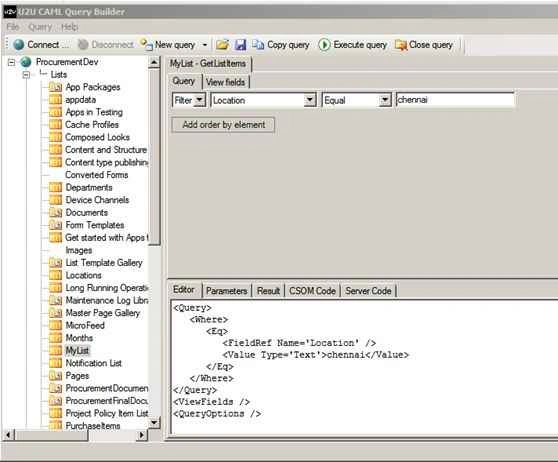
Click View fields tab.
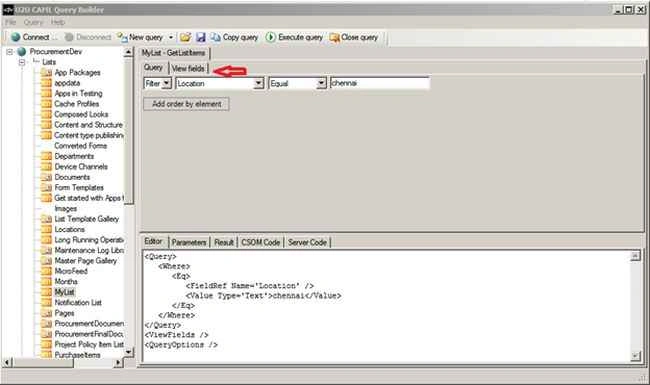
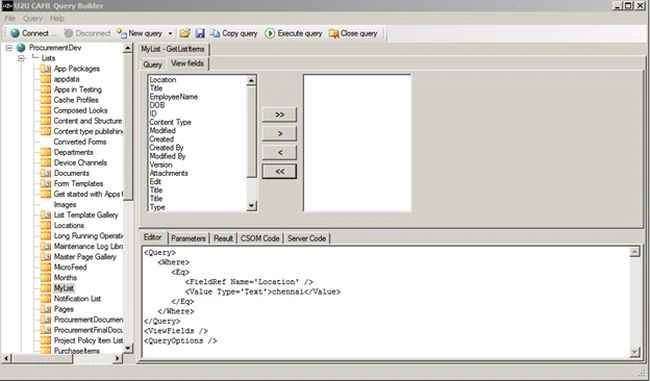
Select your columns (What are all the columns needed).
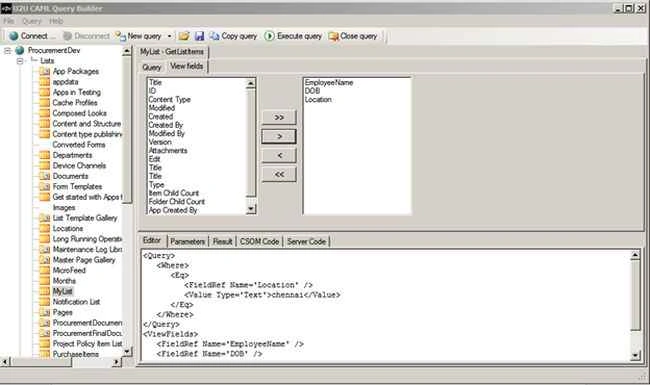
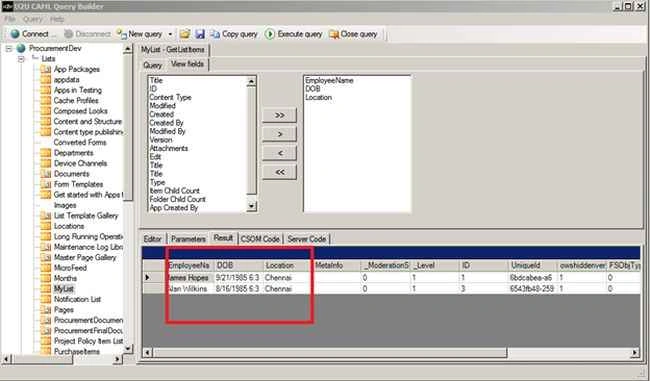
Click Execute query. The results will be like the following.
Summary
In this article we saw how to use CAML Query builder for SharePoint 2013 Online.

CAML Query Builder For SharePoint 2013 Online
Join the conversation! Your thoughts help the community grow.
Sign in to leave a comment
It is the same account you read, post and publish with — and you will come straight back to this page.
SaMol PPosted May 15, 2019, 3:40 AM
Where is the caml builder exe link, pls sshare
Vinodh NarayananPosted Oct 1, 2015, 3:34 AM
good one
Santhakumar MunuswamyPosted Sep 26, 2015, 12:27 PM
Nice share