

Welcome to the second site template, blogs in SharePoint 2013 and Office 365. This will be the parts of my article http://www.c-sharpcorner.com/UploadFile/644e54/site-templates-in-sharepoint-2013office-365/ stating “Site Templates in SharePoint 2013 and Office 365”. Here we will see what components are available.
An article based on blogs in SharePoint 2013. We have blogs as a Site Template in SharePoint 2013 that provides users or the website too have their own blogs connected to the site.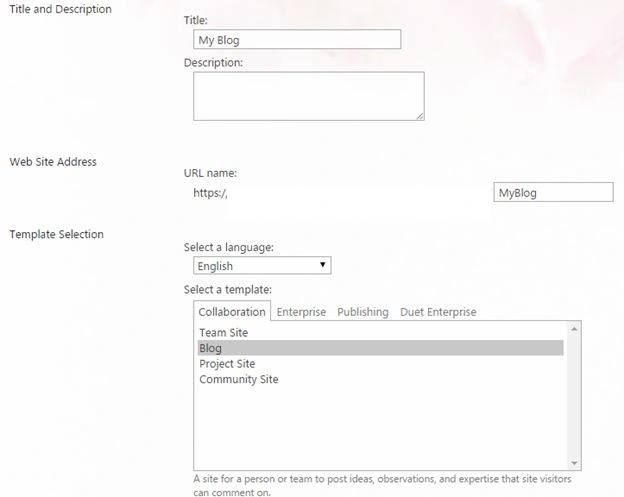
When you create a site you enter this form where you need to fill in the following details.
- Title and Description
- Web Site Address: The name you want to be present on the URL.
- Template Selection: You can select the language for the site and a template to build the site.
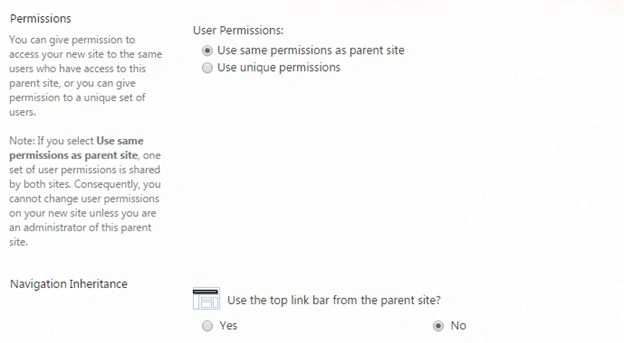
- Permissions: If you are creating a sub site you can either inherit the permission levels of the main site or create a unique level of permissions.
- Navigation Inheritance: An option to assign the top link as per the parent site.
Once you click OK:
Welcome to Your Blog
This blog file contains an ideal structure with the left navigation as Categories defining events, ideas and opinions. The Archives structure for the months.
Then we have Blog tools on the blogs to manage your blogs. Then we have an option to image on the blog on the right corner.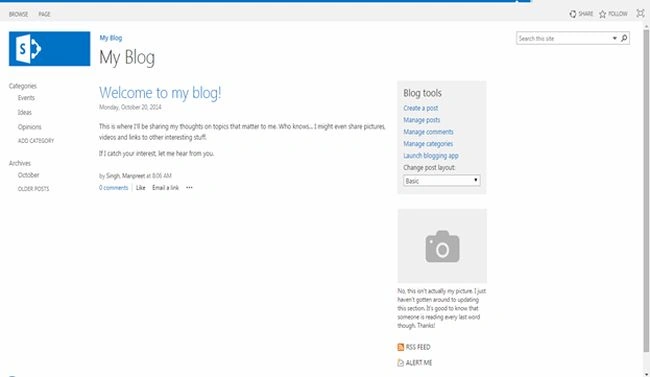
Let's see what our blog contains.
First Categories, then you have Events, Ideas and Opinions and other options to add a category. Then we have archives with the months.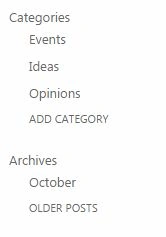
Category: Now let's see how you will categorize your blog.
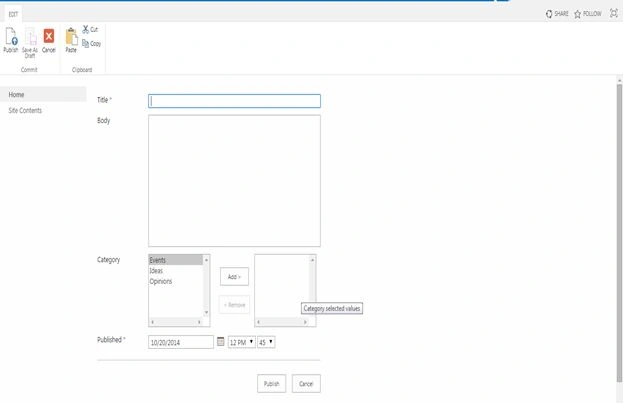
When you click on the add new Blog,
- Title
- Body
- Category: You can assign the category as events, Ideas and Opinions.
- Published: Here you can assign the date and time of the blog and publish it.
Once published, your blog will be published on the Homepage.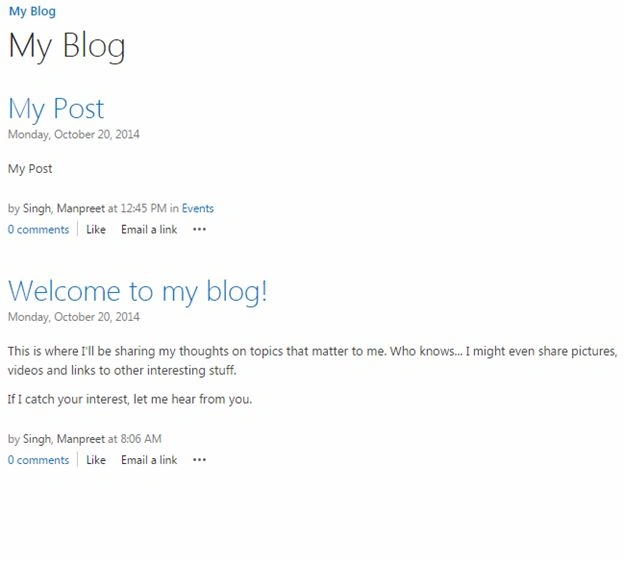
Blog Tools
- Create a post: Here using the form above create a post.
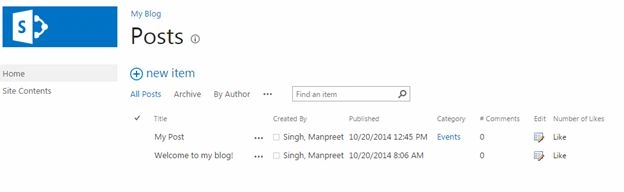
- Manage Posts: You can manage posts here where it will take you to all items view displaying all the blogs you have created.
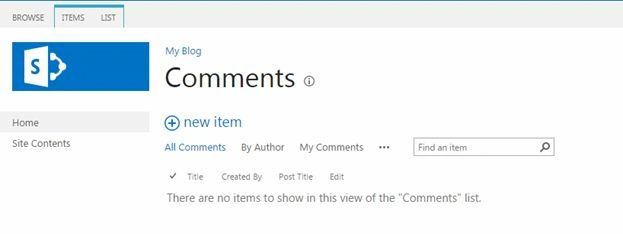
- Manage Comments: In a similar way you can manage comments by editing them taking you to all items and views displaying all the blogs you have created.
- Manage Categories: Here you can create new categories where we can define your blogs in them.
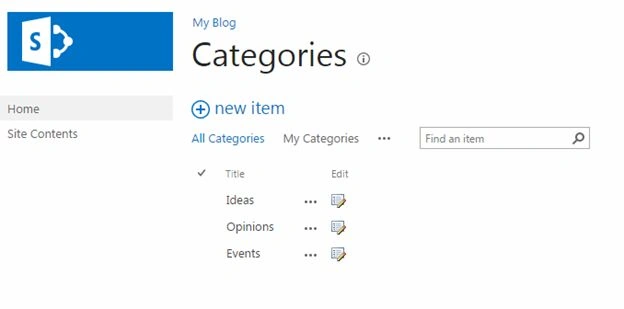
- Launch blogging app: Here you can configure your blog and on the click your blog will get connected to SharePoint.
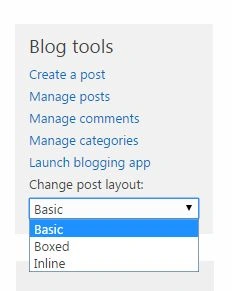
Change post layout
Then we have post layouts divided into Basic, Boxed and Inline. Their views are as follows.
As Basic: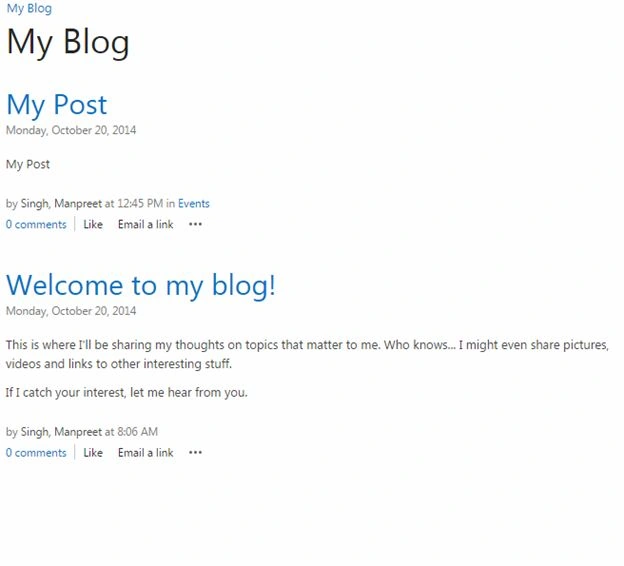
As Boxed: 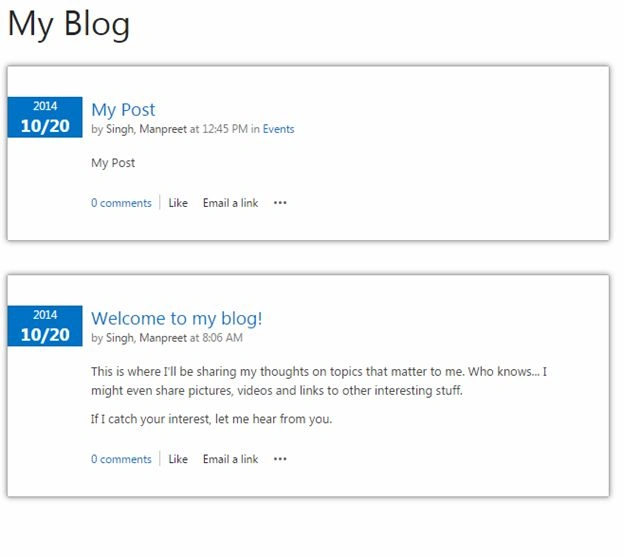
As Inline: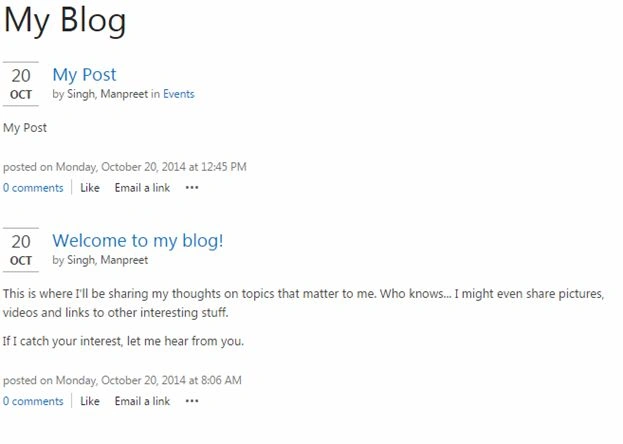
Picture:
Here you can attach your picture as the owner of the blog or as an organization.
RSS Feed :
Here you can connect your RSS feeds to the blogs.
Alert Me:
You can assign alerts for any changes to your blog.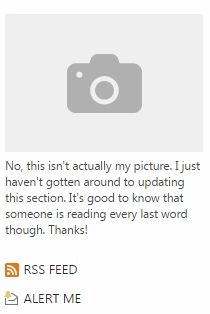
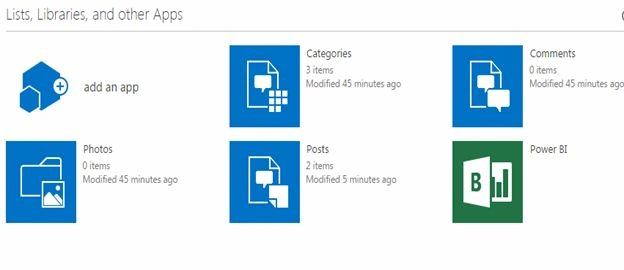
Blog Site Content:
This is the default site content of what we get in blogs.
- Categories
- Comments library
- Photos Library
- Posts Library
- Power BI
Site Settings
Lastly we can see the site settings, that you can see from the previous blogs on Site Settings in SharePoint 2013 at C# Corner.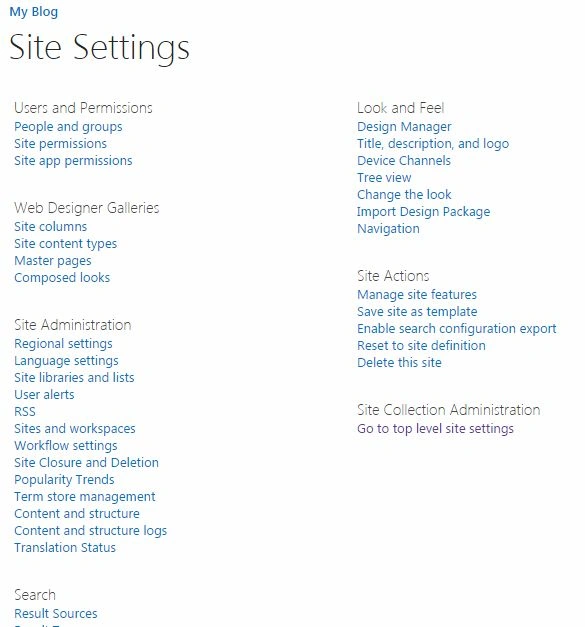
Here it is, our blog in SharePoint 2013 and soon we will see sites from other site templates as well.
Keep learning.
Cheers.
Join the conversation! Your thoughts help the community grow.