

Welcome to the first site template, Team Site in SharePoint 2013/Office 365. This will be the parts of my article: Site Templates in SharePoint 2013 And Office 365 stating “Site Templates in SharePoint 2013/Office 365”. Here we will see what the components available are.
We will see what the Team Site template provides us.
- Click on Create a new site, the following page opens up.
- Title and Description:
- Web Site Address: Here you can make it different from your default site name.
- Template Selection: Here you have an option to select the language and to choose a site from a template having many options.
Here in this article we will be seeing Team Site template so select it.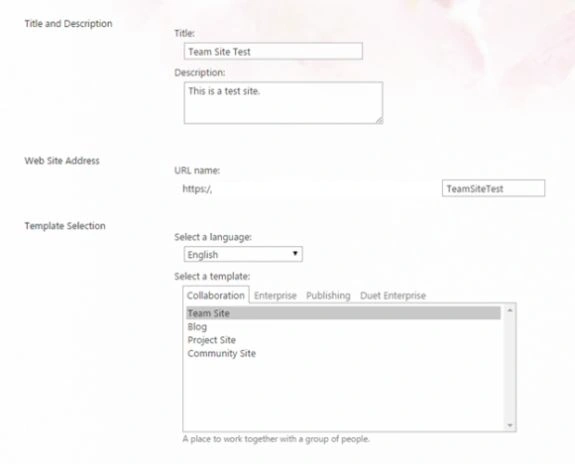
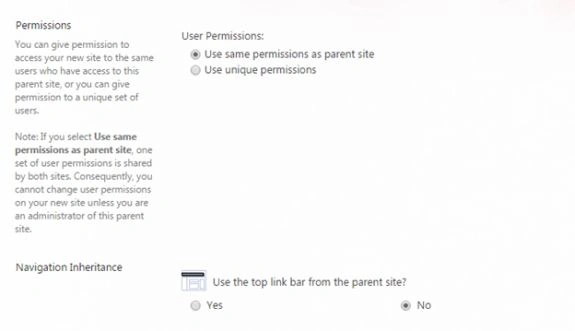
- Permissions: Here you can assign permissions to the site directly either by inheriting the permissions from the parent or assigning it unique permissions.
- Navigation Inheritance: Using this option you can inherit the same navigation as your parent site.
- Title and Description:
- Click on OK, It will create the site.
Welcome to SharePoint 2013 Site using Team Site template.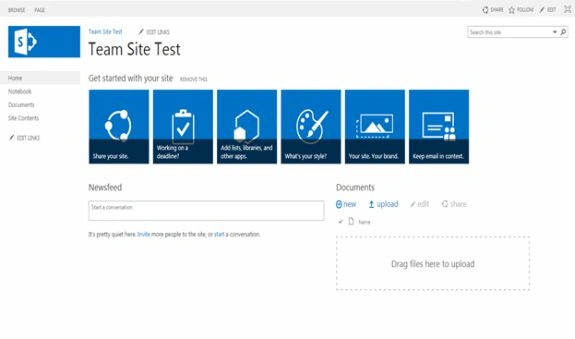
- Here on the site you have a left navigation with links to Home, Notebook, Documents and Site Contents.
- The center part contains some options for you to start up like:
- Share your site: You can assign permission to others to view your site.
- Working on a deadline: To assign a Task using Calendar.
- Add lists, libraries and other apps.
- What's your style?: Here you can change the color or theme of the site.
- Your site. Your brand: Here you can add a logo or a description to your site.
- Keep email in contact: Here you can attach your outlook directly to the site and receive all emails in the site's inbox.
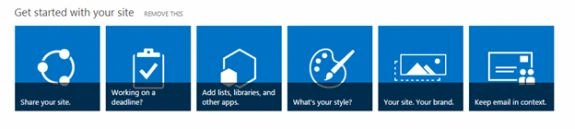
- Share your site: You can assign permission to others to view your site.
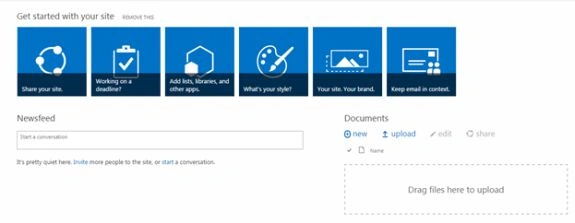
- Here down the web part we have a newsfeed that acts like a wall in Facebook or Twitter and users can write, share and like the feeds.
- On the right side we have a default Document Library, where you can drag and drop the documents into it.
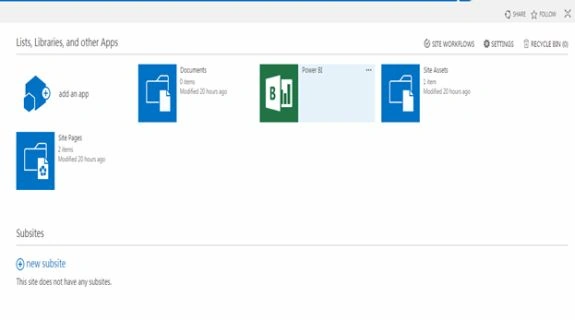
- This is the default site content what we get in a Team Site.
- Documents
- Power BI
- Site Assets
- Site Pages
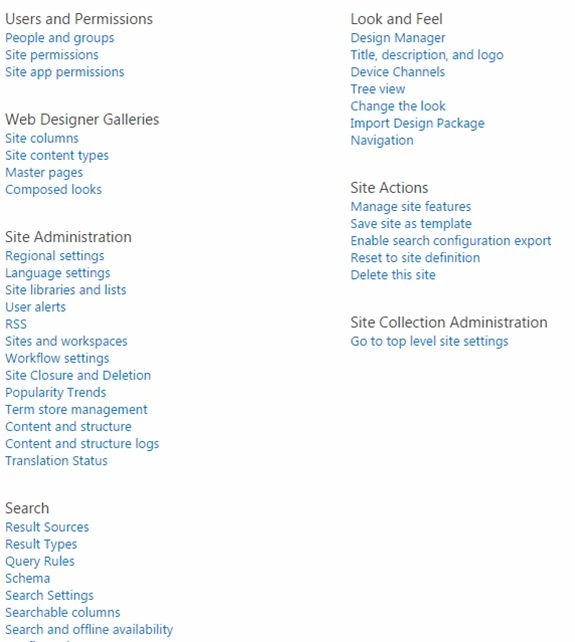
- Lastly we can see the site settings, that you can see from the previous blogs on Site Settings in SharePoint 2013 at C# Corner.
Cheers.
Ramakrishna BasagallaPosted May 2, 2016, 5:40 AM
Nice one
Sr KarthigaPosted Apr 19, 2016, 10:18 PM
Nice explanation
Gowtham RajamanickamPosted Apr 7, 2016, 3:00 AM
good one..
Kumaresh RajalingamPosted Feb 20, 2016, 4:45 AM
Nice explanation