

Introduction
When Windows 8 is installed, you can choose the Windows Account (e.g. Hotmail Account) or use a Local Account. One advantage of using a Windows Account is that your settings and contents are synced up with your Windows Live account and you will get the updated content and settings when you log in to your Windows 8 account from the different device. Windows 8 provides the ability to switch between a Windows Account and a Local Account. You can configure what account to use to sign in to the Operating System in Windows 8. In Windows 8 you can go Charms > Settings >More PC Settings > Users and you can switch between a Windows Live Account (or Windows Account or Hotmail ) and a Local Account.
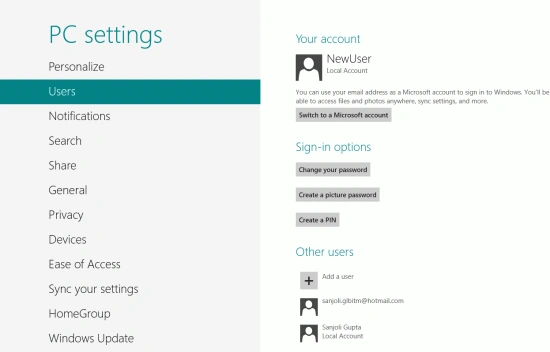
You can change the user sign-in options in threeway.
- You can change your password.
- You can create a picture password.
- You can create a pin.
You can also add multiple user accounts to your device. This will allow you to have multiple users able to sign in to your PC or Laptop.
Microsoft Account
- You can use your Windows Live Id email address and password to sign in to Windows 8.
- When you sign in with Microsoft Account and then your PC connected to the cloud.
- Your friend's contact info and statuses are automatically up to date from your Hotmail, Facebook, Twitter and other accounts.
- You may get to and share your photos, documents, and other files from Facebook, and other accounts without signing in to each one.
- You can also save time with sign-in credentials because now the same credentials are available for the different apps and websites you use.
- You can automatically sign in to apps and services.
- Your personal settings are synced to any PC running Windows 8 Consumer Preview that you sign in including your themes, language preferences, browser favorites, and apps.
- You can get applications in the Windows Store and use them in Windows 8 Consumer Preview that you sign in to.
Local Account
- You can use the user name and password to sign in to Windows 8.
- A Local Account gives you access to the PC.
- None of your settings will be synced between the PCs you use.
From the Metro, UI click or swipe the upper right corner of the screen to show the Charms menu. Click on More PC Settings.
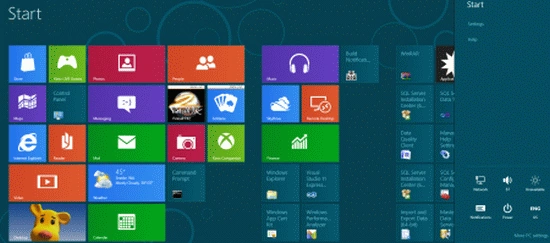
From Local Account to Microsoft Account
Select Users and then click on "Switch to a Microsoft Account".
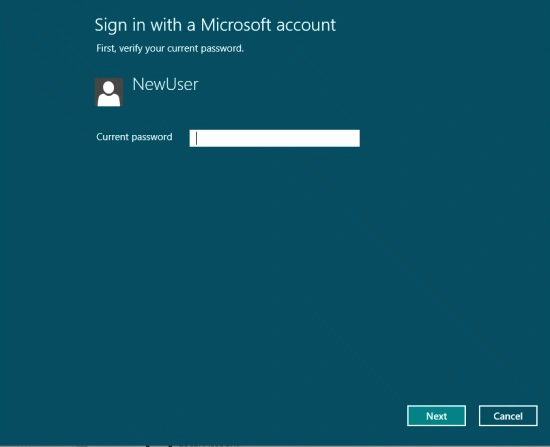
Type in the Local Account Password.
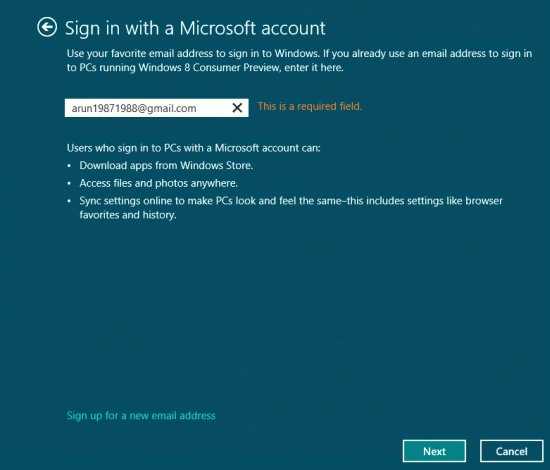
And then enter your Live ID or Hotmail account. If you do not have already one to use then you can create one by clicking the link "Sign up for a new email address" and answer the security question to confirm your identity. You may receive an SMS message from your mobile phone that shows "Security info was added for xxx".
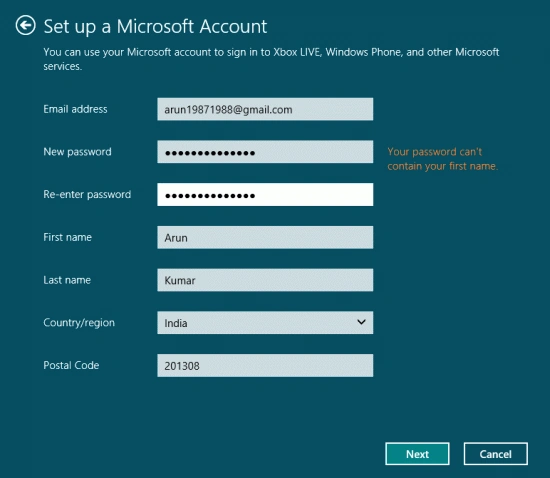
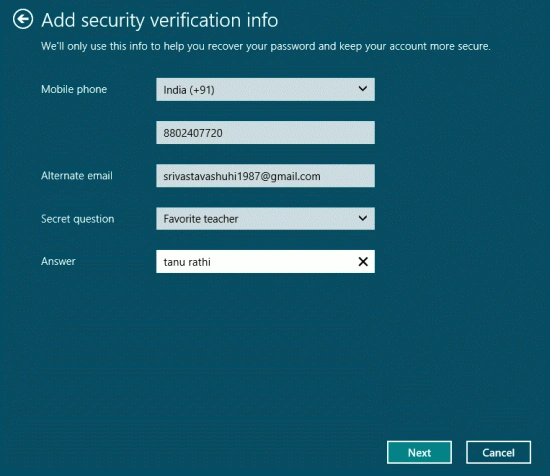
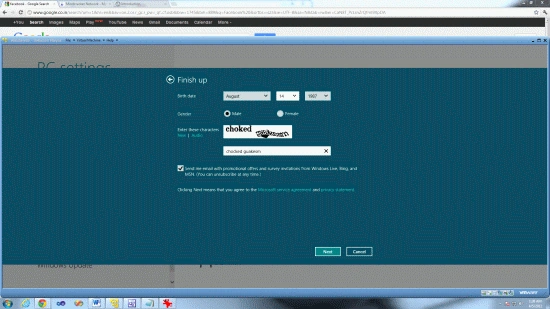
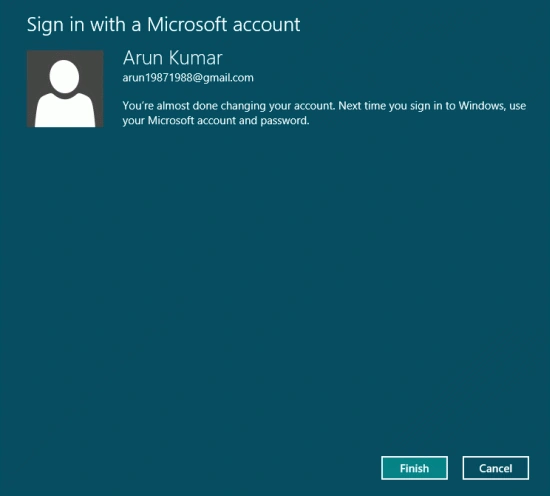
We are logged in with your Windows Account. Some Metro Application is now showing e.g. photos, email, and store associated with your Live ID Account.
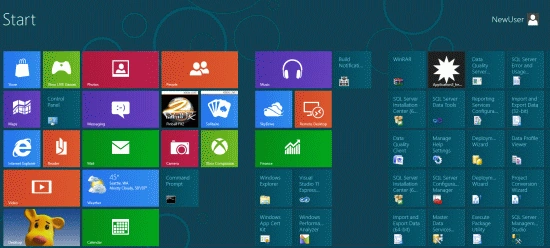
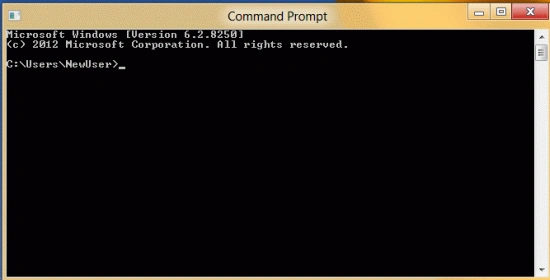
However, your desktop apps are still running under your previous local account. If you run in CMD prompt, you will see your local account name displayed.
From Windows Account to Local Account
Repeat the same steps as above to get to the User's PC settings. Click on the "Switch to a local account" button.
Resources
- Windows Azure - Create Queue in Storage Account
- Windows Azure - Create Table in Storage Account
- Windows Azure - Create Blob in Storage Account
- Creating Storage Account in new Silverlight based Windows Azure Portal
- Windows Azure: Deleting Co-Admin User Account in Azure Portal
Summary
In this article, we learned about Switch Between Windows Accounts and Local Accounts in Windows 8.
Join the conversation! Your thoughts help the community grow.