

Introduction
In this article, I will explain how to measure the distance from any object. It can be easily displayed in the LCD Screen. We can use it on the front door to view the distance of people.
Parts of List
- Arduino UNO
- Ultrasonic Sensor (HC-SR04)
- BreadBoard
- LCD Screen
- HookUp Wires.
Ultrasonic Sensor (HC-SR04)
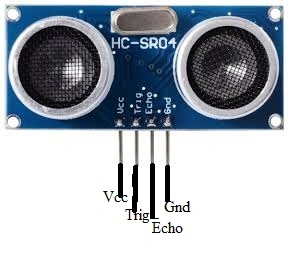
Figure 1: Ultrasonic Sensor(HC-SR04)
- It is used to produce a high-frequency sound effect.
- It can measure the signal from the sender to the receiver.
- The echo to be determined from the object.
Where ever we can fix the Ultrasonic Sensor(HC-SR04)
- Hospital for medicine
- Industry
- Home etc.
LCD Screen

Figure 2: LCD Screen
- LCD is Liquid Crystal Display (LCD).
- It can have the flat-panel or the electronic display
- It is used in hospitals, showrooms, buses, railway stations, airports, etc.
Connections
Connection from the Ultrasonic Sensor (HC-SR04) to the Arduino board
In the sensor it has the following four pins; they can work under the process of the receiving and the sending of the signal.
Connection from the Ultrasonic Sensor (HC-SR04) to the Arduino board
In the sensor it has the following four pins; they can work under the process of the receiving and the sending of the signal.
- Vcc in the Ultrasonic Sensor can be connected to the Arduino board of the 5V of Vcc.
- Triger in the Ultrasonic Sensor can be connected to the Arduino board of the digital pin 12.
- Echo pin the Ultrasonic Sensor can be connected to the Arduino board of the digital pin 08.
- Gnd in the Ultrasonic Sensor can be connected to the Arduino board of the Gnd.
Connection from LCD Screen to the Arduino board
The LCD screen can have the following four pins.
- The Vcc can be connected to the vcc of the Arduino board.
- The Gnd can be connected to the Gnd of the Arduino board.
- The SDA can be connected to the Arduino board of the analog pin A4 .
- The SCL can be connected to the Arduino board of the analog pin A5.
Before uploading the program add the library:
- Liquid crystal
- I2CAddr0x3F
Programming
- #define trigPin 12
- # define echoPin 8
- //Flashing LED on Arduino board
- # define LEDPin 13
- //LCD
- # include < Wire.h >
- #include < LCD.h >
- #include < LiquidCrystal_I2C.h >
- #define I2C_ADDR 0x3F
- // Define I2C Address where the PCF8574A is
- # define BACKLIGHT_PIN 3
- # define En_pin 2
- # define Rw_pin 1
- # define Rs_pin 0
- # define D4_pin 4
- # define D5_pin 5
- # define D6_pin 6
- # define D7_pin 7
- int n = 1;
- LiquidCrystal_I2Clcd(I2C_ADDR, En_pin, Rw_pin, Rs_pin, D4_pin, D5_pin, D6_pin, D7_pin);
- void setup()
- {
- Serial.begin(9600);
- pinMode(trigPin, OUTPUT); //The transmit pin of the ultrasonic sensor
- pinMode(echoPin, INPUT); //The receive pin of the ultrasonic sensor
- pinMode(LEDPin, OUTPUT); //The LED of the Arduino
- lcd.begin(20, 4);
- //Size of LCD
- // Switch on the backlight
- lcd.setBacklightPin(BACKLIGHT_PIN, POSITIVE);
- lcd.setBacklight(HIGH);
- lcd.home(); // go home
- }
- void loop()
- {
- int duration, distance;
- digitalWrite(trigPin, HIGH);
- delayMicroseconds(100);
- digitalWrite(trigPin, LOW);
- duration = pulseIn(echoPin, HIGH);
- distance = (duration / 2) / 29.1;
- lcd.clear();
- lcd.setCursor(0, 0);
- lcd.print("Distance from object");
- lcd.setCursor(0, 1);
- lcd.print(distance);
- lcd.print("cm");
- if (distance >= 15)
- {
- lcd.setCursor(0, 4);
- lcd.print("Safe Zone :)");
- digitalWrite(LEDPin, HIGH);
- delay(500);
- digitalWrite(LEDPin, LOW);
- delay(500);
- }
- else
- {
- lcd.clear();
- lcd.setCursor(0, 0);
- lcd.print("STEP AWAY!!!");
- lcd.setCursor(0, 1);
- lcd.print("STEP AWAY!!!");
- lcd.setCursor(0, 2);
- lcd.print("STEP AWAY!!!");
- lcd.setCursor(0, 3);
- lcd.print("STEP AWAY!!!");
- digitalWrite(LEDPin, HIGH);
- delay(50);
- digitalWrite(LEDPin, LOW);
- delay(50);
- digitalWrite(LEDPin, HIGH);
- delay(50);
- digitalWrite(LEDPin, LOW);
- delay(50);
- digitalWrite(LEDPin, HIGH);
- delay(50);
- digitalWrite(LEDPin, LOW);
- delay(50);
- digitalWrite(LEDPin, HIGH);
- delay(50);
- digitalWrite(LEDPin, LOW);
- delay(50);
- digitalWrite(LEDPin, HIGH);
- delay(50);
- digitalWrite(LEDPin, LOW);
- delay(50);
- digitalWrite(LEDPin, HIGH);
- delay(50);
- digitalWrite(LEDPin, LOW);
- delay(50);
- digitalWrite(LEDPin, HIGH);
- delay(50);
- digitalWrite(LEDPin, LOW);
- delay(50);
- digitalWrite(LEDPin, HIGH);
- delay(50);
- digitalWrite(LEDPin, LOW);
- delay(50);
- digitalWrite(LEDPin, HIGH);
- delay(50);
- digitalWrite(LEDPin, LOW);
- delay(50);
- digitalWrite(LEDPin, HIGH);
- delay(50);
- digitalWrite(LEDPin, LOW);
- delay(50);
- digitalWrite(LEDPin, HIGH);
- delay(50);
- digitalWrite(LEDPin, LOW);
- //That really long repeat is to allow the LED pin on the Arduino
- }
- }
Explanation
In this case, it can send and receive a signal from the ultrasonic sensor, when the object is near it can be displayed in the LCD screen.
When the object is near it can detect the SAFE ZONE message in the LCD screen.
When the object is a way it can detect the STEP AWAY message in the LCD screen.
Output
In this case, it can send and receive a signal from the ultrasonic sensor, when the object is near it can be displayed in the LCD screen.
When the object is near it can detect the SAFE ZONE message in the LCD screen.
When the object is a way it can detect the STEP AWAY message in the LCD screen.
Output

Figure 3:Output
Read more articles on Arduino:
Sr KarthigaPosted Feb 29, 2016, 7:43 PM
thank you asfend sir
Asfend YarPosted Feb 29, 2016, 2:23 PM
good
Sr KarthigaPosted Feb 13, 2016, 4:23 AM
Thank you santhakumar sir
Santhakumar MunuswamyPosted Feb 13, 2016, 3:00 AM
Thanks for nice share
Sr KarthigaPosted Feb 12, 2016, 7:37 PM
Thank you vignesh mani sir
Vignesh ManiPosted Feb 12, 2016, 3:31 PM
Nice one
Sr KarthigaPosted Feb 11, 2016, 7:28 PM
Thank you Mohammed sir
Mohammed IbrahimPosted Feb 11, 2016, 1:11 PM
nice
Sr KarthigaPosted Feb 11, 2016, 10:08 AM
Thank you gowtham sir
Gowtham KPosted Feb 11, 2016, 10:04 AM
Good One, Thanks for sharing:)
Sr KarthigaPosted Feb 11, 2016, 2:37 AM
Thank you shubham sir
Shubham KumarPosted Feb 11, 2016, 2:19 AM
simply interesting
Sibeesh VenuPosted Feb 11, 2016, 1:51 AM
Nice Share
Sr KarthigaPosted Feb 10, 2016, 8:08 PM
Thank you kumaresh sir
Kumaresh RajalingamPosted Feb 10, 2016, 8:06 PM
Good one SR
Sr KarthigaPosted Feb 10, 2016, 7:55 PM
Thank you Mohammed sir
Sr KarthigaPosted Feb 10, 2016, 7:55 PM
Thank you santhakumar sir
Sr KarthigaPosted Feb 10, 2016, 7:55 PM
Thank you Ankur mistry sir
Mohammed IbrahimPosted Feb 10, 2016, 7:52 PM
nice
Santhakumar MunuswamyPosted Feb 10, 2016, 2:12 PM
Thanks for nice article
Ankur MistryPosted Feb 10, 2016, 2:05 PM
Nice share