

Introduction
Microsoft Windows 8 came with many new features and many changes. As well as some features that have been removed from Windows 8. Such as Start Menu, DVD Player, Windows Media Center, etc. Microsoft has removed the Windows Media Center from Windows 8 and made it available for a cost. But Microsoft is now making the Media Center available for free to anyone with Windows 8 Pro.
Windows Media Center is only available to free for Windows 8 Pro users and the free offer is available only for a limited time.
You can get a Windows Media Center product key from this link:
How to add Media Center to Windows 8?
Step 1
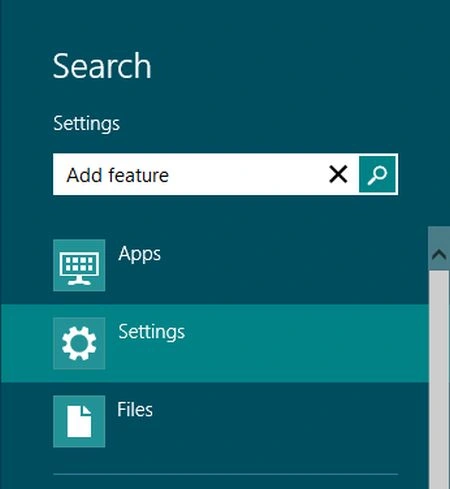
Go to search box and type "Add feature" and click on "Settings", click on "Add feature to Windows 8" from the results window.
Step 2
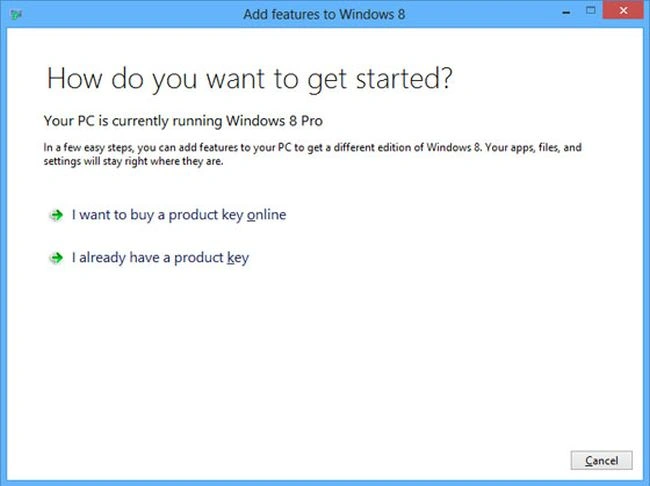
Add features to Windows 8 window will be opened. If you already have a product key then click on "I already have a product key" otherwise click on "I want to buy a product key online" to get a product key online.
Step 3
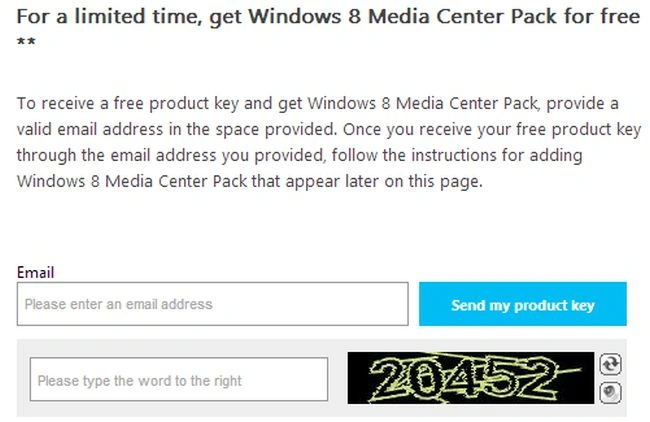
Enter your email id to get a product key online and click on "Send my product key".
Step 4
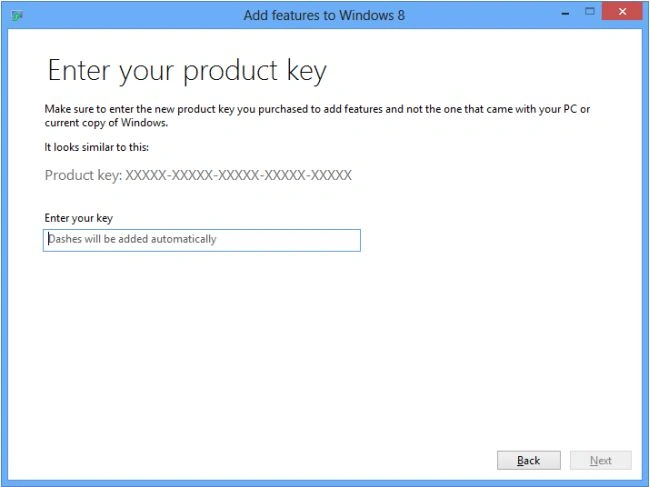
After getting a product key to enter your product key and click on "Next" to continue the process.
Step 5
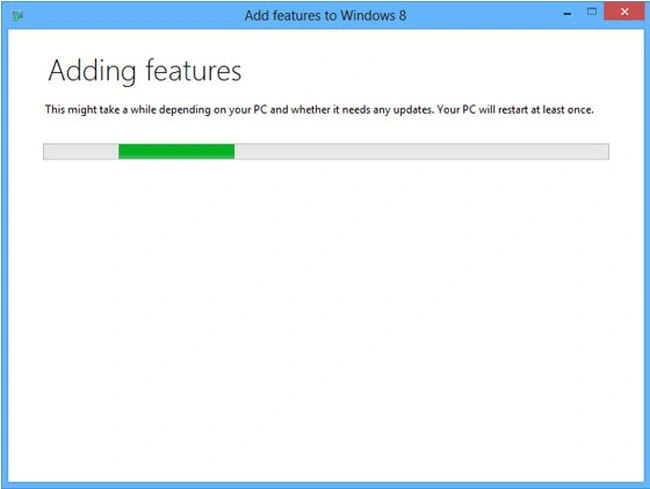
Wait a few minutes to install Media Center. It will take about 5 minutes and your PC will restart.
Step 6
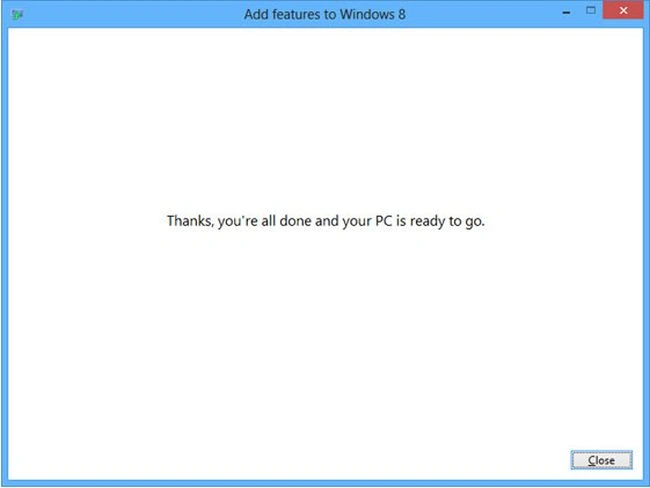
After restarting the PC you will see the process complete window on your Desktop screen. Click on "Close".
Step 7
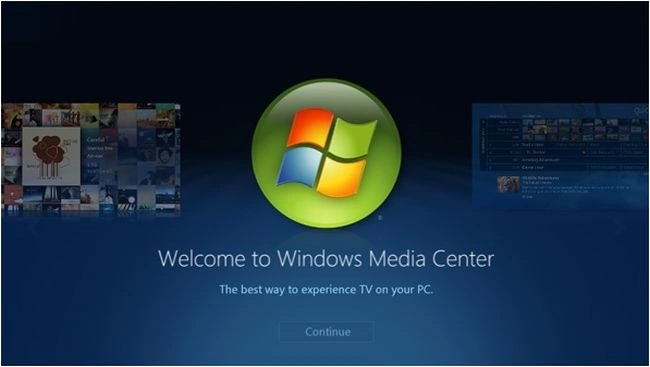
Now go to the Start Screen and click on Windows Media Center to play the Windows Media Center.
Summary
In this article, we learned about How to Add Media Center to Windows 8.
Join the conversation! Your thoughts help the community grow.