

Introduction
In this article, we are going to explain how to get a fully functional Recycle Bin in the Taskbar in Windows 8. When we open many windows in our PC, getting to the Recycle Bin can sometimes be a pain. Use this quick tip to create a fully functional Recycle Bin in our Taskbar.
How to create a fully functional Recycle Bin in the Taskbar?
Step 1
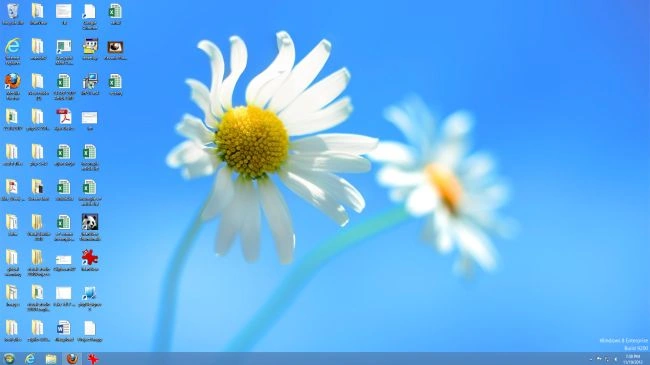
First of all, we have to move to the Desktop window of Windows 8.
Step 2
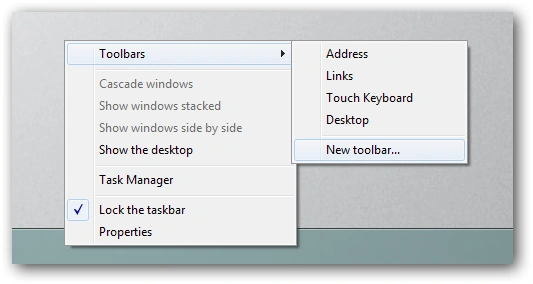
Then right-click on the Taskbar and we select toolbar\New Toolbar from the context menu.
Step 3
then we select a folder and click on the navigation bar and paste the following into it:
%appdata%\Microsoft\Internet Explorer\Quick Launch.

Step 4
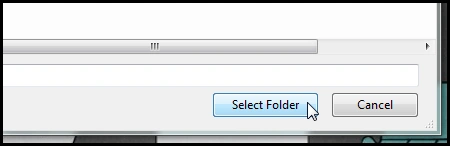
We can click the select folder button.
Step 5
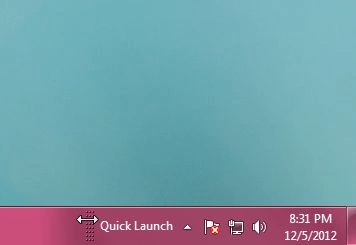
We will notice that the toolbar is all the way over on the right, so click on the dotted lines and then drag the toolbar to the left.
Step 6
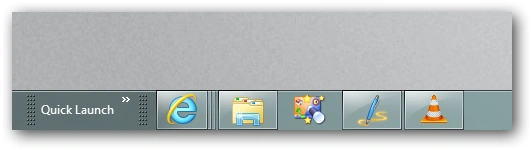
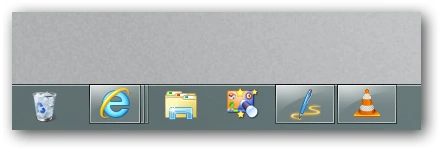
Our Taskbar should now look like this.
Step 7
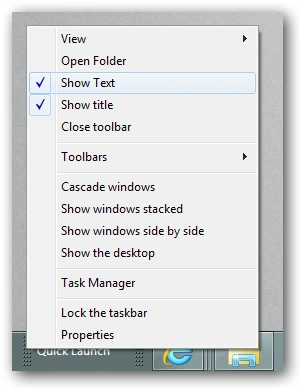
We want to get rid of the text so right-click on the dotted lines and uncheck "Show Text" as well as "Show Title" from the menu.
Step 8
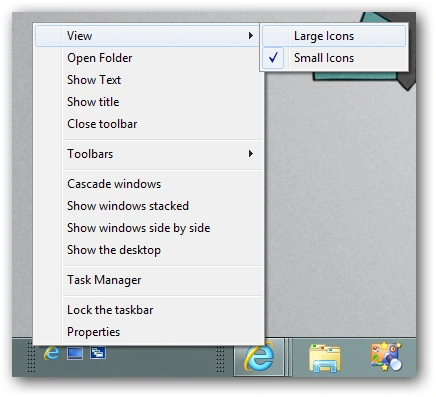
Now we need to make the icons larger. To do that, again right-click on the dotted lines, this time change the view from Small icons to Large icons.
Step 9
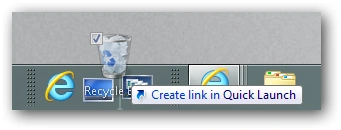
Now we need to drag the Recycle Bin from the Desktop onto the toolbar.
Step 10
Finally, we can delete the other shortcuts in the toolbar, then lock your Taskbar again.
Summary
In this article, we learned about Get a Fully Functional Recycle Bin in the Taskbar on Windows 8.
Join the conversation! Your thoughts help the community grow.