

Introduction
In this article, we are going to explain how to Dual Boot Windows 8 and Linux Mint on the same PC. In Windows 8, if we might want to test out both Windows 8 and Linux Mint then there is a couple of things that are needed.
- Our drive space - 10GB
- The Linux Mint DVD, from here (x86) or here (x64), burnt to a DVD.
- About 30 minutes of free time
How to Dual Boot Windows 8 and Linux Mint on the PC?
Step 1
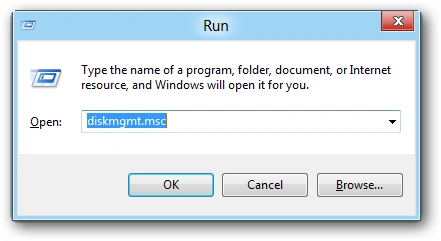
In Windows 8 Desktop, first, we press Win + R key. The Run window opens. Then type "diskmgmt.msc" into the Run box and click "OK".
Step 2
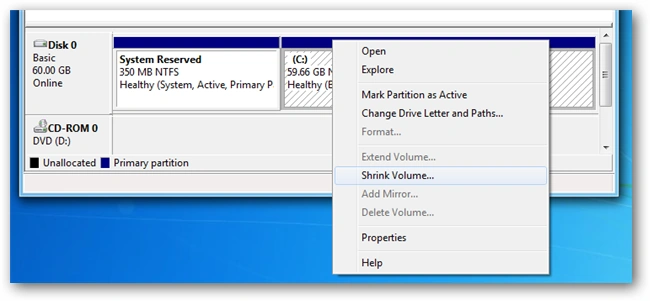
The Disk Management window opens. Right-click on our drive containing Windows 8 and select Shrink Volume from the context menu.
Step 3
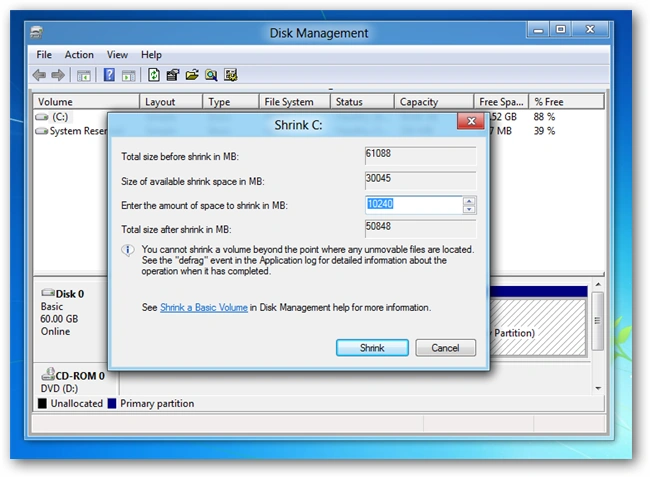
Now enter the size of the hard disk in megabytes to shrink the partition. We recommend a minimum of 10GB.
Step 4
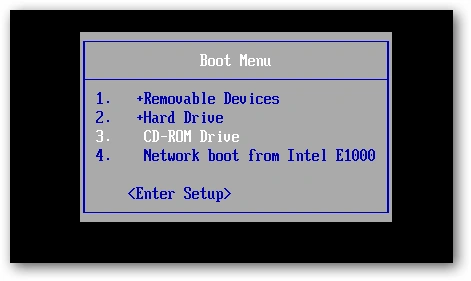
Inset our Mint DVD and boot our PC from the DVD drive, press the F11 or F12 key.
Step 5
The DVD should automatically boot into its Live mode, however, if you bump a key and are prompted simply choose to start it.
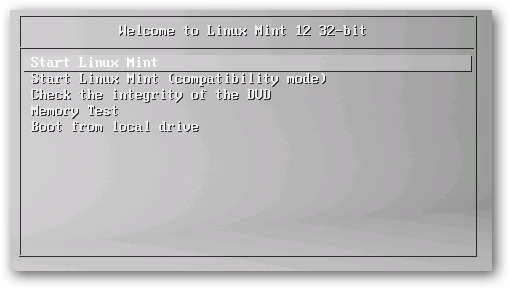
Step 6
Once booted, we can start the installation by double-clicking on the Install Linux Mint shortcut on the Desktop.
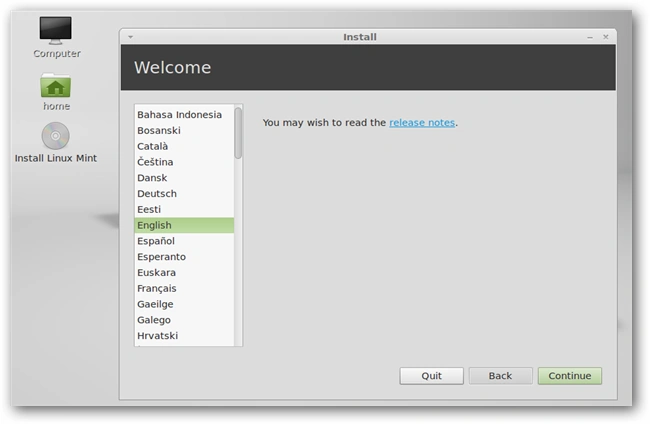
Step 7
Click the "Continue" tab and get to the installation type section.
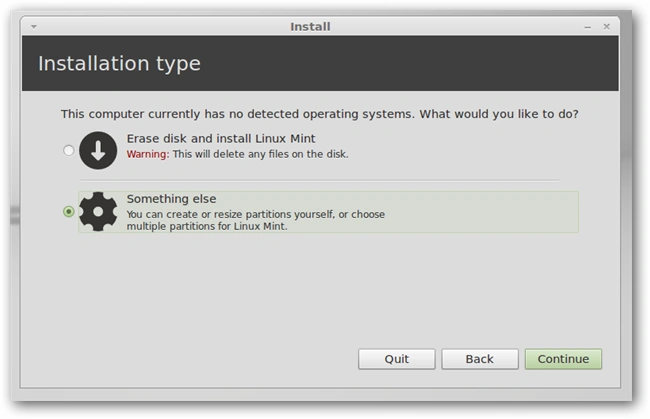
Step 8
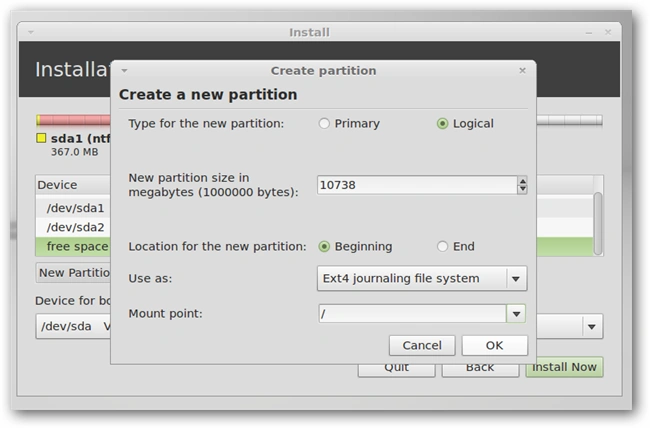
We now need to select where to install Mint. Scroll down until we see a partition called "free space".
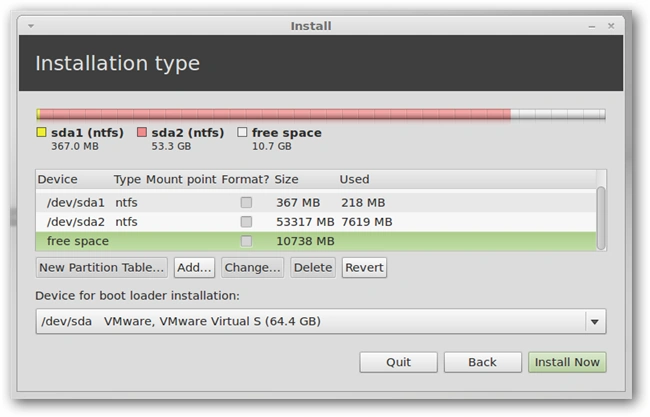
Step 9
Double-click on it to bring up the Format menu, here accept all the defaults except for the mount point, where we should enter a single forward slash, then click "Ok".
Step 10
Now we can click on the "Install Now" button.
Step 11
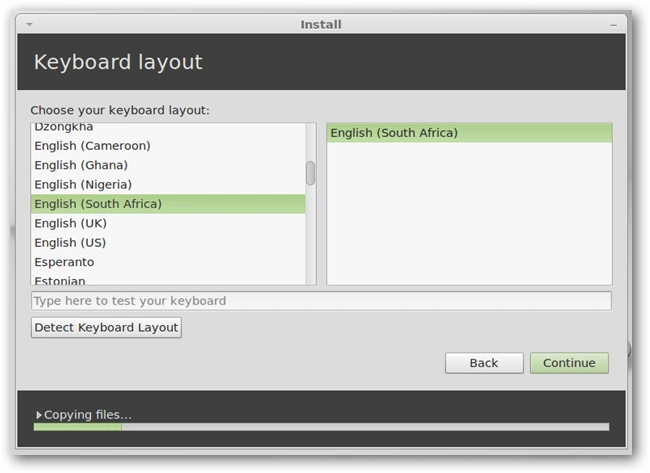
It then asks for a few configuration settings while the OS is busy installing.
Step 12
We will need to reboot our PC when the installation is finished, as we can see now how easy it is to choose our OS at start-up.
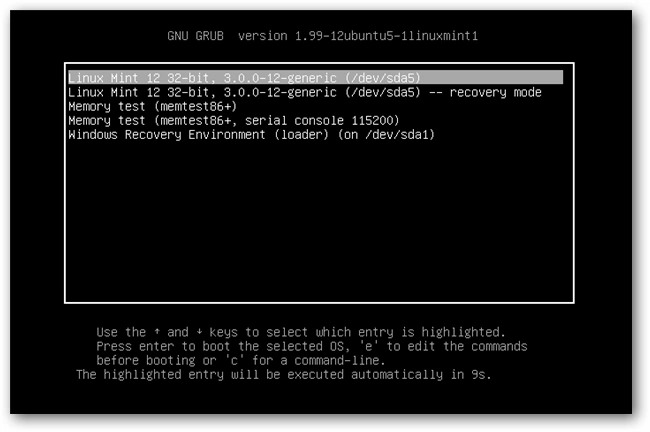
Our default OS will now be Linux Mint, but we always have the choice of switching back to Windows 8 from the Grub boot menu at any time.
Summary
In this article, we learned about Windows 8 Dual Boot and Linux Mint on the Same PC.
Aman SinghalPosted Dec 27, 2012, 7:33 AM
I think, No It is not possible, we have at least two drive for dual-boot. and we will make this article with the help of this site. (http://www.linuxmint.com/edition.php?id=95)
Sam HobbseditedPosted Dec 25, 2012, 1:04 PMEdited Dec 25, 2012, 1:05 PM
Thank you for telling us about Linux Mint and splitting a partition. Something else I am interested in knowing about is how to use Microsoft software to do the dual booting. I have never, ever seen a way to do that. Also, I wonder if it is possible to do this except using a drive or partition that does not have an OS; is it possible to install Linux Mint into an existing drive or partition and dual-bbot with that.