
Introduction
In this article I will describe generic roots. So let us first of all understand them. They are the sum of the digits of a number unit; we don't get a single digit.
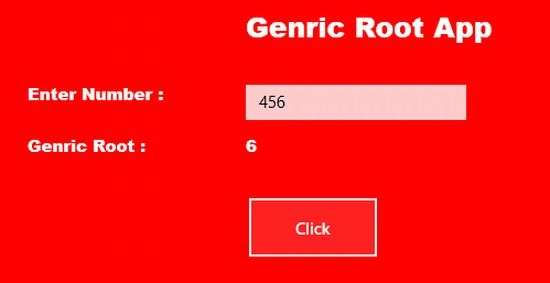
For example: 456 = 4+5+6 = 15 and since 15 is two digits, 1 + 5 = 6.
Therefore the generic root of 456 = 6.
Now I will create the generic root logic in Windows Store app.
Step 1
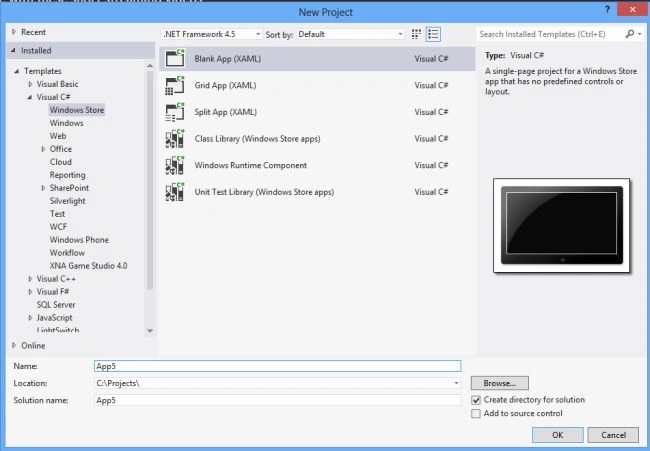
First of all you have to create a new Windows Store Application.
- Open Visual Studio 2012
- "File" -> "New" -> "Project..."
- Choose "Template" -> "Visual C#" -> "Window Store app"
- Choose "Blank App (XAML)" then rename the application
Step 2
Write the following XAML code in "Mainpage.Xaml" (that is available in Solution Explorer):
<Page
x:Class="genric_root_app.MainPage"
xmlns="http://schemas.microsoft.com/winfx/2006/xaml/presentation"
xmlns:x="http://schemas.microsoft.com/winfx/2006/xaml"
xmlns:local="using:genric_root_app"
xmlns:d="http://schemas.microsoft.com/expression/blend/2008"
xmlns:mc="http://schemas.openxmlformats.org/markup-compatibility/2006"
mc:Ignorable="d">
<Grid Background="Red">
<Grid.RowDefinitions>
<RowDefinition Height="116*"/>
<RowDefinition Height="47*"/>
<RowDefinition Height="33*"/>
<RowDefinition Height="28*"/>
<RowDefinition Height="52*"/>
<RowDefinition Height="492*"/>
</Grid.RowDefinitions>
<Grid.ColumnDefinitions>
<ColumnDefinition Width="287*"/>
<ColumnDefinition Width="141*"/>
<ColumnDefinition Width="938*"/>
</Grid.ColumnDefinitions>
<TextBlock Text="Genric Root App" Foreground="White" FontSize="25" FontFamily="Arial" Grid.Column="2" Grid.Row="1" FontWeight="ExtraBold" ></TextBlock>
<TextBlock Text="Enter Number :" Foreground="White" FontSize="15" FontFamily="Arial" Grid.Column="1" Grid.Row="2" FontWeight="ExtraBold" ></TextBlock>
<TextBox x:Name="textbox1" Grid.Row="2" Grid.Column="2" Width="200" Height="32" HorizontalAlignment="Left" VerticalAlignment="Top" ></TextBox>
<TextBlock Text="Genric Root :" Foreground="White" FontSize="15" FontFamily="Arial" Grid.Column="1" Grid.Row="3" FontWeight="ExtraBold" ></TextBlock>
<TextBlock x:Name="text1" Foreground="White" FontSize="15" FontFamily="Arial" Grid.Column="2" Grid.Row="3" FontWeight="ExtraBold" Width="200" HorizontalAlignment="Left"></TextBlock>
<Button x:Name="Button1" Grid.Column="2" Grid.Row="4" Width="122" Content="Click" Click="Button1_click" Background="Yellow" Foreground="Black" VerticalAlignment="Stretch" Margin="0,14,0,0" />
</Grid>
</Page>
Step 3
Now write the following C# code for the button within "Mainpage.Xaml.cs".
using System;
using System.Collections.Generic;
using System.IO;
using System.Linq;
using Windows.Foundation;
using Windows.Foundation.Collections;
using Windows.UI.Xaml;
using Windows.UI.Xaml.Controls;
using Windows.UI.Xaml.Controls.Primitives;
using Windows.UI.Xaml.Data;
using Windows.UI.Xaml.Input;
using Windows.UI.Xaml.Media;
using Windows.UI.Xaml.Navigation;
namespace genric_root_app
{
public sealed partial class MainPage : Page
{
public MainPage()
{
this.InitializeComponent();
}
protected override void OnNavigatedTo(NavigationEventArgs e)
{
}
private void Button1_click(object sender, RoutedEventArgs e)
{
int num = 0, sum=0, r;
num = Convert.ToInt32(textbox1.Text);
while (num >= 10)
{
sum = 0;
while (num > 0)
{
r = num % 10;
num = num / 10;
sum += r;
}
if (sum >= 10)
{
num = sum;
}
else
break;
}
text1.Text = sum.ToString();
}
}
}
Step 4
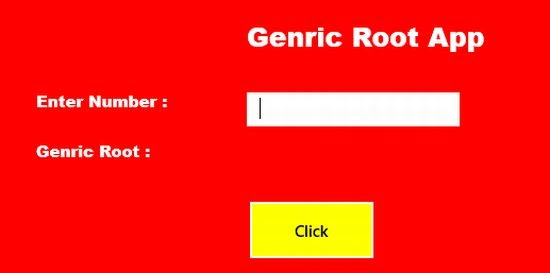
Run your app.
Join the conversation! Your thoughts help the community grow.