

Introduction
This article is useful to optimize Windows 8 performance by tweaking visual effects. It is well known that Windows 8 is the most optimized and fastest OS provided by Microsoft. To make Windows run faster there are so many visual effects in Windows 8. Moreover, Windows 8 provides some visual effects and features that can be disabled to improve Windows 8 performance in a manner similar to Windows 7.
So in this article we will learn how to optimize Windows 8 performance by tweaking visual effects.
How to disable Tweaking Visual Effects in Windows 8?
Step 1
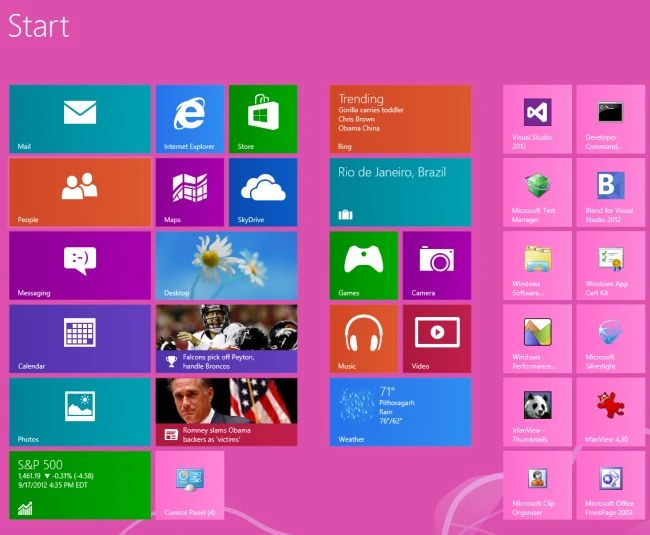
First of all, we have to move to the Start screen window of Windows 8.
Step 2
Then move the cursor on the bottom-right of the window screen and click the search box which is helpful to search in Windows 8.

Step 3
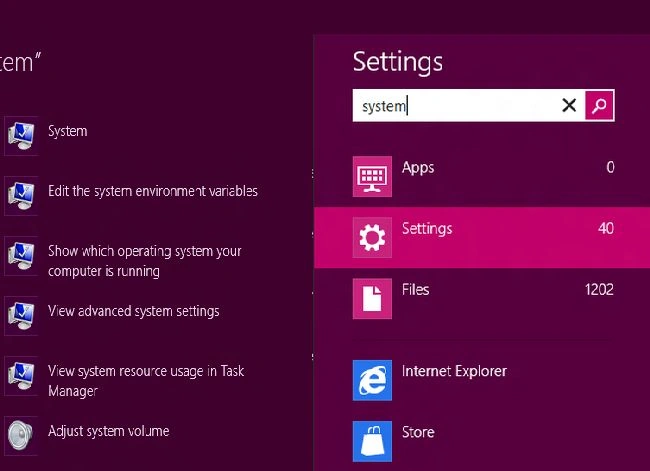
Then in the search box type "System" and click on Setting from the right sidebar then click System in the main window.
Step 4
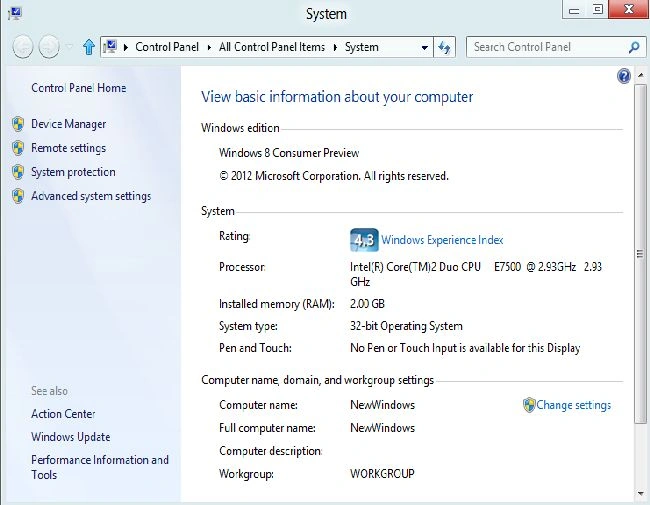
On performing this task a new window will appear labeled with System. In this window click the "Advanced system setting" option.
Step 5
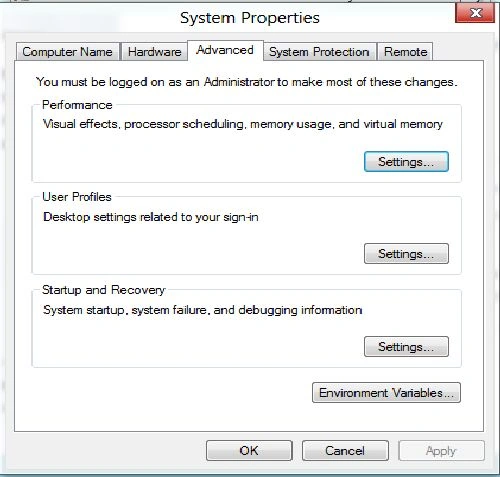
On performing this task a new window will appear labeled with System Properties. In this window click the "Settings" option.
Step 6
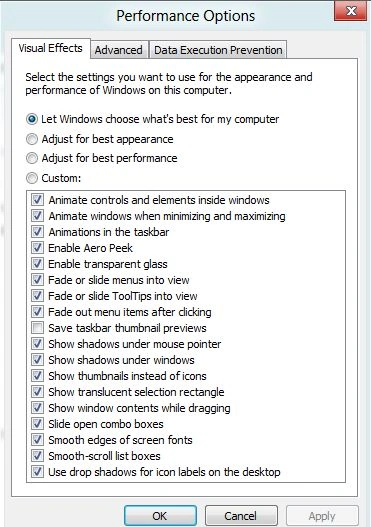
Then a new window will appear labeled with Performance Options as in the following image.
Step 7
Now in the Performance Options window click the Custom checkbox. Now here I want to uncheck the following option as shown in the following image.
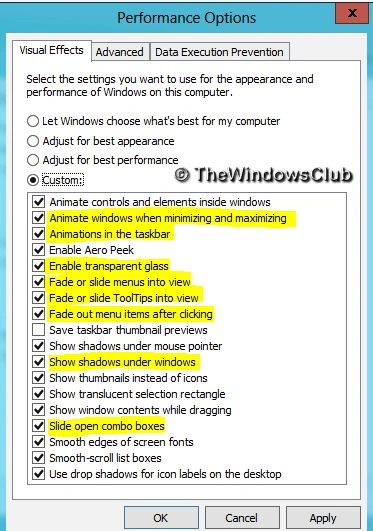
Finally, click Apply and then OK.
Note
This setting is, of course, available in Windows 7 too.
Summary
In this article, we learned about How to Disable Tweaking Visual Effects in Windows 8.
Join the conversation! Your thoughts help the community grow.