

In this article we are discussing AppBars in Windows Store Apps. In most applications, you want your AppBar to be "global". In other words, you want a single AppBar that is displayed on every page that you may navigate to and you don't want each page to have it's own AppBar.
This article demonstrates this concept of a global AppBar and shows how you to use the same AppBar as you navigate through various pages of an application.
Procedure
Step 1
Create a Blank Application of Windows Store Apps.
Step 2
Add a new page in the application that is used to create an AppBar that is visible in all pages.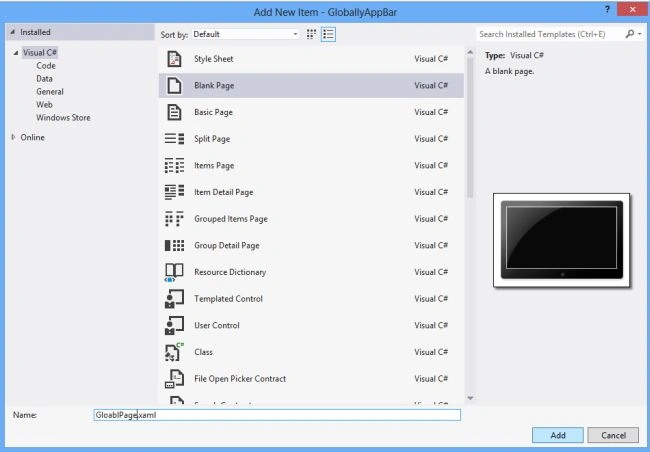
Here is the code of GolbalPage.XAML.
<Page
x:Class="GloballyAppBar.GlobalPage"
xmlns="http://schemas.microsoft.com/winfx/2006/xaml/presentation"
xmlns:x="http://schemas.microsoft.com/winfx/2006/xaml"
xmlns:local="using:GloballyAppBar"
xmlns:d="http://schemas.microsoft.com/expression/blend/2008"
xmlns:mc="http://schemas.openxmlformats.org/markup-compatibility/2006"
mc:Ignorable="d">
<Page.BottomAppBar>
<AppBar x:Name="GlobalAppBar" Padding="10,0,10,0" AutomationProperties.Name="Global App Bar">
<StackPanel x:Name="LeftCommands" HorizontalAlignment="Left" VerticalAlignment="Center" Height="53">
<Button x:Name="Back" AutomationProperties.Name="Back" HorizontalAlignment="Left" VerticalAlignment="Center" Style="{StaticResource BackButtonStyle}"/>
</StackPanel>
</AppBar>
</Page.BottomAppBar>
<Grid Background="White">
<Frame x:Name="Frame1"/>
</Grid>
</Page>
Code of .cs file.
namespace GloballyAppBar
{
public sealed partial class GlobalPage : Page
{
MainPage rootPage = null;
public GlobalPage()
{
this.InitializeComponent();
Back.Click += Back_Click;
}
protected override void OnNavigatedTo(NavigationEventArgs e)
{
rootPage = e.Parameter as MainPage;
Frame1.Navigate(typeof(Page1), this);
}
private void Back_Click(object sender, RoutedEventArgs e)
{
if (Frame1.CanGoBack)
{
Frame1.GoBack();
}
else
{
rootPage.Frame.GoBack();
}
}
}
}
Step 3
Now, add another page to which we navigate from the MainPage.
Code of Page1.XAML file.
<Page
x:Class="GloballyAppBar.Page1"
xmlns="http://schemas.microsoft.com/winfx/2006/xaml/presentation"
xmlns:x="http://schemas.microsoft.com/winfx/2006/xaml"
xmlns:local="using:GloballyAppBar"
xmlns:d="http://schemas.microsoft.com/expression/blend/2008"
xmlns:mc="http://schemas.openxmlformats.org/markup-compatibility/2006"
mc:Ignorable="d">
<Grid Background="#FF07AAF9">
<StackPanel VerticalAlignment="Center" HorizontalAlignment="Center">
<TextBlock x:Name="PageOne" Text="This is Page One" FontSize="30" HorizontalAlignment="Center"/>
<TextBlock x:Name="UseAppBar" Text="(use AppBar to go back)" FontSize="20" HorizontalAlignment="Center"/>
<Button x:Name="PageTwo" Content="Go To Page Two" Grid.Row="1" HorizontalAlignment="Center" Click="PageTwo_Click"/>
</StackPanel>
</Grid>
</Page>
Code of Page1.XAML.cs file.
namespace GloballyAppBar
{
public sealed partial class Page1 : Page
{
GlobalPage rootPage = null;
public Page1()
{
this.InitializeComponent();
}
protected override void OnNavigatedTo(NavigationEventArgs e)
{
rootPage = e.Parameter as GlobalPage;
}
private void PageTwo_Click(object sender, RoutedEventArgs e)
{
this.Frame.Navigate(typeof(Page2), rootPage);
}
}
}
Step 4
Repeat Step 3 to add another page.
code of Page2.XAML file.
<Page
x:Class="GloballyAppBar.Page2"
xmlns="http://schemas.microsoft.com/winfx/2006/xaml/presentation"
xmlns:x="http://schemas.microsoft.com/winfx/2006/xaml"
xmlns:local="using:GloballyAppBar"
xmlns:d="http://schemas.microsoft.com/expression/blend/2008"
xmlns:mc="http://schemas.openxmlformats.org/markup-compatibility/2006"
mc:Ignorable="d">
<Grid Background="#AACC0AA0">
<StackPanel VerticalAlignment="Center" HorizontalAlignment="Center">
<TextBlock x:Name="PageTwo" Text="This is Page Two" FontSize="30" HorizontalAlignment="Center"/>
<TextBlock x:Name="UseAppBar" Text="(use AppBar to go back)" FontSize="20" HorizontalAlignment="Center"/>
</StackPanel>
</Grid>
</Page >
Code of Page.XAML.cs file.
namespace GloballyAppBar
{
public sealed partial class Page2 : Page
{
GlobalPage rootPage = null;
public Page2()
{
this.InitializeComponent();
}
protected override void OnNavigatedTo(NavigationEventArgs e)
{
rootPage = e.Parameter as GlobalPage;
}
}
}
Step 5
In the MainPage.cs file navigate to Page1, as in:
private void ShowMe_Click(object sender, RoutedEventArgs e)
{
Frame.Navigate(typeof(GlobalPage),this);
}
Step 6
Now run the app and click on the button to navigate to the first page that contains a single, global AppBar and a Frame that allows you to navigate to multiple pages while leveraging the single AppBar across pages. 

Click on the button to go to Page Two.
Now go to the first page; here we use an Appbar. Right-click on the screen to show the AppBar. 
The same AppBar is shown in Page 1 that is defined globally.
Anis SmilePosted Dec 17, 2013, 6:23 AM
this not working for me e.Parameter returning null value