

Introduction
AngularJS is perfect for Single Page Applications (SPAs) that extend HTML with new attributes. AngularJS is a JavaScript framework and it can be added to an HTML page with a <script> tag. AngularJS extends HTML attributes with Directives and binds data to HTML with Expressions. To learn more about AngularJS please refer to https://angularjs.org/.
AngularJS Directives
The ng-app directive tells AngularJS that the <div> element is the "owner" of an AngularJS application.
The ng-model directive binds the value of the input field to the application variable name.
The ng-controller directive defines the application controller.
The $scope of the controller is the application (the HTML element) it is referred from.
AngularJS expressions are written inside double braces as in {{expression }} and they can contain literals, operators and variables.
Example
- <!DOCTYPE html>
- <html>
- <body>
- <div ng-app="" ng-controller="controller">
- <!--ng-model binds the input field to the controller property firstName-->
- First Name: <input type="text" ng-model="user.firstName"><br>
- <!--ng-model binds the input field to the controller property lastName-->
- Last Name: <input type="text" ng-model="user.lastName"><br>
- <br>
- <!--{{}} AngularJS expression-->
- Welcome {{fullName()}}
- </div>
- <script>
- function controller($scope) {
- // $scope.user is the property for controller object
- // firstName & lastName are the properties for user object
- $scope.user = { firstName: "", lastName: "", };
- $scope.fullName = function () {
- var x = $scope.user;
- return x.firstName + " " + x.lastName;
- }
- }
- </script>
- <script src="//ajax.googleapis.com/ajax/libs/angularjs/1.2.15/angular.min.js"></script>
- </body>
- </html>
Output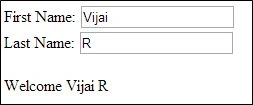
In this article you will see how to use AngularJS in a SharePoint 2013 page. I have created a custom list named “Contact Details” that contains the following fields.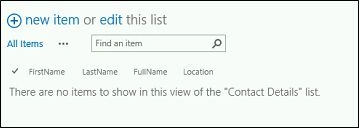
We will create a page with HTML form and update the preceding list item using AngularJS and the JavaScript object model.
Create a page
1. Navigate to the SharePoint site.
2. Click on Settings and then click on Add a page.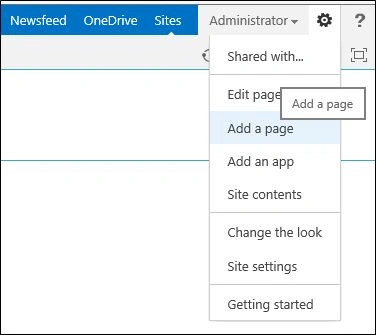
3. Enter the page name and then click on the Create button.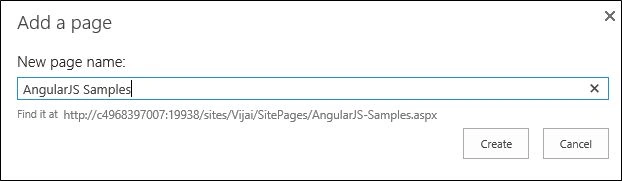
4. The Page is created successfully.
Use the following to add a Script Editor Webpart:
1. Navigate to the newly created page.
2. Click on the Page tab and then click on the Edit button in the ribbon interface.
3. Click on the Insert tab and then click on Web Part.
4. Select the Script Editor web part and then click on the Add button.
5. Edit the web part and then click on Edit Snippet.
6. Copy and paste the following code snippet and then click on the Insert button.
- <script src="//ajax.googleapis.com/ajax/libs/angularjs/1.2.15/angular.min.js"></script>
- <script>
- function ContactsCtrl($scope) {
- $scope.contact = { firstName: "", lastName: "", location: "" };
- $scope.addContact = function ($event) {
- var x = $scope.contact;
- $event.preventDefault();
- var clientContext = new SP.ClientContext.get_current();
- var web = clientContext.get_web();
- var list = web.get_lists().getByTitle('Contact Details');
- // create the ListItemInformational object
- var listItemInfo = new SP.ListItemCreationInformation();
- // add the item to the list
- var listItem = list.addItem(listItemInfo);
- // Assign Values for fields
- listItem.set_item('Title', x.firstName);
- listItem.set_item('LastName', x.lastName);
- listItem.set_item('FullName', x.firstName + " " + x.lastName);
- listItem.set_item('Location', x.location);
- listItem.update();
- clientContext.executeQueryAsync(
- Function.createDelegate(this, onQuerySucceeded),
- Function.createDelegate(this, onQueryFailed)
- );
- };
- onQuerySucceeded = function () {
- alert('Successfully updated the contact');
- }
- onQueryFailed = function (sender, args) {
- alert('Request failed. ' + args.get_message() + '\n' + args.get_stackTrace());
- }
- }
- </script>
- <h1>Contact Information:</h1>
- <br />
- <div ng-app="">
- <div ng-controller="ContactsCtrl">
- <strong>First Name</strong>
- <input type="text" ng-model="contact.firstName" /><br />
- <br />
- <strong>Last Name</strong>
- <input type="text" ng-model="contact.lastName" /><br />
- <br />
- <strong>Location </strong> <input type="text" ng-model="contact.location" /><br />
- <br />
- <input type="submit" value="Submit" ng-click="addContact($event)" />
- </div>
- </div>
7. Click on the Ok button in the web part properties window.
8. Click on the Save button in the ribbon interface.
9. You can see in the following HTML form, enter the values and then click on Submit.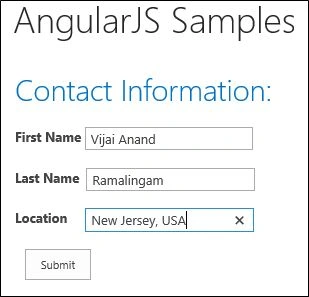
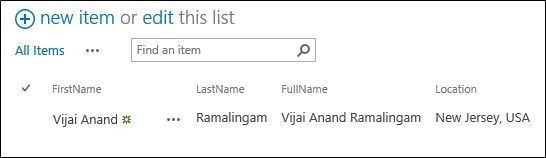
10. The item is inserted successfully in the SharePoint list.
Summary
Thus in this article you saw how to use AngularJS in a SharePoint 2013 page.
Dhayanand KalimidiPosted Nov 26, 2018, 6:24 AM
Really help full for beginners
Sushi BurritoPosted Feb 22, 2017, 4:27 PM
For people having issues: Create a list titled Test. Update the script to only update the Title field. Then try it. -------webpart code----- <script src="//ajax.googleapis.com/ajax/libs/angularjs/1.2.15/angular.min.js"></script> <script> function ContactsCtrl($scope) { $scope.contact = { Title: "" }; $scope.addContact = function ($event) { var x = $scope.contact; $event.preventDefault(); var clientContext = new SP.ClientContext.get_current(); var web = clientContext.get_web(); var list = web.get_lists().getByTitle('Test'); // create the ListItemInformational object var listItemInfo = new SP.ListItemCreationInformation(); // add the item to the list var listItem = list.addItem(listItemInfo); // Assign Values for fields listItem.set_item('Title', x.Title); listItem.update(); clientContext.executeQueryAsync( Function.createDelegate(this, onQuerySucceeded), Function.createDelegate(this, onQueryFailed) ); }; onQuerySucceeded = function () { alert('Successfully added the contact'); } onQueryFailed = function (sender, args) { alert('Request failed. ' + args.get_message() + '\n' + args.get_stackTrace()); } } </script> <h1>TEST:</h1> <br /> <div ng-app=""> <div ng-controller="ContactsCtrl"> <strong>Title</strong> <input type="text" ng-model="contact.Title" /><br /> <br /> <input type="submit" value="Submit" ng-click="addContact($event)" /> </div> </div>
Pankaj GuptaPosted Nov 30, 2016, 4:11 AM
The code is not running at all
Shivu SKPosted Jun 18, 2016, 8:36 PM
Do we need to add the SP..js and SP.Runtime.js file reference ?
Shivu SKPosted Jun 18, 2016, 8:35 PM
Hi Vijay
Chaitanya KrishnaPosted May 27, 2015, 2:08 AM
hi i hav tried the updated code but no items were saving in the list.list name, filed names all are correct.
Vishwas GoswamiPosted Oct 16, 2014, 5:07 AM
i tried the code but it is not reflecting data in my list. can you tell me why ?
Gaurav AroraPosted Sep 18, 2014, 5:10 AM
Good One !! But one mistake in 2nd code block line 17 ; var listlistItem = list.addItem(listItemInfo); you write two times list in variable name listlistItem instead of listItem ..please edit your code block for further reference
Lakshmanan Sethu SankaranarayanPosted Jul 31, 2014, 2:08 AM
Good one Vijai:)