

In this article we will learn conditional formatting on Field in Crystal Reports. Will display salary of each employee and highlight the row if the salary is greater than 25,000 in red.
This article is the second part of my first article.
If you haven’t had a look at the first, then please go through the previous article: Step By Step Creating Grouping In Crystal Report.
Step 1: Create a new Table Salary as in the following:
- SET ANSI_NULLS ON
- GO
- SET QUOTED_IDENTIFIER ON
- GO
- CREATE TABLE [dbo].[Salary](
- [EmpId] [int] NULL,
- [Salary] [numeric](18, 2) NULL
- ) ON [PRIMARY]
- GO
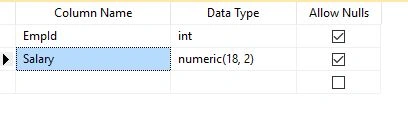
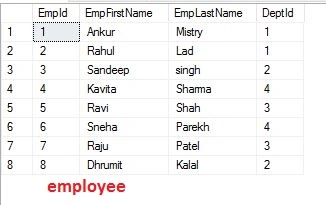
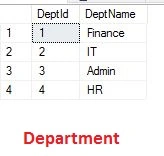
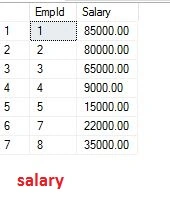
We already created 2 tables in my first article which is Employee and Department. So now we have 3 tables, [1] Employee [2] Department and [3] Salary,
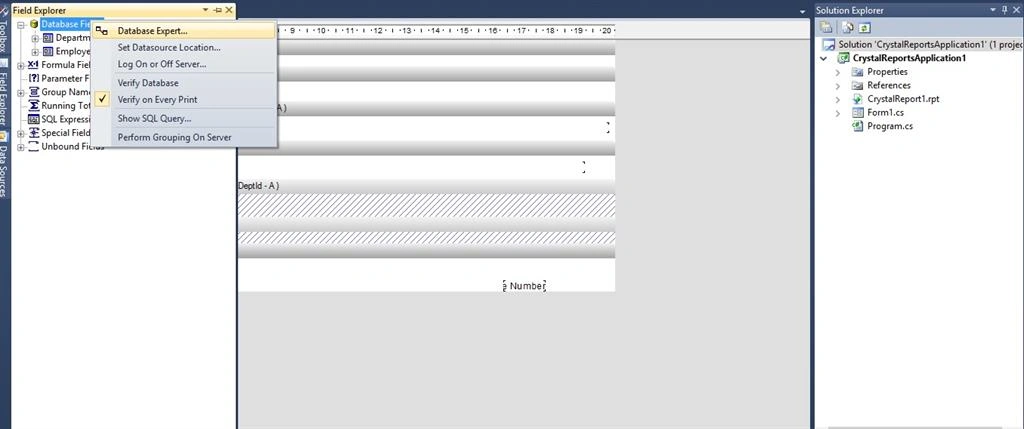
Step 2: Now open the Crystal Report, go to Field Explorer, right click and select Database expert like the following screen:
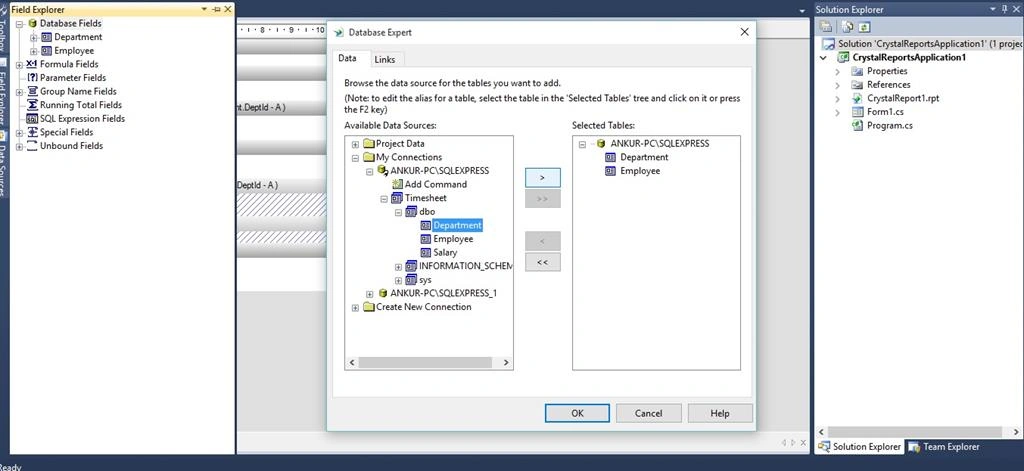
Step 3: from the database Expert select the Salary table and click on ‘>’ button and click ‘OK’ Button,
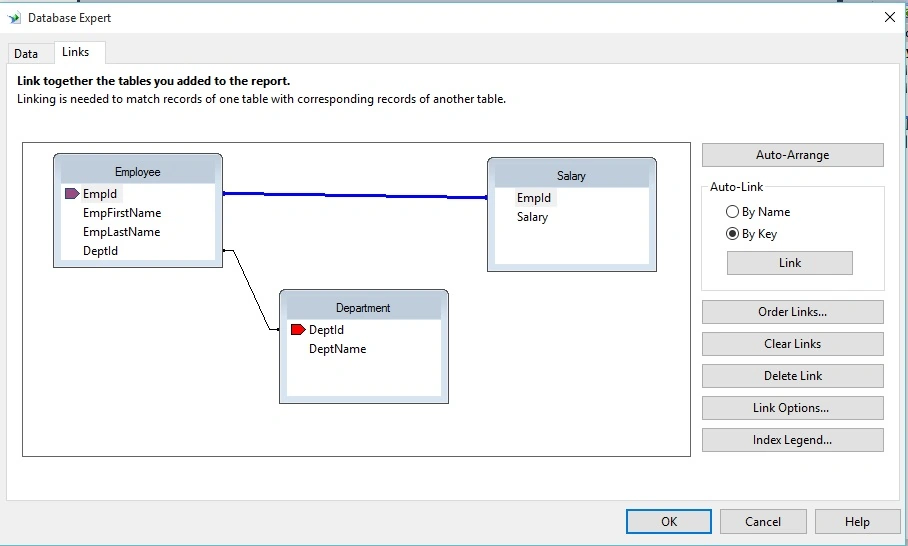
Step 4: Now we have Salary table. Go to Links tab, give a link to Employee table and Salary table on EmpId field like the following screenshot.
Step 5: Now we have salary table in Field Explorer
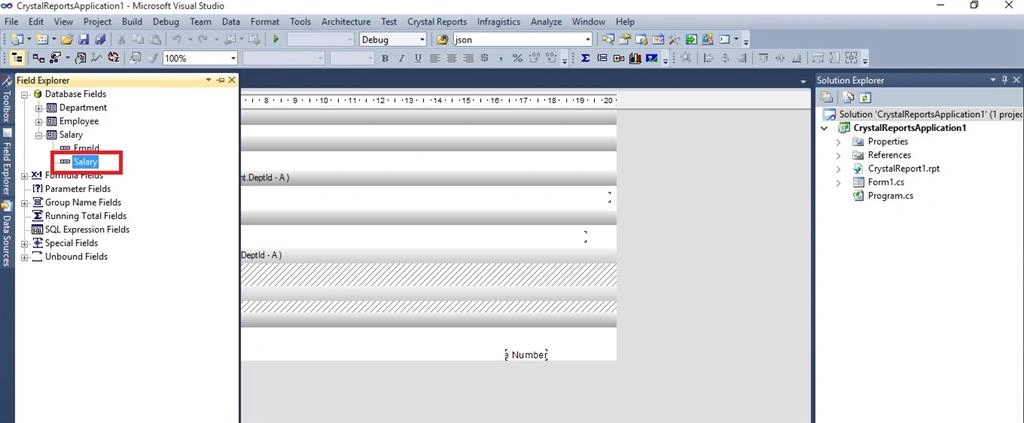
Just Drag and Drop Salary field in Details Section of Crystal Report,
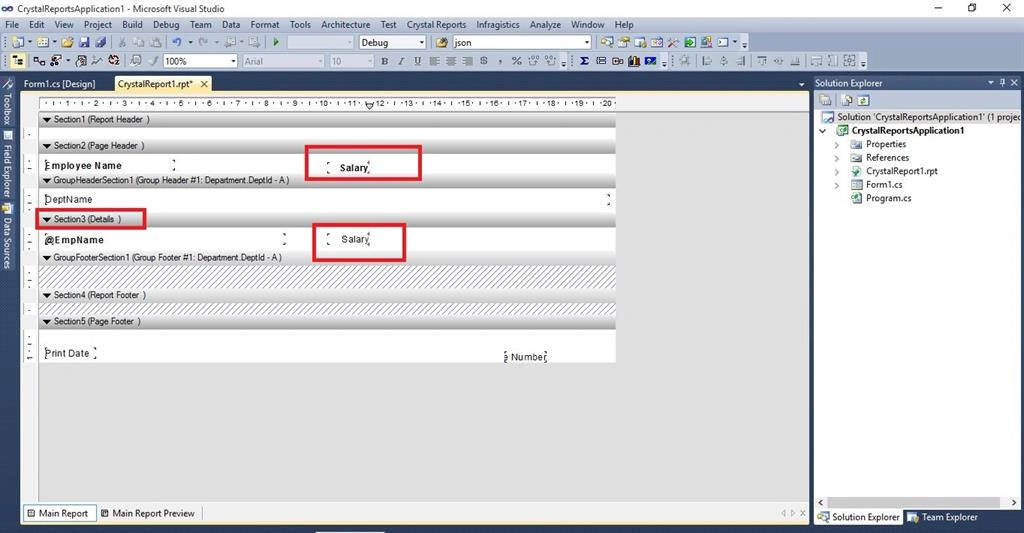
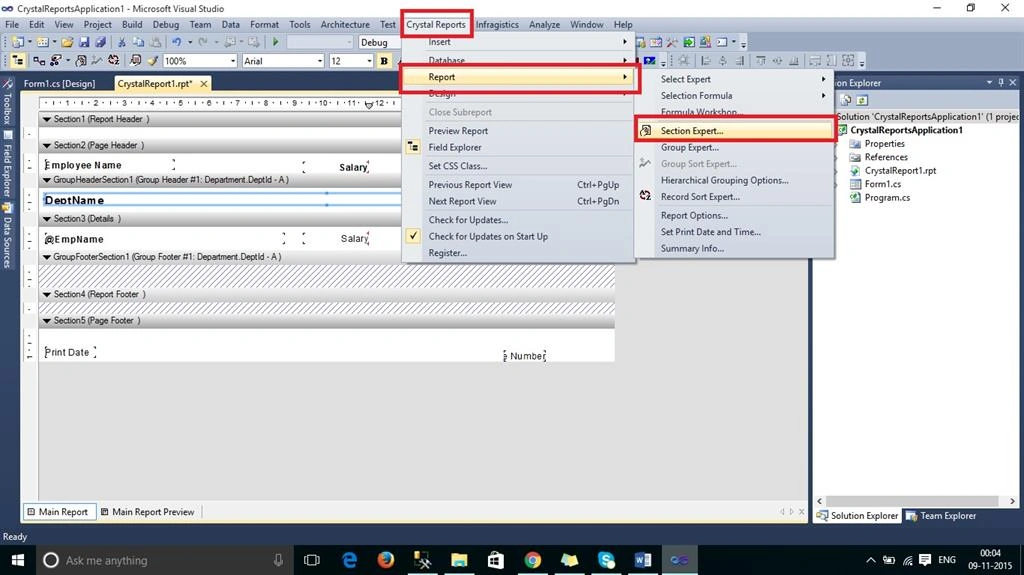
Step 6: Now go to Crystal Reports tab, Report and select Section Expert,
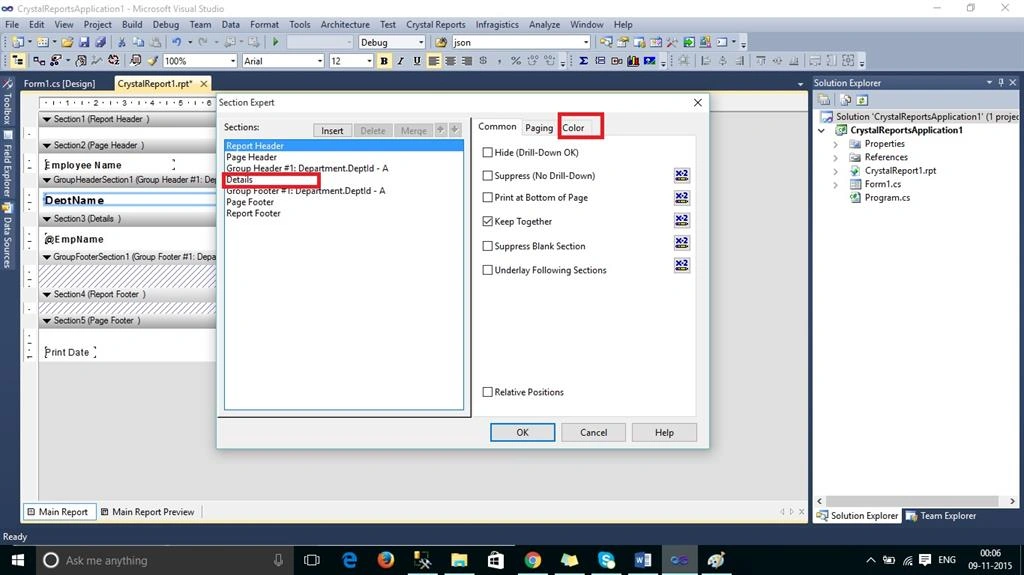
Step 7: Go to details section and click on color tab,
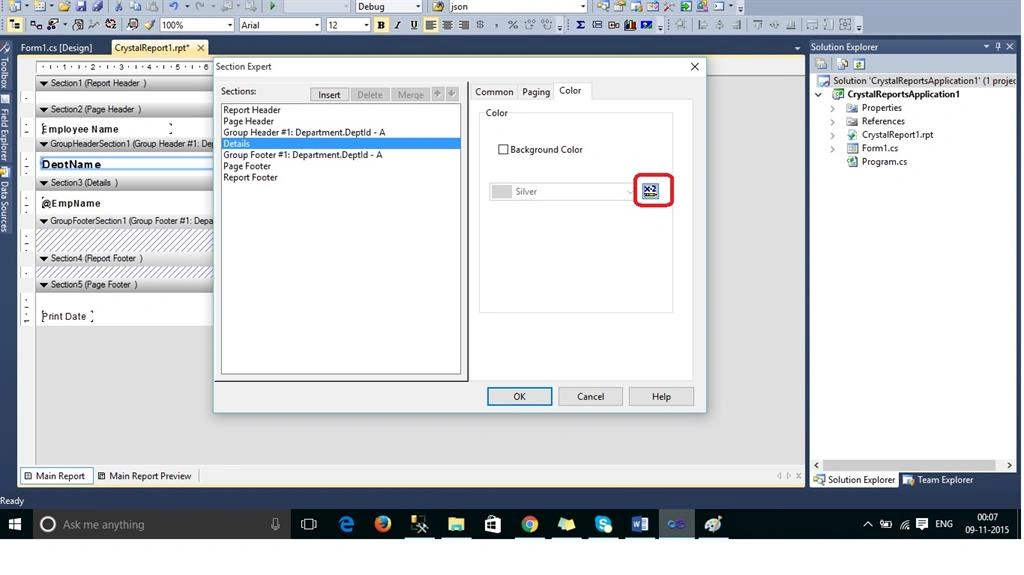
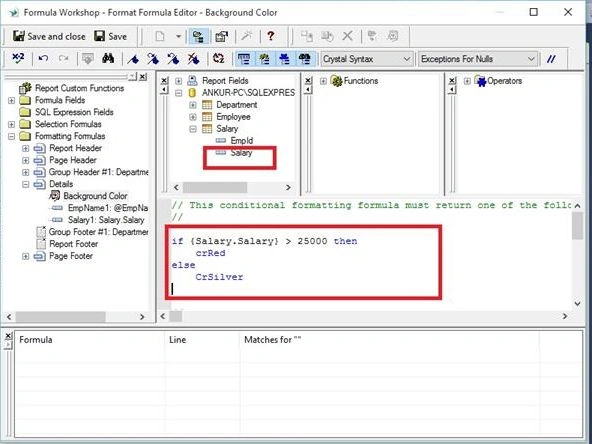
Step 8: Click on the highlighted button, this will open Formula Workshop,
Step 9: Write your condition here like the following:
if {Salary.Salary} > 25000 then
crRed
else
CrSilver
(If the salary is greater then 25000 then highlight the row with red color else silver color),
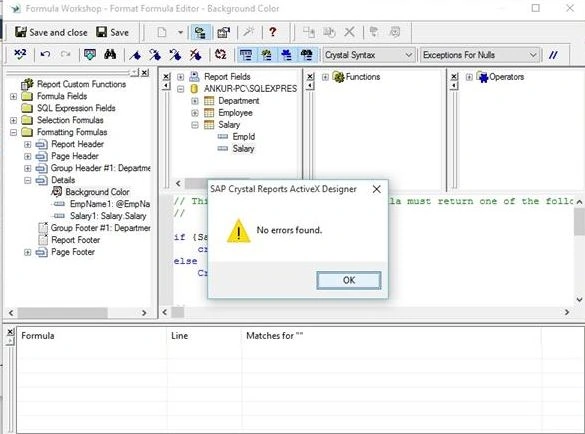
That’s it! Just check the formula by pressing Alt + C for checking for errors like the following screenshot,
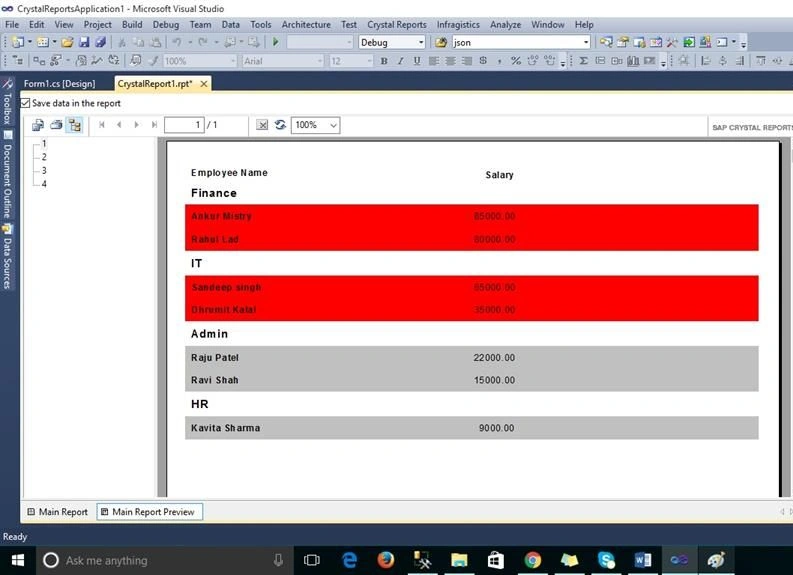
Here we displayed employee records in red if the salary is greater than 25,000, else highlight in Silver color.
I hope you liked this article.
Sonu ChaudharyPosted Mar 31, 2016, 12:00 PM
nice share
Sonu ChaudharyPosted Mar 31, 2016, 11:59 AM
good one
Ankur MistryPosted Nov 25, 2015, 7:26 AM
thank you
Bhalchandra mithbavkarPosted Nov 23, 2015, 11:54 PM
Nice Article
Mayank SharmaPosted Nov 17, 2015, 12:54 AM
Your way to teach us in step by step is very good Sir.
Ankur MistryPosted Nov 12, 2015, 11:58 AM
thank you sirji
Rupesh KahanePosted Nov 12, 2015, 10:35 AM
Good one
Gowtham KPosted Nov 11, 2015, 10:32 AM
Great Work, Thanks for sharing
Ankur MistryPosted Nov 11, 2015, 8:24 AM
thank you all
Humayun Kabir MamunPosted Nov 11, 2015, 6:51 AM
Nice...
MannanPosted Nov 11, 2015, 2:41 AM
Nice article sir.... Informative
Santhakumar MunuswamyPosted Nov 11, 2015, 2:37 AM
Good one
Ankur MistryPosted Nov 11, 2015, 1:01 AM
Thank you Sibeesh Venu
Sibeesh VenuPosted Nov 11, 2015, 12:34 AM
Nice Share
Ankur MistryPosted Nov 10, 2015, 9:54 PM
Thank you Sir, but i am still learning. Not genius
Viraj DesaiPosted Nov 10, 2015, 9:38 PM
Nice article. Really helpful. Ankur is genius.