

Introduction
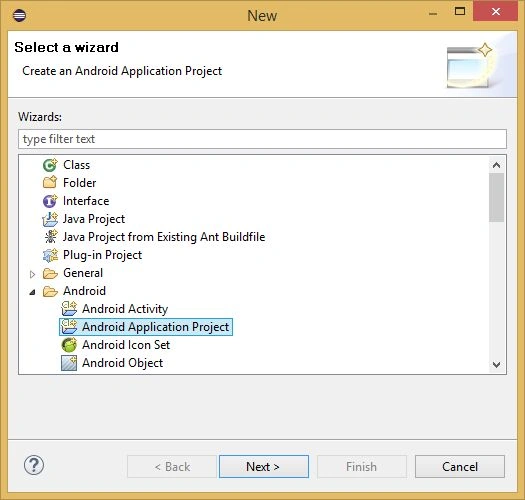
First, create an Android Project in the Eclipse IDE.
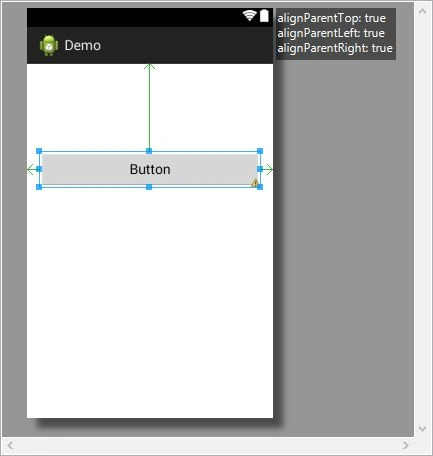
 Then open the XML file and drag and drop one button to the Graphical Layout of the XML file.
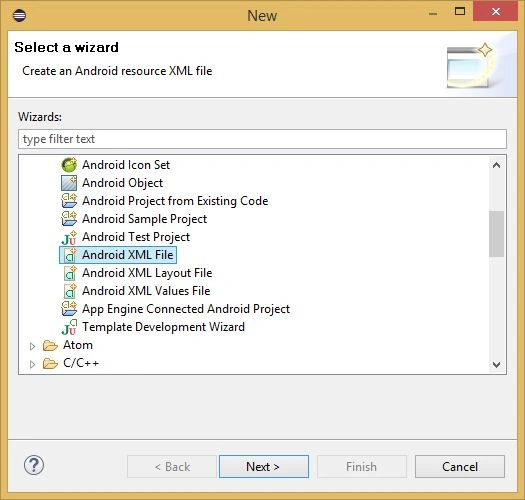
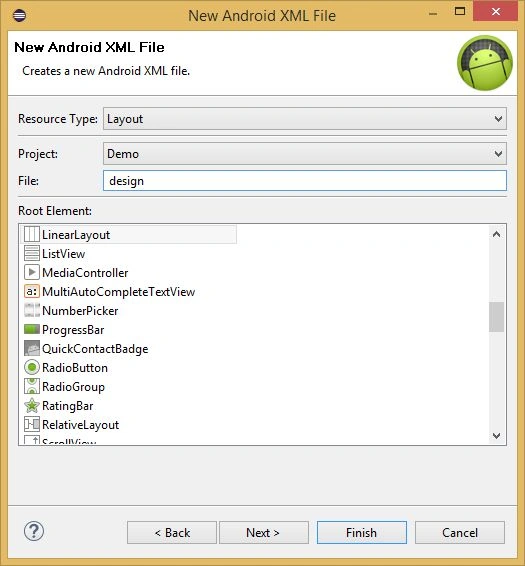
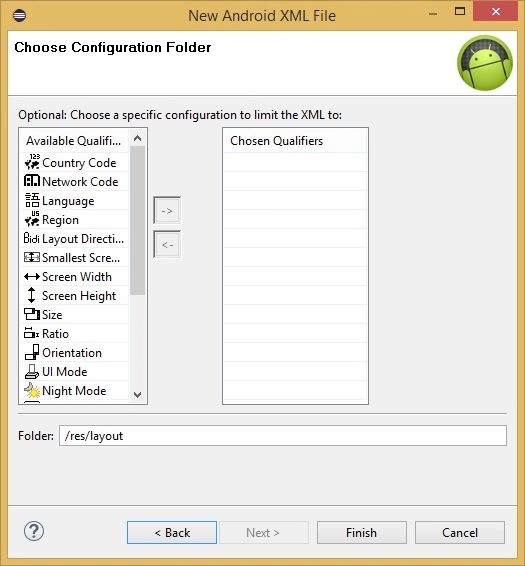
 Now create one XML file in the drawable folder and use two images for seeing the changes on a button press.
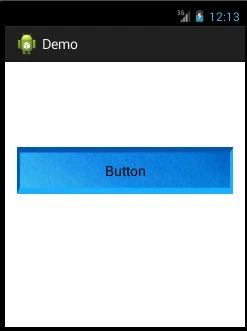
 Default Button Image.
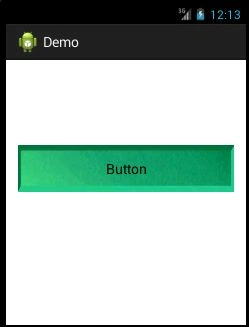
 On Button Pressed Image.
 Paste both the images into the drawable folder.
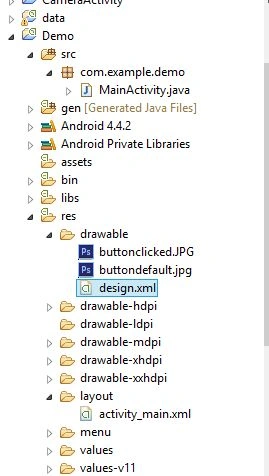 Open the design.xml file and write the following code in the XML file,
- <?xml version="1.0" encoding="utf-8"?>
- <selector xmlns:android="http://schemas.android.com/apk/res/android">
- <item android:state_pressed="true"
- android:drawable="@drawable/buttonclicked" /> <!-- pressed -->
- <item android:drawable="@drawable/buttondefault" /> <!-- default -->
- </selector>
- <RelativeLayout
- xmlns:android="http://schemas.android.com/apk/res/android"
- xmlns:tools="http://schemas.android.com/tools"
- android:layout_width="match_parent"
- android:layout_height="match_parent"
- android:paddingBottom="@dimen/activity_vertical_margin"
- android:paddingLeft="@dimen/activity_horizontal_margin"
- android:paddingRight="@dimen/activity_horizontal_margin"
- android:paddingTop="@dimen/activity_vertical_margin"
- tools:context="com.example.demo.MainActivity" >
- <Button
- android:id="@+id/button1"
- android:layout_width="wrap_content"
- android:layout_height="wrap_content"
- android:layout_alignParentLeft="true"
- android:layout_alignParentRight="true"
- android:layout_alignParentTop="true"
- android:layout_marginTop="97dp"
- android:text="Button"
- android:background="@drawable/design"/>
- </RelativeLayout>
Anu VPosted Nov 28, 2015, 4:02 AM
good one.. tx
Nilesh JadavPosted Aug 4, 2015, 12:14 AM
Nice article sir
Chervine BhiwooPosted Aug 3, 2015, 11:25 PM
Good one
Neeraj KumarPosted Aug 3, 2015, 3:58 PM
thank you Santhakumar Munuswamy
Santhakumar MunuswamyPosted Aug 3, 2015, 2:35 PM
Nice article. Thanks for sharing
Neeraj KumarPosted Aug 3, 2015, 12:47 PM
Thank you Rakesh Chavda
Neeraj KumarPosted Aug 3, 2015, 12:46 PM
Thank you Pankaj Kumar Choudhary
RakeshPosted Aug 3, 2015, 11:20 AM
Good one
Pankaj Kumar ChoudharyPosted Aug 3, 2015, 7:54 AM
Nice Explain Neeraj........
Neeraj KumarPosted Aug 3, 2015, 7:07 AM
Thank you Gopi Chand
Neeraj KumarPosted Aug 3, 2015, 7:06 AM
Thank you Sibeesh Venu
Neeraj KumarPosted Aug 3, 2015, 7:06 AM
Thank you Rajeesh Menoth
Gopi ChandPosted Aug 3, 2015, 6:13 AM
Nice one
Sibeesh VenuPosted Aug 3, 2015, 5:59 AM
Nice share.
Rajeesh MenothPosted Aug 3, 2015, 5:34 AM
Thank you for sharing