

Introduction
We all know that Microsoft launched a new Windows 10 operating system with high graphics and functionality. In installed Operating System we can already see all the display settings in default mode like Text Size, Icons Size, etc. But sometimes the user wants to change the display settings of Windows 10. There are some important steps to customize the Display setting of Windows 10.
Open Display Settings
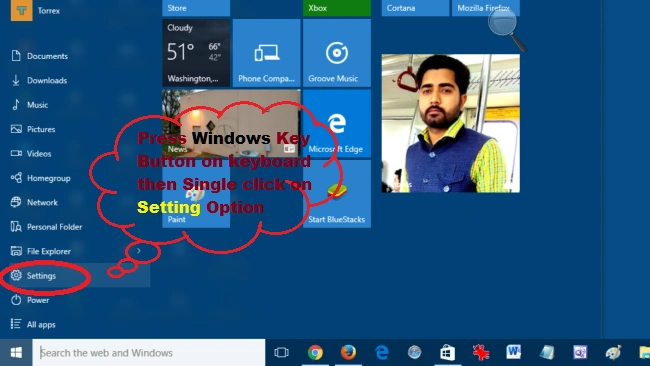
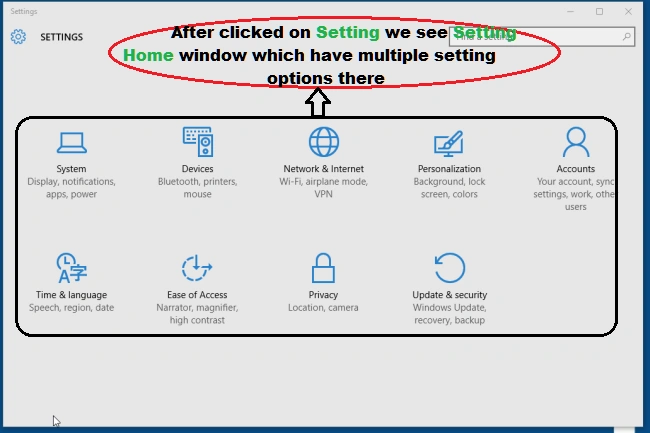
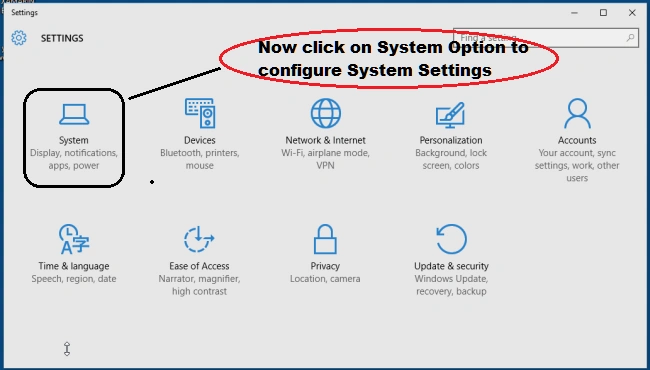
Firstly, we will open the Display Window setting, Press Windows key from keyboard and then single click on Setting. Here's the screenshot.
Step 1
 Step 2
 Step 3
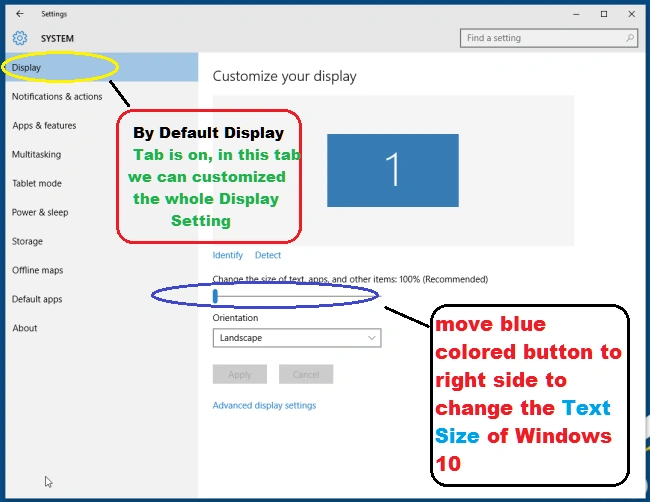
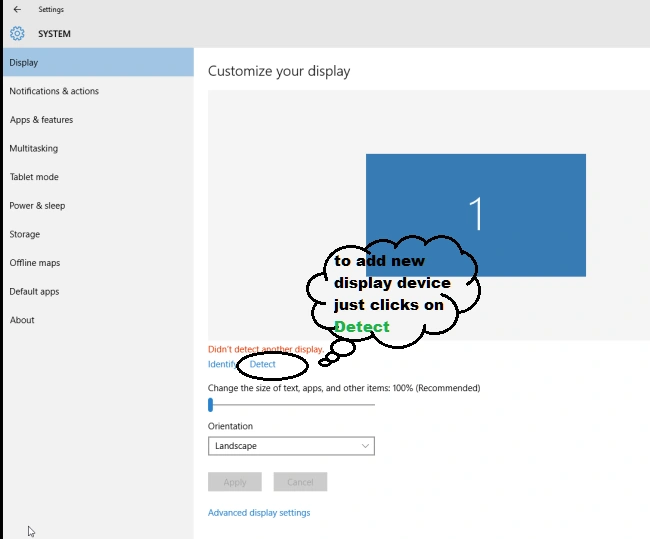
 After doing the above steps now we can change the Display Setting like the size of text, apps, and other items according to your requirements. Here's the screenshot,
Display Detect
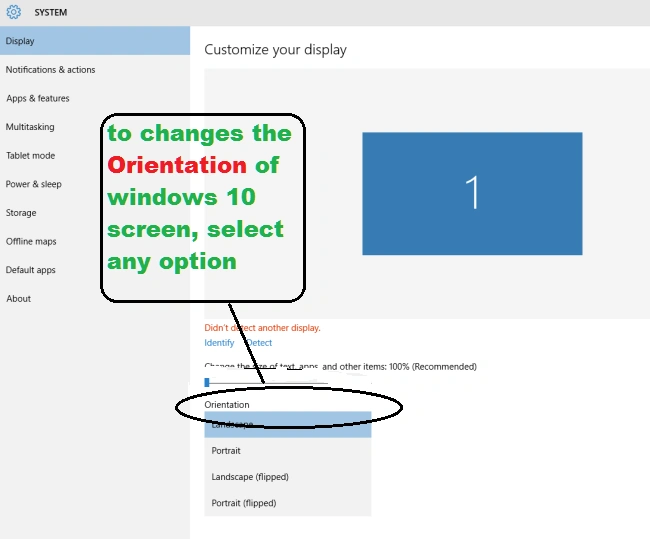
Orientation
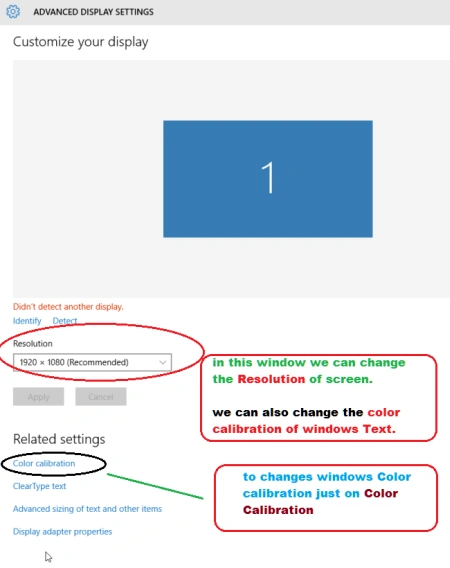
Advanced Setting

Related Setting
In related settings option, we can change Screen Resolution, Color Calibration, Advance Sizing of Text. Here's the screenshot,
 Step 1
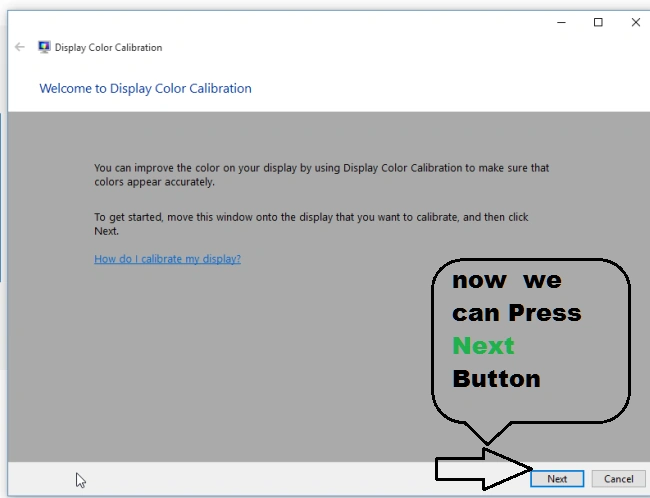 Step 2
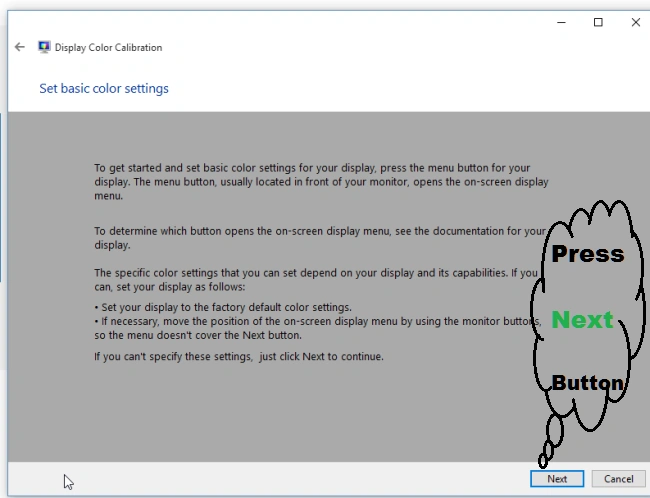 Step 3
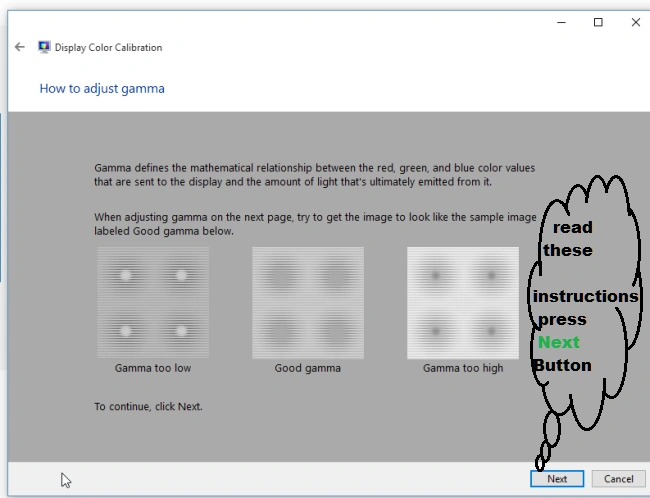 Step 4
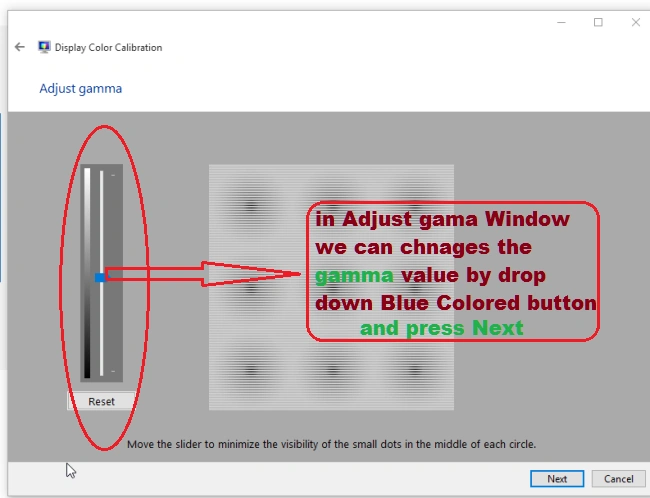 Step 5
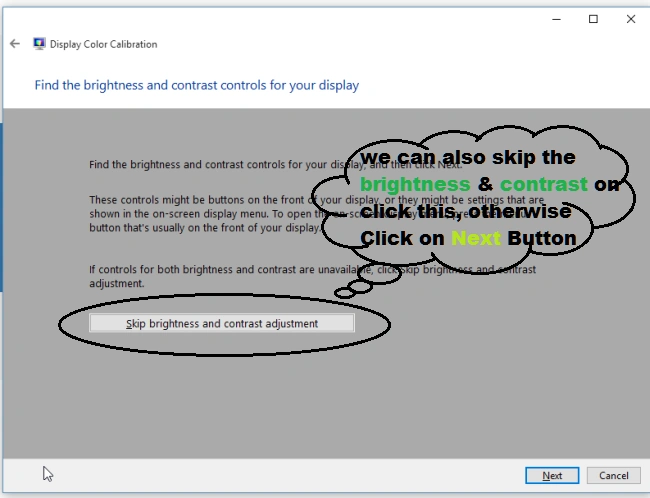 Step 6
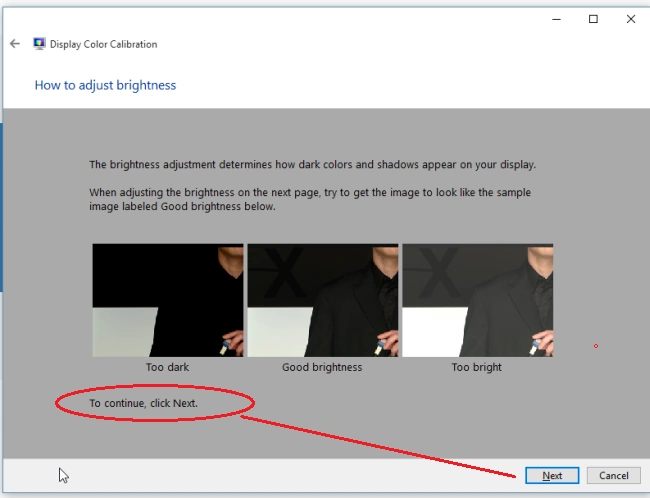 Step 7
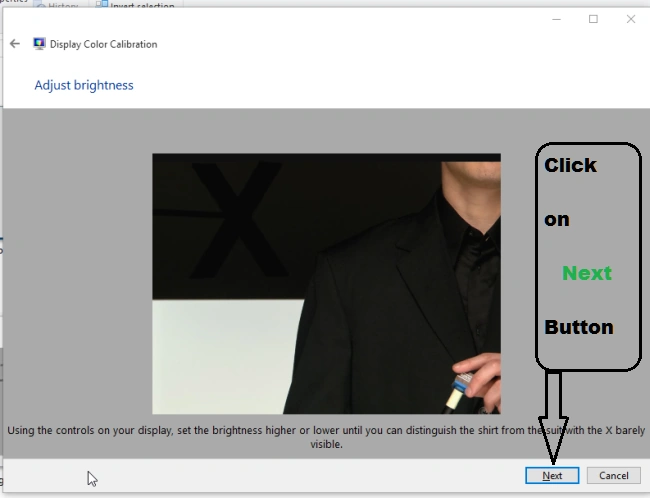 Step 8
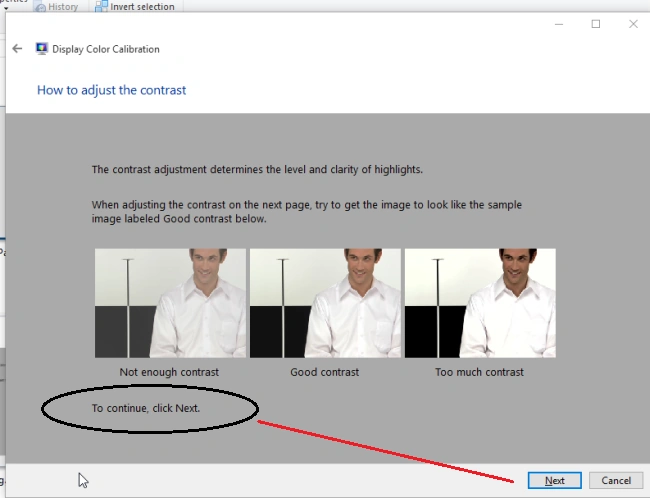 Step 9
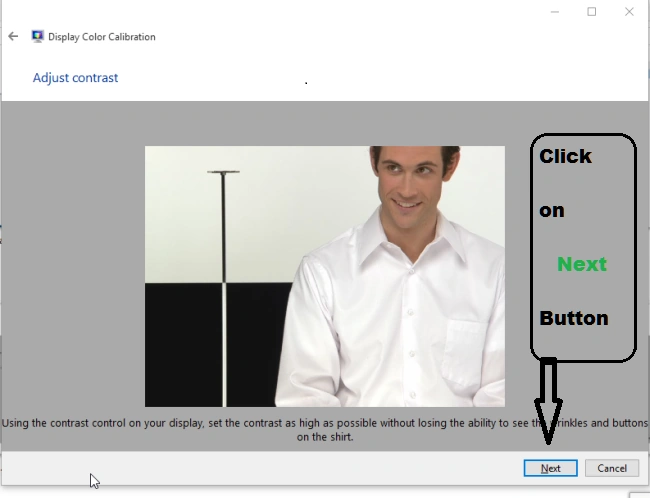 Step 10
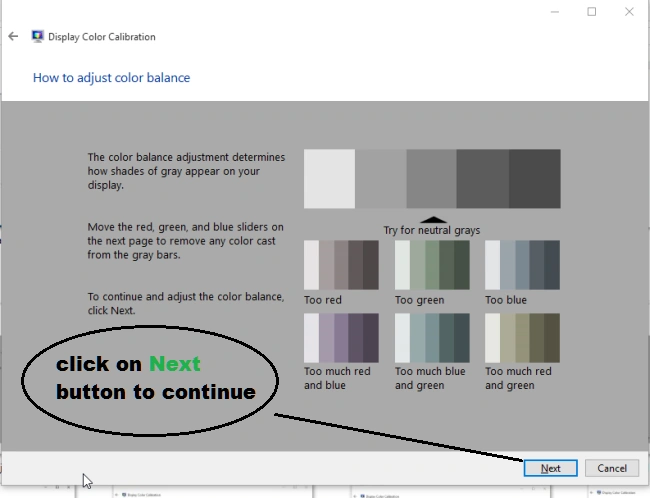 Step 11
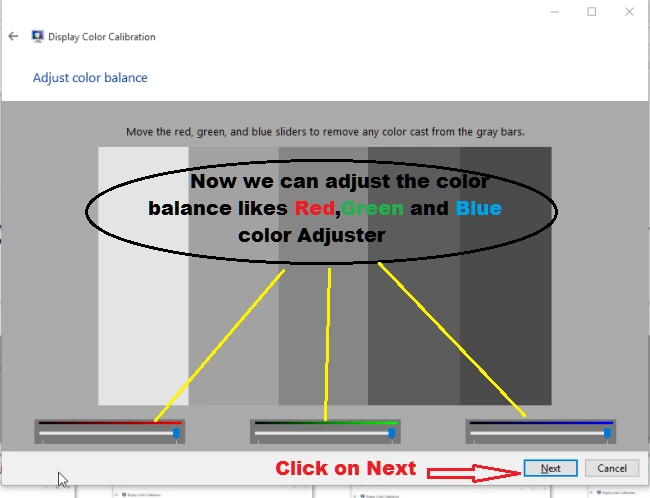 Step 12
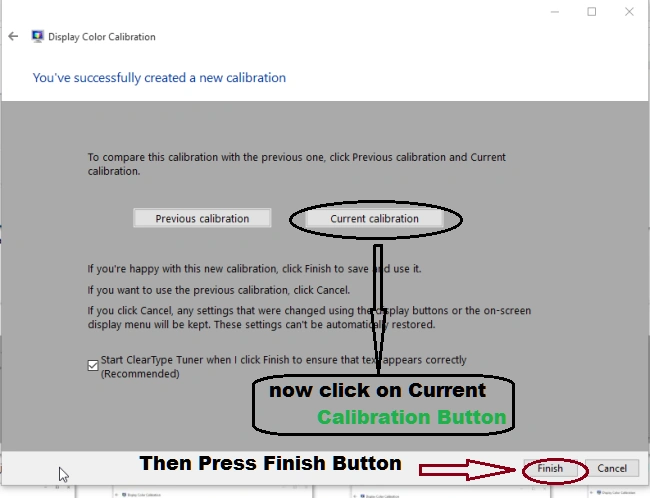 Step 13
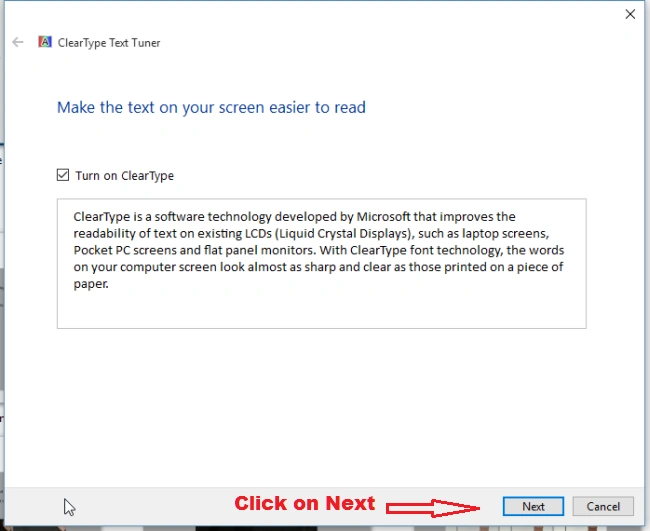 Step 14
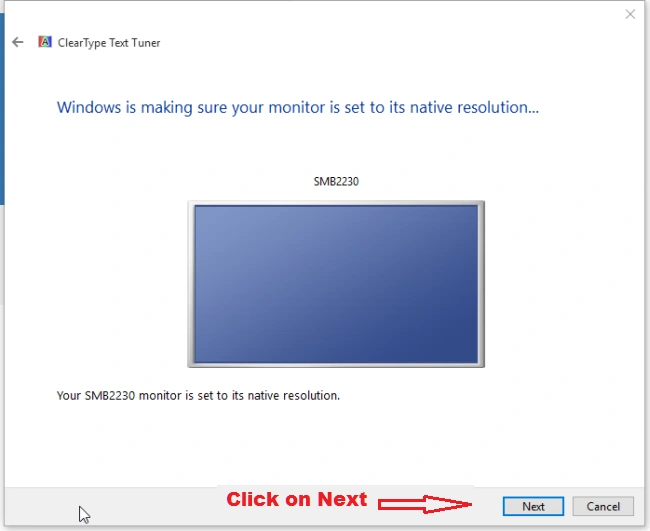 Step 15
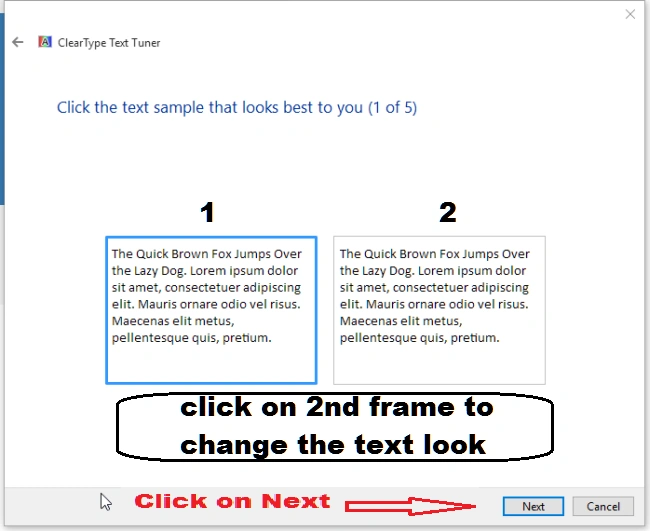 Step 16
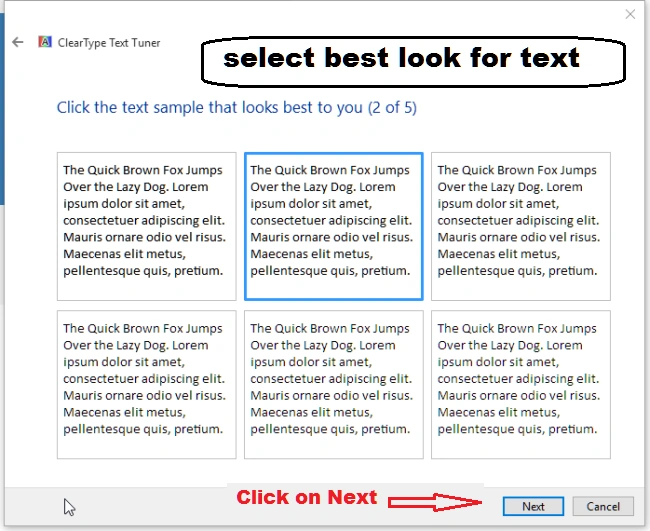 Step 17
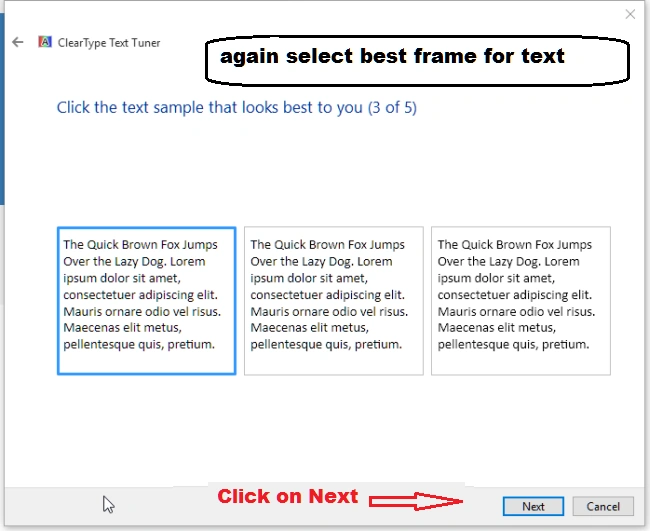 Step 18
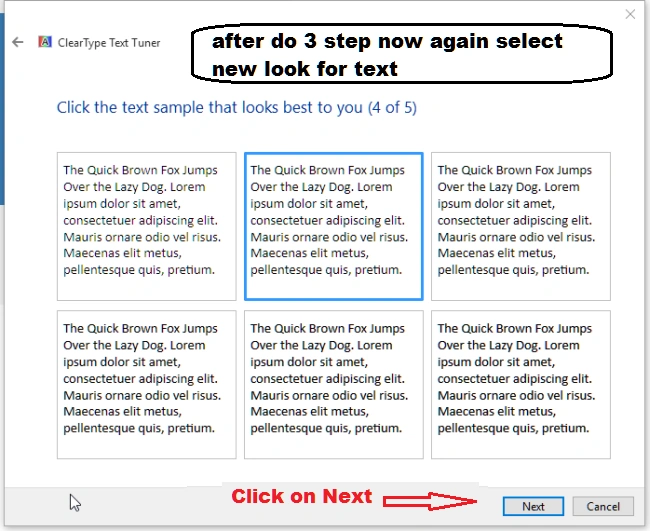 Step 19
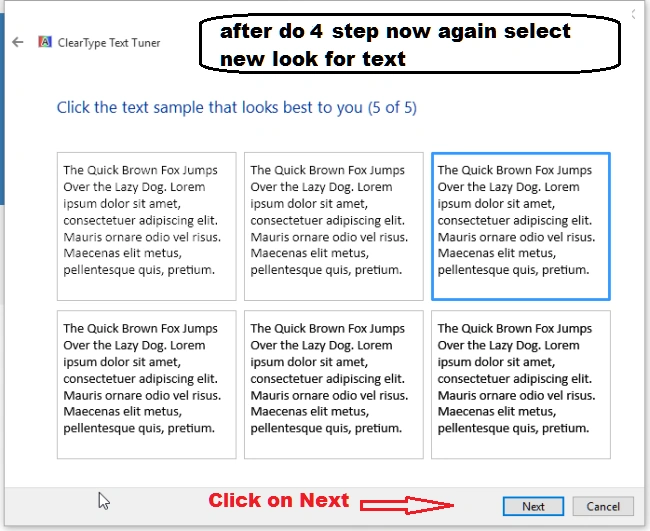 Step 20
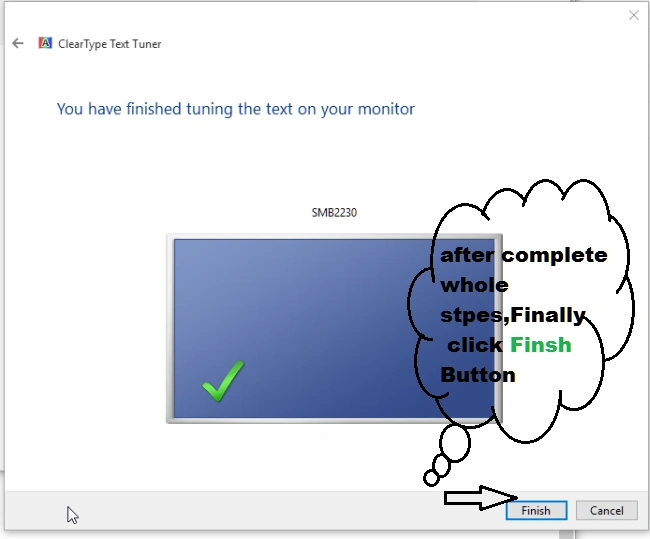
Advanced sizing of text and other items
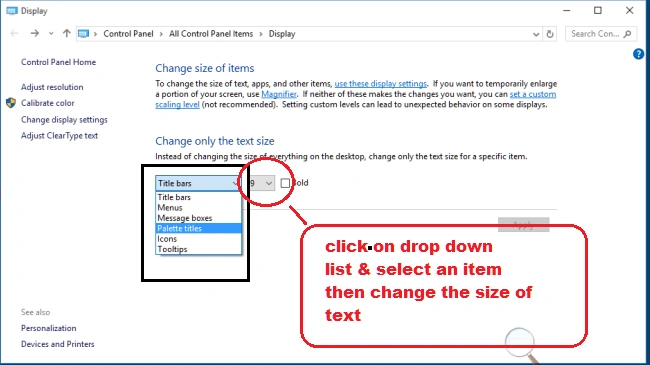
In this option, we will change the item's text size like Menu Bar, Title Bar, Icons, etc. Here's the screenshot,

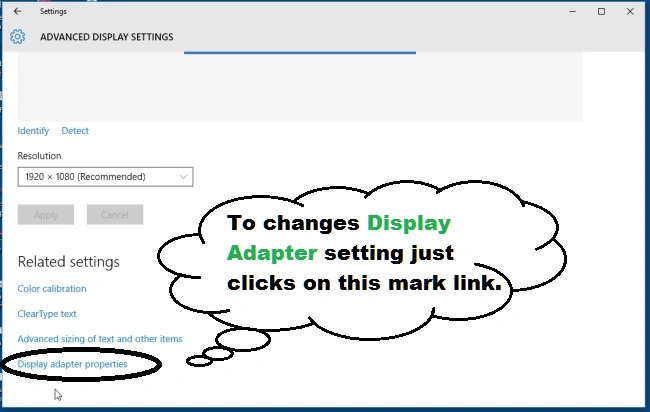
Display adapter properties
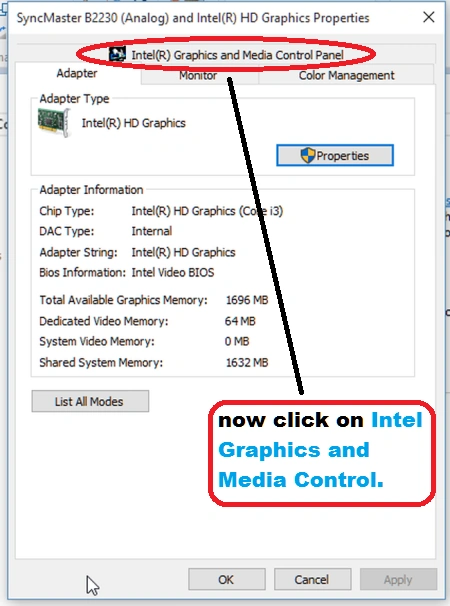
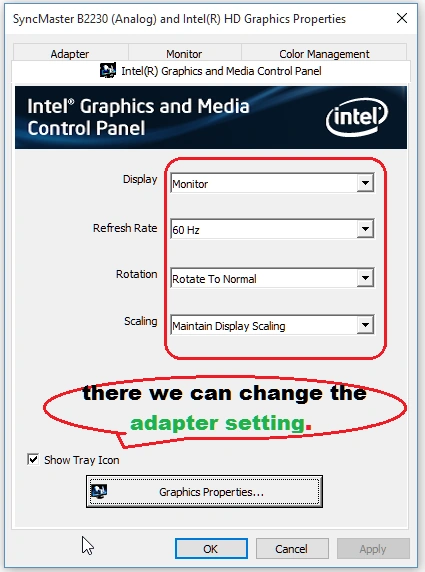
If we want to change the Display Adapter Settings likes Display, Refresh Rate, Rotation, and Scaling, then just follow these screenshots,
Join the conversation! Your thoughts help the community grow.