Introduction
System Setting is an important feature of the Windows 10 Operating System. In that, we can manage the complete system-related setting. By using this feature we can customize settings according to your requirements like we can change the Tablet Mode, Power, and Sleep, etc.
In the previous Windows Operating System, we used Control Panel for System Setting manipulations, but in Windows 10 Operating System Microsoft added a new Setting feature that looks likes the Android Setting app. So Windows setting app works in the same way as Android OS. Here are the steps to understand how to manually change settings of Windows 10,
Steps to Open Setting
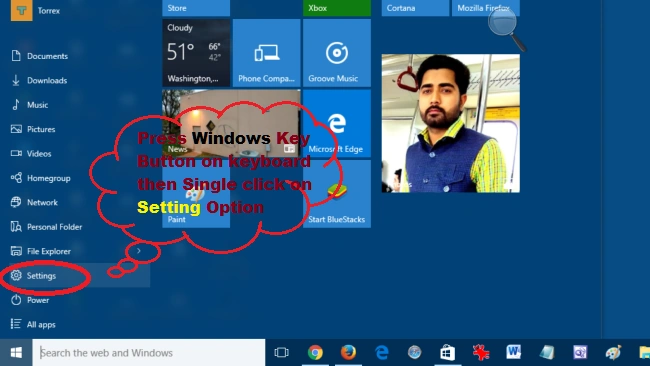
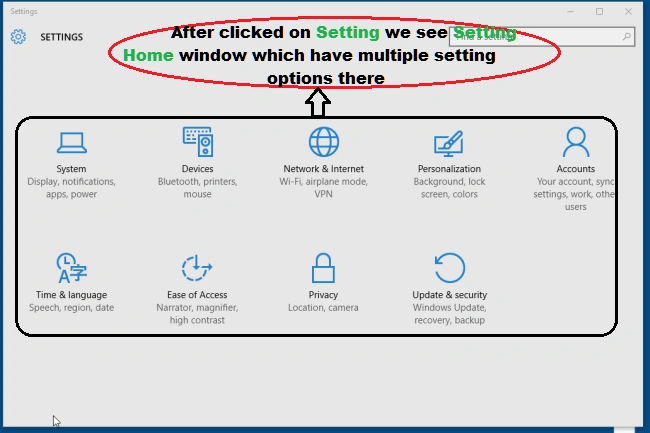
Press Windows Key from the keyboard and select a Setting option or we can also click on Start Menu button then select Settings option as in the following screenshots,
Step 1
Step 2
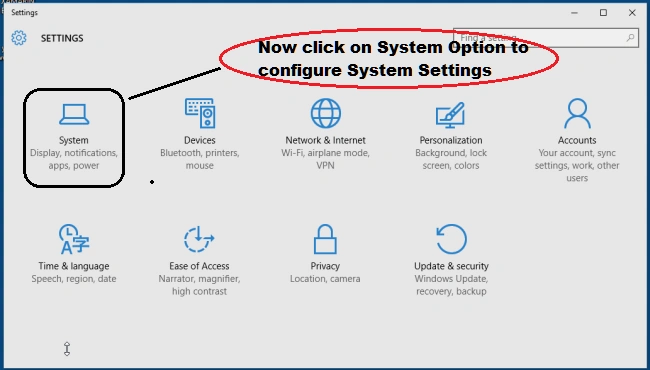
Step 3
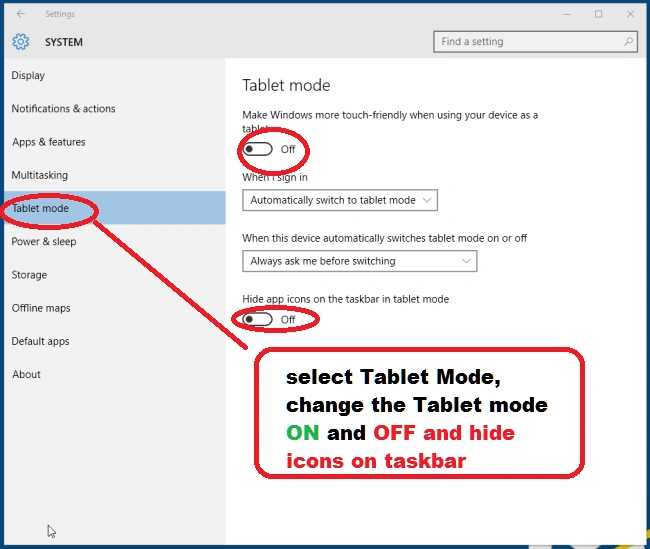
Tablet Mode
The tablet mode feature is used for changing normal Windows 10 into Tablet mode. That means we can use the Windows operating system as tablet mode. To do this task follow the below-given screenshot,
Power Setting
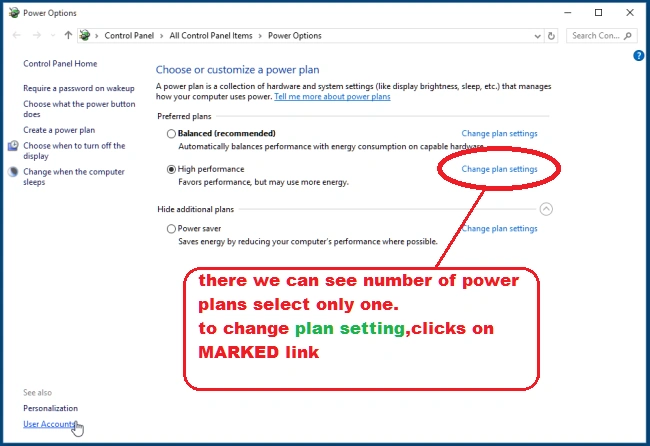
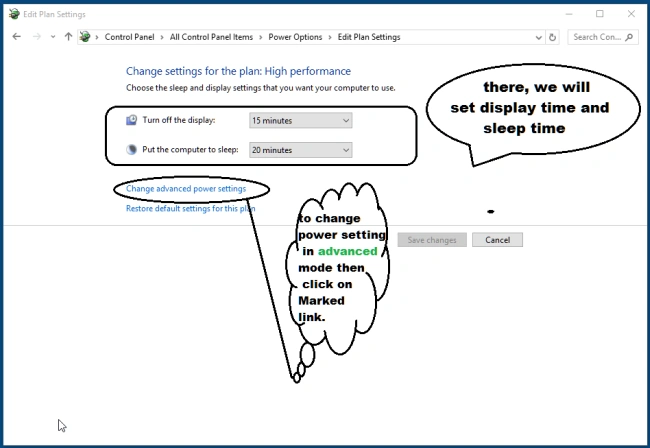
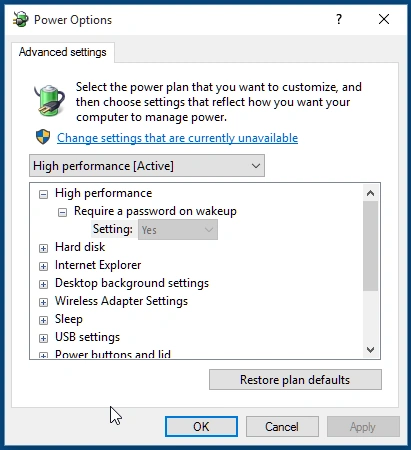
If you want to change the power Setting of the Windows 10 Operating System then go to Power & Sleep Option. By using power option we can change Display Screen time out, sleep windows time, etc as in the following screenshot,
Screen Time Out
Advance Power Setting
Edit Plan Settings
Power Options
Storage of System
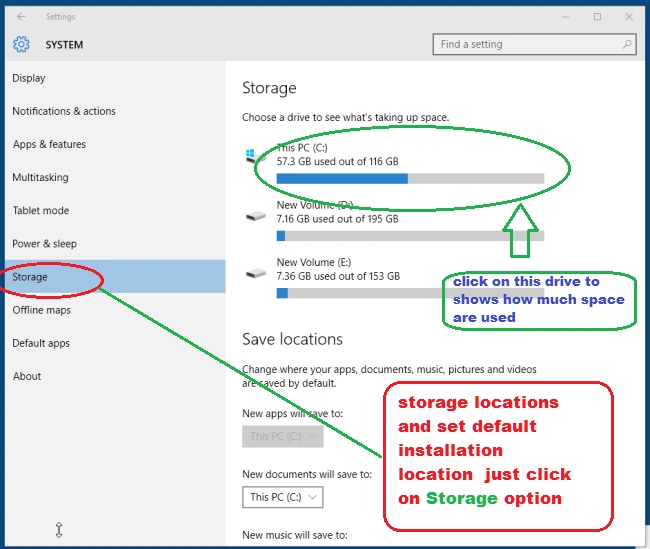
To manage the whole storage location and installation setting we must use the Storage Option as in the following screenshot.
This PC Storage
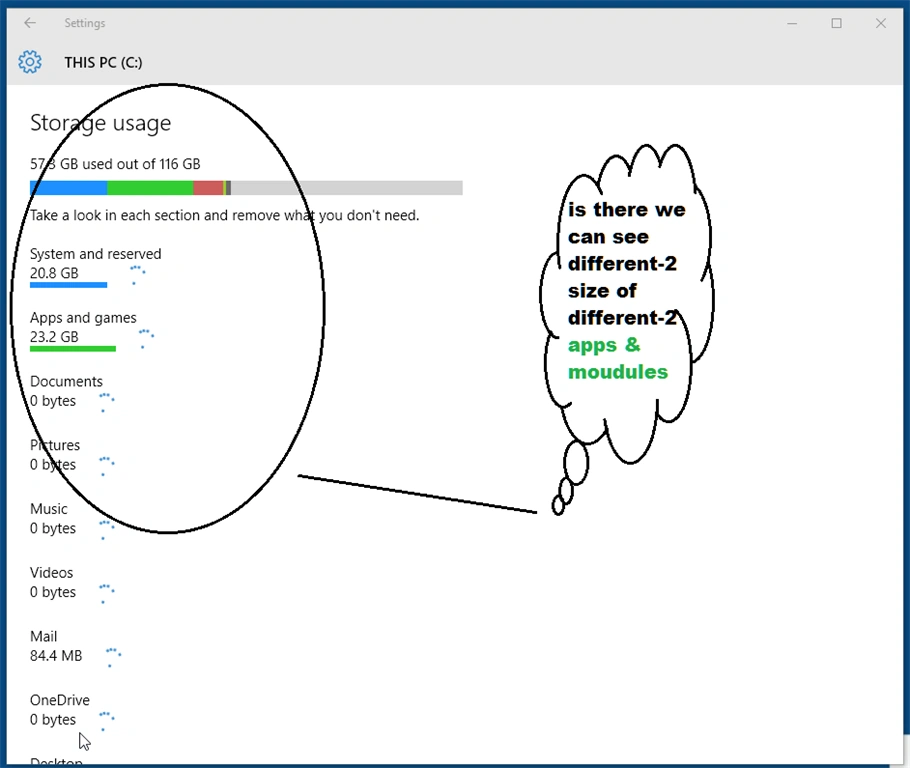
Storage Usage
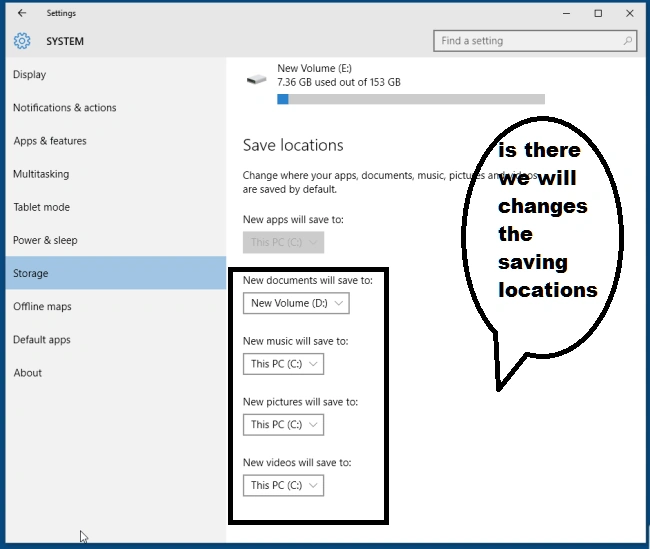
Saving Location
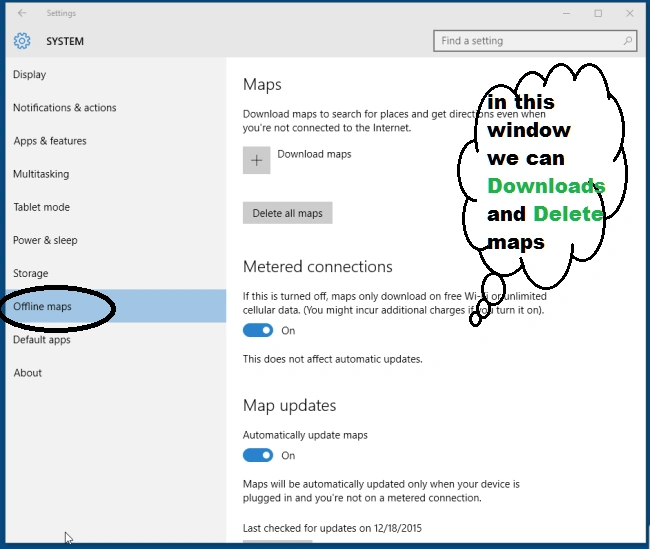
Offline Map
Microsoft added a new features in setting apps to interact with Online Google maps and Offline Google maps. By using this feature we can also download Google maps for offline uses.
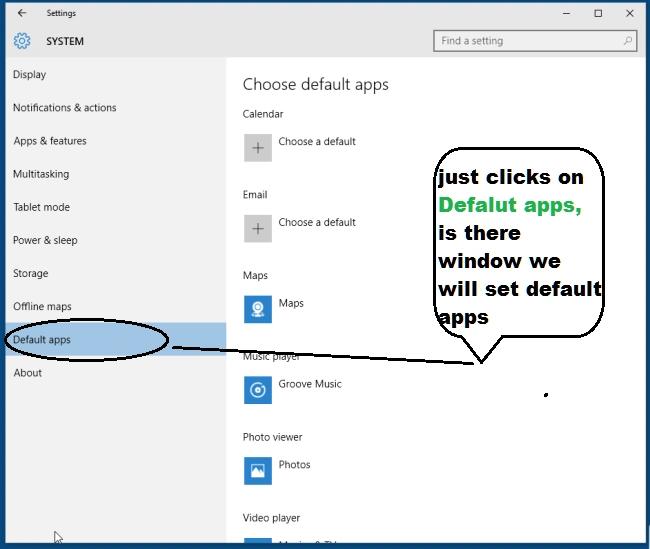
Default Apps
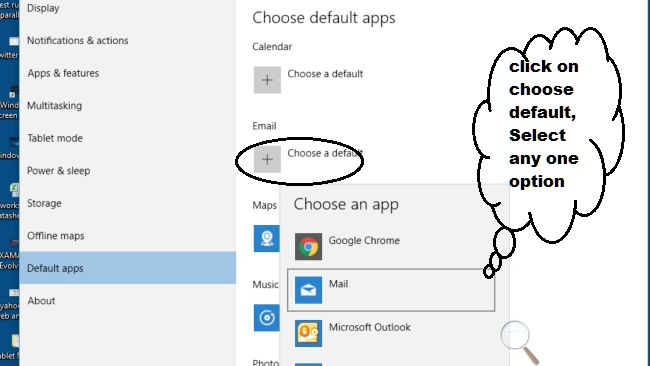
In Windows 10 operating system if we want to set a default app then we will use one Default apps option as in the following screenshot,
Choose a default app
Default Email
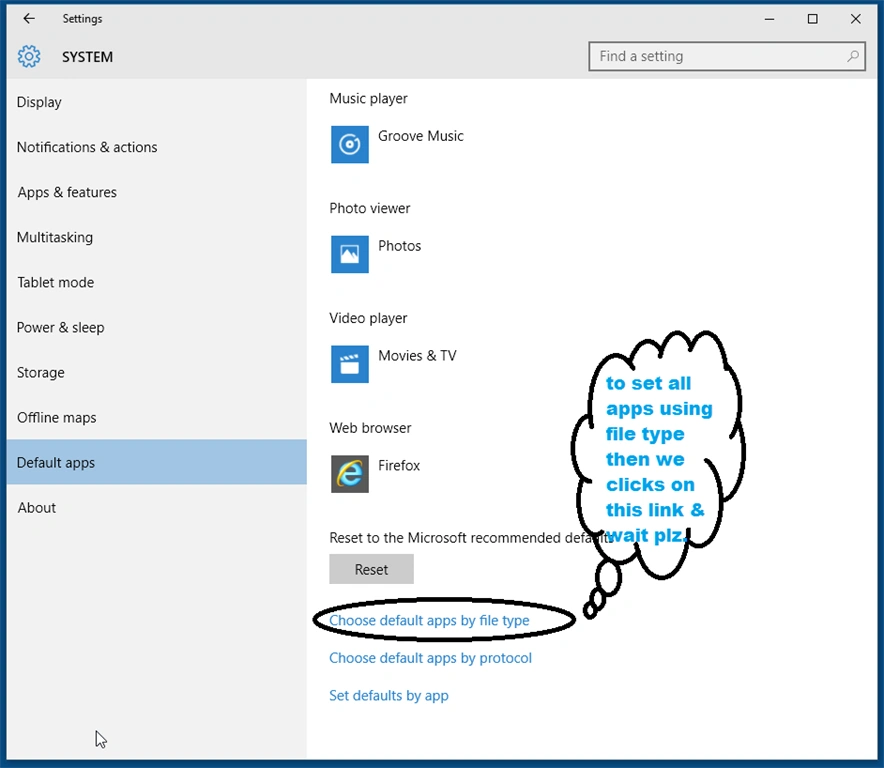
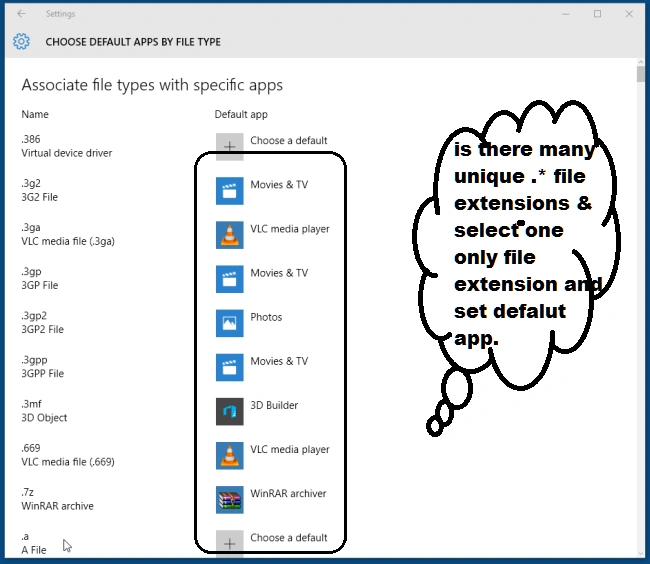
Choose default apps by file types
Associate file types
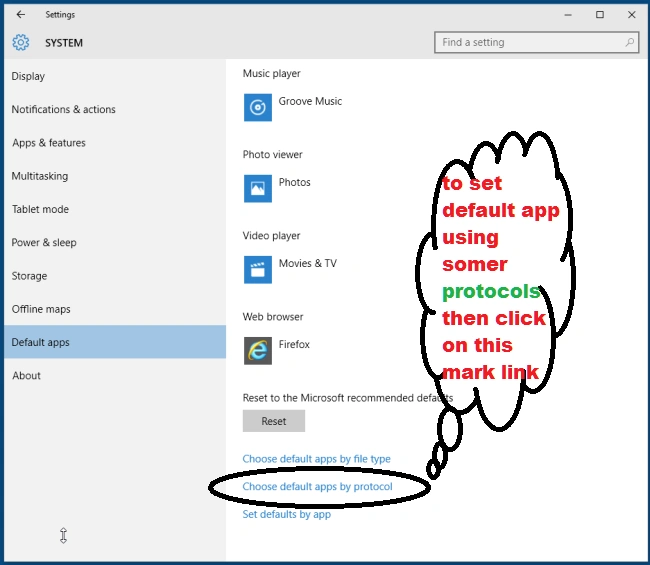
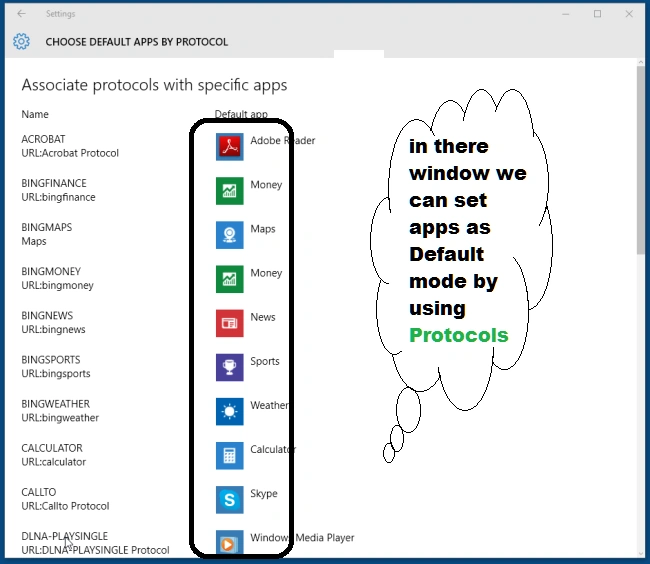
Choose Default apps by Protocols
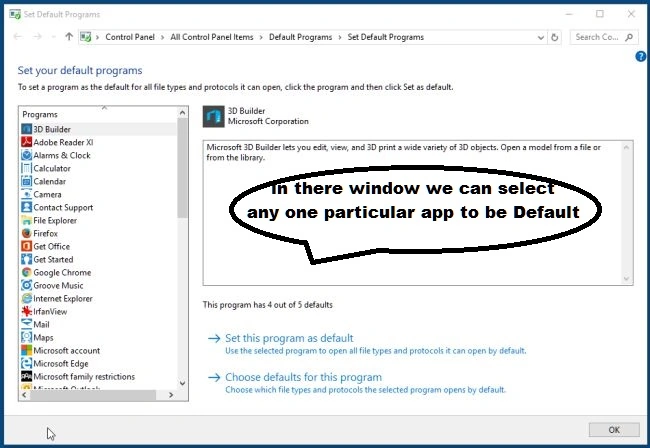
Set Default Program
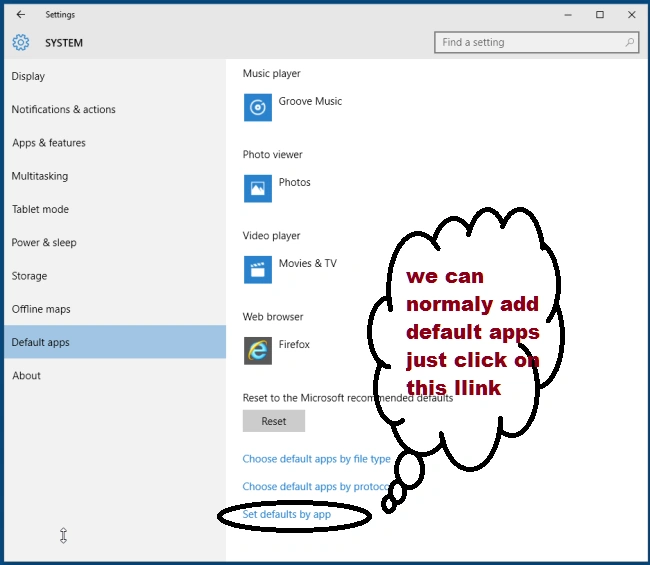
Set Default By Apps
Associate by Apps
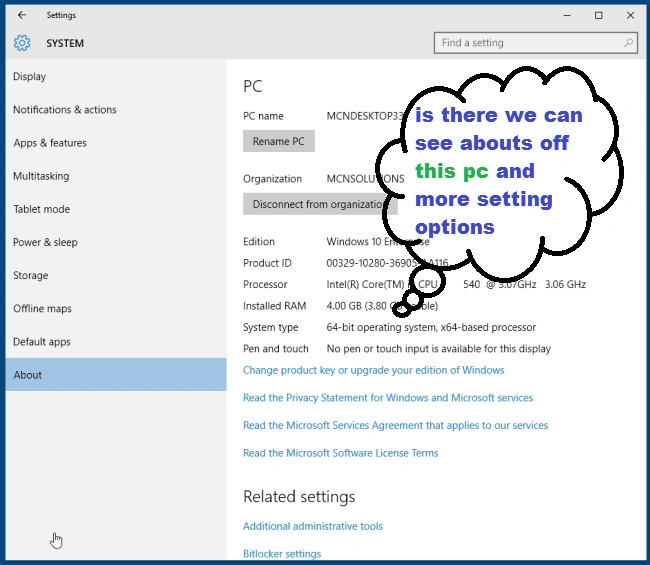
About Setting
Summary
The main conclusion of this article is that we learned in detail how to use System Setting options and how to change in Windows 10 settings. I hope you liked this article.




Santhakumar MunuswamyPosted Dec 26, 2015, 2:15 AM
Thanks for nice share
Joe WilsonPosted Dec 25, 2015, 2:14 PM
thank you sir.
Sibeesh VenuPosted Dec 23, 2015, 2:37 AM
Nice Share