

Introduction
As all we know Windows 10 provides a lot of new features, changing the user account type of a friend or family is one of them. Using it you can give them more or less control over the computer. With the help of these features, you could protect your system from other users or can give additional permissions to new users, so they can easily install new software. There are two different account types.
The first one is an Administrator and second is a Standard User.
An Administrator
A Standard User
Go to the home menu and click on the Settings App.
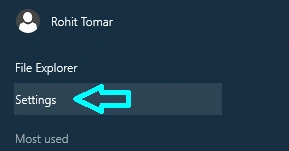
Figure 1: Setting App
Clicking on settings opens a new window with many options. Click on Accounts.
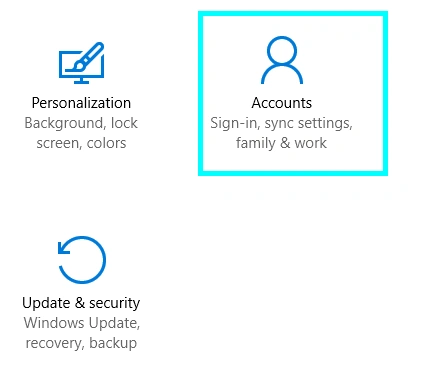
Figure 2: Accounts
On the left sidebar, you can see many options, click on Family & other Users.
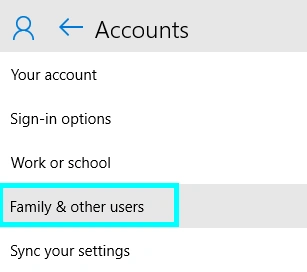
Figure 3: Family and Other Users
Have a look at your right window and select the second section, Other users.

Figure 4: Other User
Click on Add someone else to this PC in Other users.
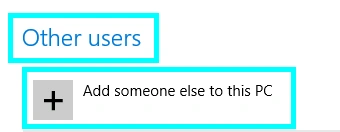
Figure 5: Add some other user
After clicking on Add someone else, a new window will open on your system with the name of Add a User.
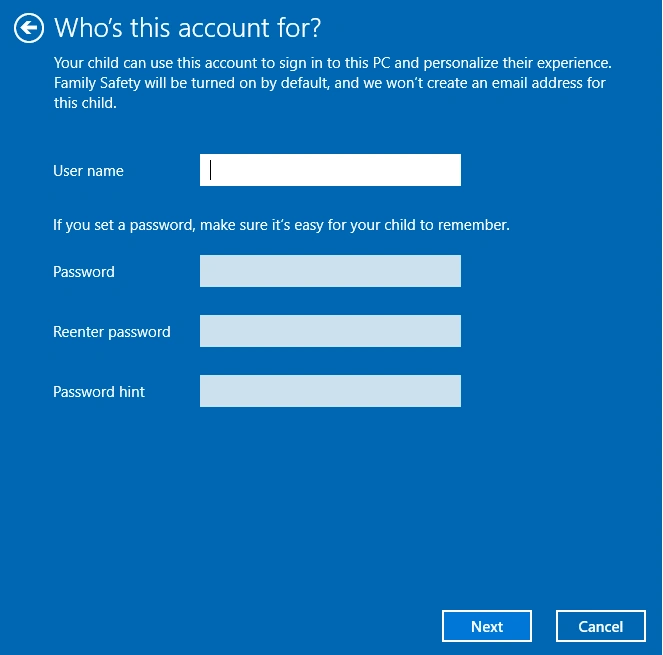
Figure 6: Add a User
After creating a new user you can change the user account type, for this click Change account type.
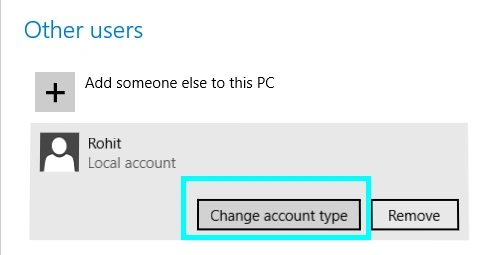
Figure 7: Change account type
After clicking on the Change account type you will get a new window with the Account Type options, select any one of them that you want.
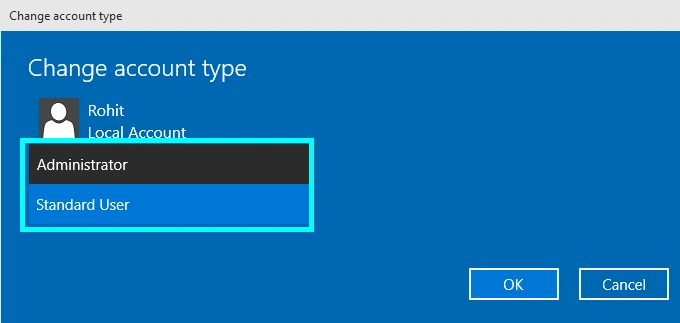
Figure 8: Account Type
Figure 9: Administrator
Summary
In this article, we saw how to create and change the user account type in Windows 10.
varsha TomarPosted Dec 30, 2015, 3:55 AM
Tnx for providing useful information.. Keep it up :)
Sujeet SumanPosted Sep 22, 2015, 12:37 PM
Nice Article................
Mohammed IbrahimPosted Sep 5, 2015, 10:36 AM
nice information
Rajeesh MenothPosted Sep 5, 2015, 8:49 AM
Nice Share
Santhakumar MunuswamyPosted Sep 5, 2015, 4:01 AM
Thanks for nice share
Pankaj Kumar ChoudharyPosted Sep 5, 2015, 3:40 AM
Nice Share.........
Karthikeyan KPosted Sep 5, 2015, 12:34 AM
Good one sir...Thanks for sharing