
Note: SiteMailbox is a Microsoft Exchange 2013 feature that helps collaborate between an Exchange email and SharePoint documents using Microsoft Outlook 2013.
Set up the “Site Mailbox”
Option 1
- You can add Site Mailbox from “Getting started” under the gear icon.
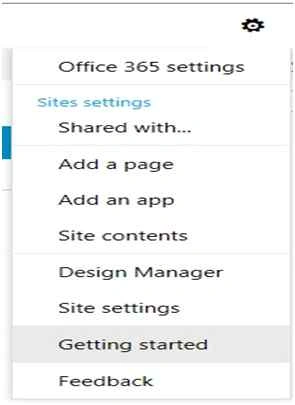
- After clicking “Getting Started” the following screen will be displayed and please select “Keep email in context”.

- Now the site mailbox app is installed.
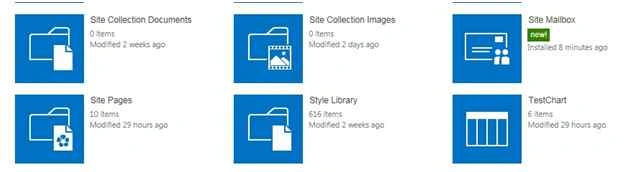
- Usually it will take 30-60 minutes for the app to be completely installed.

Option 2
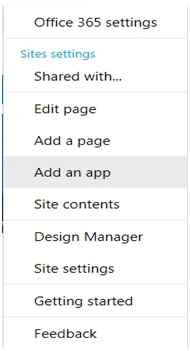
- You can add a Site Mailbox from “Add an app” under the gear icon.
- And now the app is being installed.
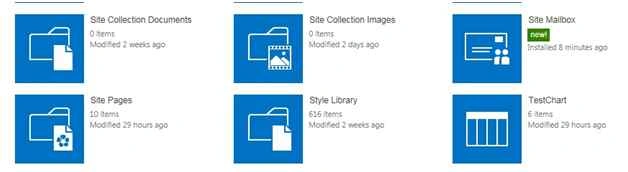
- As mentioned in the preceding “Option1”, the same screenshot is attached for reference,

Post the addition of “Site Mailbox”, setting up the mailbox
After you have added the Site Mailbox app to your site, the next step is to set up the site mailbox itself. You only need to do this step once.
- On the Quick Launch, click the new Mailbox.
- When the site mailbox is created, click Mailbox on the Quick Launch again, and then, on the Exchange Admin Center page, choose your language and timezone.
- Click Save to finish setting up your site mailbox.
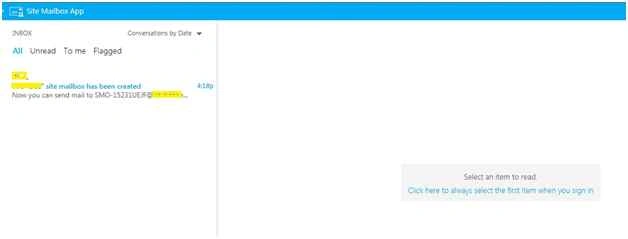
Reference
Vaikesh K PPosted Aug 25, 2015, 1:51 AM
Good One
Ravivarma BalakrishnanPosted Aug 24, 2015, 4:06 PM
Thanks Karthik...
Karthikeyan KPosted Aug 23, 2015, 11:23 PM
Good one...Thanks for share
Ravivarma BalakrishnanPosted Aug 23, 2015, 2:30 PM
Thanks so much everyone...
Gopi ChandPosted Aug 23, 2015, 1:57 PM
Nice
Gowtham KPosted Aug 23, 2015, 1:42 PM
Good one
Santhakumar MunuswamyPosted Aug 23, 2015, 11:33 AM
Thanks for Nice article
Mohammed IbrahimPosted Aug 23, 2015, 9:45 AM
nice information
Prasham SabadraPosted Aug 23, 2015, 6:11 AM
Thanks for sharing! Nice Article :)
Sibeesh VenuPosted Aug 23, 2015, 3:46 AM
Nice Share
RakeshPosted Aug 23, 2015, 3:30 AM
Good one
Rajeesh MenothPosted Aug 23, 2015, 2:40 AM
Nice Share