Data Binding in WPF DataGrid Control Using SQL Server Database Via LINQ
Introduction
This article explains how to use a DataGrid control in WPF and binding to a DataGrid in a WPF 4.5 application using SQL server as Database.
- WPF ApplicationFrom
- DataGrid control
- SQL SERVER Database
Download The Above SqlServer_Emp.zip file and extract the Emp.Sql from the zip file and open the file and execute in SQL server Management Studio. it will create you the table named "Emp" under "WpfPractice" Database.
Now your Database is Ready...
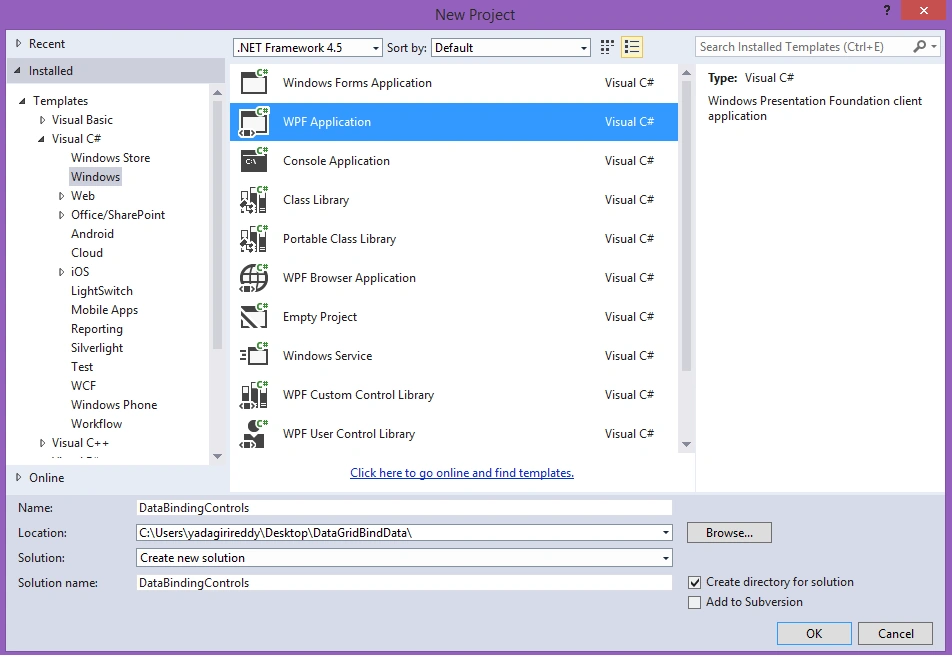
Next Create a new project using "File" > "New" > "Project..." > "WPF Application" and name it: "DataBindingControls".
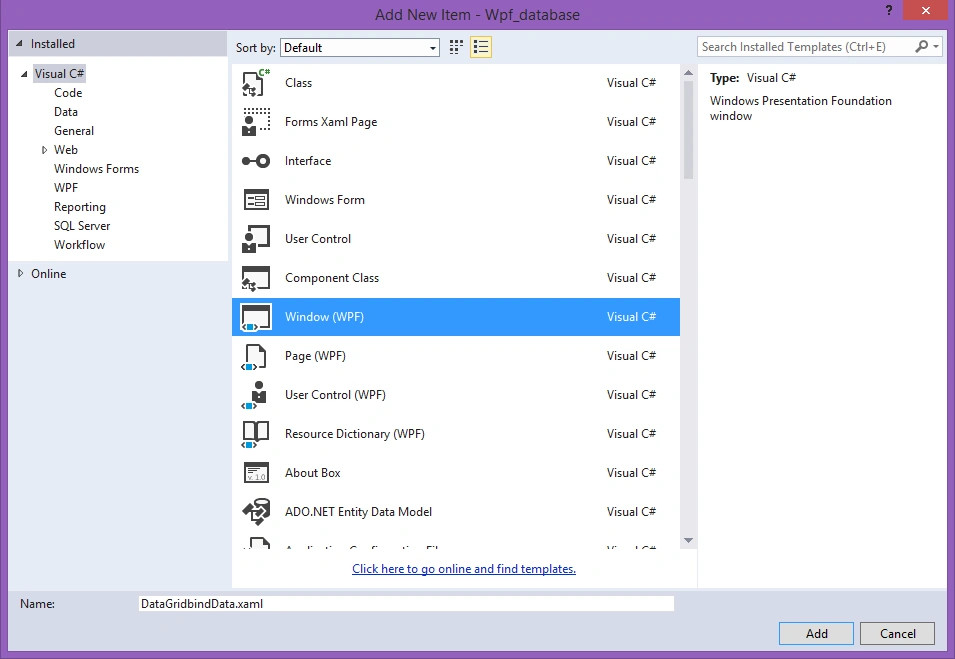
Now right click the "DataBindingControls"in solution Explorer and click on Add->New Item-> Choose Language as Visual C# ->Windows and select Window(WPF) and click on Add.
design the DataGridbindData Window by using below controls from the ToolBox.
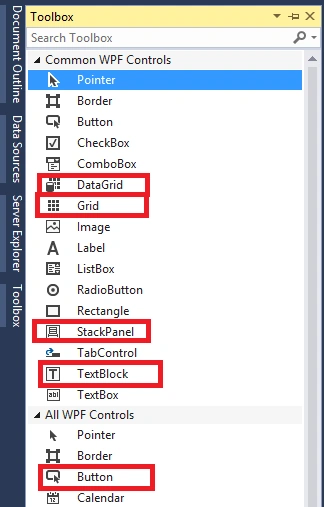
Now from the Toolbox Select:
- 1 Grid
- 1 Text block
- DataGrid control
- 1 Button
- 1 StackPanel
Now design your DataGridbindData.xaml View design part; use the following code:
DataGridbindData.xaml
- <Window x:Class="DataBindingControls.DataGridBindData"
- xmlns="http://schemas.microsoft.com/winfx/2006/xaml/presentation"
- xmlns:x="http://schemas.microsoft.com/winfx/2006/xaml"
- Title="DataGridBindData" Height="330" Width="490">
- <StackPanel>
- <Grid>
- <Grid.RowDefinitions>
- <RowDefinition Height="41*"/>
- <RowDefinition Height="183*"/>
- <RowDefinition Height="45*"/>
- </Grid.RowDefinitions>
- <TextBlock Text="Employees"
- FontSize="25"
- Foreground="Chocolate"
- Grid.Row="0"
- VerticalAlignment="Top"
- Margin="10,5,0,0"/>
- <DataGrid Name="EmpDataGrid"
- Grid.Row="1"
- AutoGenerateColumns="False"
- Margin="10,5,0,0"
- Height="200"
- Width="450"
- HorizontalAlignment="Left"
- ItemsSource="{Binding Path=LoadDataBinding}"
- CanUserResizeRows="False"
- CanUserAddRows="False">
- <DataGrid.Columns>
- <DataGridTextColumn Header="Empno" Binding="{Binding Path=Empno}" IsReadOnly="True" Width="80"/>
- <DataGridTextColumn Header="name" Binding="{Binding Path=Ename}" IsReadOnly="True" Width="120"/>
- <DataGridTextColumn Header="Job" Binding="{Binding Path=Job}" IsReadOnly="True" Width="100"/>
- <DataGridTextColumn Header="Salary" Binding="{Binding Path=Sal}" IsReadOnly="True" Width="120"/>
- </DataGrid.Columns>
- </DataGrid>
- <Button Name="btndisplaydata"
- Content="Display Data"
- HorizontalAlignment="Left"
- VerticalAlignment="Top"
- Grid.Row="2"
- Margin="320,5,10,3"
- Height="35"
- Width="140"
- FontSize="20"
- Click="btndisplaydata_Click"/>
- </Grid>
- </StackPanel>
- </Window>
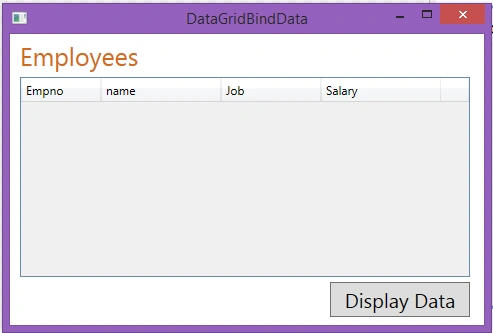
You will get the DataGridbindData.xaml window form like below.
Now Add your Database Table into your Application By using ADO.NET Entity Data Model.
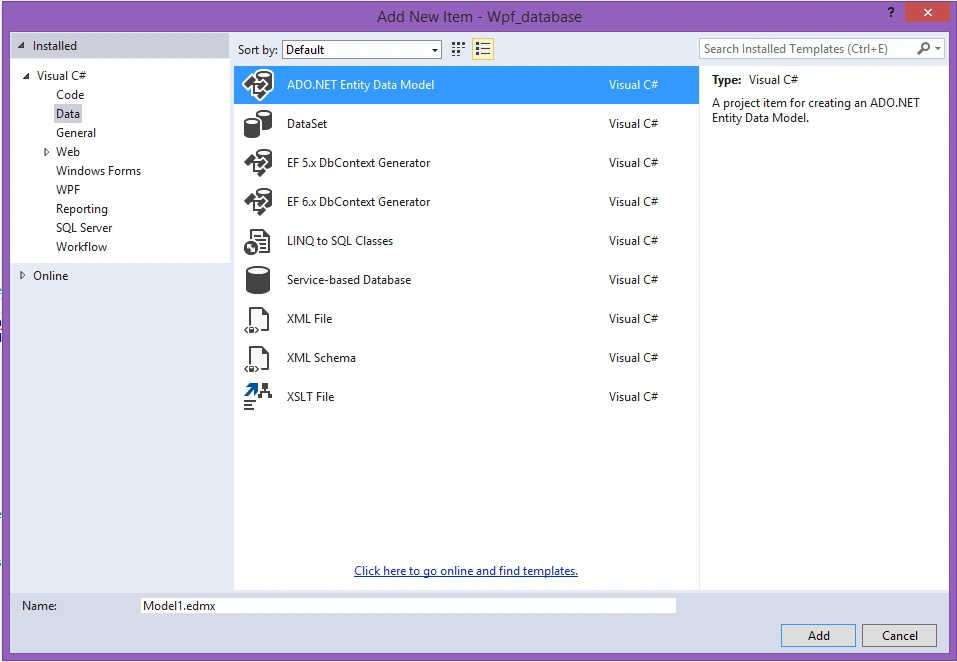
right click the "DataBindingControls"in solution Explorer and click on Add->New Item-> Choose Language as Visual C# -> Data ->select ADO.NET Entity Data Model. and click on Add.
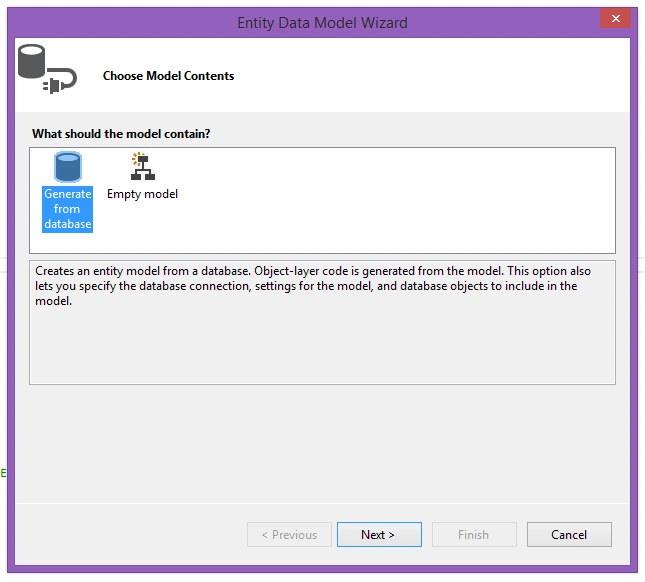
from the Choose model contents select Generate from the Database then click on next button
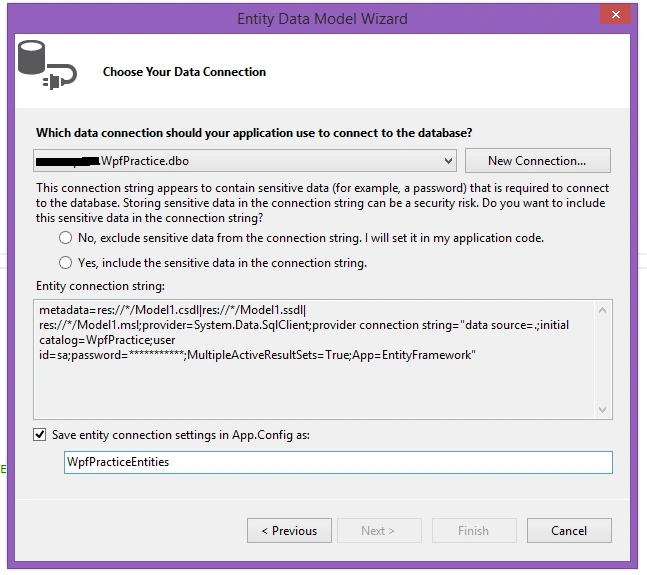
click on new connection from below window
Click on Next
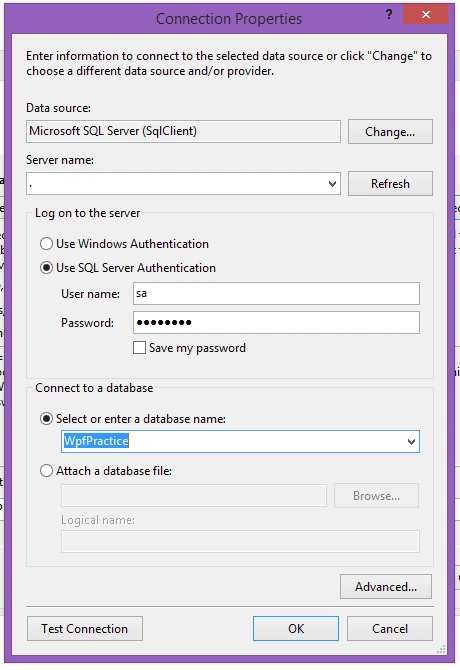
provide the credentials and select data base name as WpfPractice and Click on Ok button
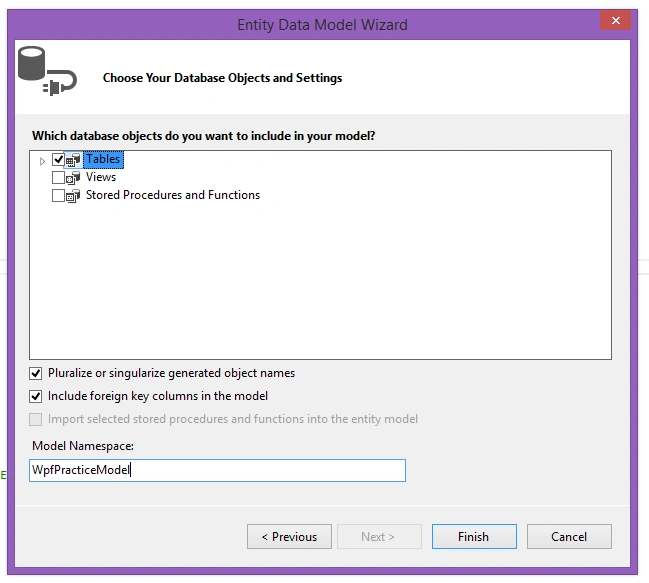
check the tables checkbox and click on finish.
automatically it will write the connection string into your App.config file.
Auto Generated App.Config is as follows:
App.Xaml
- <?xml version="1.0" encoding="utf-8"?>
- <configuration>
- <configSections>
-
- <section name="entityFramework" type="System.Data.Entity.Internal.ConfigFile.EntityFrameworkSection, EntityFramework, Version=6.0.0.0, Culture=neutral, PublicKeyToken=b77a5c561934e089" requirePermission="false" />
- </configSections>
- <startup>
- <supportedRuntime version="v4.0" sku=".NETFramework,Version=v4.5" />
- </startup>
- <connectionStrings>
- <add name="WpfPracticeEntities" connectionString="metadata=res://*/Model1.csdl|res://*/Model1.ssdl|res://*/Model1.msl;provider=System.Data.SqlClient;provider connection string="data source=.;initial catalog=WpfPractice;user id=sa;word=Test123!;MultipleActiveResultSets=True;App=EntityFramework"" providerName="System.Data.EntityClient" />
- </connectionStrings>
- <entityFramework>
- <defaultConnectionFactory type="System.Data.Entity.Infrastructure.SqlConnectionFactory, EntityFramework" />
- <providers>
- <provider invariantName="System.Data.SqlClient" type="System.Data.Entity.SqlServer.SqlProviderServices, EntityFramework.SqlServer" />
- </providers>
- </entityFramework>
- </configuration>
Now, in the code behind file “DataGridbindData.xaml.cs“ use the following code.
DataGridbindData.xaml.cs
- using System;
- using System.Collections.Generic;
- using System.Linq;
- using System.Text;
- using System.Threading.Tasks;
- using System.Windows;
- using System.Windows.Controls;
- using System.Windows.Data;
- using System.Windows.Documents;
- using System.Windows.Input;
- using System.Windows.Media;
- using System.Windows.Media.Imaging;
- using System.Windows.Shapes;
- namespace DataBindingControls
- {
-
-
-
- public partial class DataGridBindData : Window
- {
- public DataGridBindData()
- {
- InitializeComponent();
- }
- private void btndisplaydata_Click(object sender, RoutedEventArgs e)
- {
- try
- {
- WpfPracticeEntities Con = new WpfPracticeEntities();
- List<Emp> TableData = Con.Emps.ToList();
- EmpDataGrid.ItemsSource = TableData;
- }
- catch (Exception ex)
- {
- MessageBox.Show(ex.ToString());
- }
- }
- }
- }
Open Your App.xaml file and and set StartupUri="DataGridbindData.xaml".
Run the application
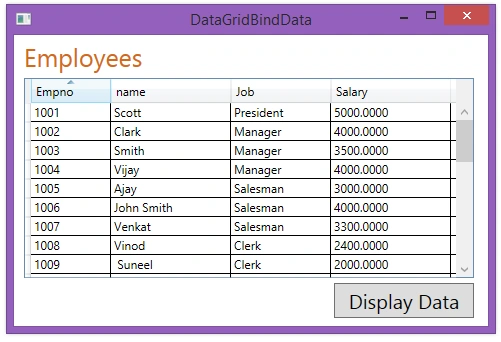
Now click on Display Data Button. here is the output.
sorry guys i couldn't provide the complete file here only because of size limitation problem.
you can get the complete document from below link
I hope this article is useful. If you have any other questions then please provide your comments below.


Kroneaux SchneiderPosted Jan 26, 2016, 11:45 AM
I make queries to views so the headers are already done. Very helpful! thank you! :D
Jyoti Ranjan SwainPosted Nov 2, 2015, 4:50 AM
Thanks you ....................
Gohar AliPosted May 21, 2014, 5:15 AM
i got exception error at string.emptywhat does it mean..??
Bala MuruganPosted Dec 10, 2013, 5:15 AM
getting an error from this
Ravi VPosted Aug 14, 2013, 2:11 AM
Thanks u so much...
Suresh KPosted May 1, 2012, 2:50 AM
Hi How to do datagrid row and cell validations for above example. Can you please help me.
Akshay TeotiaeditedPosted Apr 8, 2012, 7:07 AMEdited Apr 8, 2012, 7:10 AM
Thanks for posting such kind of article. Can you explain DefaultView.