
Introduction
In the previous article about "Screenshot From Media Element in WPF", we saw how to capture screenshot from the media (Video) playing in Media Element. In this article we will see how we can add a Seek Bar that will seek to the desired position.
Crating WPF Application Project
Fire up Visual Studio 2008 and Create a WPF Application and name the project as MediaSampleWPF.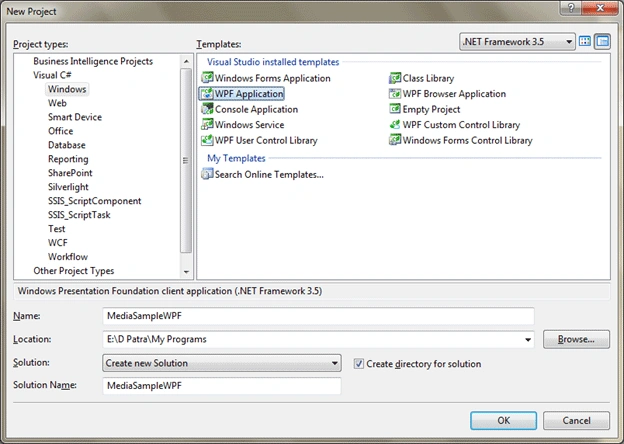
I am just extending the feature that we experienced in our last application titled "Media Element In WPF" and "Screenshot From Media Element in WPF".
We will just add a Slider control that will seek to the desired position of the Media Element. See following figure.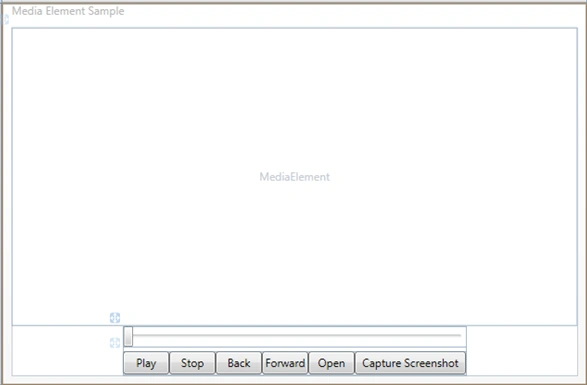
First in the constructor of the Application add a DispatcherTimer object as follows: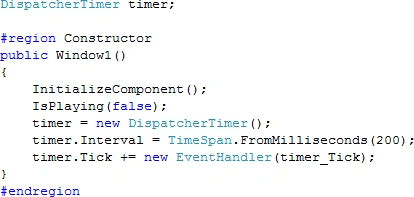
Then in the MediaElement's MediaOpened event add the following code: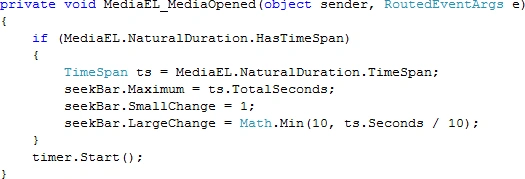
Now Add two events to the slider control, events are Thumb.DragStarted and Thumb.DragCompleted in XAML behind.
In the above event handlers add the following code: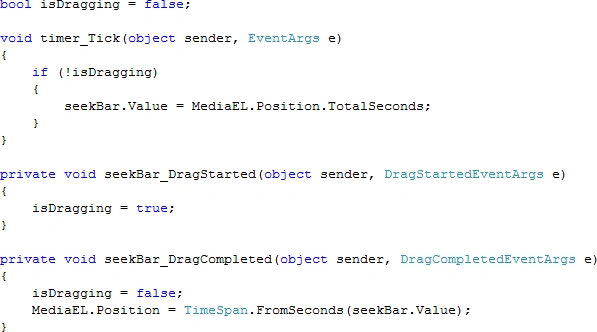
That's it we are ready to run our application. Open the media and seek to the desired position.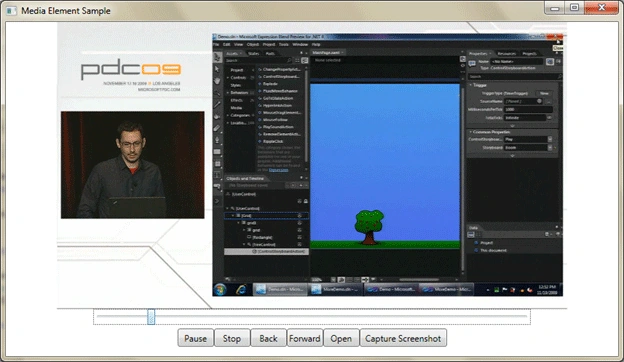
Hope the article helps.

Seek Bar For Media Element in WPF
Join the conversation! Your thoughts help the community grow.
Sign in to leave a comment
It is the same account you read, post and publish with — and you will come straight back to this page.
shailesh singhPosted Mar 2, 2015, 5:00 AM
nic tips....
yuvaraj rPosted Nov 22, 2013, 2:05 AM
Thank you very useful tips
EduardoPosted Nov 11, 2011, 9:33 PM
Thank you very much for the tips, the work very well