

Introduction
You must have seen the various effects we can add to an image, like adding toning effects. These effects make the image look more beautiful.
For this, you basically need to change the alpha value of the image, the depth and composition of red, blue and green colors in the image.
This article shows how to add these tone effects. I will be using my phone gallery to select the image and add five effects on it.
Step 1
Open "activity_main" and add the following code to it:
- <LinearLayout xmlns:android="http://schemas.android.com/apk/res/android"
- xmlns:tools="http://schemas.android.com/tools"
- android:layout_width="match_parent"
- android:layout_height="match_parent"
- android:paddingLeft="@dimen/activity_horizontal_margin"
- android:paddingRight="@dimen/activity_horizontal_margin"
- android:paddingTop="@dimen/activity_vertical_margin"
- android:paddingBottom="@dimen/activity_vertical_margin"
- tools:context=".MainActivity"
- android:orientation="vertical">
- <Button
- android:layout_width="fill_parent"
- android:layout_height="wrap_content"
- android:text="Select a photo"
- android:id="@+id/gallery"/>
- <ImageView
- android:layout_height="300dp"
- android:layout_width="fill_parent"
- android:id="@+id/original_image"
- android:layout_marginTop="20dp"/>
- <Button
- android:text="Add Effects"
- android:id="@+id/effects_btn"
- android:layout_height="wrap_content"
- android:layout_width="wrap_content"
- android:paddingLeft="10dp"
- android:paddingRight="10dp"
- android:layout_marginTop="10dp"/>
- </LinearLayout>
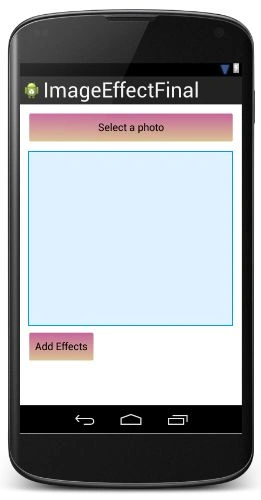
The layout looks like:
Step 2
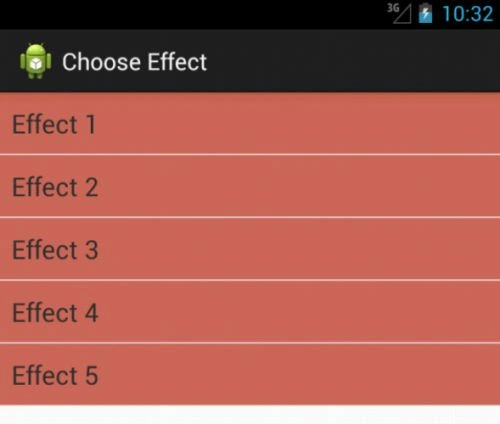
Make a new layout file to display the list of effects that can be added to an image.
In the Layout select "New" -> "Layout resource file". Name it "list_of_effects" and add the following code to it:
- <TextView xmlns:android="http://schemas.android.com/apk/res/android"
- android:layout_width="fill_parent"
- android:layout_height="fill_parent"
- android:padding="10dp"
- android:textSize="20sp"
- android:background="#cd6959">
- </TextView>
Step 3
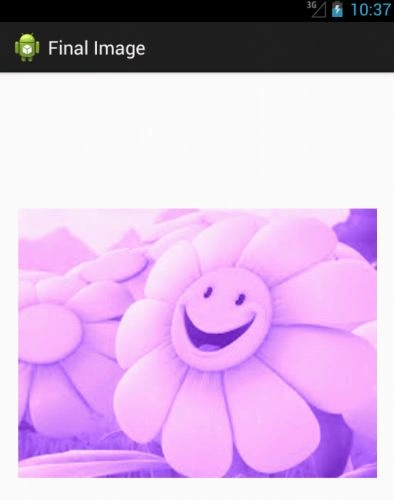
Make a new layout file to display the image with effects added on it.
In the Layout select "New" -> "Layout resource file". Name it "final_view" and add the following code to it:
- <LinearLayout xmlns:android="http://schemas.android.com/apk/res/android"
- android:orientation="vertical"
- android:layout_width="match_parent"
- android:layout_height="match_parent">
- <ImageView
- android:layout_width="fill_parent"
- android:layout_height="fill_parent"
- android:id="@+id/view"
- android:layout_marginLeft="20dp"
- android:layout_marginRight="20dp"
- android:layout_marginTop="20dp"
- android:layout_marginBottom="20dp"
- />
- </LinearLayout>
Step 4
Open "MainActivity" and add the following code to it:
- package com.chhavi.imageeffectfinal;
- import android.content.Intent;
- import android.database.Cursor;
- import android.graphics.Bitmap;
- import android.graphics.BitmapFactory;
- import android.net.Uri;
- import android.os.Bundle;
- import android.app.Activity;
- import android.provider.MediaStore;
- import android.util.Log;
- import android.view.Menu;
- import android.view.View;
- import android.widget.Button;
- import android.widget.ImageView;
- public class MainActivity extends Activity {
- Button gallery;
- Bitmap image;
- ImageView original;
- Button effects;
- String picturePath;
- @Override
- protected void onCreate(Bundle savedInstanceState) {
- super.onCreate(savedInstanceState);
- setContentView(R.layout.activity_main);
- original=(ImageView)findViewById(R.id.original_image);
- effects=(Button)findViewById(R.id.effects_btn);
- gallery=(Button)findViewById(R.id.gallery);
- gallery.setOnClickListener(new View.OnClickListener() {
- @Override
- public void onClick(View v) {
- Intent intent = new Intent(Intent.ACTION_PICK,android.provider.MediaStore.Images.Media.EXTERNAL_CONTENT_URI);
- startActivityForResult(intent, 1);
- }
- });
- effects.setOnClickListener(new View.OnClickListener() {
- @Override
- public void onClick(View v) {
- Intent i=new Intent(MainActivity.this,ListOfEffects.class);
- i.putExtra("image thumbnail path",picturePath);
- startActivity(i);
- }
- });
- }
- @Override
- protected void onActivityResult(int requestCode, int resultCode, Intent data) {
- super.onActivityResult(requestCode, resultCode, data);
- if(resultCode==RESULT_OK)
- {
- Uri selectedImage = data.getData();
- String[] filePath = { MediaStore.Images.Media.DATA };
- Cursor c = getContentResolver().query(selectedImage,filePath, null, null, null);
- c.moveToFirst();
- int columnIndex = c.getColumnIndex(filePath[0]);
- picturePath = c.getString(columnIndex);
- c.close();
- image = (BitmapFactory.decodeFile(picturePath));
- Log.i("path of image from gallery...............", picturePath + "");
- original.setImageBitmap(image);
- }
- }
- @Override
- public boolean onCreateOptionsMenu(Menu menu) {
- // Inflate the menu; this adds items to the action bar if it is present.
- getMenuInflater().inflate(R.menu.main, menu);
- return true;
- }
- }
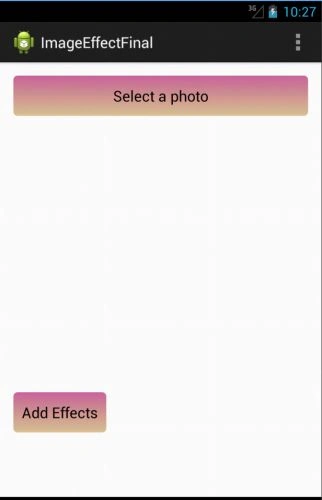
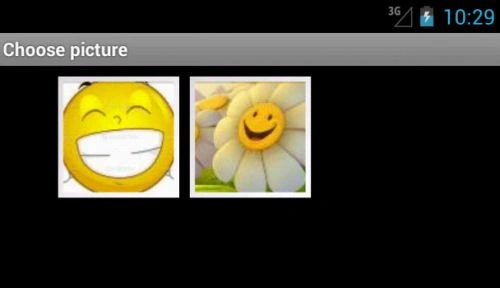
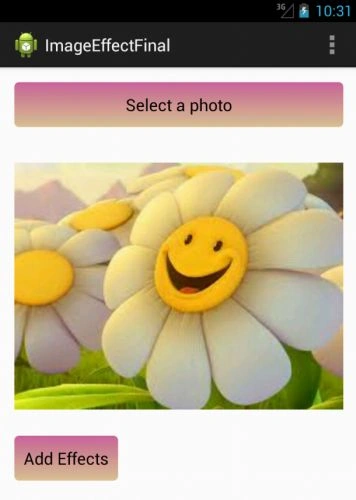
In the code above, we are opening the gallery of an Android phone. Users can select any image they want to. On the click of the button "Add Effects," a new activity will be loaded that will display the list of effects possible.
Step 5




Sayam AliPosted May 6, 2017, 12:28 PM
Add effect button crashes the app
Rosa VilaPosted Feb 25, 2015, 2:06 PM
Good :)
sidney scholzePosted Jan 3, 2014, 8:17 AM
How to save the image in the gallery of the cellular one after to apply the effect?