

Introduction
Navigation means moving from one page to another page on a click. So today I will explain navigation from one page to another page. This article shows how to navigate to the next page with data. So let's start.
First create a Windows Phone blank app and put some controls in the MainPage.xaml. I have put only a single button for navigation but it depends on the kind of page you want to create and what controls you want to add. In my case I am using a single button control just to navigate from main page to my second page with data.
Here is the code:
First create a Windows Phone blank app and put some controls in the MainPage.xaml. I have put only a single button for navigation but it depends on the kind of page you want to create and what controls you want to add. In my case I am using a single button control just to navigate from main page to my second page with data.
Here is the code:
- <Grid>
- <StackPanel>
- <TextBlock Text="MainPage.xaml"/>
- <Button Content="Navigation Button" Name="Navigate"Click="Navigate_Click"/>
- </StackPanel>
- </Grid>
So here is my class:
- public class NavigationClass
- {
- public int Id
- {
- get;
- set;
- }
- public string Name
- {
- get;
- set;
- }
- public int Age
- {
- get;
- set;
- }
- }
Now I am assigning some values to these properties and navigating to the next page with these values.
In mainPage.xaml.cs on the button click event I assign values and navigate to the next page:
- private void Navigate_Click(object sender, RoutedEventArgs e)
- {
- // Frame.Navigate(typeof(Page2),"Main Page");
- NavigationClass navCl1 = new NavigationClass();
- navCl1.Id = 12;
- navCl1.Name="Your name";
- navCl1.Age = 22;
- Frame.Navigate(typeof(Page2) , navCl1);
- }

So when the navigate button is clicked the properties will assign some values and navigate to the next page. Now add a blank page to the project and put some controls on the page. Here I am using two controls, a button control and a TextBlock control. The TextBlock control will be used to display the value of the name property of the class and the button will be used to navigate as in the mainpage.
Page2.xaml
So here is the sample code:
- <Grid>
- <StackPanel>
- <TextBlock Name="Page2Textblock" Text="page2.xaml"/>
- <Button Name="navigation2" Content="Navigate"Click="navigation2_Click"/>
- </StackPanel>
- </Grid>
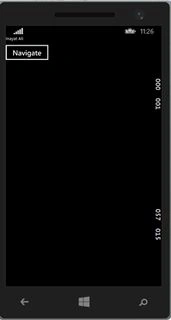
Now in the OnNavigated to method of the page2 I am using some code that will display the name in the textblock field on page2.
Page2.xaml.cs
- protected override void OnNavigatedTo(NavigationEventArgs e)
- {
- var nav = (NavigationClass)e.Parameter;
- Page2Textblock.Text = nav.Name;
- }
- private void navigation2_Click(object sender, RoutedEventArgs e)
- {
- Frame.Navigate(typeof(Page3));
- }
- <Grid>
- <StackPanel>
- <TextBlock Name="textblockpage3" Text="Page3.xaml"/>
- <Button Name="goback" Content="Go Back"Click="goback_Click"/>
- </StackPanel>
- </Grid>
When page3 is loaded in the navigated to method of this page we will check the number of pages in the stack and then remove the number of pages by the BackStackDepth method and we will directly navigate to the mainpage rather than navigating page by page. It will display the number of pages in the stack as well.
Page3.xaml.cs
- protected override void OnNavigatedTo(NavigationEventArgs e)
- {
- string myPages = "";
- foreach (PageStackEntry page in Frame.BackStack)
- {
- myPages += page.SourcePageType.ToString() + "\n";
- }
- textblockpage3.Text = myPages;
- Frame.BackStack.RemoveAt(Frame.BackStackDepth - 1);
- }
- private void goback_Click(object sender, RoutedEventArgs e)
- {
- Frame.GoBack();
- }
 For more posts visit
NitinPosted Apr 13, 2015, 2:42 AM
nice
Inayat Ali JanPosted Apr 10, 2015, 10:55 AM
Thanks
Gowtham RajamanickamPosted Apr 9, 2015, 4:29 AM
nice
Vithal WadjePosted Apr 8, 2015, 2:51 PM
nice
Inayat Ali JanPosted Apr 1, 2015, 7:30 AM
it is windows phone Tom...
Tom MohanPosted Mar 12, 2015, 12:31 PM
Its windows phone or wpf ?