

For the scope of this article, I assume that you are familiar with C# OOP concepts and C# projects.
- We will create a plug-in in the C# Class library, you can also use a portable class library.
- Add a class library project into the C# solution and name your class "MyDynamicPlugin".
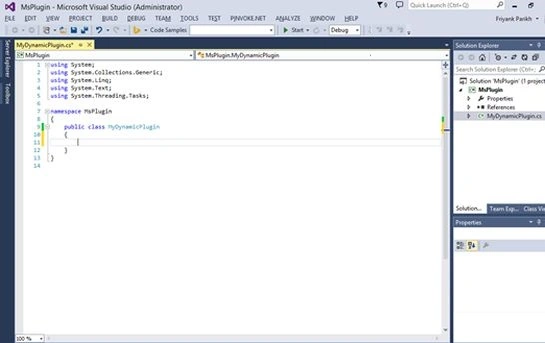
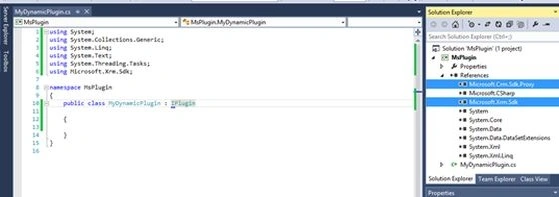
- Now add references to the 2 DLLs.
- Microsoft.Crm.Sdk.Proxy.dll
- Microsoft.Xrm.Sdk.dll
- And you will find both of the DLLs in the SDK/bin folder of your Microsoft SDK.
- And inherit the IPlugin interface.
- Implement the IPlugin Interface and you will get an Execute method with the IserviceProvider interface object as a parameter.
- Execute method: This method runs as an entry point for any plugin in Microsoft Dynamic CRM.
- IserviceProvider interface: This interface provides access to various services of dynamic, this interface has a method called GetService() that uses the reflection feature of .NET and allows us to get any type of service we want.
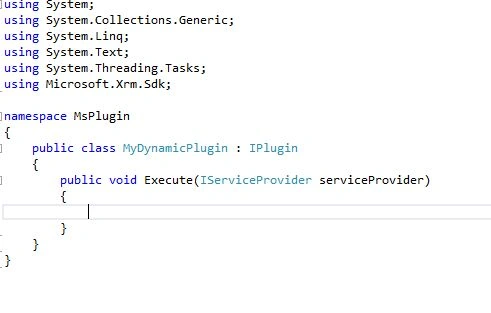
- This Execute method is all the code you need to fire before or after any event occurred.
Let's see how
For this article I will create a default Contact whenever anyone creates an account.
For example, If an employee of an organization creates an account then a default contact with basic details should be added to that account automatically (using a plug-In).
Procedure
Step 1
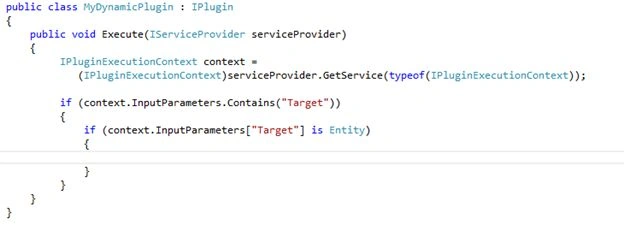
Since we need to trigger our plug-in when an event is executed, we need to get the service of IPluginExecutionContext using the IServiceProvider object.
- IPluginExecutionContext context = (IPluginExecutionContext)serviceProvider.GetService(typeof(IPluginExecutionContext));
And the GetService method returns an object of the specified type. We need to type caste that object.
Step 2
Plugin execution is an object with a property called InputParameter.
- Using this Inputparamter we can get the entity and other types of dynamic CRM.
- Target is one of the main parameters of this IPluginExecutionContext object.
- All the plug-in events are first stored in this variable called “Target”.
- So when any events occur we need to check if this variable is there in our current context execution.
- And if so then we need to check if it's an entity. Because for this article we will trigger a plug-in if a new account (Entity) is created.
Step 3
Now when you know, we have a value in the target and it's an Entity.
We can typecast it into an Entity and using its logicalname property we can determine if the current executing event is for an account Entity or not.
And if it's an account entity we can write our creation of contact code here and associate that contact with the currently executing account.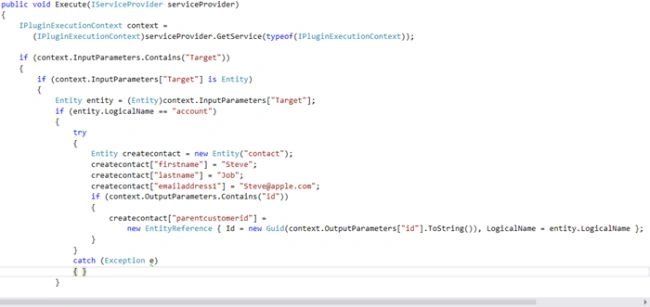
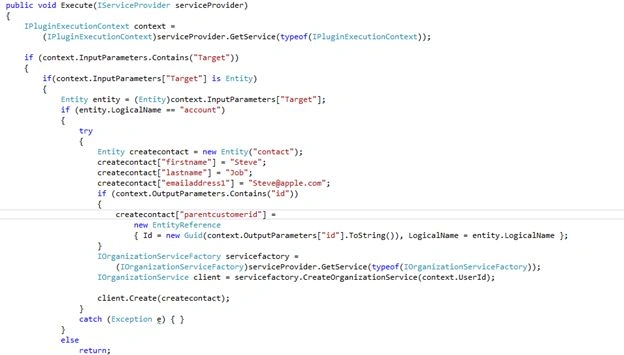
Step 4: The last step is to create an Organizationservicefactory instance and we need to create a new plug-in, add a pluginexecutioncontext object ID to create an Organization service and based on that service client we can create our custom Event.
- IOrganizationServiceFactory servicefactory = (IOrganizationServiceFactory)serviceProvider.GetService(typeof(IOrganizationServiceFactory));
- IOrganizationService client = servicefactory.CreateOrganizationService(context.UserId);
- client.Create(createcontact);
This is the sample code, you can find the attachment of this code with my article.
Build your Project.
Important Step
Once you build your project, you need to generate a key that will act as certificate for your plug-in. Without this key you cannot deploy a plug-in onto a server.
To create a key, go to project property (ALT+ Enter) and go to the signing tab and check sign the assembly.
Select new in the drop down and add a key name and your dynamic CRM Password. And select save (CTRL+ S).
If you have done this then it will add a pfx encrypted key for your current project.
Rebuild your project
Procedure to deploy this assembly using SDk\Tools\PluginRegistration\PluginRegistration.exe.
Step 1
- Run it and Click Create New connection,
- Enter your Login Credentials for Connection with Dynamic CRM.
- The first time you login, you need to pass all the details of your CRM Account.
Step 2
After logging in successfully, click Register > Register New Assembly.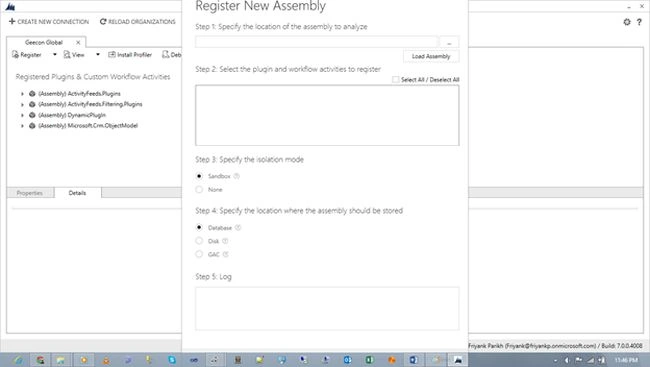
Browse to the DLL you just created and click OK.
Step 3
- Now we need to add steps of this DLL execution.
- So select the assembly and again click Register > Register new Steps.
- Or just right-click the assembly you just added and select Register new Steps.
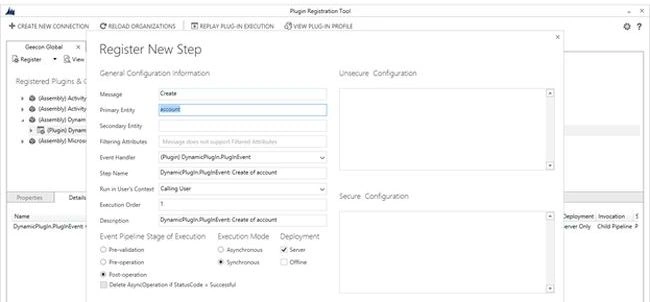
This Window includes an option for how and when you want to execute or fire your assembly or plug-in.
Message: It defines on which event you want to run the plug-in.
Example: Create.
Primary Entity: It define on which Entity execution you want to run the plug-in.
Example: account.
Event pipeline stage of Execution: It defines when you want to run the DLL, before the core operations or after the core operations.
Execution Mode: Execution can be synchronous by default or can be asynchronous (that will be handled further by the Dynamic CRM Queue manager).
Deployment: Server where every plug-in is deployed.
Offline where you can deploy it on Outlook for offline use.
Click Register New Step and boom, it's done.
Your assembly or plug-in is deployed on the server. Now go to Dynamic CRM and create an account, an automated contact will be added by default in that account without any manual entry from employees.
Arpit MittalPosted Mar 28, 2018, 10:20 AM
Hi, i want to create a Lead from an opportunity on closed lost. Can it be possible through plugin?
akshay pattarPosted Jun 16, 2017, 4:24 PM
I did not get that what is the use of line that containing "EntityReference", Please briefly explain that one also. [email protected]
Sandip G PatilPosted May 9, 2017, 6:53 AM
Nice article..........
Shabbu NadeemPosted May 3, 2017, 8:39 AM
Nice Article..it is very helpful for basic understanding of Plugin..
Hemant MahajanPosted Mar 4, 2017, 11:04 AM
Friyank you did an Excellent job
Toti BirdPosted Jan 27, 2017, 3:01 PM
Do you have examples with CRUD operations?
Toti BirdPosted Jan 25, 2017, 3:43 PM
Thanks for sharing the knowledge :D
pankaj vatsPosted Nov 9, 2016, 6:04 AM
I need validate address or phone number through my rest service in Dynamic crm 365. Please help me out.
pankaj vatsPosted Nov 9, 2016, 6:02 AM
Thank you so much !!Friyank Parikh!! .
Kashyap DiwanPosted Aug 8, 2016, 10:21 AM
Hi, Friyank..Realy It is the very good article. Can you please suggest me...I'm creating retreiveMultiple message plugin for the advanced filter for an opportunity but My plugin is not working and I'm not getting any result. Can you please suggest me. I'm creating plugin for OlderthanXday. Using this link http://cspad.com/jih and one more link https://crmtipstricks.wordpress.com/2014/09/23/older-than-x-days-filter-option/
Friyank ParikhPosted Aug 1, 2015, 5:57 AM
i appreciate that you all liked it.
ranju kPosted Jul 15, 2015, 4:52 AM
It showing Business process error....(" System.NotImplementedException: The method or operation is")...can u tell me ,How to resolve it....?????
Abdul QuaderPosted Jul 14, 2015, 2:48 AM
Its Very helpfull me Thankx.............................
Lalit RaghavPosted Jul 9, 2015, 11:12 AM
Great Sir
Subodh LasurePosted Jul 7, 2015, 4:05 PM
I am so happy.... it is finally done.. I was trying this for 2 months and i don't know what went wrong.. But finally.. We did this.. Thank you so much for this step by step explaination.. It was easy. you really helped a lot.. Thank you. thank you. Thank you so much. Thank you. thank you. Thank you so much. Thank you. thank you. Thank you so much. Thank you. thank you. Thank you so much. Thank you. thank you. Thank you so much
Subodh LasurePosted Jul 7, 2015, 4:03 PM
ITS DONE.....
Iswarya RengarajanPosted May 7, 2015, 5:40 AM
wonderful article thanks
Amit KharwarPosted Apr 9, 2015, 12:25 PM
Hi, Friyank it is a very nice article... I have a problem is that how to integrate MS CRM2013 service entities with asp.net application.