

Introduction
A graphics card, which is also known as a
video card, display card, graphics card, or graphics adapter is a piece of
hardware that is installed in a computer. It is responsible for generating
all the text and pictures that are displayed on your screen. Nowadays,
every processor has a builtin onboard graphics card and if you want to know
what graphics card you are using in Windows 8 then you have to follow
certain steps.
Step 1
Right-click on the DESKTOP and
select SCREEN RESOLUTION or
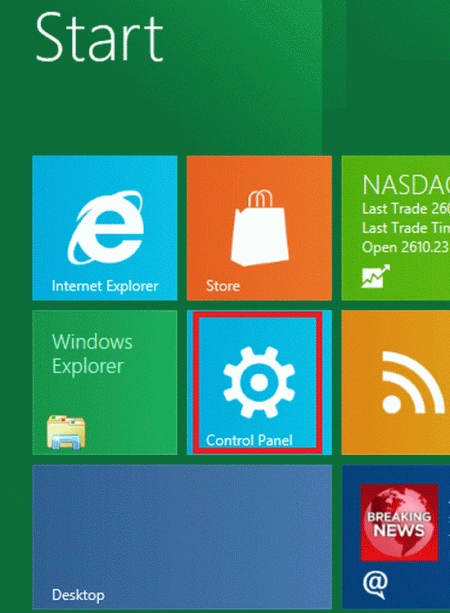
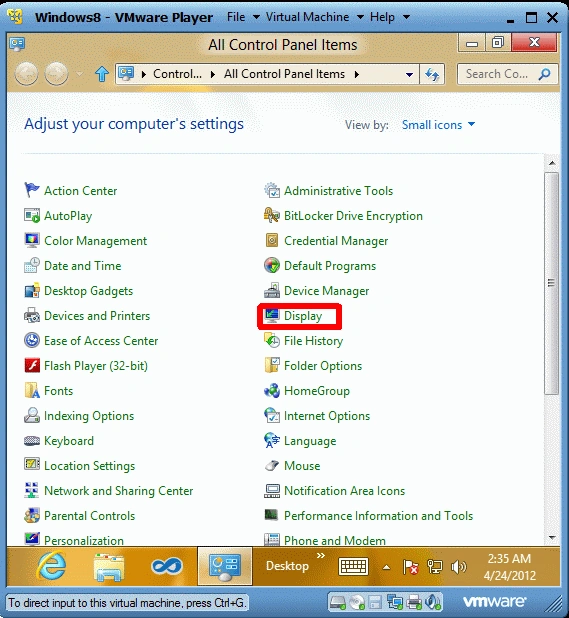
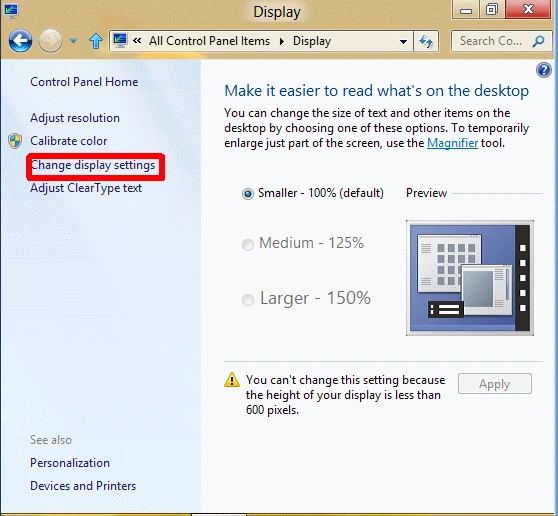
navigate to Control panel ->
Display->Change Display Settings.
Step 2
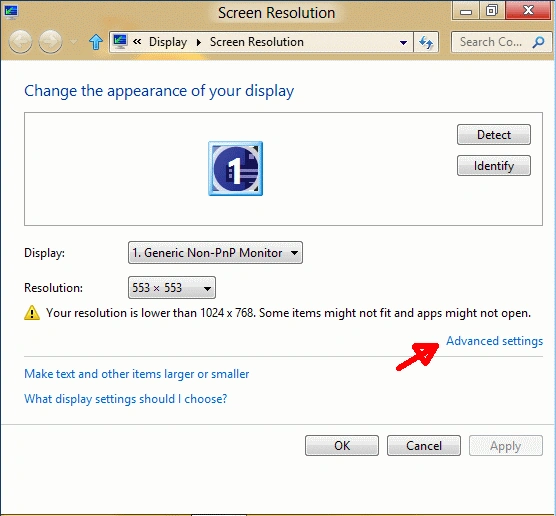
From
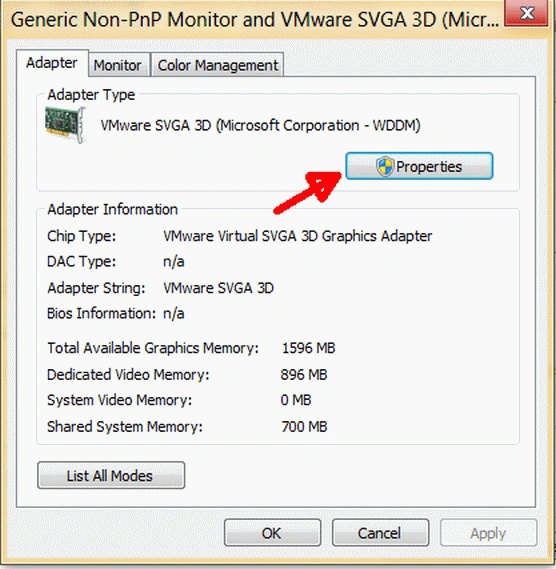
there click to Advanced
Setting. The information on the Graphics card will be shown in a new
window and if you need to know more information click on PROPERTIES.
Summary
In this article, we learned about How to Check Your Graphics Card in Windows 8.
Join the conversation! Your thoughts help the community grow.