

Introduction
I explain in this article how to set a wallpaper from an ImageView in Android. In this article first of all we select an image from an ImageView using the "Select Image" Button. After that we will choose an image and we will then change the wallpaper.
All this will happen within the following procedure.
Step 1
Create a new Android project as shown below using select "File" -> "New" -> "Android Application Project".
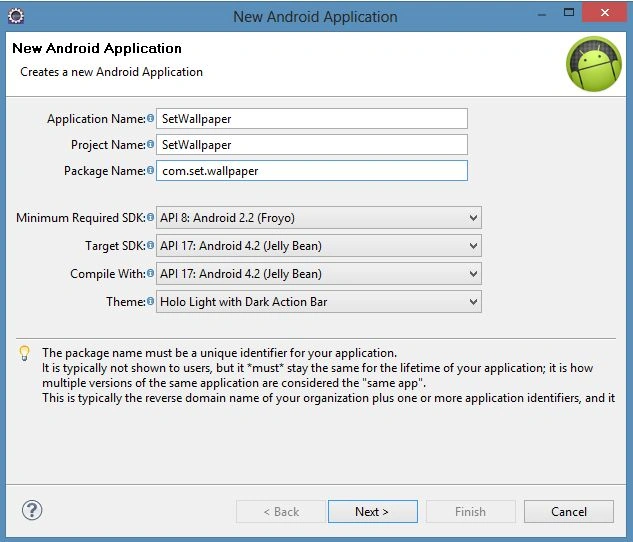
Step 2
Open "activity_main.xml" and update it as shown below.
- <LinearLayout xmlns:android="http://schemas.android.com/apk/res/android"
- xmlns:tools="http://schemas.android.com/tools"
- android:layout_width="wrap_content"
- android:layout_height="match_parent"
- android:layout_centerHorizontal="true"
- android:layout_centerVertical="true"
- android:orientation="vertical"
- tools:context=".MainActivity" >
- <Button
- android:id="@+id/button1"
- android:layout_width="324dp"
- android:layout_height="wrap_content"
- android:text="@string/btn" />
- </LinearLayout>
Step 3
Open the "MainActivity.java" file and update it as shown below.
- package com.mcn.wallpaper;
- import java.io.IOException;
- import android.app.Activity;
- import android.app.WallpaperManager;
- import android.content.Intent;
- import android.graphics.Bitmap;
- import android.net.Uri;
- import android.os.Bundle;
- import android.view.View;
- import android.widget.Button;
- import android.widget.ImageView;
- import android.widget.Toast;
- public class MainActivity extends Activity {
- Bitmap bitmap;
- int lastImageRef;
- /** Called when the activity is first created. */
- @Override
- public void onCreate(Bundle savedInstanceState) {
- super.onCreate(savedInstanceState);
- setContentView(R.layout.activity_main);
- Button buttonSetWallpaper = (Button)findViewById(R.id.button1);
- buttonSetWallpaper.setOnClickListener(new Button.OnClickListener(){
- //@Override
- public void onClick(View arg0) {
- Intent i = new Intent(getApplicationContext(), ImagesStorage.class);
- startActivity(i);
- }});
- }
- }
Step 4
Now create a new XML file Using "Wallpaper/res/layout/" as "image_storage.xml" as shown below.
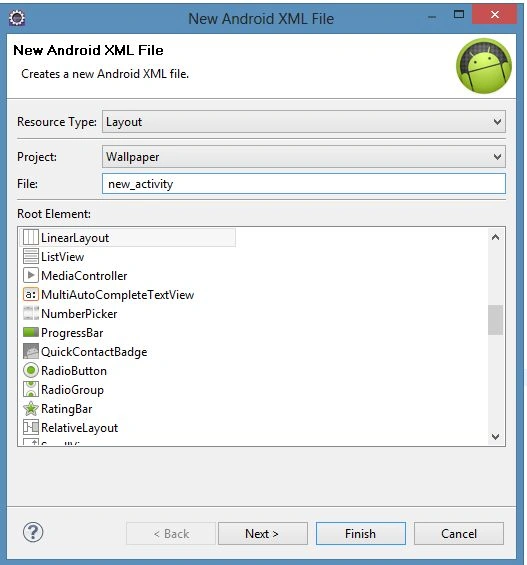
Step 5
Create a new java file using "Wallpaper/src/com.mcn.wallpaper/" as "ImageStorage.java" as shown below.
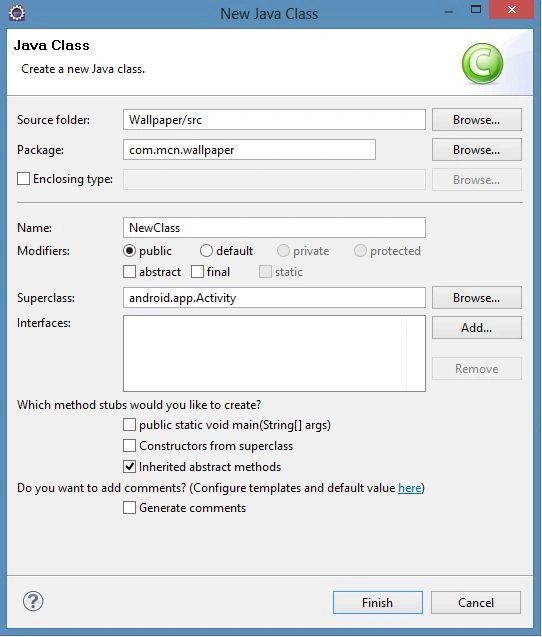
Step 6
Now open the "image_storage.xml" file and update it with the following code.
- <?xml version="1.0" encoding="utf-8"?>
- <LinearLayout xmlns:android="http://schemas.android.com/apk/res/android"
- android:layout_width="match_parent"
- android:layout_height="match_parent"
- android:orientation="vertical" >
- <LinearLayout
- android:id="@+id/InerLinearLayout"
- android:layout_width="match_parent"
- android:layout_height="360dp"
- android:orientation="horizontal" >
- <ImageView
- android:id="@+id/imageView1"
- android:layout_width="108dp"
- android:layout_height="wrap_content"
- android:src="@drawable/image1" />
- <ImageView
- android:id="@+id/imageView2"
- android:layout_width="110dp"
- android:layout_height="wrap_content"
- android:src="@drawable/image2" />
- <ImageView
- android:id="@+id/imageView3"
- android:layout_width="wrap_content"
- android:layout_height="wrap_content"
- android:src="@drawable/image3" />
- </LinearLayout>
- </LinearLayout>
Step 7
Open the "ImageStorage.java" file and update it with the following code.
- package com.mcn.wallpaper;
- import java.io.IOException;
- import android.app.Activity;
- import android.app.WallpaperManager;
- import android.graphics.Bitmap;
- import android.os.Bundle;
- import android.view.View;
- import android.widget.Button;
- import android.widget.ImageView;
- import android.widget.Toast;
- public class ImagesStorage extends Activity
- {
- Bitmap bitmap;
- int lastImageRef;
- @Override
- public void onCreate(Bundle savedInstanceState) {
- super.onCreate(savedInstanceState);
- setContentView(R.layout.images_storage);
- ImageView imagePreview1 = (ImageView)findViewById(R.id.imageView1);
- ImageView imagePreview2 = (ImageView)findViewById(R.id.imageView2);
- ImageView imagePreview3 = (ImageView)findViewById(R.id.imageView3);
- imagePreview1.setImageResource(R.drawable.image1);
- imagePreview2.setImageResource(R.drawable.image2);
- imagePreview3.setImageResource(R.drawable.image3);
- imagePreview1.setOnClickListener(new ImageView.OnClickListener(){
- //@Override
- public void onClick(View arg0) {
- WallpaperManager myWallpaperManager
- = WallpaperManager.getInstance(getApplicationContext());
- try {
- myWallpaperManager.setResource(R.drawable.image1);
- } catch (IOException e) {
- // TODO Auto-generated catch block
- }
- finally
- {
- Toast.makeText(getApplicationContext(), "Thank You,\n Back Ground Changed as image 1",Toast.LENGTH_LONG).show();
- }
- }});
- imagePreview2.setOnClickListener(new ImageView.OnClickListener(){
- //@Override
- public void onClick(View arg0) {
- // TODO Auto-generated method stub
- //WallpaperManager mywall.getIntent()
- WallpaperManager myWallpaperManager
- = WallpaperManager.getInstance(getApplicationContext());
- try {
- myWallpaperManager.setResource(R.drawable.image2);
- } catch (IOException e) {
- // TODO Auto-generated catch block
- finally
- {
- Toast.makeText(getApplicationContext(), "Thank You,\n Back Ground Changed as image 2",Toast.LENGTH_LONG).show();
- }
- }});
- imagePreview2.setOnClickListener(new ImageView.OnClickListener(){
- //@Override
- public void onClick(View arg0) {
- // TODO Auto-generated method stub
- //WallpaperManager mywall.getIntent()
- WallpaperManager myWallpaperManager
- = WallpaperManager.getInstance(getApplicationContext());
- try {
- myWallpaperManager.setResource(R.drawable.image3);
- } catch (IOException e) {
- // TODO Auto-generated catch block
- }
- finally
- {
- Toast.makeText(getApplicationContext(), "Thank You,\n Back Ground Changed as image 3",Toast.LENGTH_LONG).show();
- }
- }});
- }
- }
Step 8
To use the "ImageView" in the "image_storage.xml" file imort or paste an image into "Wallpaper/res/drawable- xhdpi" from the yr picture collection as shown below.

Step 9
Now open the "manifest.xml" file and update it with the following code.
- <?xml version="1.0" encoding="utf-8"?>
- <manifest xmlns:android="http://schemas.android.com/apk/res/android"
- package="com.mcn.wallpaper"
- android:versionCode="1"
- android:versionName="1.0" >
- <uses-sdk
- android:minSdkVersion="8"
- android:targetSdkVersion="17" />
- <uses-permission android:name="android.permission.SET_WALLPAPER" />
- <application
- android:allowBackup="true"
- android:icon="@drawable/ic_launcher"
- android:label="@string/app_name"
- android:theme="@style/AppTheme" >
- <activity
- android:name="com.mcn.wallpaper.MainActivity"
- android:label="@string/app_name" >
- <intent-filter>
- <action android:name="android.intent.action.MAIN" />
- <category android:name="android.intent.category.LAUNCHER" />
- </intent-filter>
- </activity>
- <activity android:name="com.mcn.wallpaper.ImagesStorage"></activity>
- </application>
- </manifest>
Step 10
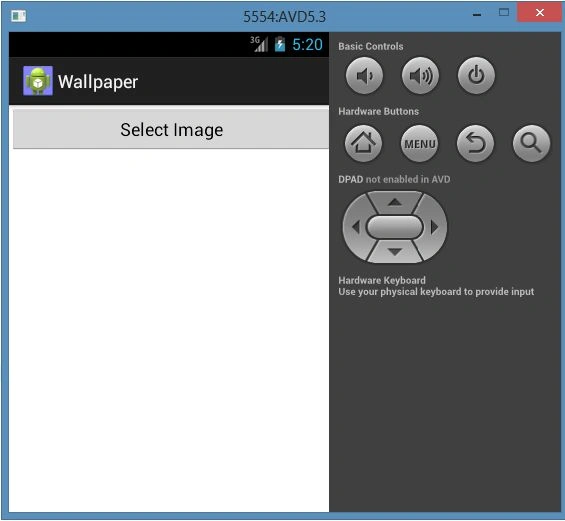
The output of the preset screen:
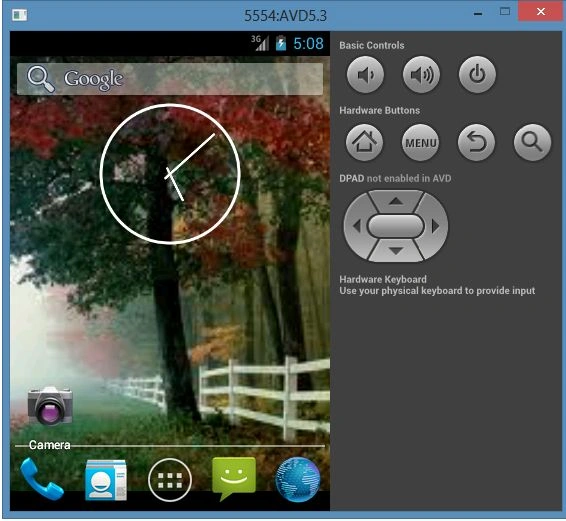
Middle steps to changing the wallpaper:
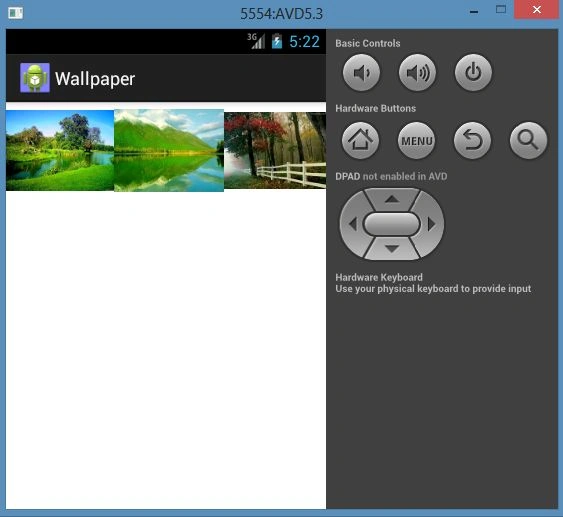
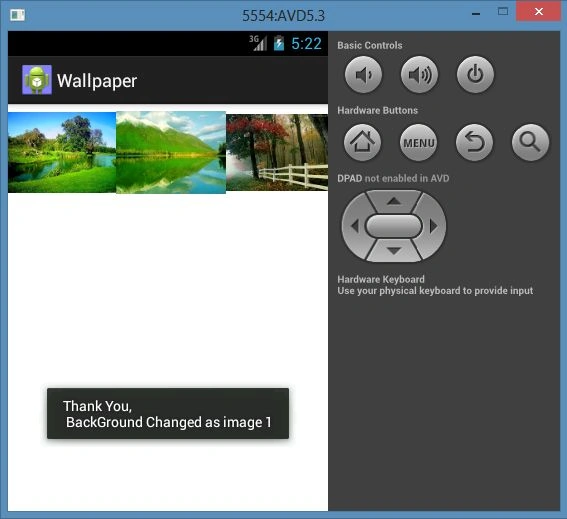
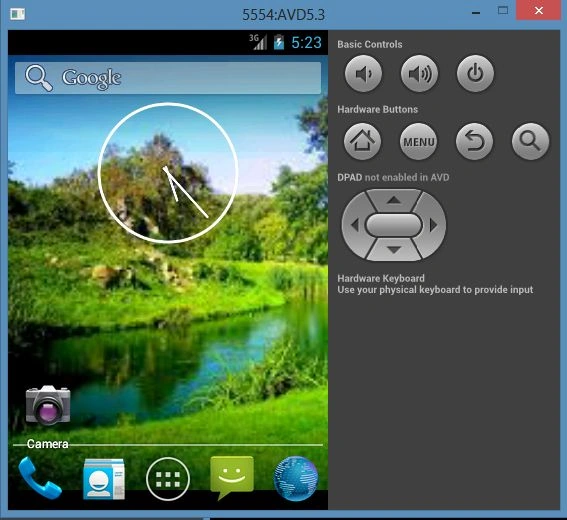
New changed screen:
zero onePosted Nov 7, 2013, 4:17 PM
Hello, how to use set wallpaper from internet folder or from gallery.php and not local folder drawable? i heve a gallery site and access it from webview.