

Introduction
This article explains how to do the external and internal Search/Filter in Kendo Grid UI.
Description
Before going through this article please refer to my previous article MultiStep Registration Form With Kendo UI MVVM Pattern Using Web API 2 and EF5 because I will use the same Web API service and the database table to explain this external and internal search in Kendo Grid UI.
There are two possibilities to do the search/filtration in the Kendo Grid, they are:
This article explains how to do the external and internal Search/Filter in Kendo Grid UI.
Description
Before going through this article please refer to my previous article MultiStep Registration Form With Kendo UI MVVM Pattern Using Web API 2 and EF5 because I will use the same Web API service and the database table to explain this external and internal search in Kendo Grid UI.
There are two possibilities to do the search/filtration in the Kendo Grid, they are:
- External Search
- Internal Search
External Search
This is my table structure that is obtained as the result from the article MultiStep Registration Form With Kendo UI MVVM Pattern Using Web API 2 and EF 5,
This is my table structure that is obtained as the result from the article MultiStep Registration Form With Kendo UI MVVM Pattern Using Web API 2 and EF 5,

Figure 1
The following is the HTTP GET Web API service code that I will use:
- // GET: api/MultiStepRegistrations
- public IQueryable<RegistrationMultiStep> GetMultiPathRegistration()
- {
- return db.MultiPathRegistration;
- }
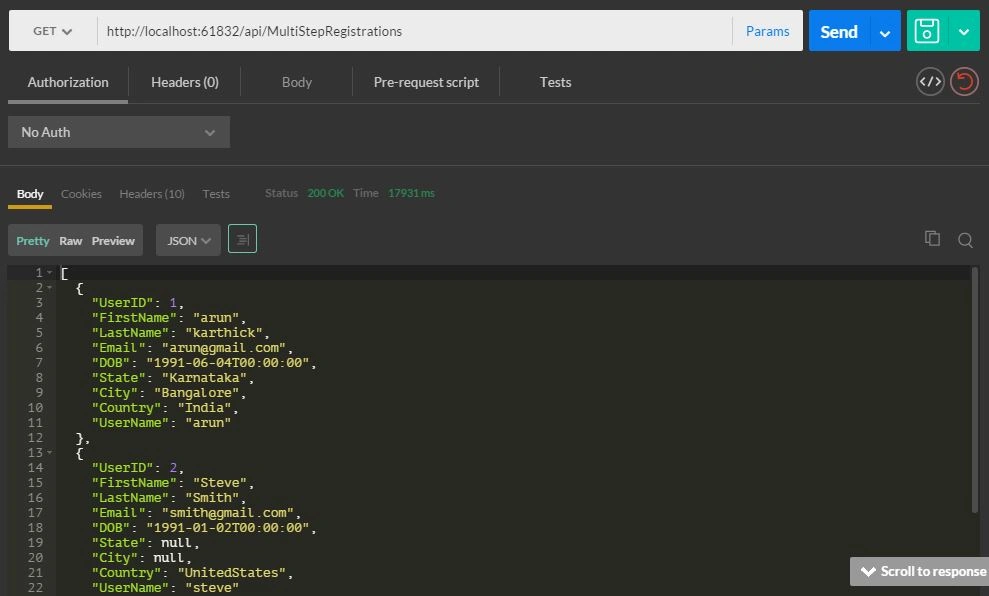
Figure 2
Design the Kendo Grid to display the values that is my SQL table.
HTML Design
HTML Design
- <div class="row">
- <div class="col-md-6">
- <h4>Kendo Grid</h4>
- <div id="kGrid" data-role="grid"
- date-scrollable="true"
- data-editable="true"
- data-toolbar="['create', 'save']"
- data-columns="[
- { 'field': 'UserName'},
- { 'field': 'FirstName' },
- {'field':'Country'},
- ]"
- data-bind="source: products,
- visible: isVisible"
- style="height: 200px"></div>
- </div>
- </div>
Kendo Remote Binding MVVM script
- $(document).ready(create);
- var viewModel = kendo.observable({
- isVisible: true,
- products: new kendo.data.DataSource({
- schema: {
- model: {
- id: "UserID",
- fields: {
- UserName: {
- type: "string"
- },
- FirstName: {
- type: "string"
- },
- Country: {
- type: "string"
- }
- }
- }
- },
- batch: true,
- transport: {
- read: {
- url: "/api/MultiStepRegistrations",
- dataType: "json"
- },
- parameterMap: function(options, operation) {
- if (operation !== "read" && options.models) {
- return {
- models: kendo.stringify(options.models)
- };
- }
- }
- }
- })
- });
- kendo.bind($("#example"), viewModel);
Then the Kendo Grid in the browser is as shown in Figure 3.
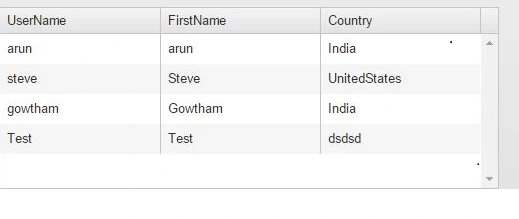
Figure 3
Let us do the external search/filter in the Kendo Grid based on:
- UserName
- FirstName/UserName
Search based on UserName.
HTML design
- <div class="container">
- <div id="example" style="margin-top:50px">
- <div class="demo-section k-header wide">
- <div class="row">
- <div class="col-md-3"> Search By UserName:</div>
- <div class="col-md-3">
- <input id="Txt_search" type="text" class='k-textbox' data-bind="value:Username" placeholder="Enter User Name" />
- </div>
- </div>
- <br />
- <div class="row">
- <div class="col-md-3">
- <button id="create" data-bind="click: create" class="k-button">Search</button>
- </div>
- </div>
- <br />
- <br />
- <div class="row">
- <div class="col-md-6">
- <h4>Kendo Grid</h4>
- <div id="kGrid" data-role="grid"
- date-scrollable="true"
- data-editable="true"
- data-columns="[
- { 'field': 'UserName'},
- { 'field': 'FirstName' },
- {'field':'Country'},
- ]"
- data-bind="source: products,
- visible: isVisible"
- style="height: 200px"></div>
- </div>
- </div>
Kendo Remote Binding MVVM script
- $(document).ready(create);
- var viewModel = kendo.observable({
- isVisible: true,
- create: function(e) { //This event will fire on button click
- e.preventDefault()
- var UserName = $("#Txt_search").val();
- var grid = $("div[data-role='grid']").data("kendoGrid");
- if (UserName) {
- grid.dataSource.query({
- page: 1,
- pageSize: 20,
- filter: {
- filters: [
- {
- field: "UserName",
- value: UserName
- },
- ]
- }
- })
- } else {
- alert("Please enter the data")
- }
- },
- products: new kendo.data.DataSource({
- schema: {
- model: {
- id: "UserID",
- fields: {
- UserName: {
- type: "string"
- },
- FirstName: {
- type: "string"
- },
- Country: {
- type: "string"
- }
- }
- }
- },
- batch: true,
- transport: {
- read: {
- url: "/api/MultiStepRegistrations",
- dataType: "json"
- },
- parameterMap: function(options, operation) {
- if (operation !== "read" && options.models) {
- return {
- models: kendo.stringify(options.models)
- };
- }
- }
- }
- })
- });
- kendo.bind($("#example"), viewModel);
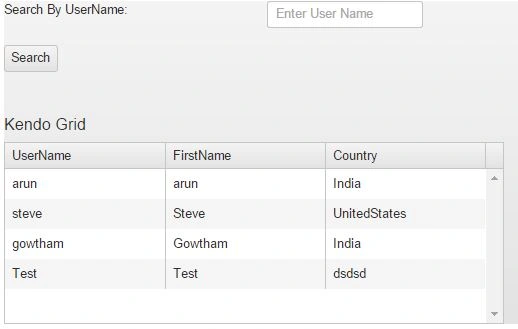
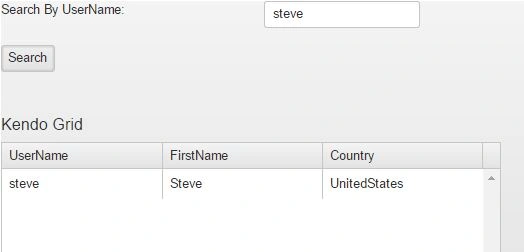
Figure 5
Search based on UserName/Country.
HTML Design
- <body>
- <div class="container">
- <div id="example" style="margin-top:50px">
- <div class="demo-section k-header wide">
- <br />
- <div class="row">
- <div class="col-md-3">
- Search by Country/Username
- </div>
- <div class="col-md-3">
- <input id="Txt_search_Country_un" type="text" class='k-textbox' data-bind="value:CUN" placeholder="Country or UserName" />
- </div>
- </div>
- <br />
- <div class="row">
- <div class="col-md-3">
- <button id="create" data-bind="click: create" class="k-button">Search</button>
- </div>
- </div>
- <br />
- <br />
- <div class="row">
- <div class="col-md-6">
- <h4>Kendo Grid</h4>
- <div id="kGrid" data-role="grid"
- date-scrollable="true"
- data-editable="true"
- data-columns="[
- { 'field': 'UserName'},
- { 'field': 'FirstName' },
- {'field':'Country'},
- ]"
- data-bind="source: products,
- visible: isVisible"
- style="height: 200px"></div>
- </div>
- </div>
- $(document).ready(create);
- var viewModel = kendo.observable({
- isVisible: true,
- create: function(e) {
- e.preventDefault();
- var User_Country = $("#Txt_search_Country_un").val();
- var grid = $("div[data-role='grid']").data("kendoGrid");
- if (User_Country) {
- grid.dataSource.query({
- page: 1,
- pageSize: 20,
- filter: {
- logic: "or",
- filters: [
- {
- field: "UserName",
- operator: "contains",
- value: User_Country
- },
- {
- field: "Country",
- opertor: "contains",
- value: User_Country
- }
- ]
- }
- })
- } else {
- alert("Please enter the data")
- }
- },
- products: new kendo.data.DataSource({
- schema: {
- model: {
- id: "UserID",
- fields: {
- UserName: {
- type: "string"
- },
- FirstName: {
- type: "string"
- },
- Country: {
- type: "string"
- }
- }
- }
- },
- batch: true,
- transport: {
- read: {
- url: "/api/MultiStepRegistrations",
- dataType: "json"
- },
- parameterMap: function(options, operation) {
- if (operation !== "read" && options.models) {
- return {
- models: kendo.stringify(options.models)
- };
- }
- }
- }
- })
- });
- kendo.bind($("#example"), viewModel);
The design in the browser
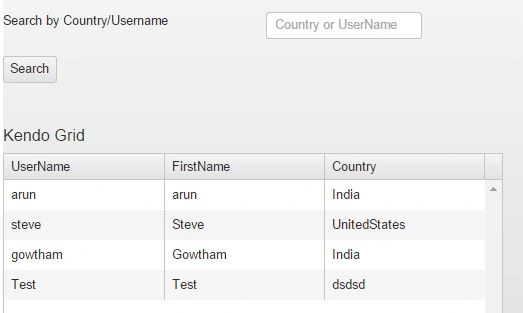
Figure 6
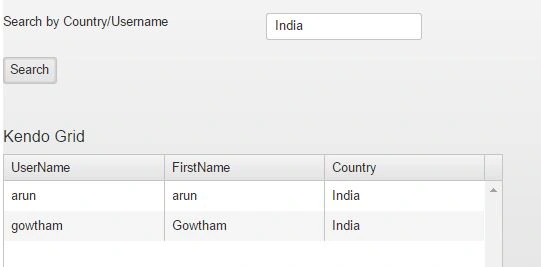
Figure 7
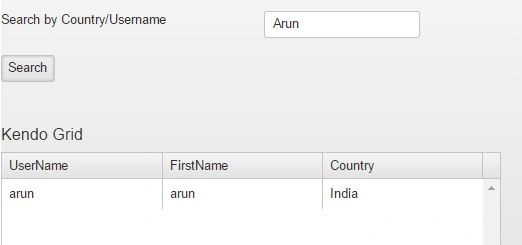
Figure 8
Now let we combine both Search Based on UserName and Search Based on Country together.
HTML Design
- <div class="container">
- <div id="example" style="margin-top:50px">
- <div class="demo-section k-header wide">
- <div class="row">
- <div class="col-md-3"> Search By UserName:</div>
- <div class="col-md-3">
- <input id="Txt_search" type="text" class='k-textbox' data-bind="value:Username" placeholder="Enter User Name" />
- </div>
- </div>
- <br />
- <div class="row">
- <div class="col-md-3">
- Search By Country:
- </div>
- <div class="col-md-3">
- <input id="Txt_search_Country" type="text" class='k-textbox' data-bind="value: Country" placeholder="Country" />
- </div>
- </div>
- <br />
- <br />
- <div class="row">
- <div class="col-md-3">
- <button id="create" data-bind="click: create" class="k-button">Search</button>
- </div>
- </div>
- <br />
- <br />
- <div class="row">
- <div class="col-md-6">
- <h4>Kendo Grid</h4>
- <div id="kGrid" data-role="grid"
- date-scrollable="true"
- data-editable="true"
- data-columns="[
- { 'field': 'UserName'},
- { 'field': 'FirstName' },
- {'field':'Country'},
- ]"
- data-bind="source: products,
- visible: isVisible"
- style="height: 200px"></div>
- </div>
- </div>
Kendo Remote Binding MVVM script
- $(document).ready(create);
- var viewModel = kendo.observable({
- isVisible: true,
- create: function(e) {
- e.preventDefault();
- var UserName = $("#Txt_search").val();
- var Country = $("#Txt_search_Country").val();
- var User_Country = $("#Txt_search_Country_un").val();
- var grid = $("div[data-role='grid']").data("kendoGrid");
- if (Country || UserName) {
- grid.dataSource.query({
- page: 1,
- pageSize: 20,
- filter: {
- logic: "or",
- filters: [
- {
- field: "UserName",
- operator: "contains",
- value: UserName || Country
- },
- {
- field: "Country",
- opertor: "contains",
- value: Country || UserName
- }
- ]
- }
- })
- } else {
- alert("Please enter the data")
- }
- },
- products: new kendo.data.DataSource({
- schema: {
- model: {
- id: "UserID",
- fields: {
- UserName: {
- type: "string"
- },
- FirstName: {
- type: "string"
- },
- Country: {
- type: "string"
- }
- }
- }
- },
- batch: true,
- transport: {
- read: {
- url: "/api/MultiStepRegistrations",
- dataType: "json"
- },
- parameterMap: function(options, operation) {
- if (operation !== "read" && options.models) {
- return {
- models: kendo.stringify(options.models)
- };
- }
- }
- }
- })
- });
- kendo.bind($("#example"), viewModel);
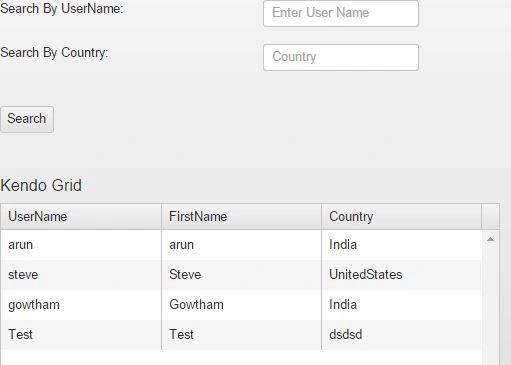
Figure 9
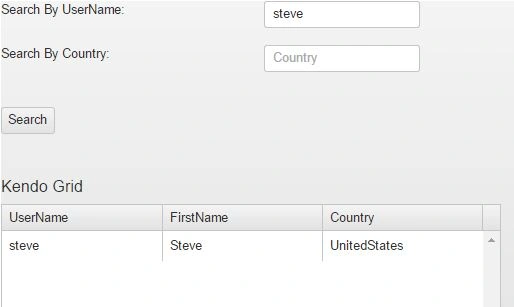
Figure 10
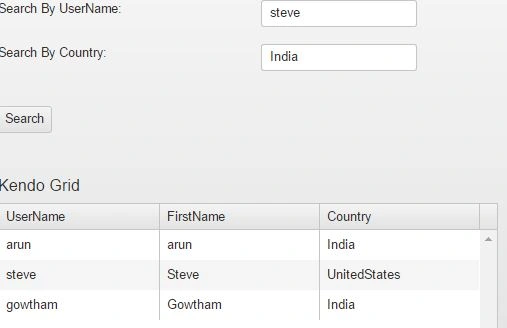
Figure 11
Internal Search
Now we will see the magic of Kendo built-in internal filtration functionality using the data-filterable property that is simple to implement and more powerful.
The HTML Design and MVVM Script
- < div class = "container"
- id = "example" >
- < div id = "example"
- style = "margin-top:50px" >
- < div class = "demo-section k-header wide" >
- < div class = "row" >
- < div class = "col-md-6" >
- < h4 > Kendo Grid < /h4>
- <div id="kGrid" data-role="grid"
- date-scrollable="true"
- data-editable="false"
- data-filterable="{ mode: 'row'}"
- data-pageable='true'
- data-columns="[
- { 'field': 'UserName'},
- { 'field': 'FirstName' },
- {'field':'Country'},
- ]"
- data-bind="source: products,
- visible: isVisible"
- style="height: 250px"></div >
- < /div>
- </div >
- <script>
- $(document).ready(function() {
- var viewModel = kendo.observable({
- isVisible: true,
- products: new kendo.data.DataSource({
- schema: {
- model: {
- id: "UserID",
- fields: {
- UserName: {
- type: "string"
- },
- FirstName: {
- type: "string"
- },
- Country: {
- type: "string"
- }
- }
- }
- },
- batch: true,
- transport: {
- read: {
- url: "/api/MultiStepRegistrations",
- dataType: "json"
- },
- parameterMap: function(options, operation) {
- if (operation !== "read" && options.models) {
- return {
- models: kendo.stringify(options.models)
- };
- }
- }
- }
- })
- });
- kendo.bind($("#example"), viewModel);
- });
- </script>
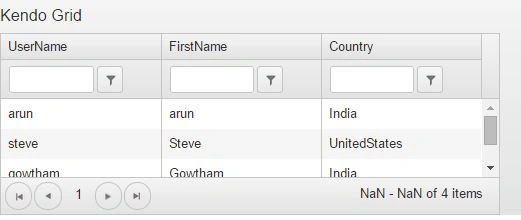
Figure 12
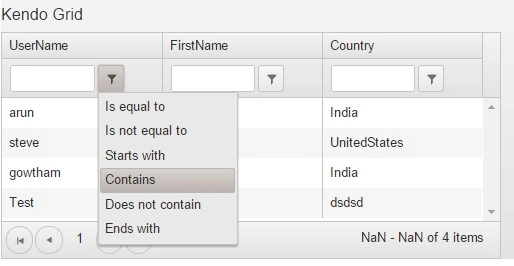
Figure 13
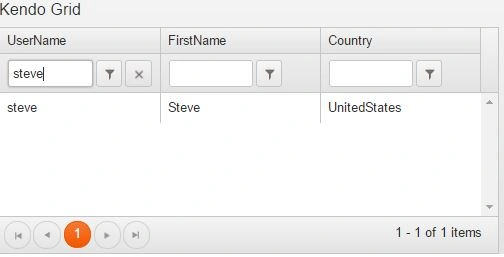
Figure 14
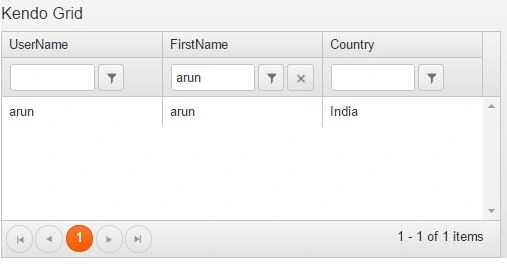
Figure 15
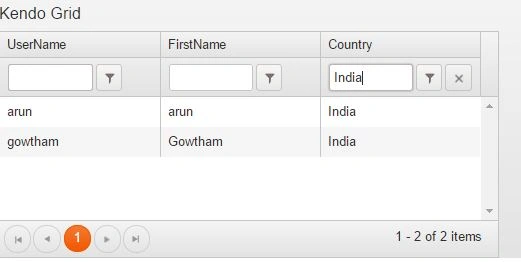
Figure 16
Conclusion
From this article we came to understand how to perform the external and internal Search/Filter in Kendo UI and the use of the filterable property in the Kendo Grid that makes the Kendo UI more flexible to perform the filter functionality.
I have attached the working example with this article, please have a look at it.
I hope that you have enjoyed this article.
I have attached the working example with this article, please have a look at it.
I hope that you have enjoyed this article.
Thank you, enjoy coding.
Arul RPosted Oct 28, 2015, 5:57 AM
Nice share!!!
pratik panchalPosted Oct 14, 2015, 7:00 AM
How can external filter using foreign key value or another table field throgh filter dataIt's ex. filter data with productdetail table on field name (AutoFocus)..it's run well but .. i don't now how to use foreign key or another table field throgh filter data Ex. if (ad_CheckboxCameraautofocus) { allFilters.push({ field: "AutoFocus", operator: "eq", value: "Yes" }); }
Santhakumar MunuswamyPosted Jul 17, 2015, 4:44 PM
Great article. Thanks for sharing
Chervine BhiwooPosted Jul 17, 2015, 3:06 PM
Good one! Thanks
Nilesh JadavPosted Jul 17, 2015, 6:18 AM
Nice one sir
Sibeesh VenuPosted Jul 17, 2015, 5:57 AM
Thanks for the information
Gopi ChandPosted Jul 17, 2015, 5:48 AM
Great work
SharadPosted Jul 17, 2015, 3:36 AM
good one...
RakeshPosted Jul 17, 2015, 12:31 AM
Good Sharing
Nilesh JadavPosted Jul 17, 2015, 12:08 AM
Incredible sir ! This is really nice !thanks for sharing
Pankaj Kumar ChoudharyPosted Jul 16, 2015, 6:45 PM
Nice Explain Sir.......