

In this article we will see how to add various controls in our custom forms and how to use Built-in Fields on custom forms.
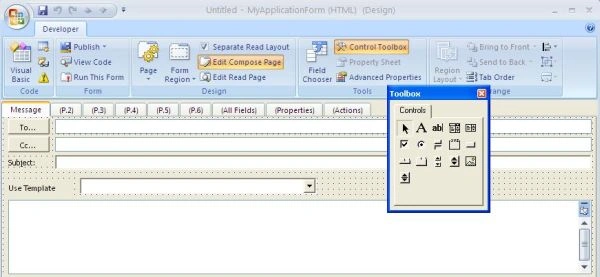
Now we discuss various controls and fields supported by custom forms, add new message custom form and Click on 'toolbox' button, toolbox will be appear
Custom from support number of controls these are given below:
Label
TextBox
ComboBox
ListBox
CheckBox
OptionButton
ToggleButton
Frame
CommandButton
Tabstrip
MultiPage
ScroolBar
SpinButton
Image
NewSpinButton
You can add any of above control
with the help of drag and drop functionality on custom from ,you
can remove, add, or move labels, controls, and fields.
Custom form provides various
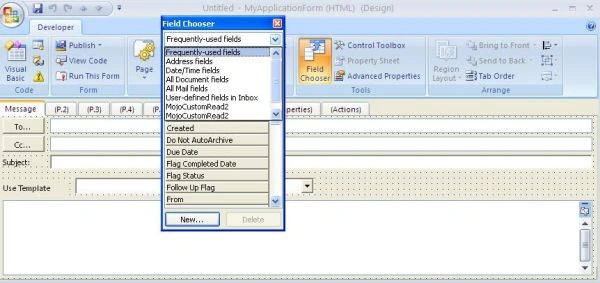
built-in fields like for 'To' fields in message form
To add a field from the Field Chooser, click the drop-down box at the top and select a field category. For example, for in message form, we might choose from the following:
Frequently Used Fields
Address Fields
DateTime Fields
All Document Fields
All
Mail Fields...
See this picture:
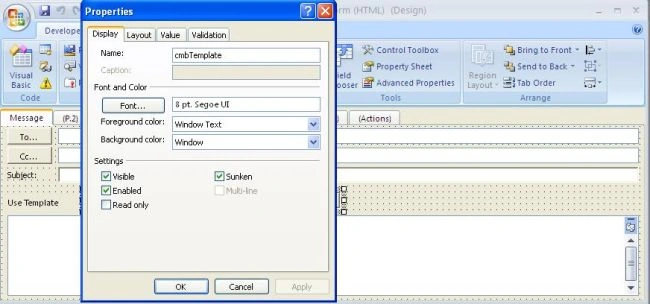
We can change name,
text, layout, etc with the help of Property sheet of control see image in below:
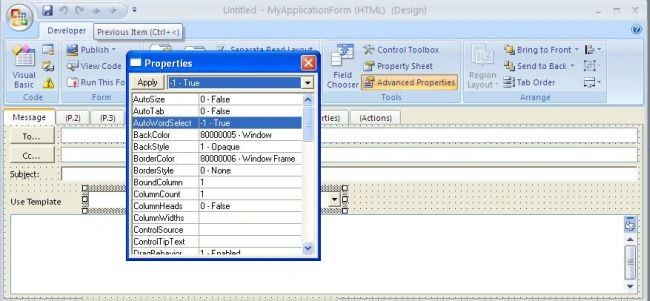
We can also use 'advanced properties', we can change control's basic properties
like back color, fore color etc. see picture below:
We can also change text or items through vbScript for more information about how to use VbScript in custom reports
Join the conversation! Your thoughts help the community grow.