

In this article, we discuss how to create a 3D Triangle in WPF. For that follow these steps.
Step 1: First we take a Button Control and ViewPort in our .xaml page like this:
<Grid>
<Button Name="TriangleButton" Click="triangleButtonClick">Triangle</Button>
<Viewport3D Name="MainViewPort" ClipToBounds="True">
<Viewport3D.Camera>
<PerspectiveCamera
FarPlaneDistance="100"
LookDirection="-12,-11,-10"
UpDirection="0,1,0"
NearPlaneDistance="1"
Position="11,10,9"
FieldOfView="75" />
</Viewport3D.Camera>
<ModelVisual3D>
<ModelVisual3D.Content>
<DirectionalLight
Color="White"
Direction="-2,-3,-1" />
</ModelVisual3D.Content>
</ModelVisual3D>
</Viewport3D>
</Grid>
Step 2: After that, we take this namespace in our .cs page:
using System.Windows.Media.Media3D;
Step 3: After that, we declare a MeshPoint3D like this:
MeshGeometry3D mymesh = new MeshGeometry3D();
It is used to get the Positions Collection, TriangleIndices Collection and a Normals Collection.
Step 4: Now we create the three points of the triangle:
mymesh.Positions.Add(p0);
mymesh.Positions.Add(p1);
mymesh.Positions.Add(p2);
After that, we add the Normals and TriangleIndices in this:
mymesh.TriangleIndices.Add(0);
mymesh.TriangleIndices.Add(1);
mymesh.TriangleIndices.Add(2);
Vector3D Normal = CalculateTraingleNormal(p0, p1, p2);
mymesh.Normals.Add(Normal);
mymesh.Normals.Add(Normal);
mymesh.Normals.Add(Normal);
After that, we add the Normal Vectors, which is used for the Mesh Points like this:
Vector3D Normal = CalculateTraingleNormal(p0, p1, p2);
mymesh.Normals.Add(Normal);
mymesh.Normals.Add(Normal);
mymesh.Normals.Add(Normal);
Here we take a function CalculateTriangleNormal; it is used to take the triangle indices, which we can get by the CrossProduct method of the Vector3D Structure.
Step 5: After that we add a DiffuseMaterial and set its color BlueViolet like this:
Material Material = new DiffuseMaterial(
new SolidColorBrush(Colors.BlueViolet));
GeometryModel3D model = new GeometryModel3D(
mymesh, Material);
Model3DGroup Group = new Model3DGroup();
Group.Children.Add(model);
return Group;
Step 6: Now we write the function CalculateTriangleNormal:
private Vector3D CalculateTraingleNormal(Point3D p0, Point3D p1, Point3D p2)
{
Vector3D v0 = new Vector3D(
p1.X - p0.X, p1.Y - p0.Y, p1.Z - p0.Z);
Vector3D v1 = new Vector3D(
p2.X - p1.X, p2.Y - p1.Y, p2.Z - p1.Z);
return Vector3D.CrossProduct(v0, v1);
}
Step 7: Now we write the code for the Click event of the Button (TriangleButton):
private void triangleButtonClick(object sender, RoutedEventArgs e)
{
Model3DGroup triangle = new Model3DGroup();
Point3D p0 = new Point3D(0, 0, 0);
Point3D p1 = new Point3D(5, 0, 0);
Point3D p2 = new Point3D(5, 0, 5);
Point3D p3 = new Point3D(0, 0, 5);
Point3D p4 = new Point3D(0, 5, 0);
Point3D p5 = new Point3D(5, 5, 0);
Point3D p6 = new Point3D(5, 5, 5);
triangle.Children.Add(CreateTriangleModel(p1, p4, p3));
triangle.Children.Add(CreateTriangleModel(p1, p4, p6));
triangle.Children.Add(CreateTriangleModel(p3, p1, p6));
ModelVisual3D Model = new ModelVisual3D();
Model.Content = triangle;
this.MainViewPort.Children.Add(Model);
}
The Output will Be: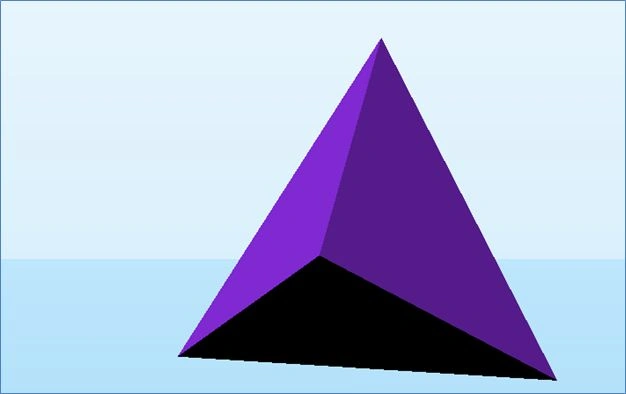
Elvin ƏmrahlıPosted Mar 6, 2018, 12:30 PM
It's not a triangle, it's a pyramid.
jitendra jayswalPosted Mar 30, 2014, 10:38 AM
also specify then after then after code before (CalculateTraingleNormals) code
jitendra jayswalPosted Mar 30, 2014, 10:36 AM
where we create meshgeometry object you not declare that no any body understood easily plz do clear that
ronaldo pandePosted Jul 23, 2013, 4:14 PM
Plz help me. i have a 3d object which i want to manipulate in scaterview. i m not able to resize,toggle, zoom in zoomout the object inside scaterviewitem. plz help me
Gaurav GuptaPosted May 17, 2012, 1:14 AM
hello, Can this is possible in HTML5?
Gaurav GuptaPosted May 17, 2012, 1:08 AM
hello, I think this slider is run automatically, but i want when a user click on circle the image changes itself...