

The HorizontalContentAlignment and VerticalContentAlignment. These properties are
defined in the System.Windows.Controls.Control class that is parent class of
all controls in WPF.
Similar to the HorizontalAlignment and
VerticalAlignment, both properties are of type HorizontalAlignment and
VerticalAlignment enumerations respectively.
If you create a UI with a Button and a
TextBox control, the UI looks like Figure 1 where the default vertical and
horizontal alignment of content of a Button is center. The default vertical and
horizontal alignment of content of a TextBox is left and top.
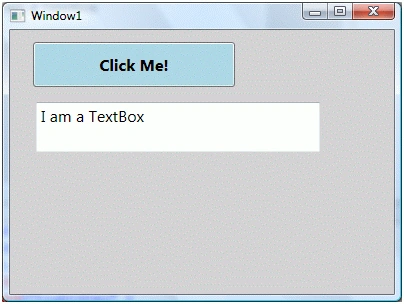
Figure 1
Now what if you want to place contents of a Button and TextBox on different positions? Let's say, you want to set the contents of the Button and TextBox to bottom and right. This comes handy when the size of elements is larger than the size of contents.
The code listed in Listing 1 sets
VerticalContentAlignment and HorizontalContentAlignment properties to bottom
and right.
<Grid Name="StackPanel1"
Background="LightGray" >
<Button Name="Button1"
Background="LightBlue"
Height="45"
Content="Click
Me!" Margin="23,12,159,0" VerticalAlignment="Top"
FontSize="16" FontWeight="Bold"
VerticalContentAlignment="Bottom" HorizontalContentAlignment="Right" />
<TextBox Height="50"
Margin="26,72,74,0"
Name="textBox1" VerticalAlignment="Top"
Text="I
am a TextBox" FontSize="16"
VerticalContentAlignment="Bottom"
HorizontalContentAlignment="Right"
/>
</Grid>
Listing 1
Listing
2 generates output looks like Figure 2. As you can see from in Figure 2, the
contents of the Button and TextBox are aligned bottom and right.
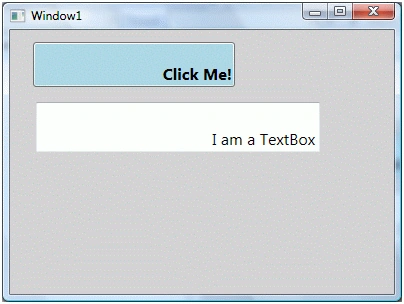
Figure 2
Cheers!
Join the conversation! Your thoughts help the community grow.