

The Rectangle object represents a rectangle shape and draws a rectangle with the given height and width. The Width and Height properties of the Rectangle class represent the width and height of a rectangle. The Fill property fills the interior of a rectangle. The Stroke property sets the color and StrokeThickness represents the width of the outer line of a rectangle.
Creating a Rectangle
The Rectangle element in XAML creates a rectangle shape. The following code snippet creates a rectangle by setting its width and height properties to 200 and 100 respectively. The code also sets the black stroke of width 4.
- <Rectangle Width="200" Height="100" Fill="Blue" Stroke="Black" StrokeThickness="4" />
The output looks like Figure 5.
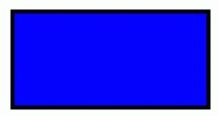
The CreateARectangle method listed in Listing 8 draws same rectangle in Figure 5 dynamically.
- ///<summary>
- /// Creates a blue rectangle with black border
- ///</summary>
- publicvoid CreateARectangle()
- {
- // Create a Rectangle
- Rectangle blueRectangle = newRectangle();
- blueRectangle.Height = 100;
- blueRectangle.Width = 200;
- // Create a blue and a black Brush
- SolidColorBrush blueBrush = newSolidColorBrush();
- blueBrush.Color = Colors.Blue;
- SolidColorBrush blackBrush = newSolidColorBrush();
- blackBrush.Color = Colors.Black;
- // Set Rectangle's width and color
- blueRectangle.StrokeThickness = 4;
- blueRectangle.Stroke = blackBrush;
- // Fill rectangle with blue color
- blueRectangle.Fill = blueBrush;
- // Add Rectangle to the Grid.
- LayoutRoot.Children.Add(blueRectangle);
- }
Listing 7
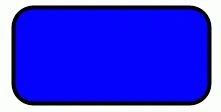
The RadiusX and RadiusY properties set the x-axis and y-axis radii of the ellipse that is used to round the corner of a rectangle. By adding the following lines of code to Listing 7 creates a rounded rectangle, which looks like Figure 6.
- // Set roundness
- blueRectangle.RadiusX = 20;
- blueRectangle.RadiusY = 20;
Join the conversation! Your thoughts help the community grow.