

C# MessageBox in Windows Forms displays a message with the given text and action buttons. You can also use MessageBox control to add additional options such as a caption, an icon, or help buttons. In this article, you'll learn how to display and use a MessageBox in C# WinForms app. You will also learn how to use C# MessageBox class dynamically in code samples.
C# MessageBox
MessageBox class has an overloaded static Show method that displays a message box with a message and action buttons. The action buttons can be OK and Cancel, Yes and No etc. Here are some of the options that can be used in C# message box.
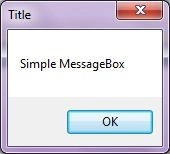
Simple MessageBox
The simplest form of a MessageBox is a dialog with text and OK button. When you click OK button, the box disappears.
The following code snippet creates a simple Message Box.
string message = "Simple MessageBox";
MessageBox.Show(message);
MessageBox with Title
The following code snippet creates a simple MessageBox with a title.
string message = "Simple MessageBox";
string title = "Title";
MessageBox.Show(message, title);
MessageBox with Buttons
A MessageBox can have different button combinations such as YesNo and OKCancel. The MessageBoxButtons enumeration represents the buttons to be displayed on a MessageBox and has following values.
- OK
- OKCancel
- AbortRetryIgnore
- YesNoCancel
- YesNo
- RetryCancel
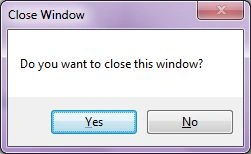
The following code snippet creates a MessageBox with a title and Yes and No buttons. This is a typical MessageBox you may call when you want to close an application. If the Yes button is clicked, the application will be closed. The Show method returns a DialogResult enumeration.
string message = "Do you want to close this window?";
string title = "Close Window";
MessageBoxButtons buttons = MessageBoxButtons.YesNo;
DialogResult result = MessageBox.Show(message, title, buttons);
if (result == DialogResult.Yes) {
    this.Close();
} else {
    // Do something
}
MessageBox with Icon
A MessageBox can display an icon on the dialog. A MessageBoxIcons enumeration represents an icon to be displayed on a MessageBox and has the following values.
- None
- Hand
- Question
- Exclamation
- Asterisk
- Stop
- Error
- Warning
- Information
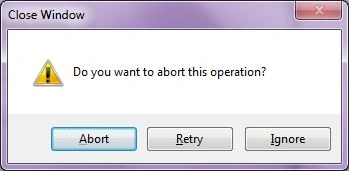
The following code snippet creates a MessageBox with a title, buttons, and an icon.
string message = "Do you want to abort this operation?";
string title = "Close Window";
MessageBoxButtons buttons = MessageBoxButtons.AbortRetryIgnore;
DialogResult result = MessageBox.Show(message, title, buttons, MessageBoxIcon.Warning);
if (result == DialogResult.Abort) {
    this.Close();
}
elseif(result == DialogResult.Retry) {
    // Do nothing
}
else {
    // Do something
}
MessageBox with Default Button
We can also set the default button on a MessageBox. By default, the first button is the default button. The MessageBoxDefaultButton enumeration is used for this purpose and it has the following three values.
- Button1
- Button2
- Button3
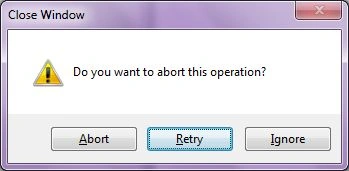
The following code snippet creates a MessageBox with a title, buttons, and an icon and sets the second button as a default button.
string message = "Do you want to abort this operation?";
string title = "Close Window";
MessageBoxButtons buttons = MessageBoxButtons.AbortRetryIgnore;
DialogResult result = MessageBox.Show(message, title, buttons, MessageBoxIcon.Warning, MessageBoxDefaultButton.Button2);
if (result == DialogResult.Abort) {
    this.Close();
}
elseif(result == DialogResult.Retry) {
    // Do nothing
}
else {
    // Do something
}
MessageBox with Message Options
MessageBoxOptions enumeration represents various options and has the following values.
- ServiceNotification
- DefaultDesktopOnly
- RightAlign
- RtlReading
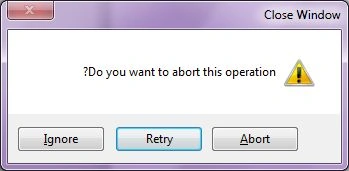
The following code snippet creates a MessageBox with various options.
DialogResult result = MessageBox.Show(message, title, buttons,
MessageBoxIcon.Warning, MessageBoxDefaultButton.Button2,
MessageBoxOptions.RightAlign|MessageBoxOptions.RtlReading);
MessageBox with Help Button
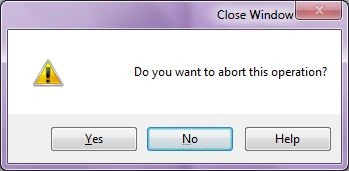
A MessageBox can have an extra button called Help button. This is useful when we need to display a help file. The following code snippet creates a MessageBox with a Help button.
DialogResult result = MessageBox.Show(message, title, buttons,
MessageBoxIcon.Warning, MessageBoxDefaultButton.Button2,
MessageBoxOptions.RightAlign, true );
We can also specify a help file when the Help button is clicked. The following code snippet references a help file.
DialogResult result = MessageBox.Show(message, title,
buttons, MessageBoxIcon.Question, MessageBoxDefaultButton.Button1, 0, "helpfile.chm");
Summary
In this article, we discussed how to create and use a MessageBox in a Windows Forms application.
Abbas AliPosted Sep 13, 2023, 4:43 AM
Thanks for help
LL HoPosted Mar 31, 2021, 9:58 AM
Can write the message box message to the text file?
Sadiqullah GhaniPosted Dec 18, 2019, 10:34 PM
Thank so much
Suhas KursePosted Aug 11, 2019, 9:30 PM
Hell Mahesh, Could you please show how do convert datatable into object bounded by columns, in your descriptive way. This is good article
SHAIKH JAVEDPosted Aug 8, 2019, 2:45 AM
String title = "Close Window"; ....?????? can we use without this
SHAIKH JAVEDPosted Aug 8, 2019, 2:44 AM
Sir it was compalsar to add the title bar..??? Because whenever we remove the title it was showing error..?? why..??
Rushi MehtaPosted Aug 10, 2018, 4:34 AM
Very Helpful Arcticle
Bhairab DuttPosted Aug 9, 2018, 2:01 AM
Nice Article...
Mahesh ChandPosted Aug 8, 2018, 8:15 PM
Updated another old article and formatted.
Seungwon HongPosted Aug 8, 2018, 12:25 PM
It was very helpful. Tyyy.
conrad mbaPosted Feb 19, 2018, 4:11 AM
Learnt a lot from these examples. Thank you, Sir.
Guetty AbboudPosted Jun 23, 2017, 5:08 AM
How can i add the value of several text boxes in the message box ?
GokulPosted May 28, 2016, 12:58 AM
super
Nguyen kieu PhatPosted Apr 3, 2012, 12:35 PM
Very good article
sandeep kumarPosted Mar 20, 2012, 2:26 AM
how to add our own image to messagebox . like ,for login control after login i want to say login successfull with smile image . how i can do it
james bradberyPosted Mar 14, 2012, 1:00 AM
Great info