

XAML Popup in WPF
A XAML Popup represents a popup window. A popup window is a window that floats over a page or window providing functionality for some quick action, for example a login control on a page or to provide an animated popup tip. Fortunately, WPF comes with a Popup control to provide this functionality.
This tutorial shows you how to use a Popup in WPF using XAML and C#.
Introduction to XAML Popup
The Popup element represents a WPF Popup control in XAML.
- <Popup></Popup>
The following code snippet sets the name, height and width of a Popup control. The code also sets the horizontal alignment to left and the vertical alignment to top.
- <Popup Margin="10,10,0,13" Name="Popup1" HorizontalAlignment="Left"
- VerticalAlignment="Top" Width="194" Height="200" />
- IsOpen="True"
A Popup control can have only one child. The following code snippet adds a text block to the popup control.
- <Popup Margin="10,10,0,13" Name="Popup1" HorizontalAlignment="Left"
- VerticalAlignment="Top" Width="194" Height="200" IsOpen="True">
- <TextBlock Name="McTextBlock"
- Background="LightBlue" >
- This is popup text
- </TextBlock>
- </Popup>
- <Popup Margin="10,10,0,13" Name="Popup1" HorizontalAlignment="Left"
- VerticalAlignment="Top" Width="194" Height="200" IsOpen="True">
- <StackPanel>
- <TextBlock Name="McTextBlock"
- Background="LightBlue" >
- This is popup text
- </TextBlock>
- <Button Content="This is button on a Pupup" />
- </StackPanel>
- </Popup>
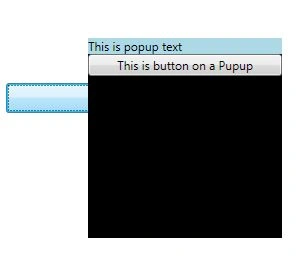
Figure 1. Popup window
Animated WPF Popup
Once you have a popup content defined, you can do anything with this content depending on the controls. For instance, if you are using an image as content, you can do anything with the popup that you can do with the image.
The following code shows how to animate a popup window.
- <StackPanel>
- <CheckBox Name="PCheckBox" Margin="10,10,0,0"
- Content="Popup Window"/>
- <Button HorizontalAlignment="Left" Width="129" Margin="10,10,0,0">
- <Button.Triggers>
- <EventTrigger RoutedEvent="Button.Click">
- <BeginStoryboard>
- <Storyboard>
- <DoubleAnimation
- Storyboard.TargetName="theTransform"
- Storyboard.TargetProperty="(RotateTransform.Angle)"
- From="0" To="360" Duration="0:0:5" AutoReverse="True"/>
- </Storyboard>
- </BeginStoryboard>
- </EventTrigger>
- </Button.Triggers>
- Start Animation
- </Button>
- <Popup IsOpen="{Binding ElementName=PCheckBox,Path=IsChecked}"
- PlacementTarget="{Binding ElementName=PCheckBox}"
- AllowsTransparency="True"
- PopupAnimation="Slide"
- HorizontalOffset="150"
- VerticalOffset="100">
- <Canvas Width="100" Height="100" Background="Green" Margin="150">
- <Canvas.RenderTransform>
- <RotateTransform x:Name="theTransform" />
- </Canvas.RenderTransform>
- <TextBlock TextWrapping="Wrap" Foreground="LightGray">
- Rotating Popup
- </TextBlock>
- </Canvas>
- </Popup>
- </StackPanel>
Placement of WPF Popup
The Placement property of Popup describes the placement of where a Popup control appears on the screen. If you do not set any positioning or placement of a popup, the popup will appear in the left top corner of the window.
The PlacementMode enumeration represents the Placement property. The following code snippet sets the Placement property to AbsolutePoint.
- <Popup Name="Popup1" HorizontalAlignment="Left"
- VerticalAlignment="Top" Width="200" Height="50"
- IsOpen="True" Placement="AbsolutePoint" >
- <TextBlock Name="McTextBlock"
- Background="LightBlue" >
- This is popup text
- </TextBlock>
- </Popup>
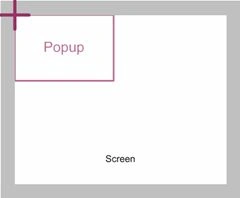
PlacementMode = Absolute
A Popup control is positioned relative to the upper-left corner of the screen and offset by the HorizontalOffset and VerticalOffset properties.
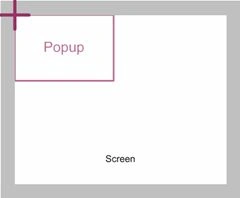
If a screen edge hides all or part of the Popup, the control realigns with the obscuring edge.
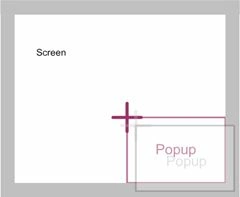
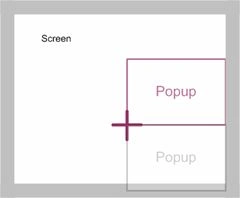
PlacementMode = AbsolutePoint
A Popup control is positioned relative to the upper-left corner of the screen and offset by the HorizontalOffset and VerticalOffset properties.
If a screen edge hides all or part of the Popup, the control opens in the opposite direction by starting at the point that is defined by the offset properties.
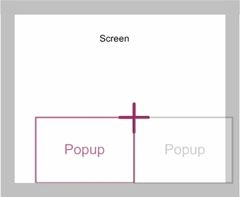
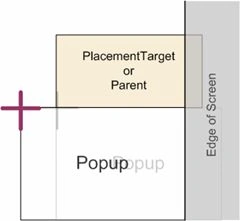
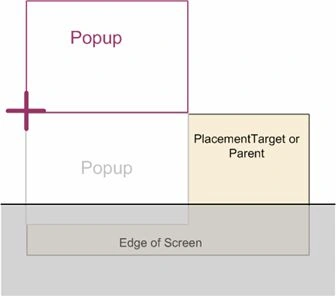
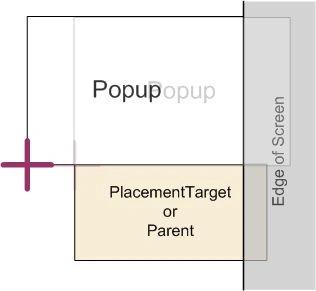
PlacementMode = Bottom
A Popup control is positioned where the control aligns its upper edge with the lower edge of the PlacementTarget and aligns its left edge with the left edge of the PlacementTarget.
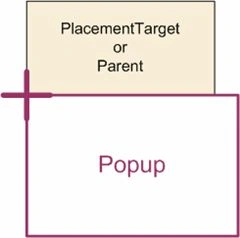
If the lower edge of the screen hides all or part of the Popup, the control realigns with the upper edge of the PlacementTarget. If the upper edge of the screen hides all or part of this new position, the control realigns with the lower edge of the screen. After these adjustments, if the control is still partially hidden by the upper edge of the screen, the control realigns with the upper edge of the screen.
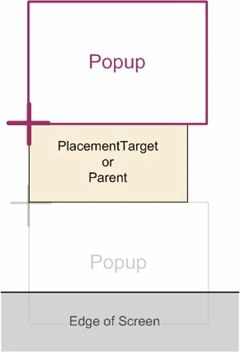
If a vertical screen edge hides all or part of the Popup, the control realigns with the obscuring screen edge.
PlacementMode = Center
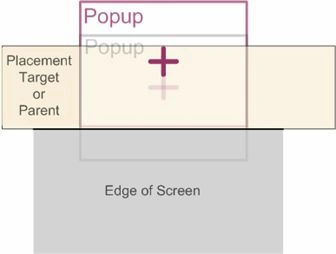
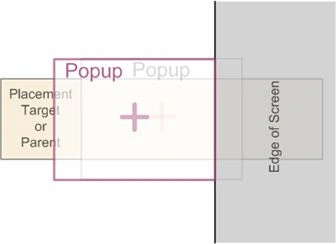
A position of the Popup control where the control centers itself over the PlacementTarget.
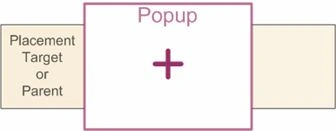
If a screen edge hides all or part of the Popup, the control realigns with the obscuring screen edge.
PlacementMode = Left
A Popup control that aligns its right edge with the left edge of the PlacementTarget and its upper edge with the upper edge of the PlacementTarget.
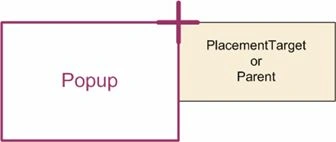
If a horizontal screen edge hides all or part of the Popup, the control realigns with the obscuring screen edge.
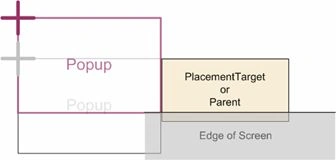
If a vertical screen edge hides all or part of the Popup, the control realigns on the opposite side of the PlacementTarget.
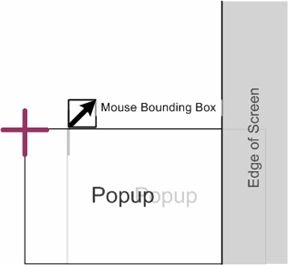
PlacementMode = Mouse
A Popup control is positioned where it aligns its upper edge with the lower edge of the bounding box of the mouse and it aligns its left edge with the left edge of the mouse bounding box.
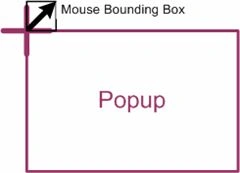
If a horizontal screen edge hides all or part of the Popup, the control displays on the opposite side of the mouse bounding box.
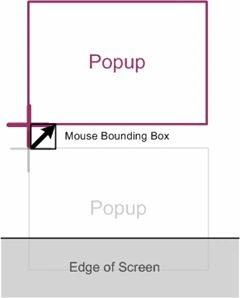
If a vertical screen edge hides all or part of the Popup, the control realigns with the obscuring screen edge.
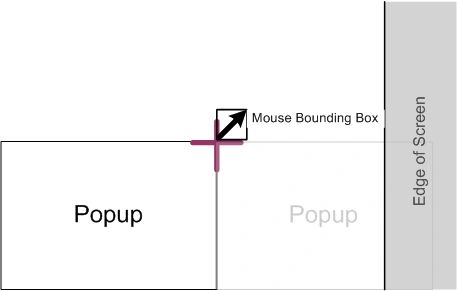
PlacementMode = MousePoint
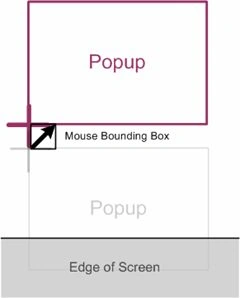
A position of the Popup control that aligns its upper edge with the lower edge of the mouse bounding box and its left edge with the left edge of the mouse bounding box.
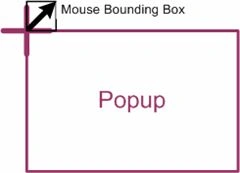
If a screen edge hides all or part of the Popup, the control realigns on the opposite side of the mouse bounding box.
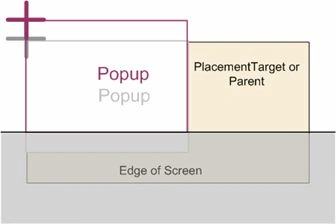
PlacementMode = Relative
A position of the Popup control that is relative to the upper-left corner of the PlacementTarget and at an offset that is defined by the HorizontalOffset and VerticalOffset property values.
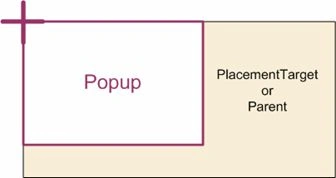
If a screen edge hides all or part of the Popup, the control realigns with the obscuring screen edge.
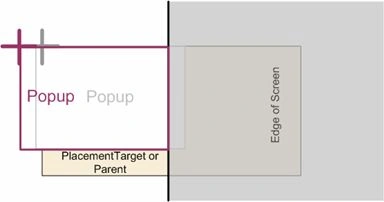
Placement Mode = RelativePoint
A position of the Popup control that is relative to the upper-left corner of the PlacementTarget and at an offset that is defined by the HorizontalOffset and VerticalOffset property values.
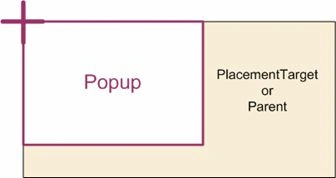
If a screen edge hides all or part of the Popup, the control opens in the opposite direction by starting at the point that is defined by the offset properties.
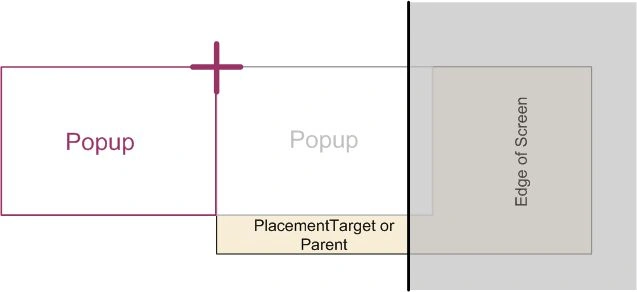
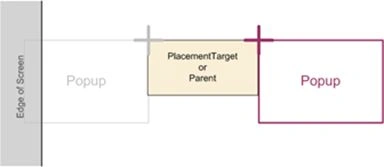
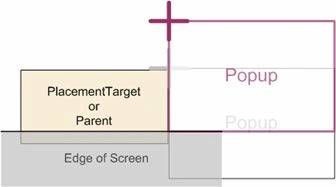
PlacementMode = Right
A position of the Popup control that aligns its left edge with the right edge of the PlacementTarget and aligns its upper edge with the upper edge of the PlacementTarget.
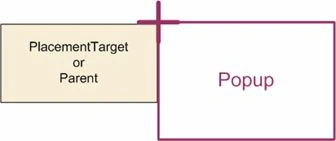
If a vertical screen edge hides all or part of the Popup, the control displays on the opposite side of the PlacementTarget.
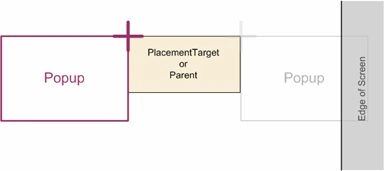
If the upper or lower screen edge hides all or part of the Popup, the control realigns with the obscuring screen edge.
Placement Mode = Top
A position of the Popup control that aligns its lower edge with the upper edge of the PlacementTarget and aligns its left edge with the left edge of the PlacementTarget.
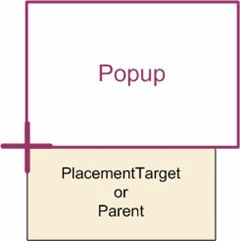
If the upper edge of the screen hides all or part of the Popup, the control displays below the PlacementTarget. If the lower edge of the screen hides the Popup in the new position, the control realigns with the lower edge of the screen. If the control is still obscured by the upper screen edge in the third position, the control realigns with the upper screen edge.
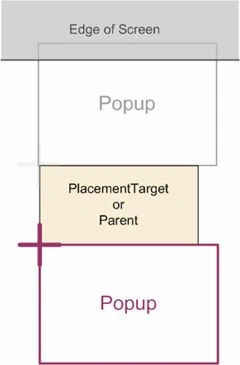
If a vertical screen edge hides all or part of the Popup, the control realigns with the obscuring screen edge.
Summary
In this article, I discussed how to use a Popup control available in WPF. The article also shows how to animate a popup.
Sachin VarkeyPosted Jun 18, 2021, 6:22 PM
In my application mainwindow. I have a 4 user-control sub views.They are arranged in a grid column horizontally.My requirement is one of the sub view column I need to pop up to full window screen also revert it back to old state. What would be the ideal approach.?
Bom MaPosted Jan 6, 2018, 9:55 AM
Thanh so much!!!!!!!!!!!!!!!!!!!!!!!!!!!!!!!!!!!
K P Singh ChundawatPosted Dec 29, 2014, 1:00 AM
Great ....Nice Article Mahesh Chand sir...