

Flow Document
In a flow document, the content you will insert into it these contents adapts itself to fit the container, flow document content in WPF improves upon these current-day approaches by incorporating better pagination, multicolumn display, sophisticated hyphenation, and text flow algorithms, and user-adjustable viewing preferences.
WPF flow document is built by using a combination of flow elements, these elements don't inherit from the familiar UIElement and FrameworkElement classes. Instead, they form an entirely separate branch of classes that derive from ContentElement and FrameworkContentElement.
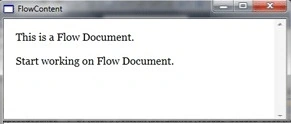
Now that you've taken a look at the content element model, you're ready to assemble some content elements into a simple flow document. You create a flow document using the FlowDocument class.
Example of Flow Document
<Window x:Class="Documents.FlowContent"
        xmlns="http://schemas.microsoft.com/winfx/2006/xaml/presentation"
        xmlns:x="http://schemas.microsoft.com/winfx/2006/xaml"
        Title="FlowContent" Height="381" Width="525">
    <FlowDocumentScrollViewer>
        <FlowDocument>
            <Paragraph>This is a Flow Document.</Paragraph>
            <Paragraph>Start working on Flow Document.</Paragraph>
        </FlowDocument>
    </FlowDocumentScrollViewer>
</Window>
Output Window
List Document
The List element represents a bulleted or numeric list in the document to simplify your document and make them more easy to read and understandable to the user. You choose by setting the MarkerStyle property. You can also set the distance between each list item and its marker using the marker offset property.
Example of List Document
<Window x:Class="Documents.FlowContent"
        xmlns="http://schemas.microsoft.com/winfx/2006/xaml/presentation"
        xmlns:x="http://schemas.microsoft.com/winfx/2006/xaml"
        Title="FlowContent" Height="381" Width="525">
    <FlowDocumentScrollViewer>
        <FlowDocument>
            <Paragraph>Student's Name's:</Paragraph>
            <List>
                <ListItem>
                    <Paragraph>Manish</Paragraph>
                </ListItem>
                <ListItem>
                    <Paragraph>Rahul</Paragraph>
                </ListItem>
                <ListItem>
                    <Paragraph>Naveen</Paragraph>
                </ListItem>
                <ListItem>
                    <Paragraph>Sam</Paragraph>
                </ListItem>
                <ListItem>
                    <Paragraph>Govil</Paragraph>
                </ListItem>
                <ListItem>
                    <Paragraph>Jak</Paragraph>
                </ListItem>
            </List>
            <Paragraph Margin="0,30,0,0">Teacher's Name's</Paragraph>
            <List MarkerStyle="Decimal">
                <ListItem>
                    <Paragraph>Mr. Ashok</Paragraph>
                </ListItem>
                <ListItem>
                    <Paragraph>Mr.Bread</Paragraph>
                </ListItem>
                <ListItem>
                    <Paragraph>Mr.Amit</Paragraph>
                </ListItem>
            </List>
        </FlowDocument>
    </FlowDocumentScrollViewer>
</Window>
Output Window

Conclusion
I hope this article helps you to understand how to create Flow and List Documents in WPF.
dipayan sukulPosted Oct 27, 2011, 3:15 PM
really helpfull :)
jeanie simmonsPosted Jun 14, 2011, 9:53 AM
How can i scroll to the bottom without using the scroll bar? I've tried FlowDocReader.Document.Blocks.LastBlock.BringIntoView(); as instructed in other sites but it doesn't work. Here is my code snippet: // Open document string filename = dlg.FileName; FileNameTextBox.Text = filename; Paragraph paragraph = new Paragraph(); paragraph.Inlines.Add(System.IO.File.ReadAllText(filename)); FlowDocument document = new FlowDocument(paragraph); FlowDocReader.Document = document; //next line - scroll to bottom - this doesn't work FlowDocReader.Document.Blocks.LastBlock.BringIntoView(); //next line - scroll to top - this works // FlowDocReader.Document.BringIntoView();