
Starting with Apache Cassandra Command Line Interface
The Command Line Interface (CLI) can be used to interact with Apache Cassandra server and execute something that can be done using client code.
Now, I'll walk you through some basic operations with Apache Cassandra Command Line Interface (CLI).
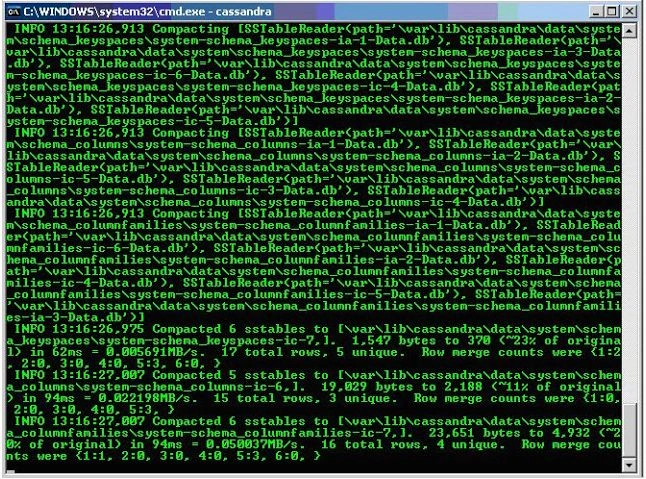
Step 1: Start the Apache Cassandra Server by running the "<Cassandra_home>\bin\Cassandra.bat" file.
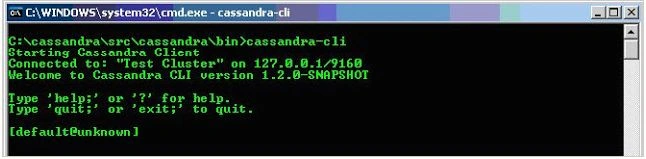
Step 2: Start the Command Line Interface from the "<Cassandra_home>\bin\cassandra-cli.bat" file.
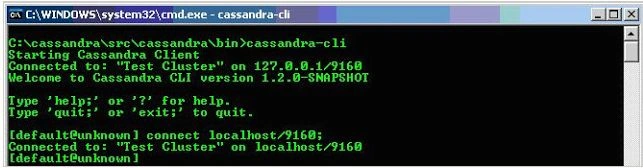
Step 3: Connect your Cassandra CLI with Cassandra Server.
Command: connect localhost/9160;
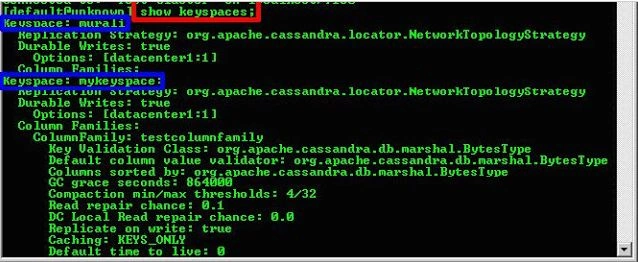
Step 4: Display existing Keyspaces
Command to display existing Keyspaces: show keyspaces;
Description: It will display all the existing keyspaces in the connected Cassandra server.
Step 5: Creating new keyspace
Command to Create a new keyspace: Create keyspace <keyspacename>;
For example: create keyspace MuraliKeySpace;

Step 6: Use existing keyspace
Command to use an existing keyspace: use <keyspacename>;
For example: use MuraliKeySpace;
Once you have connected to a keyspace, the default@unknown will be changed to:
default@<KeySpaceName>. Now, it is changed to default@MuraliKeySpace.

Step 7: Creating column family
Command to create a column family: create column family <ColumnFamilyName>;
For example: create column family users;

Join the conversation! Your thoughts help the community grow.