

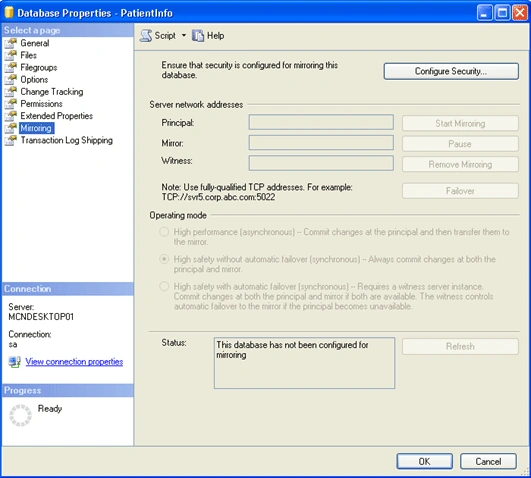
Select the principal database. Right click on the database name and select Properties and then click on "Mirroring" the following window will appear
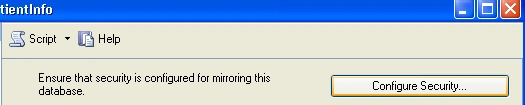
- Click on the "Configure Security. . ." button.
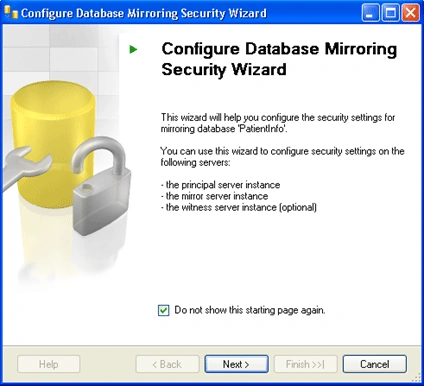
- From the following window Click Next to get started.
- Here we have the option that if we want to use a witness server or not, select yes and click Next.
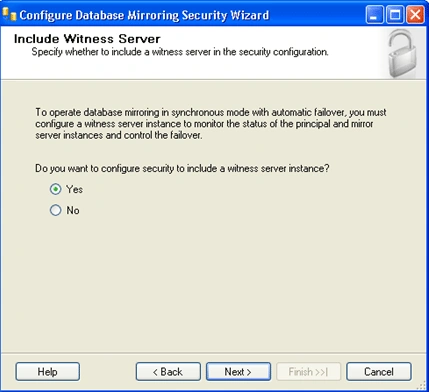
- Again select if there is a need to use a witness server and Click Next.
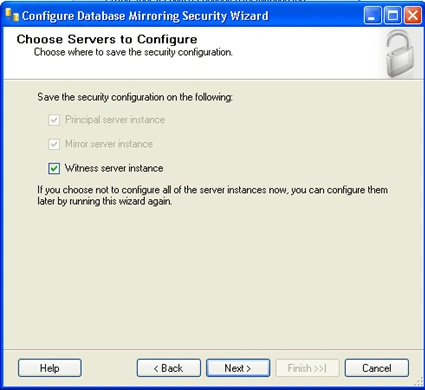
- Now First of all set up the principal Server.
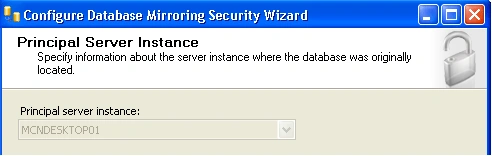
- Select the instance, Click on the checkbox if we want to encrypt the data and define the listener port, which Database Mirroring will use to communicate with the other instances in the mirror. Also select the endpoint name. Click Next.
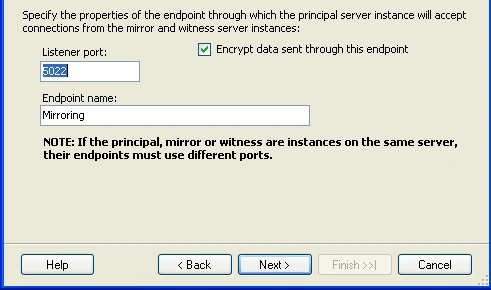
Note: We can use the default number/Name or specify our own for both: Port, Endpoint.
- Secondly, set up the Mirror Server similarly as we have done for Principal Server: select the instance; select encrypt the data; define the listener port and select the endpoint name and connect to it. After connecting successfully Click Next.
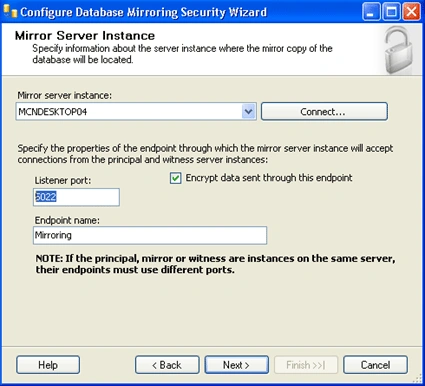
Note: We can use the default number/Name or specify our own for both: Port, Endpoint.
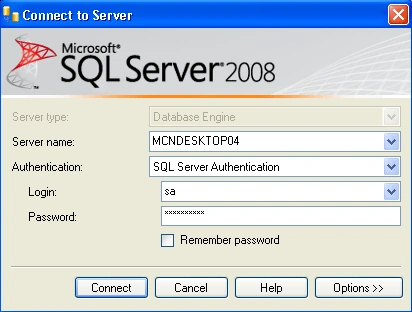
- Thirdly, it's time to set up the Witness Server as we have decided to use a witness previously. So for this also select the instance; click to encrypt the data; define the listener port and lastly select the endpoint name. Again Connect to it and Click Next.
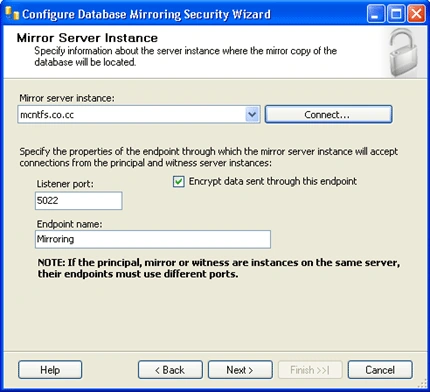
Note: For witness server also we can use the default number/Name or specify our own for both: Port, Endpoint.
- Here we can set up special security credentials if we want to do (not Compulsory). Because all of the instances for this Demo are on the same server using the same accounts, they have been left blank. So directly Click Next.
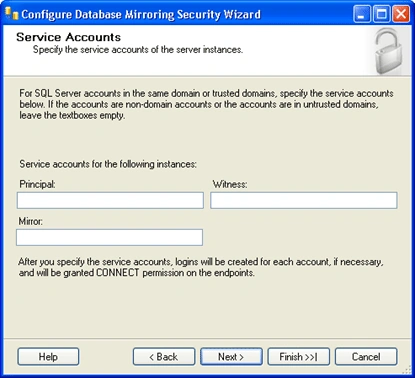
- Last but not the least Click on "Finish".
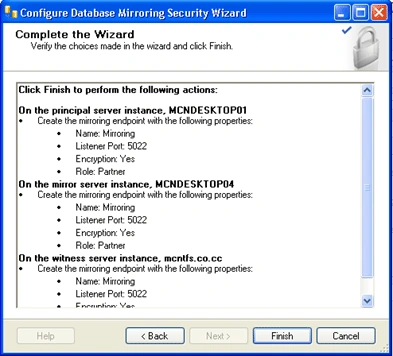
- When we click on finish the following window configure the endpoints and shows its status means that it will show whether the process was successful setup or not.
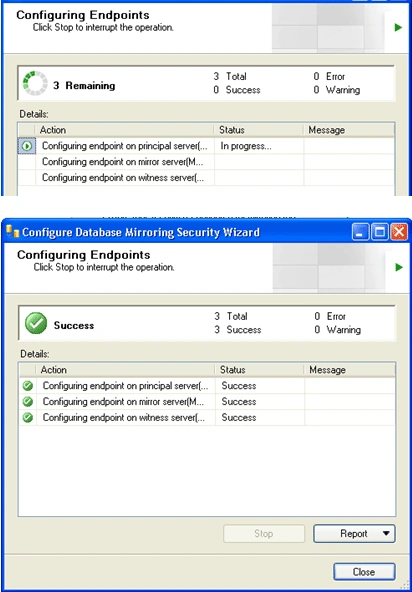
Note: We can also see the reports if we want to see.
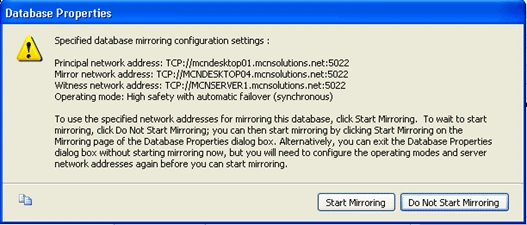
- Click on close button and we will the following window on our desktop. To begin mirroring select "Start Mirroring" and the mirroring process will begin. And if we want to make the changes than click on "Do Not Start Mirroring"
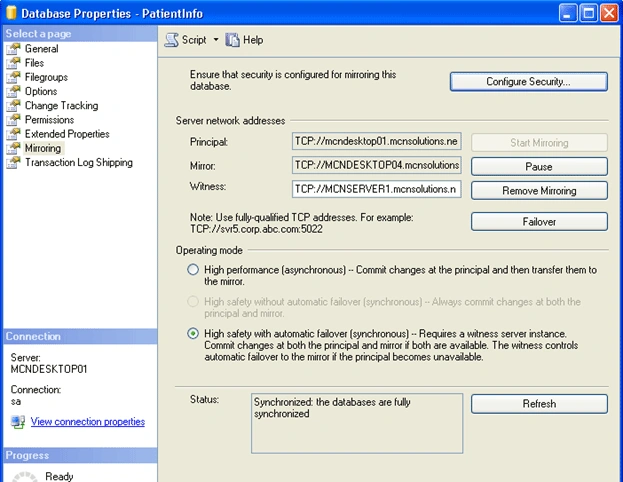
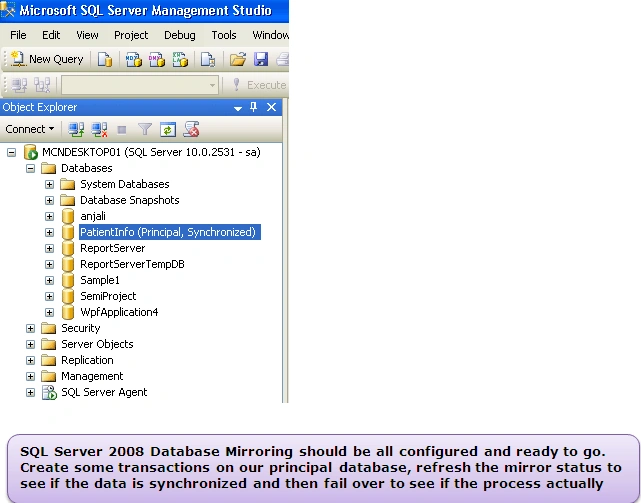
- Finally our mirroring will starts as shown below. And we can see in Status box that the data has been synchronized between the principal and the mirror.
Hadshana KamalanathanPosted Sep 3, 2018, 1:24 PM
Thank you for sharing...