

In my previous article I showed how to do CRUD operations in MVC4 using AngularJs and the Web API.
Manage Data (CRUD Operations) Using MVC4 Web API AngularJS: Manage Data (CRUD Operations) Using MVC4 Web API AngularJS.
Now in this article I will show how to do Create, Retrieve, Update and Delete (CRUD) operations in MVC4 using AngularJS and WCF REST Services.
The following are the highlights of this article:
- Create a Database. (SchoolManagement).
- Create a Table (Student).
- Create a WCF REST Service Application to do CRUD operations.
- Create a MVC 4 application and use AngularJs to consume WCF REST service.
- Perform the CRUD (Create, Read, Update & Delete) operations.
Angular
AngularJS is a structural framework for dynamic web apps. It lets you use HTML as your template language and lets you extend HTML's syntax to express your application's components clearly and succinctly. AngularJS is a JavaScript framework. Its goal is to augment browser-based applications with Model–View–Controller (MVC) capability, in an effort to make both development and testing easier.
REST
REST stands for Representational State Transfer. This is a protocol for exchanging data over a distributed environment. The main idea behind REST is that we should treat our distributed services as a resource and we should be able to use simple HTTP protocols to perform various operations on that resource.
When we talk about the database as a resource, we usually talk in terms of Create, Retrieve, Update and Delete (CRUD) operations. Now the philosophy of REST is that for a remote resource all these operations should be possible and they should be possible using simple HTTP protocols.
Now the basic CRUD operations are mapped to the HTTP protocols in the following manner:
- GET: Retrieve the required data (representation of data) from the remote resource.
- POST: Update the current representation of the data on the remote server.
- PUT: Insert new data.
- DELETE: Delete the specified data from the remote server.
Now we will go step-by-step.
The following is my data table.
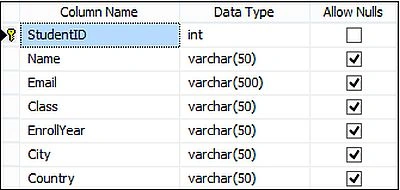
Image 1
The following is the script of my data table:
- CREATE TABLE [dbo].[Student](
- [StudentID] [int] IDENTITY(1,1) NOT NULL,
- [Name] [varchar](50) NULL,
- [Email] [varchar](500) NULL,
- [Class] [varchar](50) NULL,
- [EnrollYear] [varchar](50) NULL,
- [City] [varchar](50) NULL,
- [Country] [varchar](50) NULL,
- CONSTRAINT [PK_Student] PRIMARY KEY CLUSTERED
- (
- [StudentID] ASC
- )WITH (PAD_INDEX = OFF, STATISTICS_NORECOMPUTE = OFF, IGNORE_DUP_KEY = OFF, ALLOW_ROW_LOCKS = ON, ALLOW_PAGE_LOCKS = ON) ON [PRIMARY]
- ) ON [PRIMARY]
- GO
- SET ANSI_PADDING OFF
- GO
Open Visual Studio and select "File" -> "New" -> "Project..." then select WCF in the left Side then select WCF Service Application then click OK.
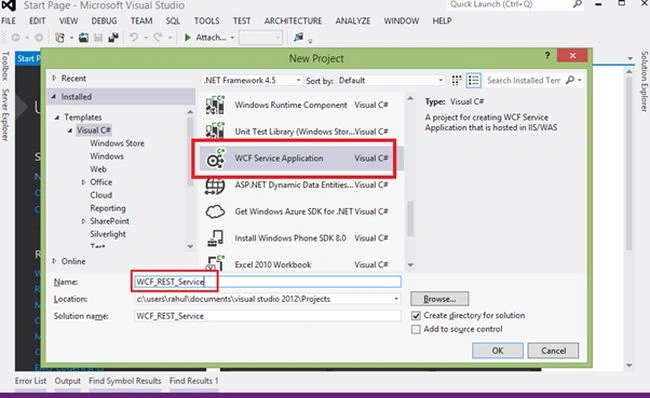
Image 2
Now delete the IService.cs and Service.cs files.
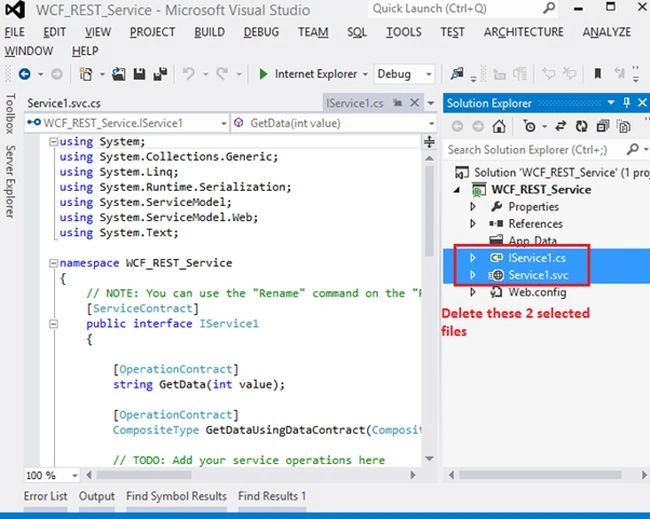
Image 3
Now right-click on the project in the Solution Explorer then select Add New Item then select WCF Service then name it as EmployeeService.
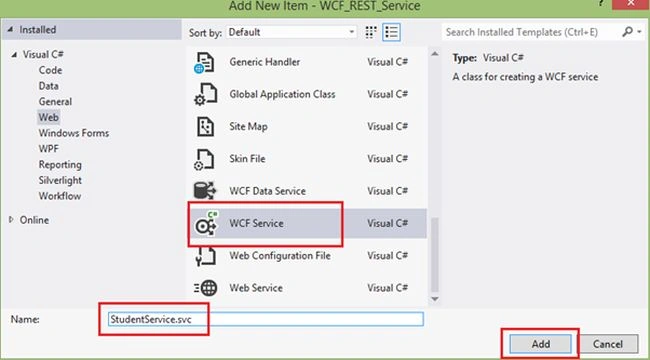
Image 4
Now I will create a Data Contract as StudentDataContract.
Right-click on the project in the Solution Explorer then select Add New Item then add a .cs file and use the following code:
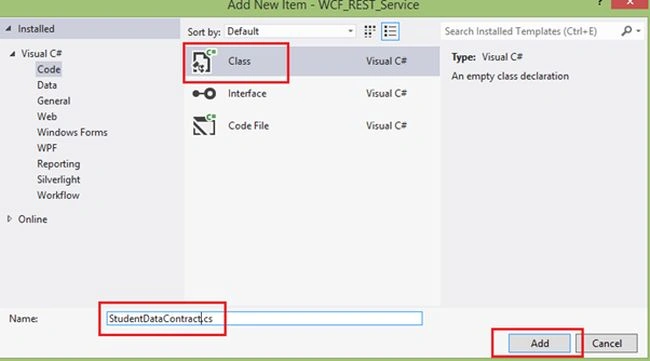
Image 5
- using System;
- using System.Collections.Generic;
- using System.Linq;
- using System.Web;
- using System.Runtime.Serialization;
- namespace WCF_REST_Service
- {
- public class StudentDataContract
- {
- [DataContract]
- public class EmployeeDataContract
- {
- [DataMember]
- public string StudentID { get; set; }
- [DataMember]
- public string Name { get; set; }
- [DataMember]
- public string Email { get; set; }
- [DataMember]
- public string Class { get; set; }
- [DataMember]
- public string EnrollYear { get; set; }
- [DataMember]
- public string City { get; set; }
- [DataMember]
- public string Country { get; set; }
- }
- }
- }
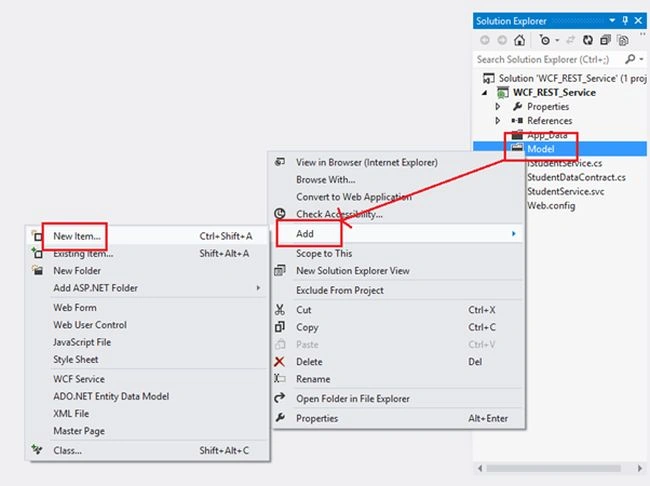
Image 6
Select the ADO.NET Entity Data Model.
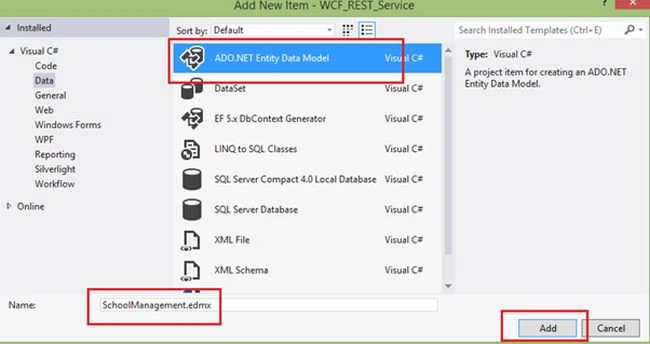
Image 7
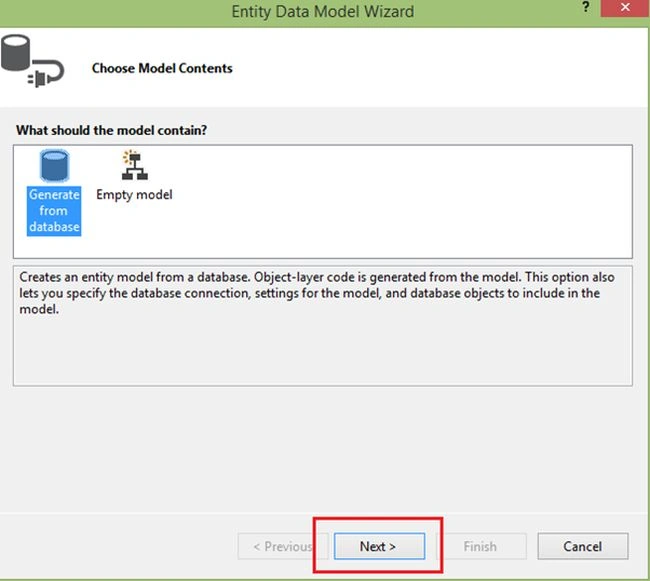
Image 8
Here click on New Connection then enter your SQL Server Details then select your database.
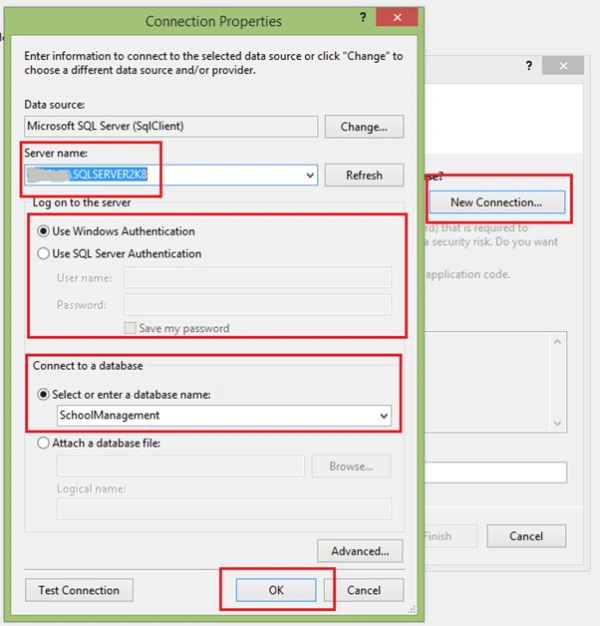
Image 9
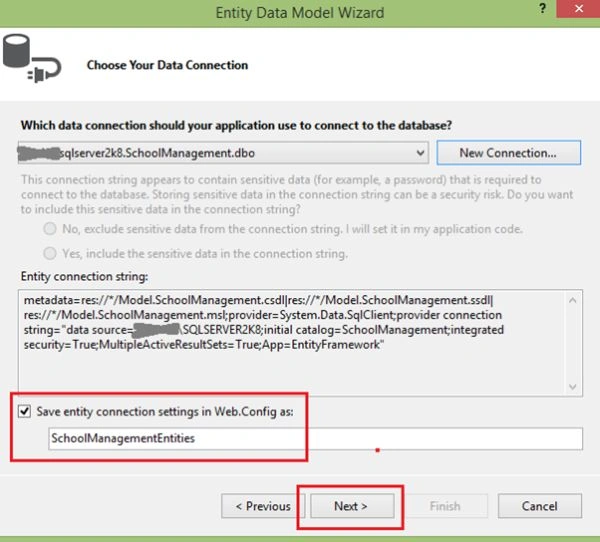
Image 10
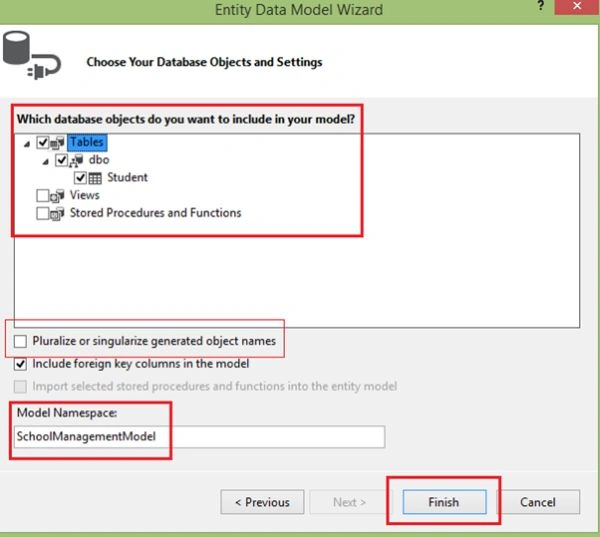
Image 11
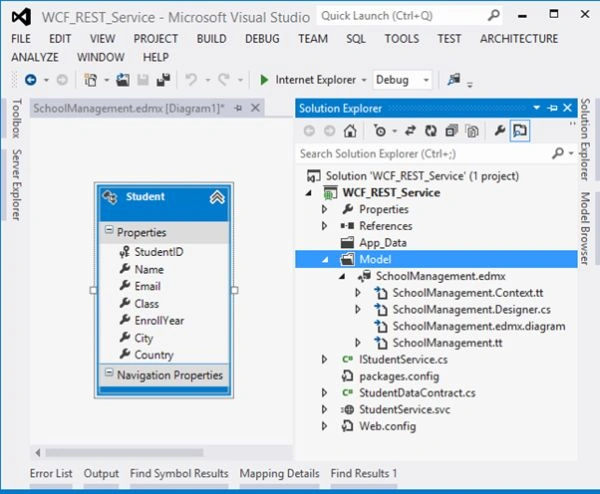
Image 12
- using System;
- using System.Collections.Generic;
- using System.Linq;
- using System.Runtime.Serialization;
- using System.ServiceModel;
- using System.ServiceModel.Web;
- using System.Text;
- namespace WCF_REST_Service
- {
- // NOTE: You can use the "Rename" command on the "Refactor" menu to change the interface name "IStudentService" in both code and config
- ile together.
- [ServiceContract]
- public interface IStudentService
- {
- [OperationContract]
- [WebInvoke(Method = "GET",
- RequestFormat = WebMessageFormat.Json,
- ResponseFormat = WebMessageFormat.Json,
- UriTemplate = "/GetAllStudent/")]
- List<StudentDataContract> GetAllStudent();
- [OperationContract]
- [WebGet(RequestFormat = WebMessageFormat.Json,
- ResponseFormat = WebMessageFormat.Json,
- UriTemplate = "/GetStudentDetails/{StudentId}")]
- StudentDataContract GetStudentDetails(string StudentId);
- [OperationContract]
- [WebInvoke(Method = "POST",
- RequestFormat = WebMessageFormat.Json,
- ResponseFormat = WebMessageFormat.Json,
- UriTemplate = "/AddNewStudent")]
- bool AddNewStudent(StudentDataContract student);
- [OperationContract]
- [WebInvoke(Method = "PUT",
- RequestFormat = WebMessageFormat.Json,
- ResponseFormat = WebMessageFormat.Json,
- UriTemplate = "/UpdateStudent")]
- void UpdateStudent(StudentDataContract contact);
- [OperationContract]
- [WebInvoke(Method = "DELETE",
- RequestFormat = WebMessageFormat.Json,
- ResponseFormat = WebMessageFormat.Json,
- UriTemplate = "DeleteStudent/{StudentId}")]
- void DeleteStudent(string StudentId);
- }
- }
Now Open StudentService.cs
- using System;
- using System.Collections.Generic;
- using System.Linq;
- using System.Runtime.Serialization;
- using System.ServiceModel;
- using System.Text;
- using WCF_REST_Service.Model;
- namespace WCF_REST_Service
- {
- // NOTE: You can use the "Rename" command on the "Refactor" menu to change the class name "StudentService" in code, svc and config file together.
- // NOTE: In order to launch WCF Test Client for testing this service, please select StudentService.svc or StudentService.svc.cs at the Solution Explorer and start debugging.
- public class StudentService : IStudentService
- {
- SchoolManagementEntities ctx;
- public StudentService()
- {
- ctx = new SchoolManagementEntities();
- }
- public List<StudentDataContract> GetAllStudent()
- {
- var query = (from a in ctx.Student
- select a).Distinct();
- List<StudentDataContract> studentList = new List<StudentDataContract>();
- query.ToList().ForEach(rec =>
- {
- studentList.Add(new StudentDataContract
- {
- StudentID = Convert.ToString(rec.StudentID),
- Name = rec.Name,
- Email = rec.Email,
- EnrollYear = rec.EnrollYear,
- Class = rec.Class,
- City = rec.City,
- Country = rec.Country
- });
- });
- return studentList;
- }
- public StudentDataContract GetStudentDetails(string StudentId)
- {
- StudentDataContract student = new StudentDataContract();
- try
- {
- int Emp_ID = Convert.ToInt32(StudentId);
- var query = (from a in ctx.Student
- where a.StudentID.Equals(Emp_ID)
- select a).Distinct().FirstOrDefault();
- student.StudentID = Convert.ToString(query.StudentID);
- student.Name = query.Name;
- student.Email = query.Email;
- student.EnrollYear = query.EnrollYear;
- student.Class = query.Class;
- student.City = query.City;
- student.Country = query.Country;
- }
- catch (Exception ex)
- {
- throw new FaultException<string>
- (ex.Message);
- }
- return student;
- }
- public bool AddNewStudent(StudentDataContract student)
- {
- try
- {
- Student std = ctx.Student.Create();
- std.Name = student.Name;
- std.Email = student.Email;
- std.Class = student.Class;
- std.EnrollYear = student.EnrollYear;
- std.City = student.City;
- std.Country = student.Country;
- ctx.Student.Add(std);
- ctx.SaveChanges();
- }
- catch (Exception ex)
- {
- throw new FaultException<string>
- (ex.Message);
- }
- return true;
- }
- public void UpdateStudent(StudentDataContract student)
- {
- try
- {
- int Stud_Id = Convert.ToInt32(student.StudentID);
- Student std = ctx.Student.Where(rec => rec.StudentID == Stud_Id).FirstOrDefault();
- std.Name = student.Name;
- std.Email = student.Email;
- std.Class = student.Class;
- std.EnrollYear = student.EnrollYear;
- std.City = student.City;
- std.Country = student.Country;
- ctx.SaveChanges();
- }
- catch (Exception ex)
- {
- throw new FaultException<string>
- (ex.Message);
- }
- }
- public void DeleteStudent(string StudentId)
- {
- try
- {
- int Stud_Id = Convert.ToInt32(StudentId);
- Student std = ctx.Student.Where(rec => rec.StudentID == Stud_Id).FirstOrDefault();
- ctx.Student.Remove(std);
- ctx.SaveChanges();
- }
- catch (Exception ex)
- {
- throw new FaultException<string>
- (ex.Message);
- }
- }
- }
- }
- <system.serviceModel>
- <behaviors>
- <serviceBehaviors>
- <behavior>
- <!-- To avoid disclosing metadata information, set the values below to false before deployment -->
- <serviceMetadata httpGetEnabled="true" httpsGetEnabled="true" />
- <!-- To receive exception details in faults for debugging purposes, set the value below to true. Set to false before deployment to avoid disclosing exception information -->
- <serviceDebug includeExceptionDetailInFaults="false" />
- </behavior>
- </serviceBehaviors>
- <endpointBehaviors>
- <behavior>
- <webHttp helpEnabled="True"/>
- </behavior>
- </endpointBehaviors>
- </behaviors>
- <protocolMapping>
- <add binding="webHttpBinding" scheme="http" />
- </protocolMapping>
- <serviceHostingEnvironment aspNetCompatibilityEnabled="true" multipleSiteBindingsEnabled="true" />
- </system.serviceModel>
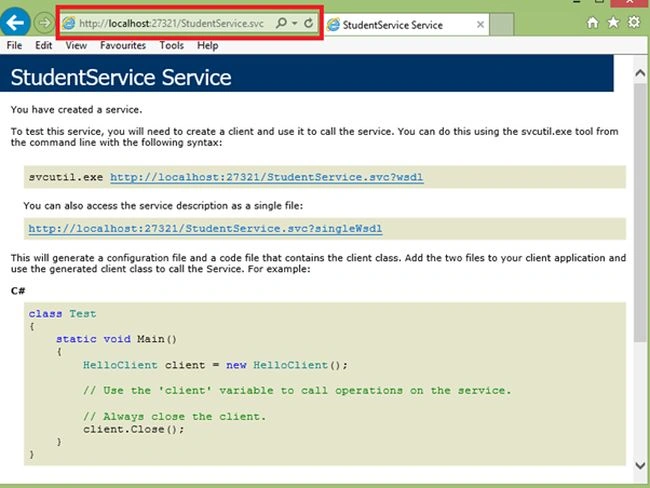
Image 13
It is now time to create a new MVC application. So right-click on your solution and add a new project as below:
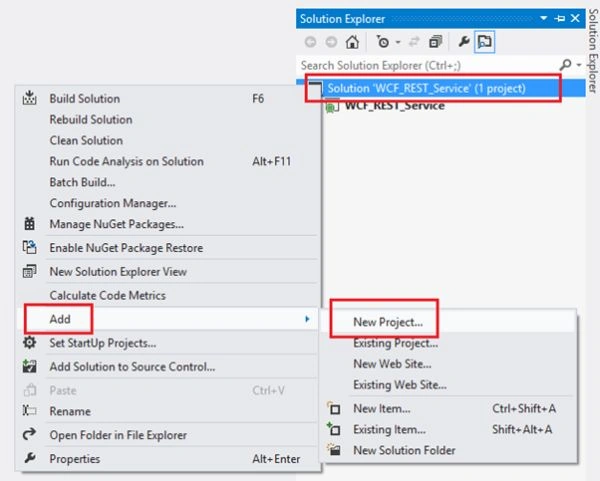
Image 14
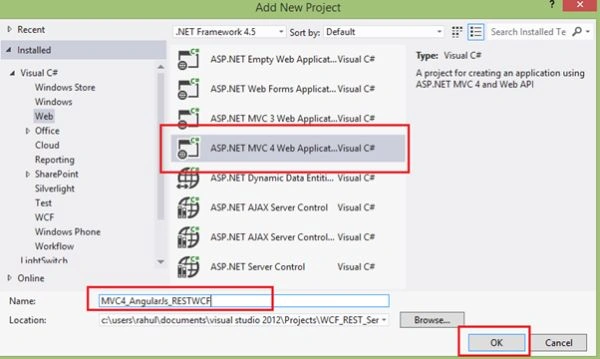
Image 15
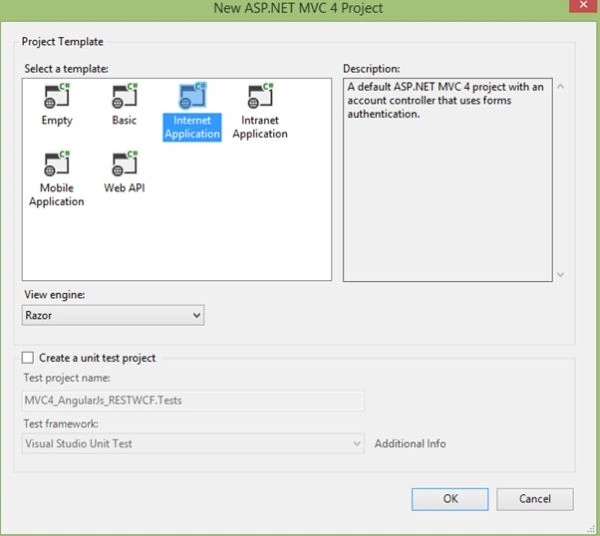
Image 16
Now, add your WCF Service URL to your MVC application. You can host your WCF service in IIS or you can run it and discover the URL locally like the following.
Right-click on your MVC project then select Add Service Reference.
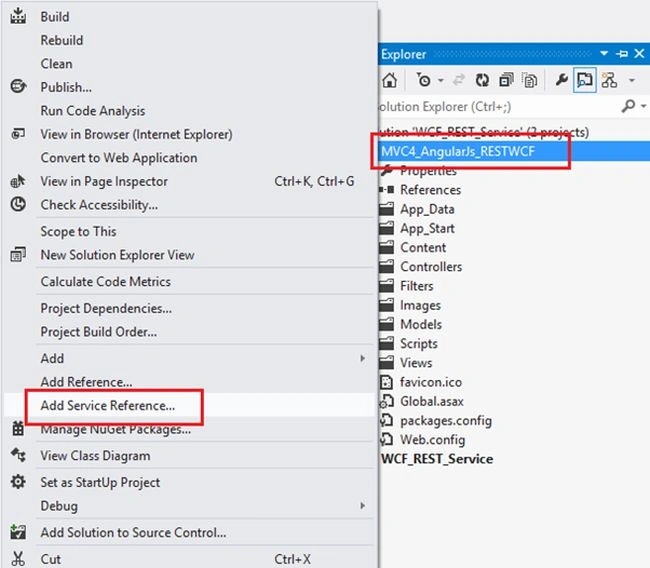
Image 17
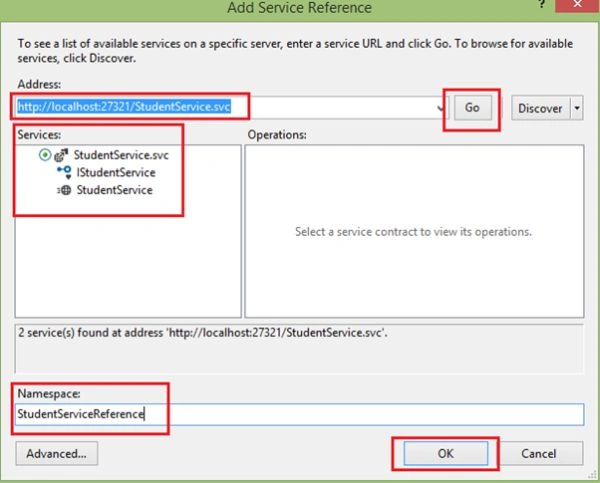
Image 18
Now it is time to add the AngularJs reference. So right-click on your MVC project name in the Solution Explorer then select Add NuGet Packages.
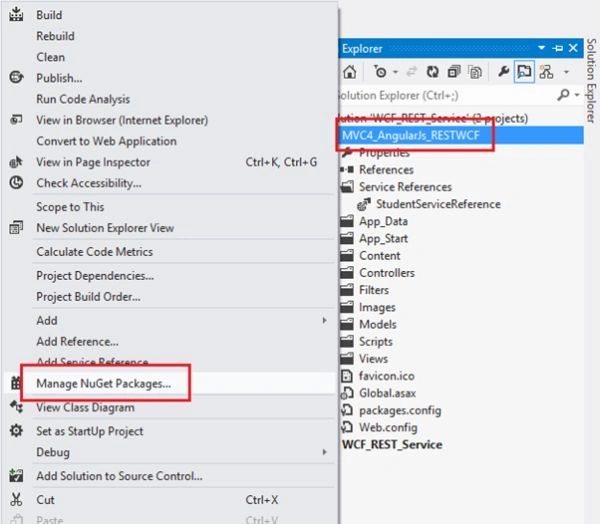
Image 19
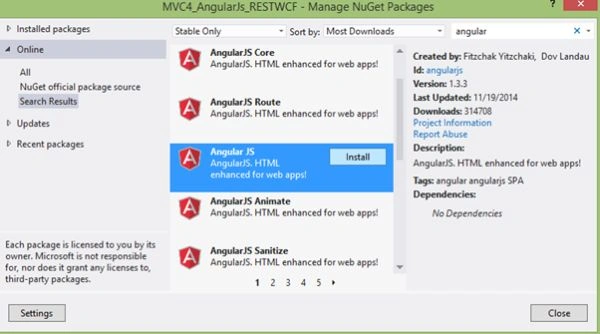
Image 20
Now create a new folder (MyScripts) under the Scripts Folder. Here add the following 3 JavaScript files:
- Modules.JS
- Controllers.JS
- Services.JS
1. Module.JS
- /// <reference path="../angular.min.js" />
- var app;
- (function () {
- app = angular.module("RESTClientModule", []);
- })();
- /// <reference path="../angular.min.js" />
- /// <reference path="Modules.js" />
- /// <reference path="Services.js" />
- app.controller("CRUD_AngularJs_RESTController", function ($scope, CRUD_AngularJs_RESTService) {
- $scope.OperType = 1;
- //1 Mean New Entry
- GetAllRecords();
- //To Get All Records
- function GetAllRecords() {
- var promiseGet = CRUD_AngularJs_RESTService.getAllStudent();
- promiseGet.then(function (pl) { $scope.Students = pl.data },
- function (errorPl) {
- $log.error('Some Error in Getting Records.', errorPl);
- });
- }
- //To Clear all input controls.
- function ClearModels() {
- $scope.OperType = 1;
- $scope.StudentID = "";
- $scope.Name = "";
- $scope.Email = "";
- $scope.Class = "";
- $scope.EnrollYear = "";
- $scope.City = "";
- $scope.Country = "";
- }
- //To Create new record and Edit an existing Record.
- $scope.save = function () {
- var Student = {
- Name: $scope.Name,
- Email: $scope.Email,
- Class: $scope.Class,
- EnrollYear: $scope.EnrollYear,
- City: $scope.City,
- Country: $scope.Country
- };
- if ($scope.OperType === 1) {
- var promisePost = CRUD_AngularJs_RESTService.post(Student);
- promisePost.then(function (pl) {
- $scope.StudentID = pl.data.StudentID;
- GetAllRecords();
- ClearModels();
- }, function (err) {
- console.log("Some error Occured" + err);
- });
- } else {
- //Edit the record
- debugger;
- Student.StudentID = $scope.StudentID;
- var promisePut = CRUD_AngularJs_RESTService.put($scope.StudentID, Student);
- promisePut.then(function (pl) {
- $scope.Message = "Student Updated Successfuly";
- GetAllRecords();
- ClearModels();
- }, function (err) {
- console.log("Some Error Occured." + err);
- });
- }
- };
- //To Get Student Detail on the Base of Student ID
- $scope.get = function (Student) {
- var promiseGetSingle = CRUD_AngularJs_RESTService.get(Student.StudentID);
- promiseGetSingle.then(function (pl) {
- var res = pl.data;
- $scope.StudentID = res.StudentID;
- $scope.Name = res.Name;
- $scope.Email = res.Email;
- $scope.Class = res.Class;
- $scope.EnrollYear = res.EnrollYear;
- $scope.City = res.City;
- $scope.Country = res.Country;
- $scope.OperType = 0;
- },
- function (errorPl) {
- console.log('Some Error in Getting Details', errorPl);
- });
- }
- //To Delete Record
- $scope.delete = function (Student) {
- var promiseDelete = CRUD_AngularJs_RESTService.delete(Student.StudentID);
- promiseDelete.then(function (pl) {
- $scope.Message = "Student Deleted Successfuly";
- GetAllRecords();
- ClearModels();
- }, function (err) {
- console.log("Some Error Occured." + err);
- });
- }
- });
Here change the WCF Service URL according to your WCF Service.
- /// <reference path="../angular.min.js" />
- /// <reference path="Modules.js" />
- app.service("CRUD_AngularJs_RESTService", function ($http) {
- //Create new record
- this.post = function (Student) {
- var request = $http({
- method: "post",
- url: "http://localhost:27321/StudentService.svc/AddNewStudent",
- data: Student
- });
- return request;
- }
- //Update the Record
- this.put = function (StudentID, Student) {
- debugger;
- var request = $http({
- method: "put",
- url: "http://localhost:27321/StudentService.svc/UpdateStudent",
- data: Student
- });
- return request;
- }
- this.getAllStudent = function () {
- return $http.get("http://localhost:27321/StudentService.svc/GetAllStudent");
- };
- //Get Single Records
- this.get = function (StudentID) {
- return $http.get("http://localhost:27321/StudentService.svc/GetStudentDetails/" + StudentID);
- }
- //Delete the Record
- this.delete = function (StudentID) {
- var request = $http({
- method: "delete",
- url: "http://localhost:27321/StudentService.svc/DeleteStudent/" + StudentID
- });
- return request;
- }
- });
Right-click on the Controller folder then select Add New.
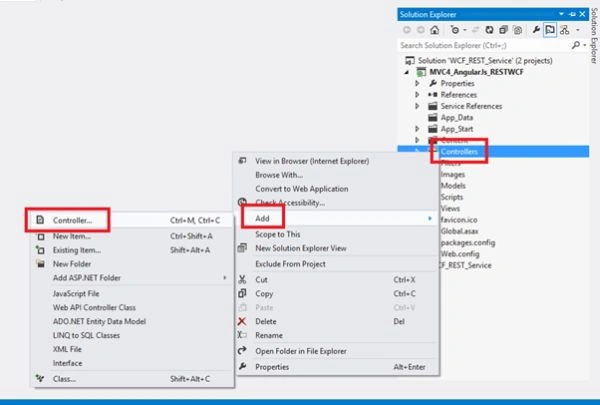
Image 21
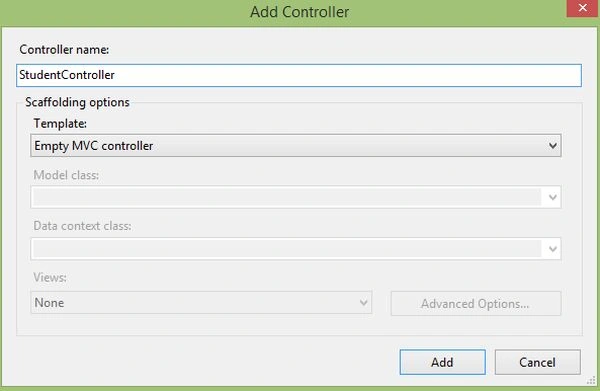
Image 22
Now add a View.
Right-click on Index then select "Add View...".
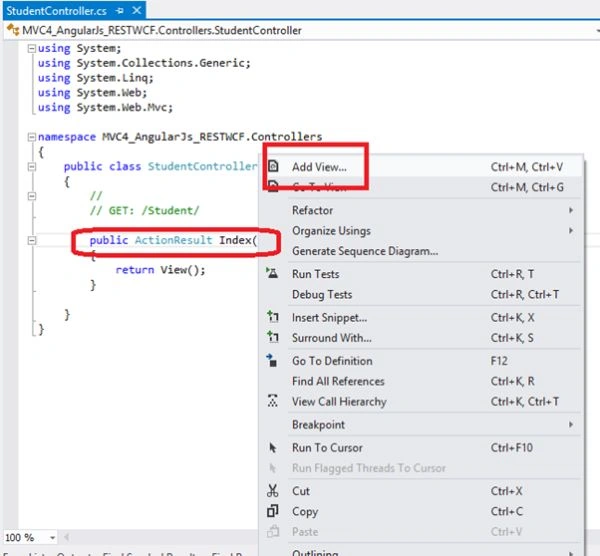
Image 23
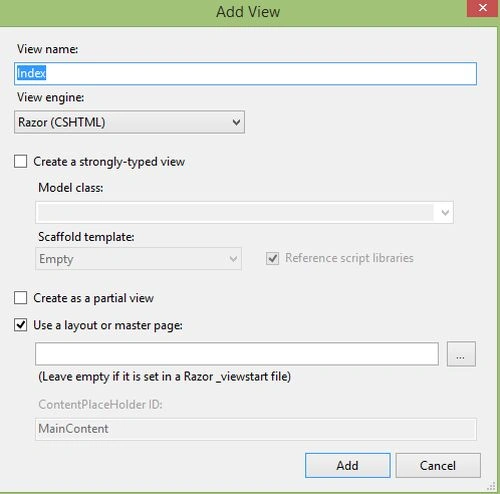
Image 24
Now Index.cshtm will be:
- <html data-ng-app="RESTClientModule">
- @{
- ViewBag.Title = "Manage Student Information using AngularJs, WCF REST & MVC4";
- }
- <body>
- <table id="tblContainer" data-ng-controller="CRUD_AngularJs_RESTController">
- <tr>
- <td>
- <table style="border: solid 2px Green; padding: 5px;">
- <tr style="height: 30px; background-color: skyblue; color: maroon;">
- <th></th>
- <th>ID</th>
- <th>Name</th>
- <th>Email</th>
- <th>Class</th>
- <th>Year</th>
- <th>City</th>
- <th>Country</th>
- <th></th>
- <th></th>
- </tr>
- <tbody data-ng-repeat="stud in Students">
- <tr>
- <td></td>
- <td><span>{{stud.StudentID}}</span></td>
- <td><span>{{stud.Name}}</span></td>
- <td><span>{{stud.Email}}</span></td>
- <td><span>{{stud.Class}}</span></td>
- <td><span>{{stud.EnrollYear}}</span></td>
- <td><span>{{stud.City}}</span></td>
- <td><span>{{stud.Country}}</span></td>
- <td>
- <input type="button" id="Edit" value="Edit" data-ng-click="get(stud)" /></td>
- <td>
- <input type="button" id="Delete" value="Delete" data-ng-click="delete(stud)" /></td>
- </tr>
- </tbody>
- </table>
- </td>
- </tr>
- <tr>
- <td>
- <div style="color: red;">{{Message}}</div>
- <table style="border: solid 4px Red; padding: 2px;">
- <tr>
- <td></td>
- <td>
- <span>Student ID</span>
- </td>
- <td>
- <input type="text" id="StudentID" readonly="readonly" data-ng-model="StudentID" />
- </td>
- </tr>
- <tr>
- <td></td>
- <td>
- <span>Student Name</span>
- </td>
- <td>
- <input type="text" id="sName" required data-ng-model="Name" />
- </td>
- </tr>
- <tr>
- <td></td>
- <td>
- <span>Email</span>
- </td>
- <td>
- <input type="text" id="sEmail" required data-ng-model="Email" />
- </td>
- </tr>
- <tr>
- <td></td>
- <td>
- <span>Class</span>
- </td>
- <td>
- <input type="text" id="sClass" required data-ng-model="Class" />
- </td>
- </tr>
- <tr>
- <td></td>
- <td>
- <span>Enrollement Year</span>
- </td>
- <td>
- <input type="text" id="sEnrollYear" required data-ng-model="EnrollYear" />
- </td>
- </tr>
- <tr>
- <td></td>
- <td>
- <span>City</span>
- </td>
- <td>
- <input type="text" id="sCity" required data-ng-model="City" />
- </td>
- </tr>
- <tr>
- <td></td>
- <td>
- <span>Country</span>
- </td>
- <td>
- <input type="text" id="sCountry" required data-ng-model="Country" />
- </td>
- </tr>
- <tr>
- <td></td>
- <td></td>
- <td>
- <input type="button" id="save" value="Save" data-ng-click="save()" />
- <input type="button" id="Clear" value="Clear" data-ng-click="clear()" />
- </td>
- </tr>
- </table>
- </td>
- </tr>
- </table>
- </body>
- </html>
- <script src="~/Scripts/angular.js"></script>
- <script src="~/Scripts/MyScripts/Modules.js"></script>
- <script src="~/Scripts/MyScripts/Services.js"></script>
- <script src="~/Scripts/MyScripts/Controllers.js"></script>
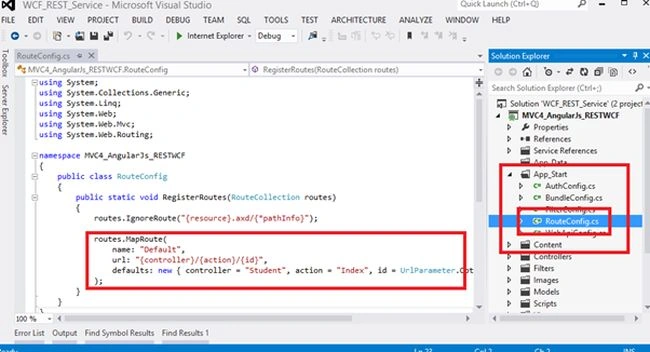
Image 25
Now run application as in the following:
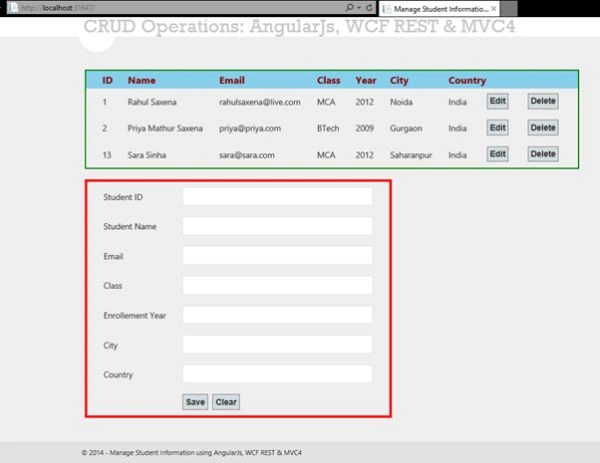
Image 26
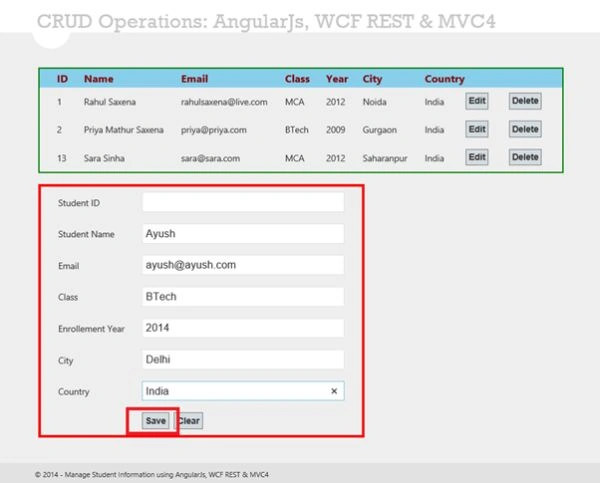
Image 27
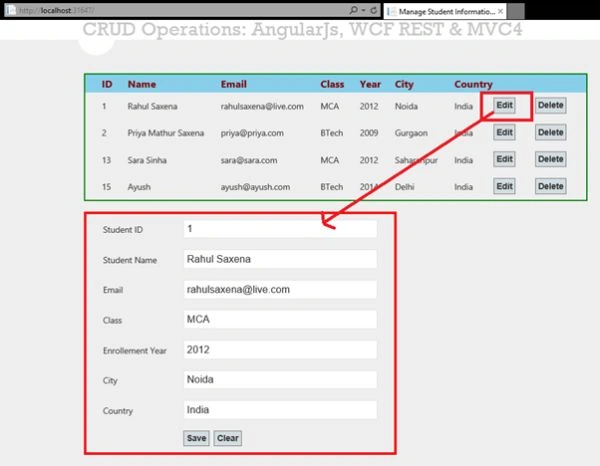
Image 28
amit jhaPosted Apr 3, 2017, 6:55 AM
Too many mistakes:1) no EmployeeService is created. StudentService is created 2) [DataContract] public class EmployeeDataContract is not present 3) we don;t have to do any changes in wb.config
prasannaPosted Apr 12, 2016, 7:30 AM
this is really helpful and working fine after doing a little change, please explain the process to host the same code in iis
prasannaPosted Apr 12, 2016, 7:28 AM
can anyone help how to host this in iis
Kent LaserbergPosted Nov 21, 2015, 11:47 AM
Could not get the application to start up
Srinivasan K KPosted Oct 27, 2015, 1:36 AM
Rahul Saxena, First of all really thanks for posting this article. In this post, we have kept service and client app in the same domain. But if we keep both in the different domain, we will meet Cors Issue. For resolving that we go either adding Global.asax file with Application_BeginRequest() or <system.webserver> in configuration file. I tried both of the approach but that is not resolved my issue. Can you help me in this!!!
Rahul Kumar SaxenaPosted Jun 3, 2015, 8:09 AM
Thanks Pradeep
PradeepPosted Jun 2, 2015, 11:10 AM
Nice article. thank you
Minh NhatPosted May 24, 2015, 3:33 AM
Execuse me ,I have done follow your tutorial but with method "POST" for add new student or edit i got error 405 (Method Not Allowed). I got same error even downloaded your project. Do you have any id to fix it?
Tarun ChatterjeePosted Apr 12, 2015, 2:15 PM
Very very helpful article brother !!!!
Rahul Kumar SaxenaPosted Apr 9, 2015, 6:13 AM
Thanks Sanju Vish
sanju vishPosted Apr 9, 2015, 2:40 AM
Nice Explaination
Rahul Kumar SaxenaPosted Feb 26, 2015, 1:00 PM
Thanks Ajeesh Kumar N...
Rahul Kumar SaxenaPosted Feb 26, 2015, 12:59 PM
Thanks Alex Dev...
Rahul Kumar SaxenaPosted Feb 26, 2015, 12:59 PM
Thanks Rohit Kesharwani...
Rahul Kumar SaxenaPosted Feb 26, 2015, 12:59 PM
Thanks N.Y Gudlanur...
Rahul Kumar SaxenaPosted Feb 26, 2015, 12:58 PM
Thanks Anil Singh...
Rahul Kumar SaxenaPosted Feb 26, 2015, 12:58 PM
Thanks Ramchand Repalle...
Ramchand RepallePosted Dec 23, 2014, 4:56 AM
good one...